Once you have configured your templates and announcement messages, you are ready to log in and launch the digital display on your in-store screen.
Things to know:
- To access the digital signage display, you can log in using owner credentials, existing kiosk credentials, or a dedicated staff profile created specifically for the display screen.
- Clients who are currently in your walk-in queue or checked in for an appointment will automatically appear on screen.
- Canceled appointments and no-shows are automatically hidden from the display.
- Navigation Controls:
- Log Out: Click your business logo on the left side of the screen
- Switch Locations: Click the location name on the right side of the screen to open the location picker
Follow these steps to launch the digital display on your screen:
- Open a web browser on your display device and go to digital-signage.mytime.com
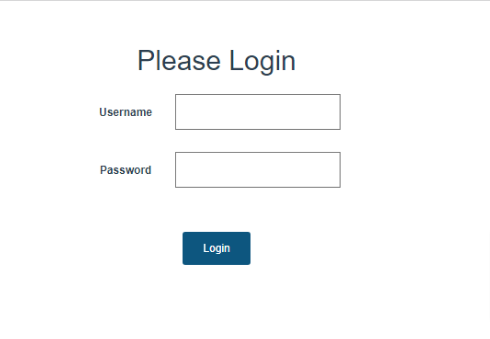
- Enter your display credentials (owner login, kiosk credentials, or a dedicated staff profile)
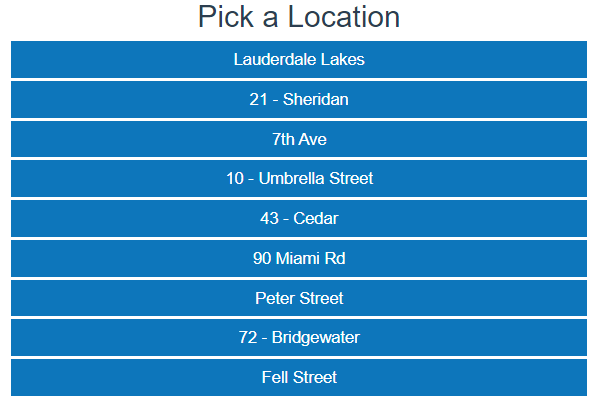
- If you manage multiple locations, select the specific location you want to display on this screen
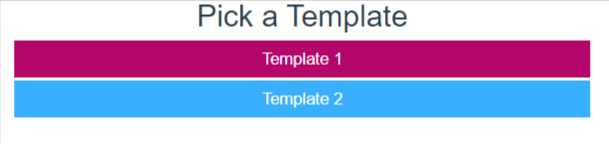
- Select the display template you created earlier under Location Setup > Signage (for example, Template 2 - Split Screen)
Once selected, your digital signage display will launch immediately. If you selected a split-screen template, scheduled promotional images and videos will cycle automatically on the right side of the screen next to your active waitlist.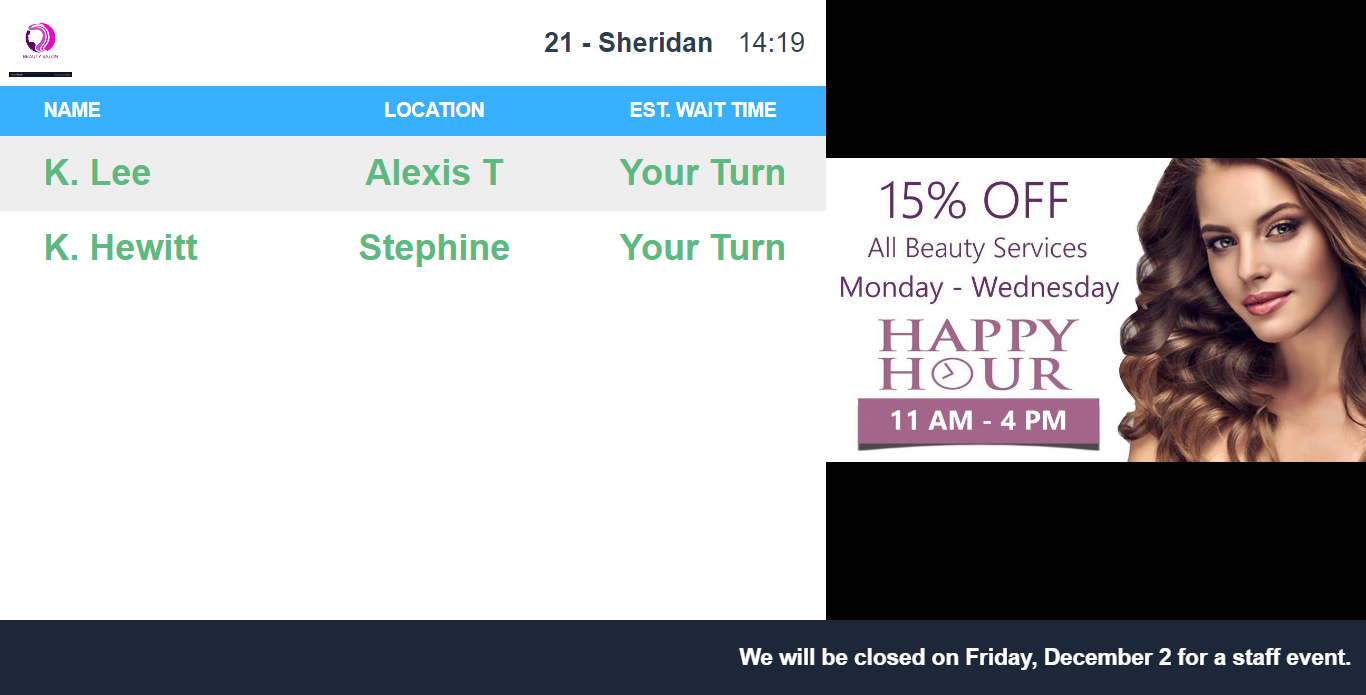
Related Articles
Digital Signage Configuration Interface
Configuring the Self Check-In Kiosk
Walk-in Waitlist/Appointment via Kiosk
Appointment Check In via Kiosk
Was this article helpful?
That’s Great!
Thank you for your feedback
Sorry! We couldn't be helpful
Thank you for your feedback
Feedback sent
We appreciate your effort and will try to fix the article