We provide the option to create a button or link that allows clients to add a specific package directly to their shopping cart for online purchases through your website. This article will guide you through the configuration process.
Things to know:
- The ability to deep link packages on the booking widget and express checkout page is governed by the "Accessing Website Tools" access control.
- To enable online purchases for packages, the following steps must be completed:
- A payment account must be set up to process card payments. If you do not have a payment account, please email processing@mytime.com for help.
- Your account must be live.
- In the package template, ensure that "Yes" is selected for the "Enable Online Purchase" setting.
- The "Buy Packages" option must be selected in the Widget Includes dropdown
- You can choose to install either a booking widget or an Express Checkout link, depending on how you want clients to book.
- Express Checkout: Clients click a “Book Now” button and are redirected to your MyTime booking page to complete their booking. Available for free on all MyTime accounts
- Booking Widget: Clients can book directly on your website without being redirected. A pop-up appears, allowing them to complete the booking seamlessly. This option is free for Premier and Enterprise subscriptions and costs $0.75 per transaction for businesses without a Premier subscription.
- If you update the booking widget configuration, you must re-embed the widget on your website for the changes to take effect. Changes made to Express Checkout are applied automatically and do not require re-embedding.
Contents:
Deep Linking Services on the Booking Widget
- Navigate to Business Setup > Website Tools
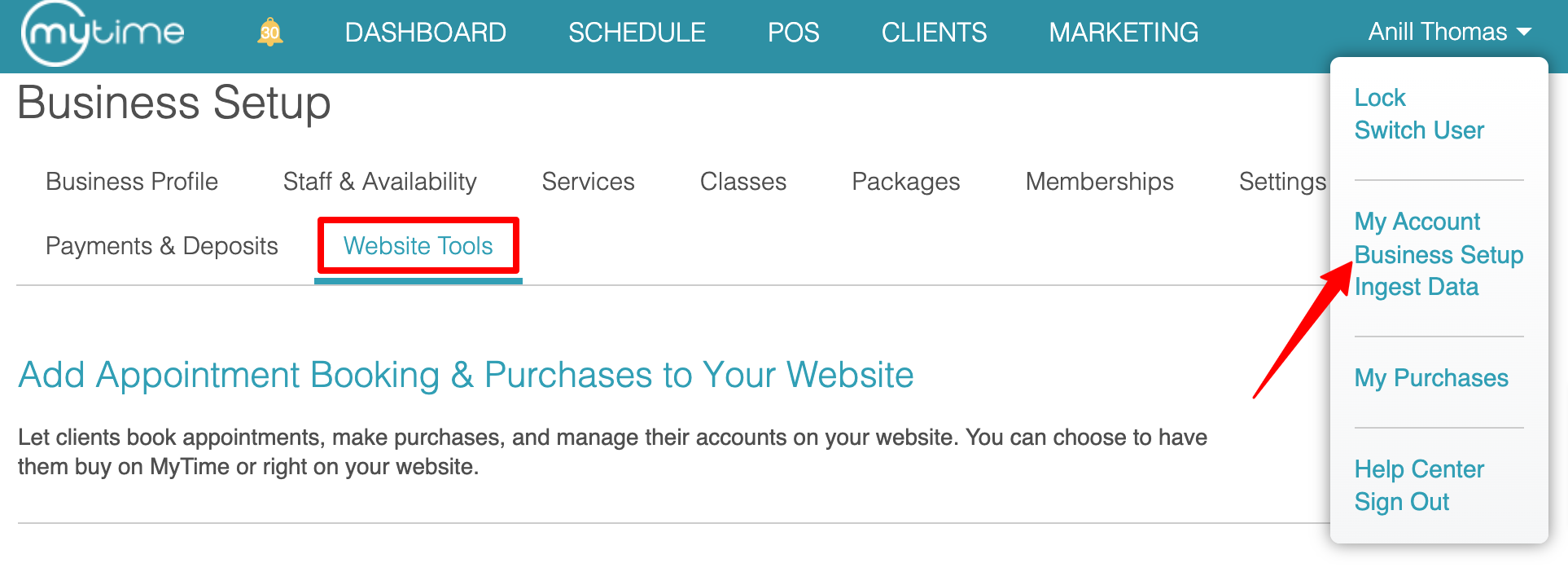
- Select the Setup button next to "Add Appointment Booking to Your Website"

- Select the Booking Widget option, then proceed to set up the widget
On the Customize Booking Theme page, set up your button and widget theme, then select next to proceed to the installation page.
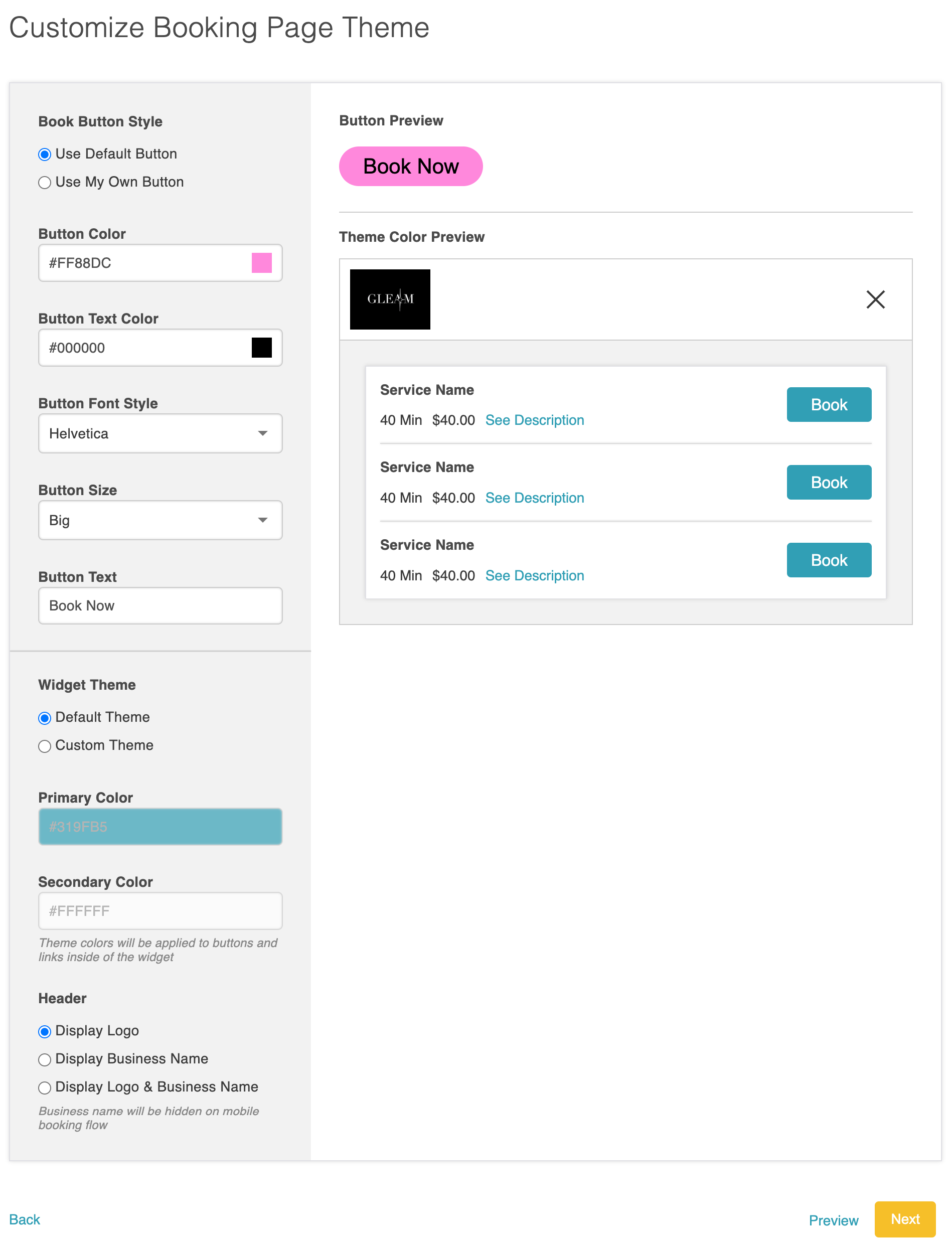
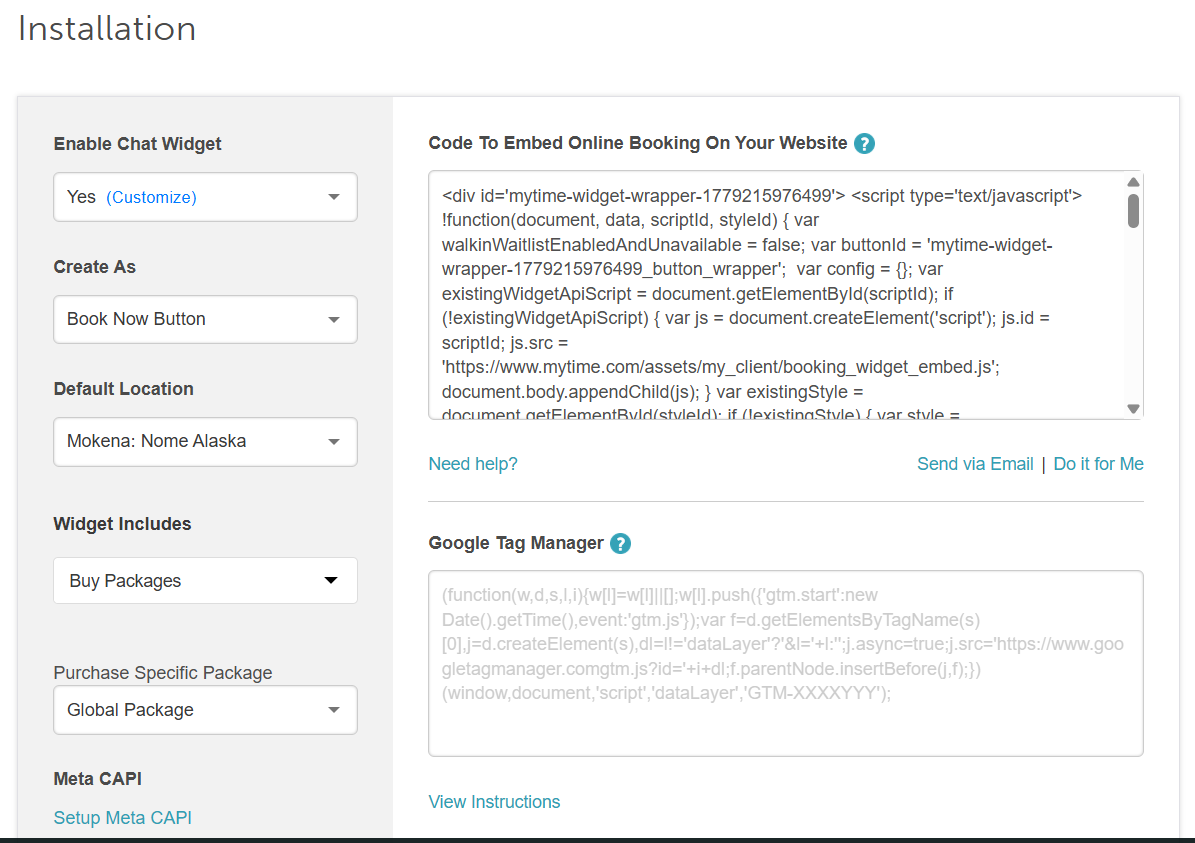
- From the Installation page:
- Enable Chat Widget: This setting controls whether the chat icon appears on your website during the booking process. Use the dropdown menu to select one of the following options:
- Yes: Displays the chat icon on your website, allowing clients to message your business directly. Once enabled, you can click "Customize" to configure settings such as your welcome message, brand colors, widget position, business hours, OTP verification, and auto-responder messages. For more details, see the chat widget configuration guide.
- No: Hides the chat icon. Clients will not be able to start a conversation with your business from the website.
- Create as:Choose how the booking flow will be displayed on your site:
- Book Now Button: Opens the booking flow in a popup modal
- Embedded iFrame: Displays the booking flow inline on your website
When Embedded iFrame is selected, two additional fields will appear, width and. Both fields default to 500 and accept either a numeric value (interpreted as pixels), or a unit-based value such as "100%" or "30em"
- Note: Access to this option is restricted to location owners and location managers.
- Default Location: Select a specific location
- Widget Includes: Select “Buy Packages”
- Purchase Specific Package: Select the desired package from the list of all of the packages available for the location
- Meta CAPI: Learn more here
- Copy the code and embed it on your website

Deep Linking Services Using the Express Checkout Link
- Select Express Checkout, then proceed to the Booking Page Settings
- On the Booking Settings page, you can customize the booking page theme, set up your button and widget themes, and choose what you'd like the layout of your button to look like
- In the left panel
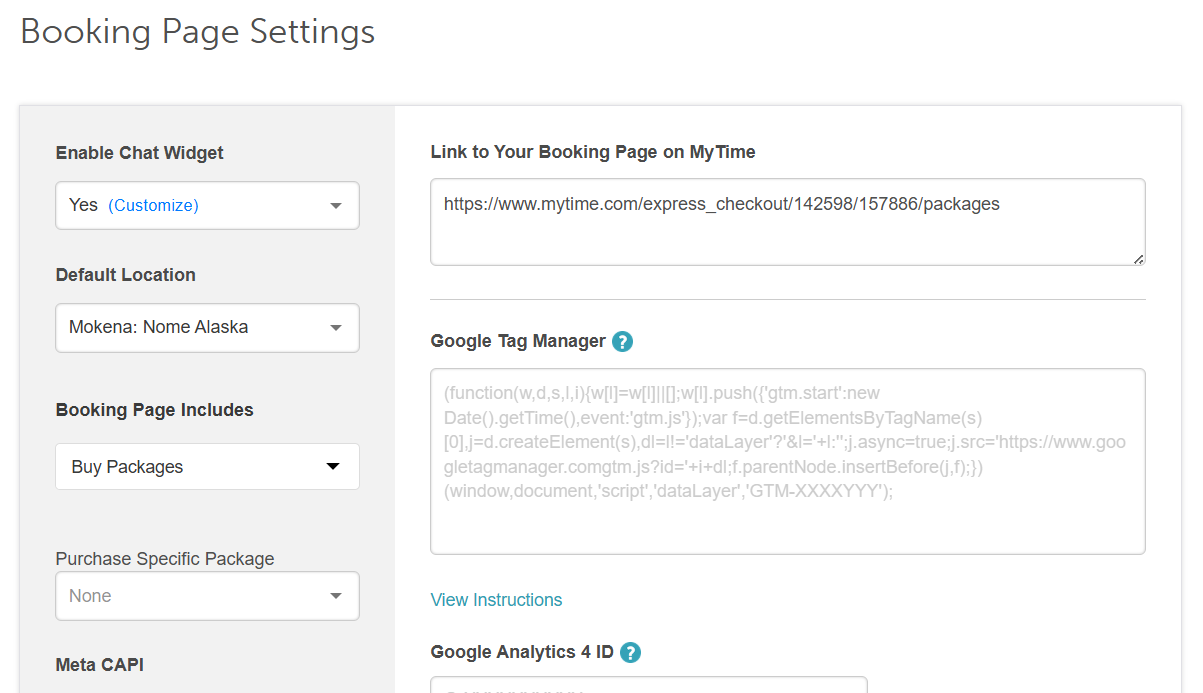
- Enable Chat Widget: This setting controls whether the chat icon appears on your website during the booking process. Use the dropdown menu to select one of the following options:
- Yes: Displays the chat icon on your website, allowing clients to message your business directly. Once enabled, you can click "Customize" to configure settings such as your welcome message, brand colors, widget position, business hours, OTP verification, and auto-responder messages. For more details, see the chat widget configuration guide.
- No: Hides the chat icon. Clients will not be able to start a conversation with your business from the website.
- Default Location: Select a specific location
- Widget Includes: Select “Buy Packages”
- Purchase Specific Package: Select the desired package from the list of all of the packages available for the location
- Meta CAPI: Learn more here
- In the left panel
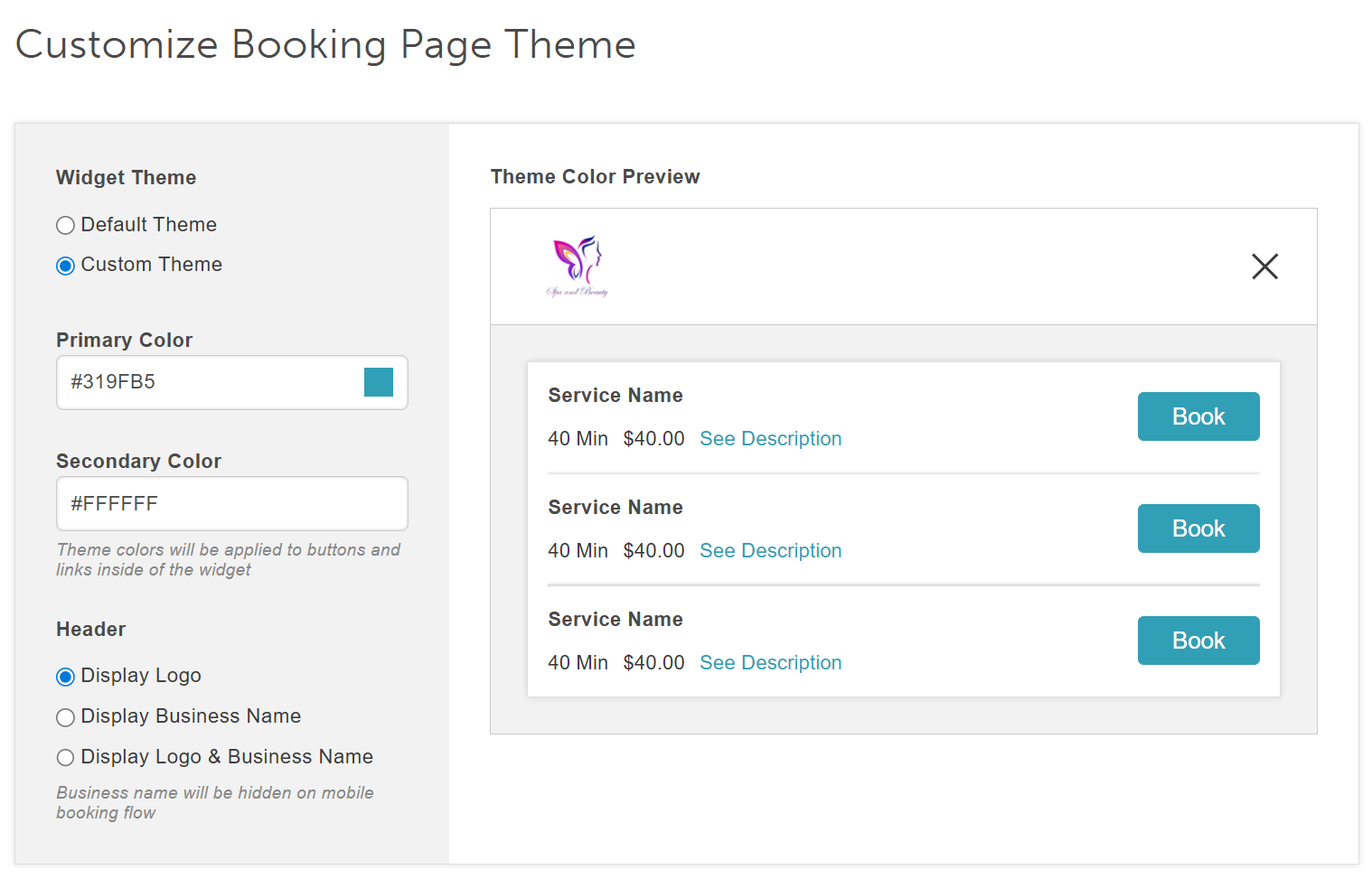
- Scroll down to the "Customize Booking Page Theme" section to adjust widget themes and specify what should be displayed in the header
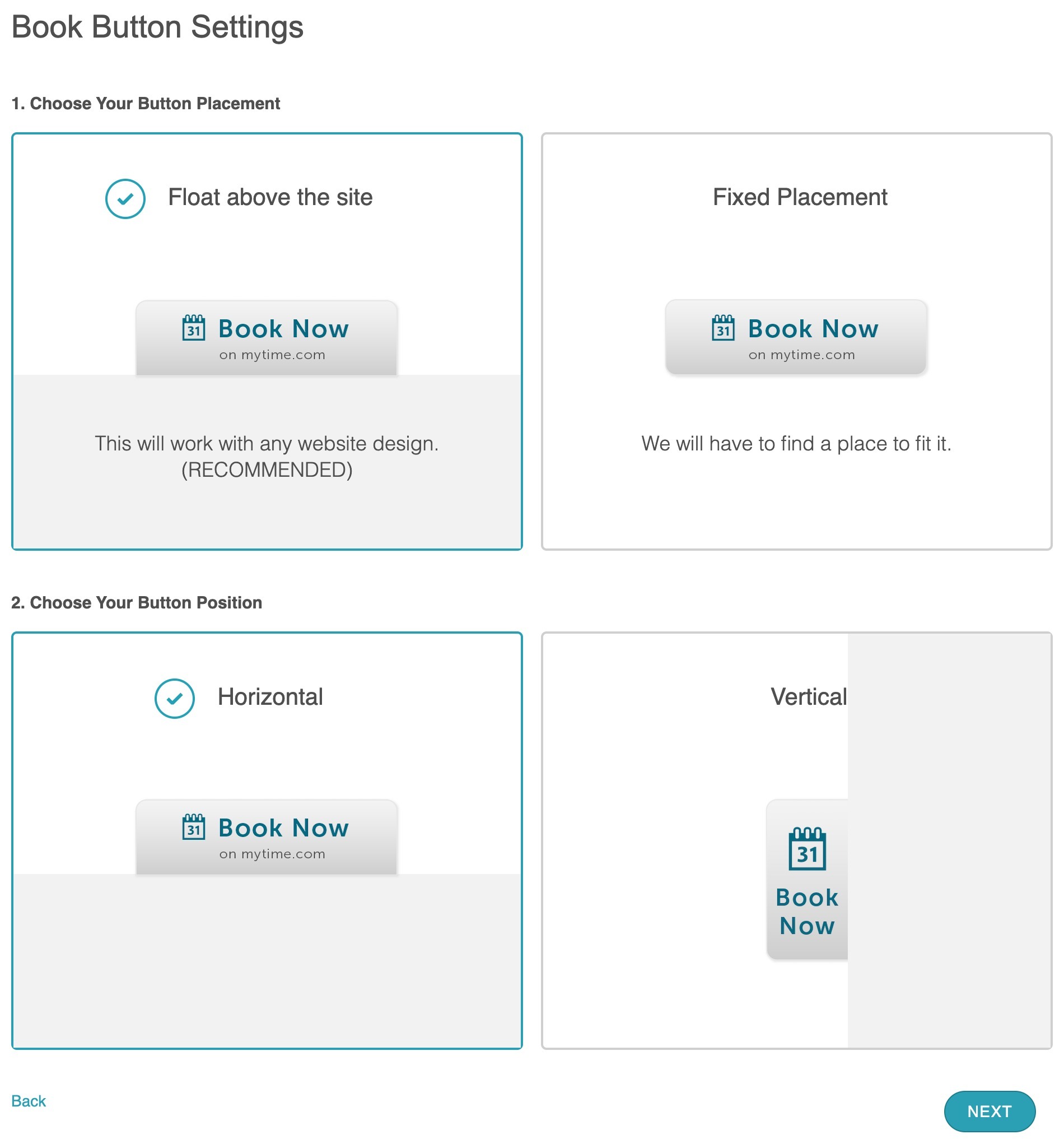
- Under the Book Button setting:
- Your button can either hover over your website or have a fixed placement.
- You can also customize its position, choosing to display it horizontally or vertically on your page.
- You will also be able to choose the default location, then select next to proceed to the installation page.
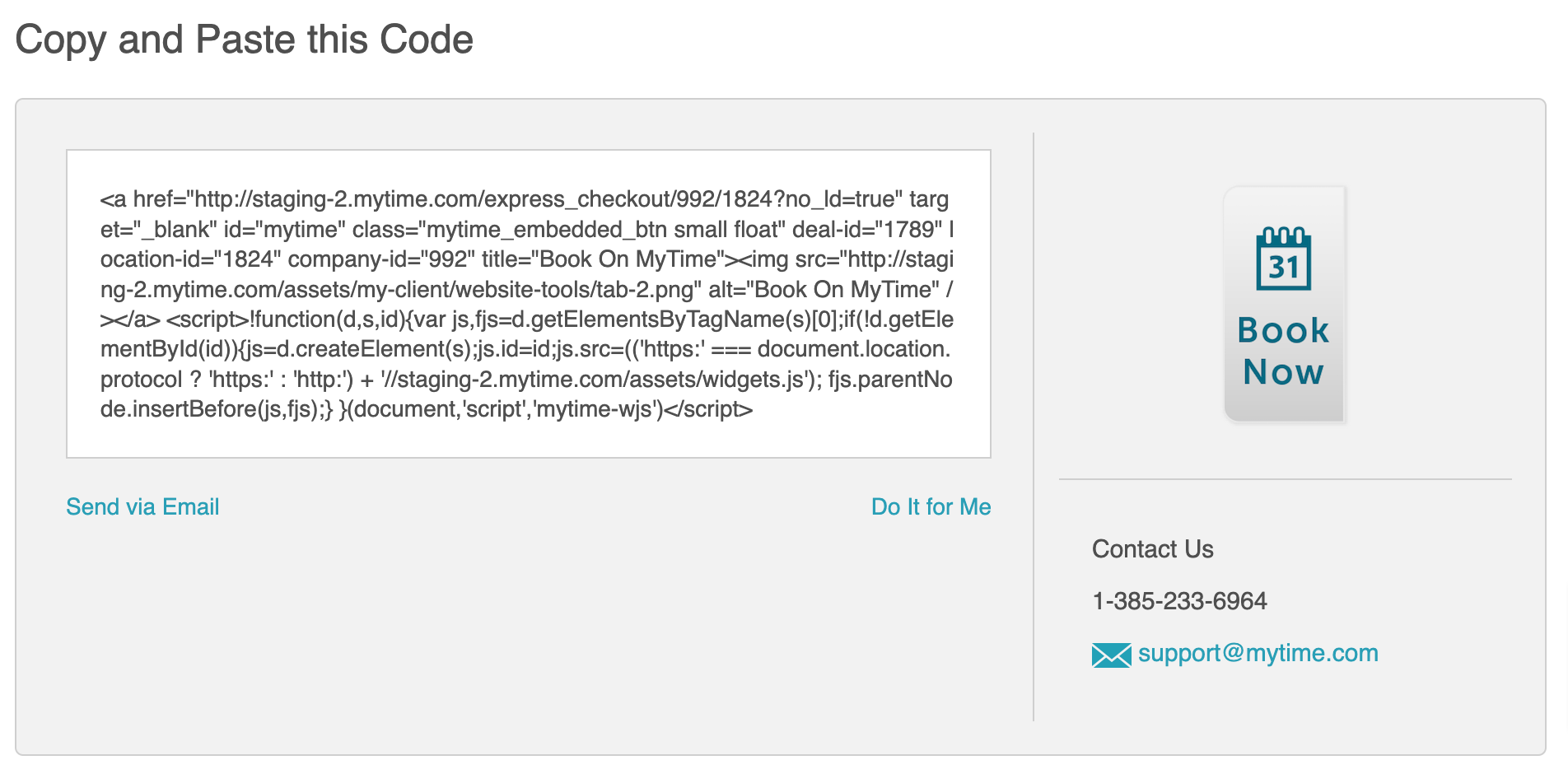
- Copy the code and embed it on your website

When your customers select the link or button on your website, the specific package will be selected by default, and it will skip right to the payment page
If you have any questions, please contact our Support Team at support@mytime.com.
Related Articles
Deep Linking Gift Cards on Booking Widget & Express Checkout Page
Deep Linking Classes on the Booking Widget & Express Checkout
Deep Linking Memberships on the Booking Widget & Express Checkout Page
Deep Linking Services on the Booking Widget & Express Checkout Page
Selling Packages on the Booking Widget
Purchasing Client Packages Online
Was this article helpful?
That’s Great!
Thank you for your feedback
Sorry! We couldn't be helpful
Thank you for your feedback
Feedback sent
We appreciate your effort and will try to fix the article