This article will guide you through the steps of canceling classes/events.
Things to know:
- The ability to cancel class sessions/events is controlled by the 'Schedule Classes/Events' access control setting.
- Enrollment vs. Class Cancellations
- Attendee Cancellation: Canceling an individual attendee's enrollment removes only that person from the roster. It does not affect the rest of the class.
- Session Cancellation: Canceling an entire class session affects all enrolled attendees and removes the session from the schedule entirely. Once canceled, the session cannot be restored to the schedule.
- Once a class session is canceled, it is no longer available on the schedule.
- Automated Notifications: Enrolled attendees are automatically notified of a session cancellation if you have the Class Canceled By Business automated notification turned on.
- Canceling a client's enrollment does not automatically enroll the next client from the waitlist.
- Employees do not earn commission on class cancellation fees.
Cancellation Fees & Deposits: Once a cancellation policy is configured, it applies to both new and existing class enrollments. Clients are responsible for any cancellation fee configured by the business when they cancel outside the allowed cancellation window.
- No Automated Refunds: Canceling an attendee's enrollment does not automatically issue a refund. If a refund is due, you must process it manually through the Point of Sale (POS) refund workflow.
- Cancellations WITH a Deposit: If a client paid a deposit and cancels, the system automatically converts that prepaid deposit into the cancellation fee.
- Note: If Cancellation Fees Tax is enabled for your location, the configured tax rate is dynamically applied to that amount. The total amount previously paid by the client remains entirely unchanged—no additional charges or automatic refunds are processed.
- Note: If Cancellation Fees Tax is enabled for your location, the configured tax rate is dynamically applied to that amount. The total amount previously paid by the client remains entirely unchanged—no additional charges or automatic refunds are processed.
- Cancellations WITHOUT a Deposit: If a staff member waived or skipped the deposit when enrolling the client, no cancellation fee will be charged if that enrollment is later canceled.
Ticket Behavior When Canceling a Class Session
- For classes booked online and canceled in-store:
- If a cancellation fee is configured, the client's card on file is automatically charged.
- The original class ticket is automatically voided.
- The system creates two tickets:
- A voided ticket for the original class session, which can be viewed from the client's profile.
- A closed ticket for the cancellation fee, which appears in the Close Ticket report.
- For classes booked in-store and canceled in-store:
- If a cancellation fee is configured, you are redirected to POS to manually collect the payment using the client's card on file or another payment method.
- No ticket is created for the canceled class session itself.
- A ticket for the cancellation fee is created and can be viewed in the Close Ticket report.
- For classes booked online and canceled in-store:
Contents:
Canceling an Attendee Enrollment
To cancel an attendee enrollment:
1. Go to the schedule
2. Filter by day view, desired location, date and staff

3. Locate and select the scheduled class
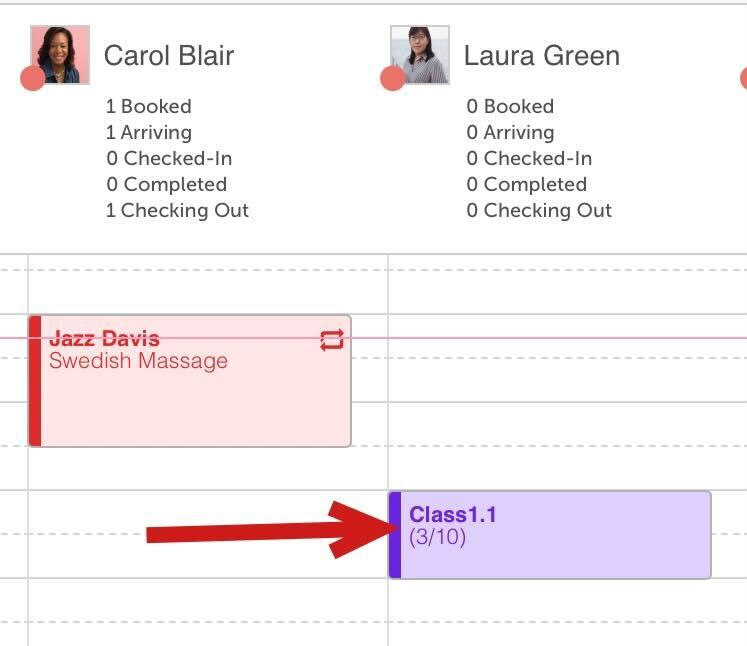
4. Select "View Attendees"

5. Locate and select the attendee whose attendance you wish to cancel
6. Select the "Edit Session Enrollment" icon

7. Select "Cancel Booking" at the bottom of the screen

8. The "Cancel this Booking" confirmation screen will appear
9. Select "Cancel Booking"

10. If a cancellation fee is set up, you will be asked to confirm if you want the fee to be charged

11. If the "Charge Fee" option is selected, you will be directed to the POS > New Ticket screen to take payment
12. Proceed to take payment

13. Add the payment method provided by the client, and close the ticket

14. Once the ticket is closed, a confirmation bar will be displayed at the top of the screen. Select "View Roster"

15. The "Cancellation Fee Charged" modal will appear, select "OK"

16. The roster will be updated, with the attendee greyed out, and "Canceled" displayed under the check-in column.
17. By selecting the "Don't Charge" option, classes will be canceled immediately for the attendee.

Canceling a Class Session
To cancel a class session:
1. Go to the schedule

2. Locate and select the scheduled class

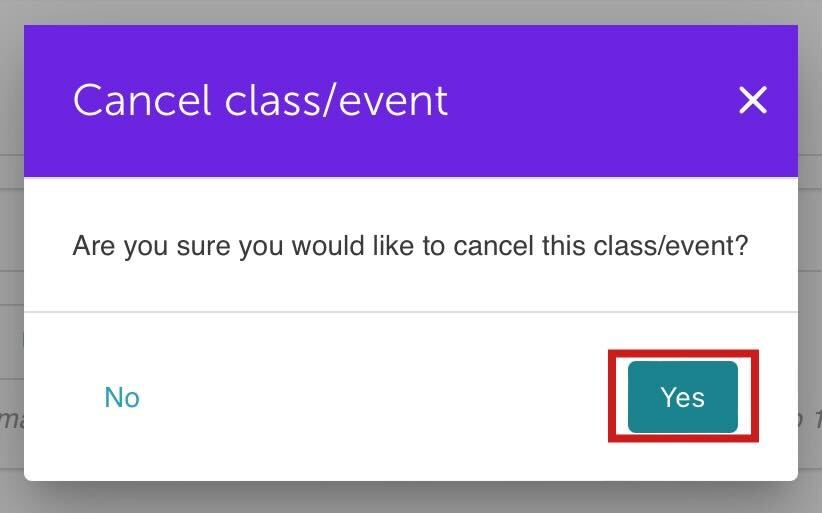
3. Select "Cancel Event" at the bottom of the modal

4. Select "Yes" on the modal
If you have any questions, please contact our Support Team at support@mytime.com
Related Articles:
Canceling Classes on Scheduler App
Was this article helpful?
That’s Great!
Thank you for your feedback
Sorry! We couldn't be helpful
Thank you for your feedback
Feedback sent
We appreciate your effort and will try to fix the article