MyTime allows you to send marketing campaigns via SMS. SMS marketing is a powerful promotional tool, but overuse may lead clients to unsubscribe. Additional SMS charges apply for message overages, so it is recommended to use this feature thoughtfully.
Things to know:
- You are responsible for complying with all SMS marketing regulations, including the Telephone Consumer Protection Act (TCPA).
- By using this feature, you agree to release and indemnify MyTime from any claims, penalties, or damages arising from your use of SMS marketing.
- SMS Segments & Billing
- SMS billing is calculated per segment, not per message.
- Each segment is billed individually
- Each recipient receives their own copy of the message
- Total cost = segments × recipients × rate. Example: 2-segment message sent to 50 recipients = 100 billable segments
- Learn more about SMS Segments & Billing here
- No images allowed in SMS campaigns
- Messages must comply with carrier rules and regulations
- Delivery depends on opt-in status and recipient eligibility.
- Clients may appear twice if receiving both SMS and email
- Each delivery method is tracked separately
- Total recipient count is not duplicated
- In Marketing > Campaigns > Sent, campaign status is displayed using color codes:
- Orange: In progress
- Green: Successfully delivered
- Red: Completed with failures
- SMS campaign messages will appear in the client’s Communicator chat as light grey (ghost text).
Contents:
Configure Opt-In Automated Message
Sending an SMS Marketing Campaign
Opt-In & Opt-Out Requirements
- Clients must opt in before receiving SMS marketing messages.
- Opt-In Process
- When the "Client Marketing SMS Opt-In" template is enabled and a client is created with the Marketing SMS checkbox selected, the client receives a confirmation SMS.
- Clients must reply YES to confirm subscription
- Clients will not receive marketing campaigns until opt-in is completed
- Re-Opt-In Requirements
- The opt-in process must restart if:
- The client’s phone number is updated
- The Marketing SMS checkbox is changed
- The client previously unsubscribed
- When this occurs, the system automatically resends the opt-in message to the updated number.
- Re-send Request Behavior
- When “Resend Request” is selected on a client profile, the system will resend the opt-in message only if:
- Marketing SMS Opt-In is enabled for the company
- The client has Marketing SMS enabled
- The client has not already completed opt-in
- Opt-Out Behavior
- Clients can unsubscribe by replying STOP, UNSUBSCRIBE, or UNSTOP (carrier dependent).
- Once unsubscribed, the client will no longer receive SMS marketing messages.
Quiet Hours
- SMS campaigns can only be sent between 8:00 AM and 9:00 PM in the recipient’s local time zone.
- MyTime automatically enforces this restriction.
Campaign Content Requirements
SMS campaigns must include:
- Business/Program Name
- STOP instructions
- HELP instructions
- Message frequency
- Message and data rate disclaimer
- Terms & Privacy Policy link
- Prohibited content includes:
- Violence or illegal activity
- Adult content
- Profanity or hate speech
- Illegal or illicit drugs
Configure Opt-In Automated Message
- Navigate to Marketing > Automated Messages > Transactional
- Locate the "Client Marketing SMS Opt-In" template

- Hover over the template, then click “View
- Make any desired changes to the template, then click “Save.”
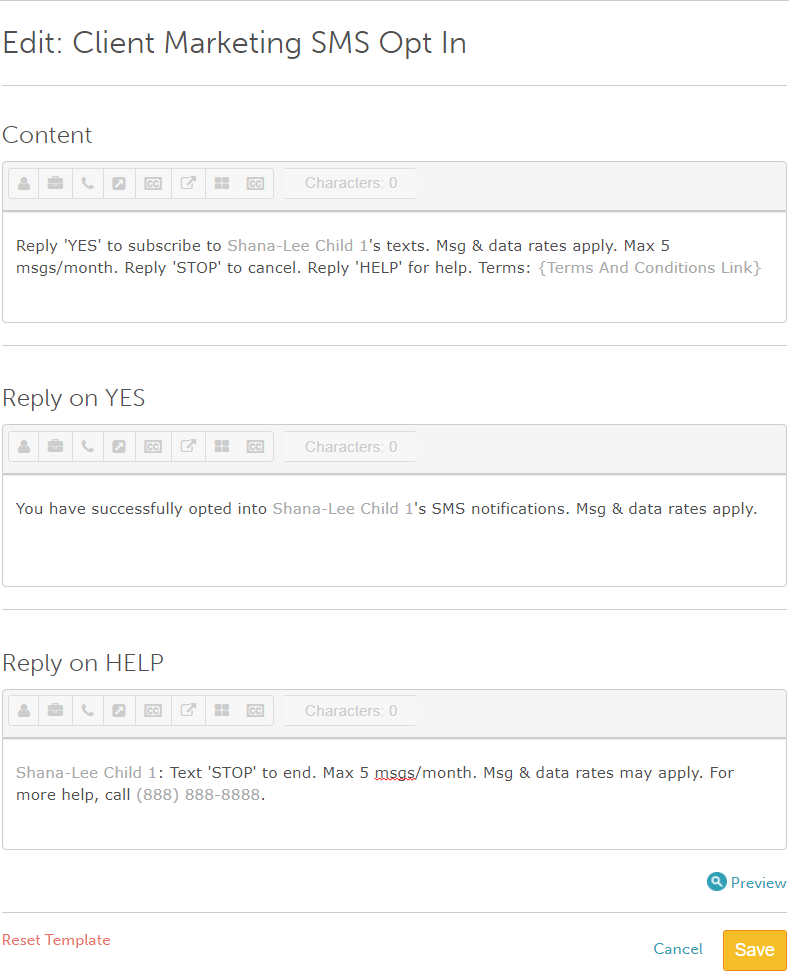
- After saving, hover over the template on the Automated Messages tab and click “Activate”
Sending an SMS Marketing Campaign
- Navigate to Marketing > Campaigns > Text Message
- Create or select a campaign template
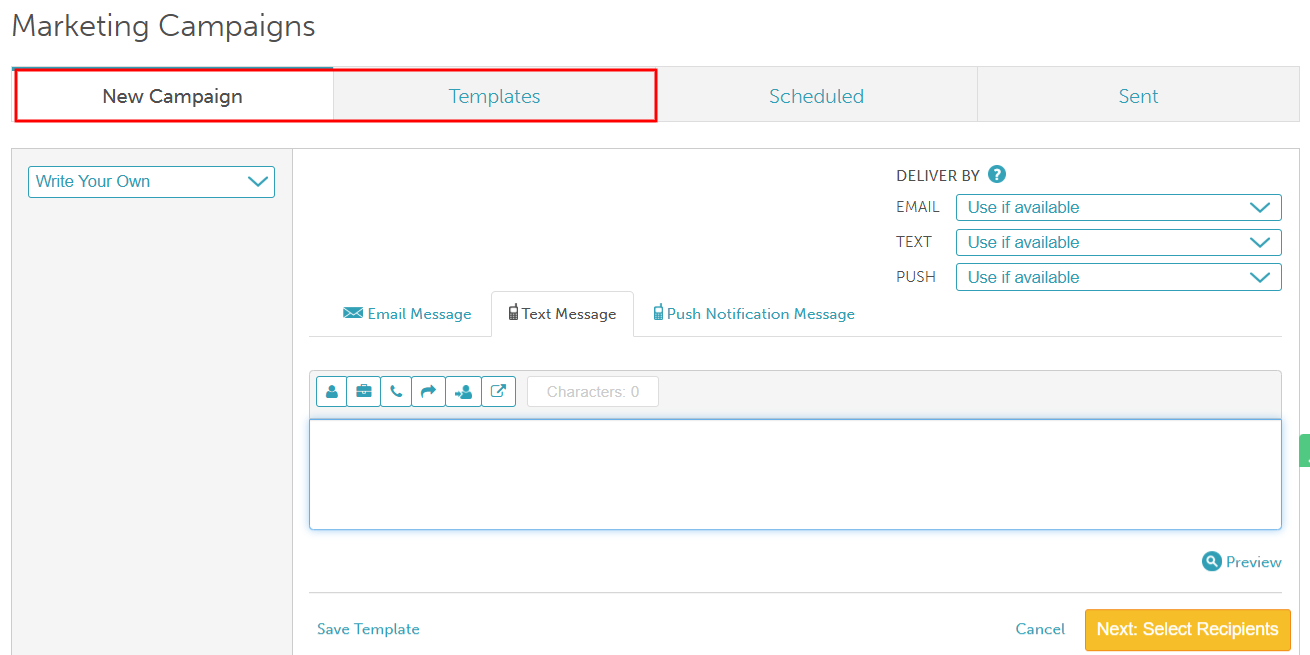
- Configure delivery using Deliver By:
- Use if Available: The selected method will be used for delivery if available (e.g., the recipient has the required contact information and has not opted out).
- Never Use: The selected method will not be used under any circumstances, even if no other delivery options are available.
- Click Next: Select Recipients
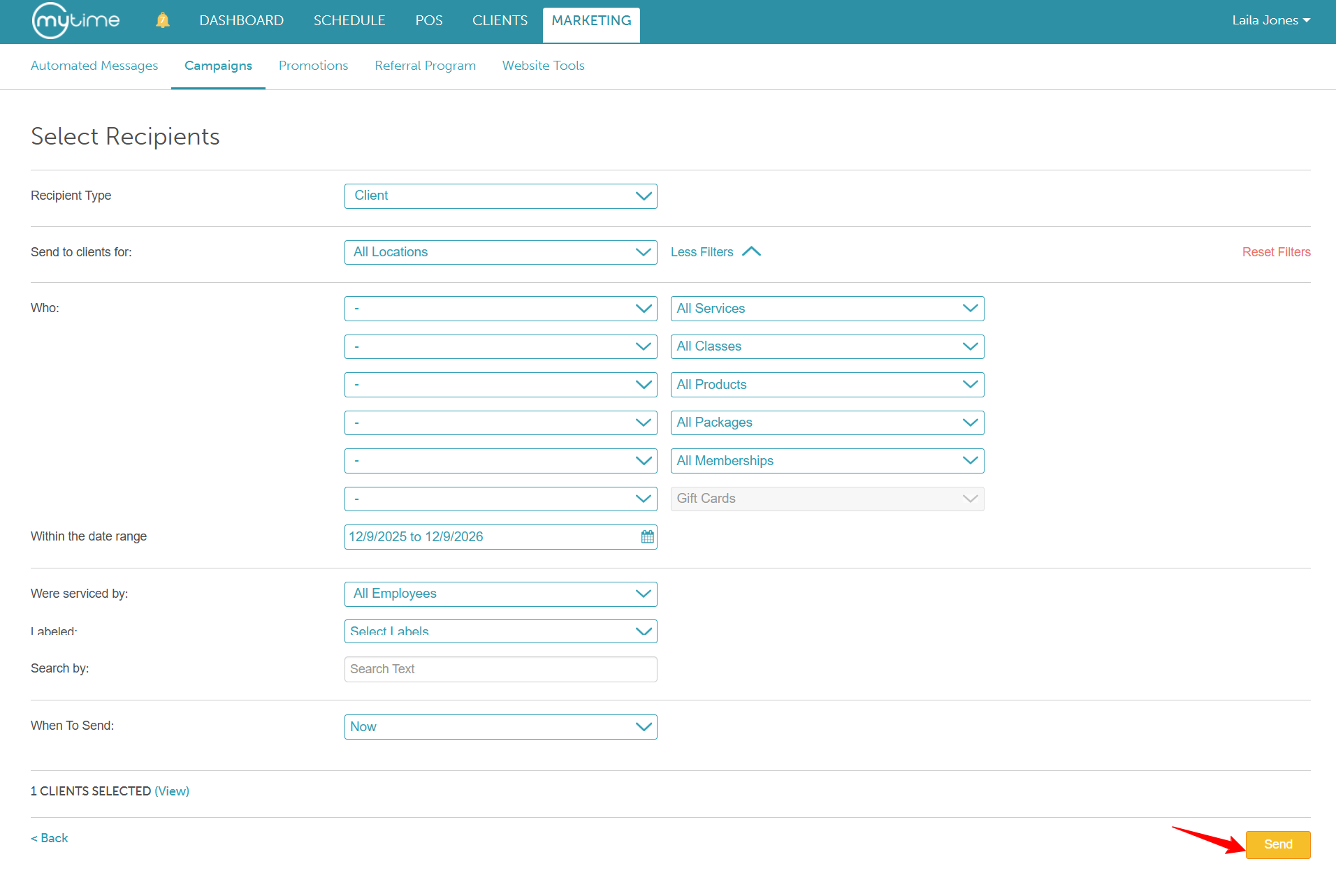
- Review eligible recipients
- Click Send
Related Articles:
Was this article helpful?
That’s Great!
Thank you for your feedback
Sorry! We couldn't be helpful
Thank you for your feedback
Feedback sent
We appreciate your effort and will try to fix the article