With MyTime, you can observe and monitor appointment statuses by staff members and resource capacity directly on the scheduler. This feature enhances the effective management and tracking of both appointments and resources. In this article, we will discuss how to display the appointment count by status and the resource capacity on the scheduler.
Things to know:
- The ability to view these metrics is controlled by the "Accessing Appointments" access control setting
- Status counts are only visible in agenda and day views. They are not displayed in week, month, or split views
- Pending appointments and No-Shows are excluded from the Arriving, Checked-In, and Completed counts. Once a pending appointment is accepted, it moves to Booked status and is included in the count.
- Each day of a multi-day appointment is treated as a separate occurrence and counted individually for each day it spans.
- Appointment Count Logic
- Metrics reflect the number of appointments, not services
- One appointment with multiple services = 1 Booked
- Three separate appointments = 3 Booked. If an appointment includes multiple services with different staff members, it is counted once per staff member. Example: If Service A is with Staff A and Service B is with Staff B, the appointment counts as 1 for each staff member.
- Appointments ending exactly at 12:00 AM are treated as spanning into the next day and are included in the count for both days. Example (Monday 12:00 AM – Tuesday 12:00 AM):
- Monday:
- Booked = 1
- Arrived = 1
- Checked Out = 0
- Tuesday:
- Booked = 1
- Arrived = 0
- Checked Out = 1
- Add-on Display Logic
- Add-ons do not increase the total appointment count
- Same-day add-ons: Displayed within a single appointment tile
- Multi-day add-ons: May appear on separate tiles for visibility, but the total appointment count remains 1
Contents:
- Configure Appointment Count by Status & Resource Capacity
- View Appointment Count by Status
- Viewing Peak Resource Occupancy
Configure Appointment Count by Status & Resource Capacity
- Navigate to Business Setup > Settings
- In the Calendar section, locate the "Display appointment count in Calendar" setting
- Toggle to YES
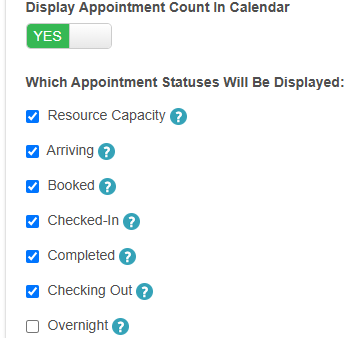
- Once enabled, you can select which appointment statuses should be displayed:
- Resource Capacity: Displays real-time visibility into how your resources are being utilized. The system displays this utilization by comparing your active appointments against a resource's maximum capacity.
Capacity Statuses- Booked: Reflects the total number of scheduled appointments for the day that have not yet checked in.
- Checked-In: Reflects the number of clients who are physically checked in and actively using the resource.
- Important Note on Capacity Overages: Because in-store staff can manually bypass resource capacity restrictions, the total number of appointments scheduled may sometimes exceed a resource's maximum limit. However, the denominator on the counter will always show your maximum configured capacity (e.g., /10), even if the location is overbooked.
- Example: Let's look at how the counters display data for a resource with a maximum capacity of 10:
- Total Appointments Booked for the Day: 12 (Includes 2 overbooked appointments manually forced in-store)
- Appointments Currently Checked In: 5
- Appointments Remaining (Not Checked In): 7
- In this scenario, the resource counters will display:
- 7/10 Booked: This shows that 7 scheduled appointments have not yet checked in, measured against your standard capacity of 10.
- 5/10 Checked-In: This shows that 5 out of your 10 available spots are currently in active use.
For businesses using multi-day appointments, the count will exclude any multi-day appointments that are in progress but not ending on the day being viewed. For example:
Appointments: 6 same-day appointments and 3 multi-day (boarding) appointments, with only 1 boarding appointment ending on the selected day
Total resource capacity shown: 8 (6 same-day + 2 boarding NOT ending that day)
Arriving: This counts only booked appointments that start on the day you are viewing in the scheduler. Includes appointments that have not yet been checked in.
Booked: Displays the number of appointments scheduled for a particular staff member. It includes booked, confirmed, and arriving appointments.
- Checked-In: Displays the total number of booked, confirmed, or completed appointments that are currently checked in.
Completed: Displays the total number of appointments that have been marked as completed
Checking Out: Displays the number of appointments that are ending on the current day that are not marked as completed or marked as completed but still checked in
- Overnight: Displays the number of appointments scheduled to be checked out on a future date for a specific staff member
- Resource Capacity: Displays real-time visibility into how your resources are being utilized. The system displays this utilization by comparing your active appointments against a resource's maximum capacity.
- Save
View Appointment Count by Status
- Navigate to the schedule
- Select the desired location, date, and staff members
- Filter by day or agenda views to view the scheduler count below the staff member's name

Viewing Peak Resource Occupancy
When several guests share one resource, you can now see at a glance how full it is across the day and its busiest hour. This feature gives you a clear, at-a-glance view of how full a resource is throughout the day and automatically highlights its peak busy hour.
Things to know:
- This feature is also controlled by a hidden setting that can only be enabled by the MyTime team. To enable this setting, please contact support@mytime.com
- Before you are able to view these metrics, your account needs to be configured to accommodate group bookings and have resources that have a large capacity to accommodate these group bookings.
Once the feature is enabled, follow these steps to view the hourly guest breakdown on your calendar:
- Navigate to the Schedule
- Click the 'Resource Filter' dropdown menu in the top-right corner of the scheduler
- Select one or more specific resources from the list to display their dedicated calendar columns
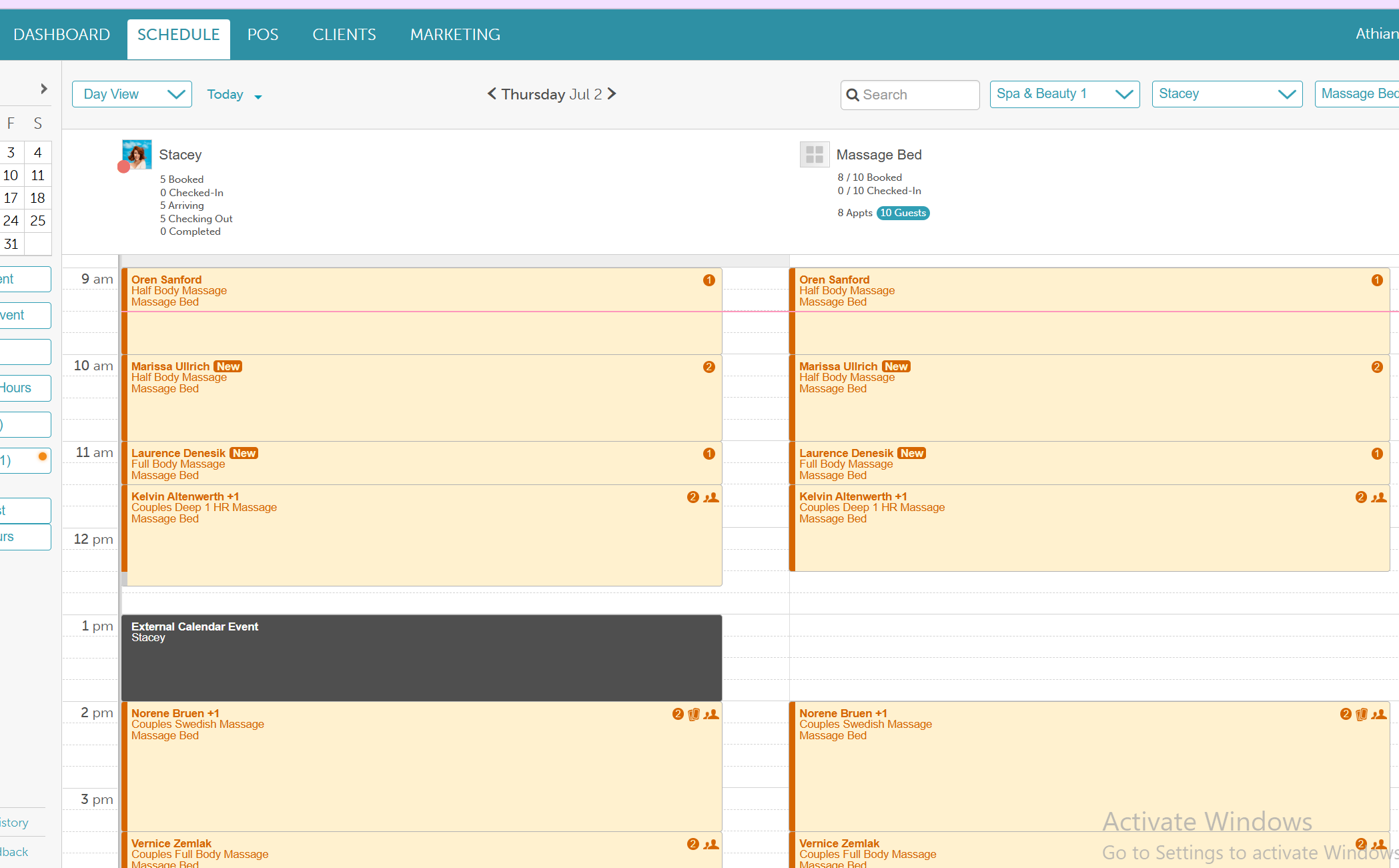
- Look at the header at the top of each resource column to see the total number of appointments and total guests booked for that day
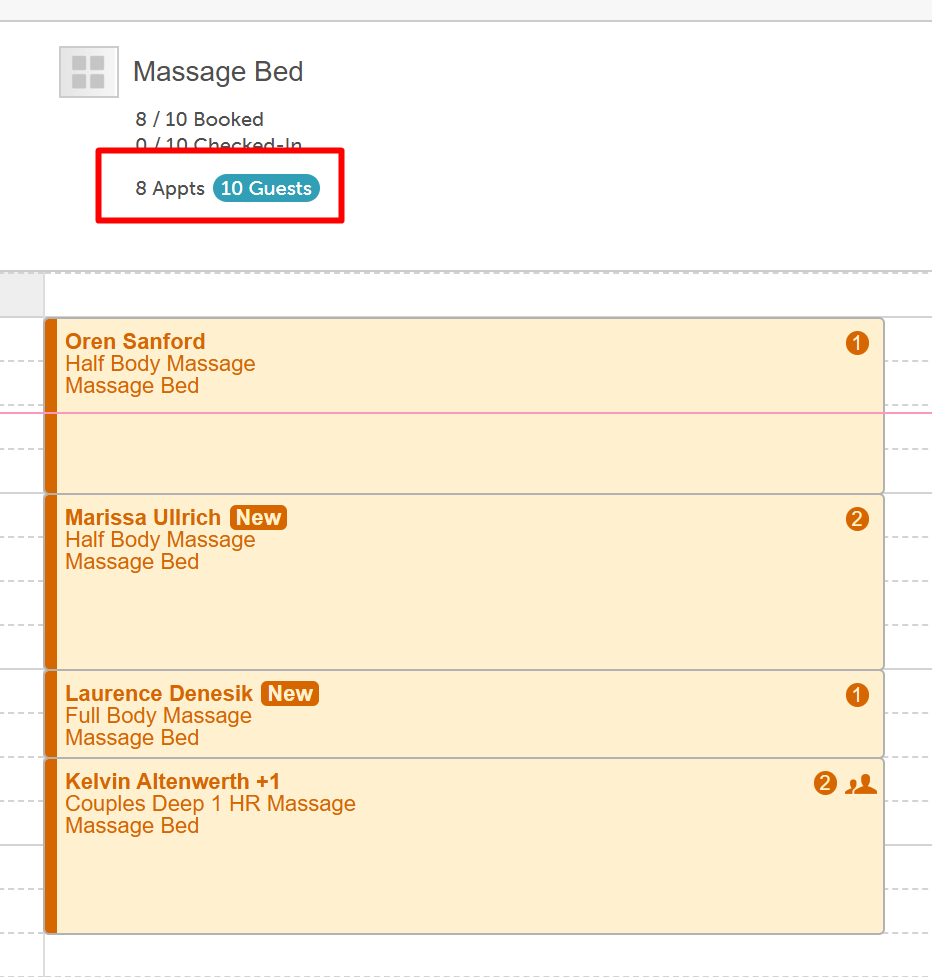
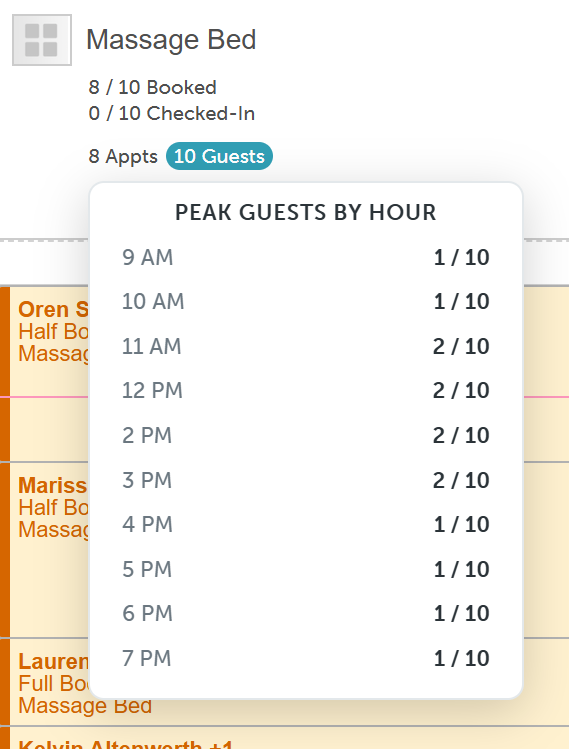
- Click the blue label displaying the number of booked guests to open the "Peak Guests by Hour" modal. This popup displays a clear, hour-by-hour breakdown showing exactly how many clients are occupying that resource throughout the day, automatically highlighting its peak busy times
For more information, contact us at support@mytime.com.
Related Articles:
Appointment Visits on Appointment Tiles
Scheduling Appointments for Clients
Scheduling Appointments for Pets
Scheduling Appointments for Family Members
Scheduling Appointments with Resources
Was this article helpful?
That’s Great!
Thank you for your feedback
Sorry! We couldn't be helpful
Thank you for your feedback
Feedback sent
We appreciate your effort and will try to fix the article