The Start Service button updates an appointment's start time to the exact moment service actually begins, rather than sticking to the originally scheduled time. This ensures your schedule accurately reflects real-time appointment lengths and staff utilization.
Things to know:
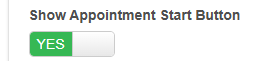
- Showing the button requires enabling the "Show Appointment Start Button" setting and having the Accessing Account Settings permission.
- The button is available only for appointments scheduled for today onward. It cannot be used retroactively on past-dated appointments.
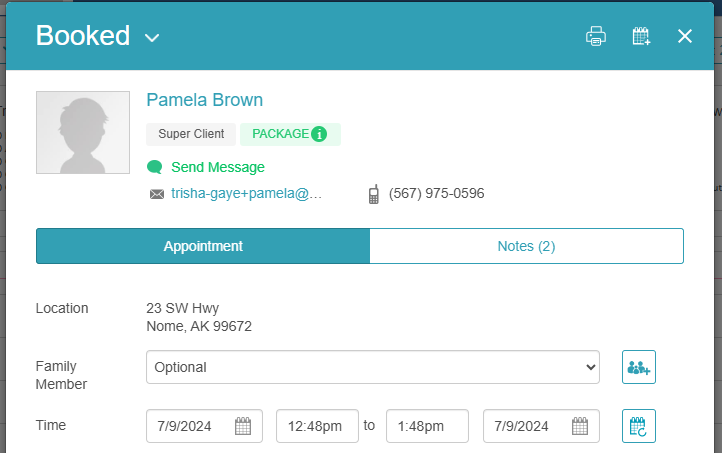
- Clicking "Start Service" shifts both the start time and the end time based on the service's set duration (e.g., a 60-minute service starting at 12:48 PM will adjust to end at 1:48 PM).
- You can click Start Service only once per appointment. Once clicked, the button disappears from that appointment modal.
- Multi-staff appointments: Clicking Start Service updates the start time simultaneously for all staff members assigned to that appointment.
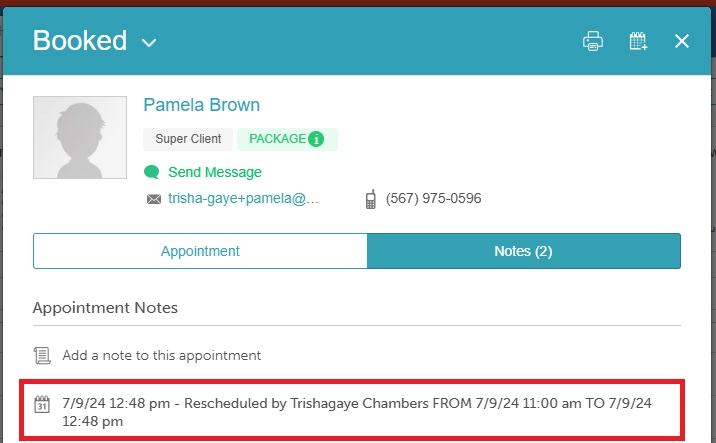
- Audit trail: When the Start Service button is clicked, the action is recorded in the appointment’s audit trail with a precise timestamp.
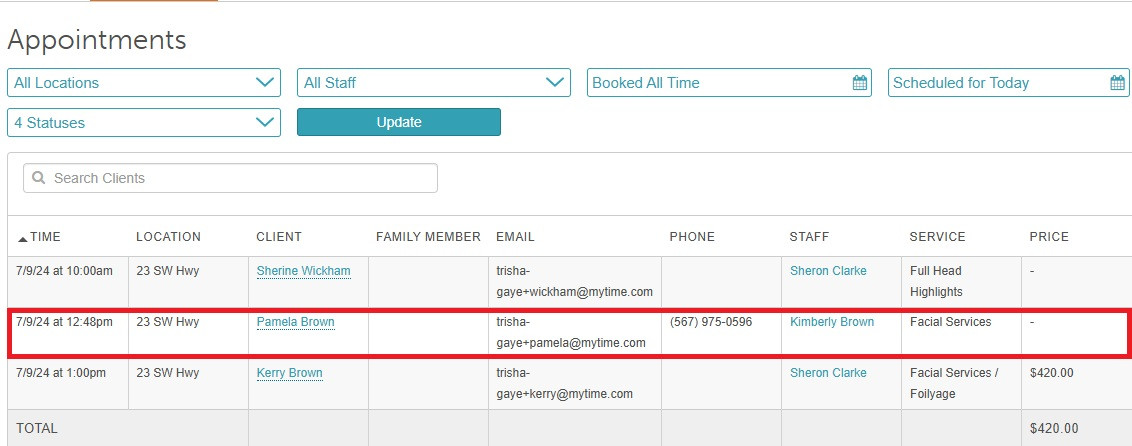
- Reports: The Appointment Time column reflects the time the Start Service button was clicked rather than the originally scheduled appointment time. Example, if an appointment was scheduled for 4:00 PM but Start Service was clicked at 3:33 PM, the Appointment Time column in the report will display 3:33 PM.
Contents
- Configuration of the Start Service Button on the Appointment Modal
- Utilization of Start Service Button on Appointment Modal
Enable the "Start Service" Button
- Navigate to Business Setup > Settings
- Scroll down to the Calendar section and locate the "Show Appointment Start Button" setting
- Toggle the setting to “Yes”
- At the bottom of the settings page, click "Save"
Starting a Service on the Appointment Modal
- Navigate to the Schedule
- Filter to the desired location and staff
- Click on the appointment you want to begin to open the appointment modal
- Select "Start Service"
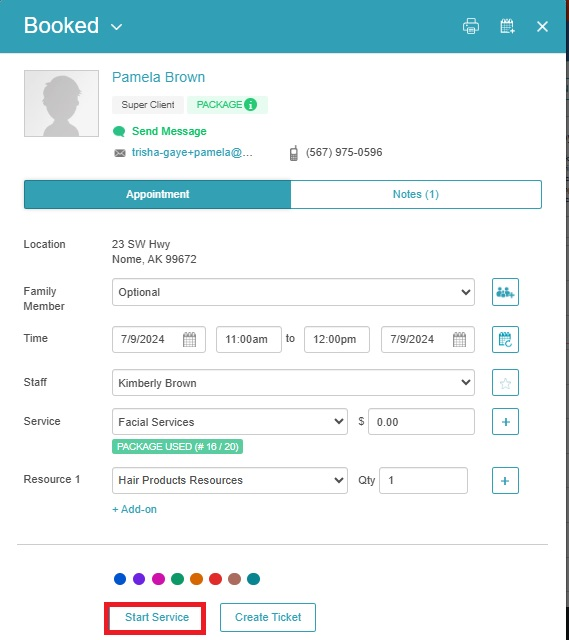
- What happens next:
- The start time updates immediately to the current time, and the end time adjusts accordingly to maintain the service duration.
- For example: If the appointment was originally scheduled for 11:00 a.m., but the client arrives at 12:48 p.m., clicking "Start Service" at 12:48 p.m. will change the start time to 12:48 p.m.
- The action timestamp is recorded on the appointment modal's Audit Trail and reflected in the Appointments Report.
Audit Trail
Appointments Report
For more information contact us at support@mytime.com or (385) 233-6964.
Related Articles:
Scheduling Appointments for Clients
Scheduling Appointment for Family Members
Scheduling Appointment for Pets
Scheduling Multi-Staff Appointments
Scheduling Recurring Appointments
Appointments / Bookings Report
Booking Appointments for Multi-Client Services In-store
Was this article helpful?
That’s Great!
Thank you for your feedback
Sorry! We couldn't be helpful
Thank you for your feedback
Feedback sent
We appreciate your effort and will try to fix the article