This notification reminds clients about their upcoming membership auto-renewal and gives them the option to cancel before they are charged. It helps ensure clients stay informed and maintains transparency by giving them full control over their renewal preferences.
Things to know:
- The ability to configure membership notifications is governed by the "Accessing Automated Messages" access control setting.
- The notification timing can be configured to send hours, days, weeks, months, or years after the membership is purchased, and it can be applied to all memberships or only selected ones.
- Multiple templates can be created to support different membership types. For example, you could have one template for a Standard Membership that sends a reminder 30 days before renewal and a different template for a Premier Membership that sends a reminder 60 days before renewal.
- Notification Requirements
- SMS Notifications: Clients must have a valid phone number on file and be single-opted in to receive transactional SMS.
- Email Notifications: Clients must have a valid email address on file and be opted in to receive transactional emails.
- SMS Segments & Billing
- SMS billing is calculated per segment, not per message.
- Each segment is billed individually
- Each recipient receives their own copy of the message
- Total cost = segments × recipients × rate. Example: 2-segment message sent to 50 recipients = 100 billable segments
- Learn more about SMS Segments & Billing here
- Any staff member with the "Receive operations alerts email" checkbox checked, along with the client, will receive membership payment failure notifications
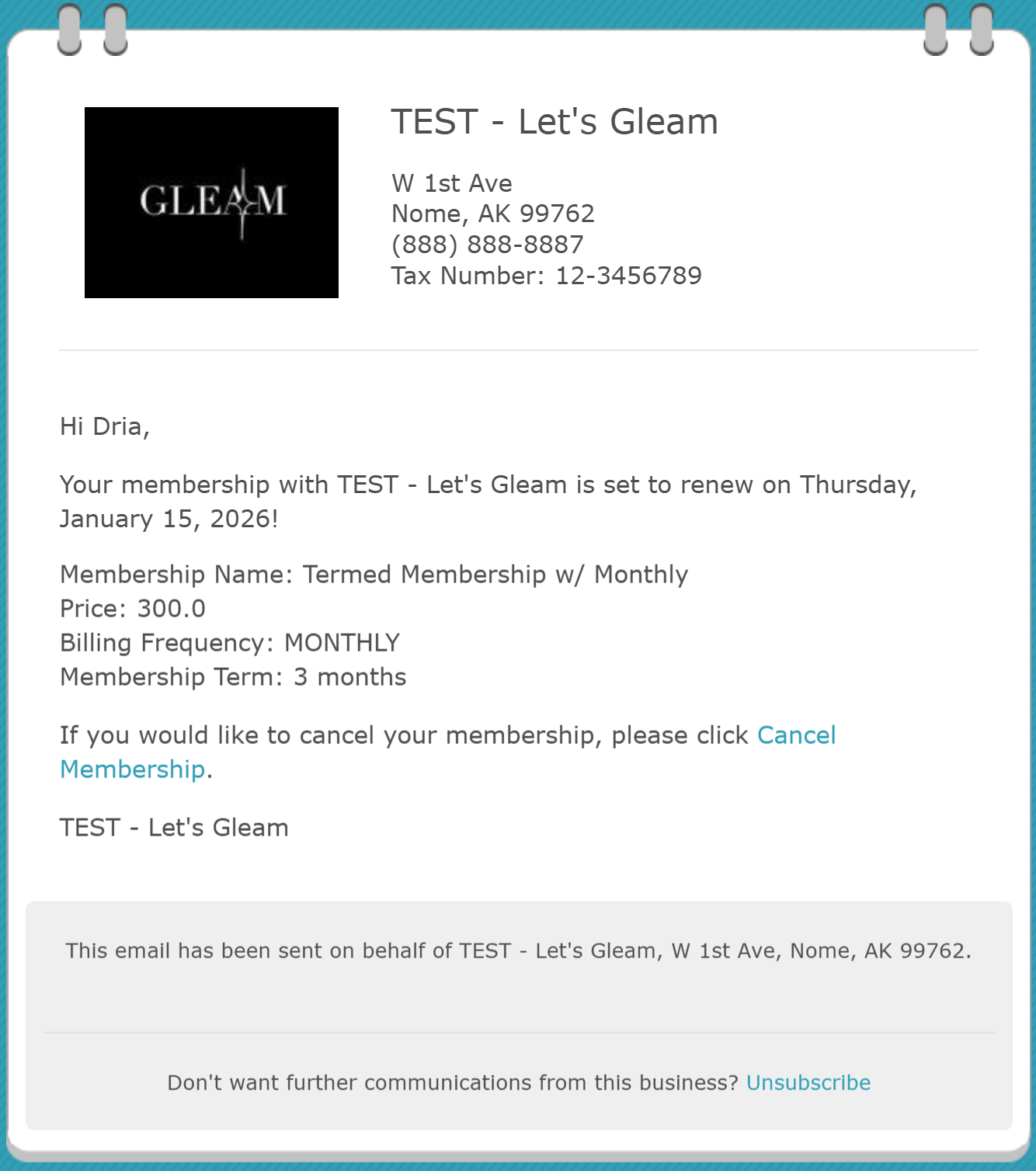
- Logic for Membership Renewal Email Actions: Clients receiving the renewal consent email can cancel their membership from the email received. When the client clicks the 'Cancel Membership' link:
- If the client is not logged in, they are redirected to the login page. After a successful login, the client is redirected to the My Account > Memberships page to cancel the membership
- If the client is already logged in, they are directed to the My Account > Memberships page to cancel the membership
- Clients associated with a specific location under a multi-location account will receive automated messages customized for that location. The From field and Reply-To name in these emails display the location’s nickname by default, as defined in Business Setup > Business Profile > Edit Location. For example, a business named Urban Spa has two locations: Downtown and Westside. If a client is associated only with the Westside location, any automated appointment reminders they receive will appear with the Westside location nickname. The name displayed in the "Sender Label" is determined based on the following hierarchy (order of priority):
Location Nickname: If a nickname is configured for a specific location, this will always be the primary sender name.
Reply-To Name: If no location nickname exists, the system will fall back to the Reply-To Name configured in your messaging settings.
Company Name: If neither a nickname nor a Reply-To Name is found, the system will use your overall Company Name as the final fallback.
The marketing editor automatically detects and retains line breaks and paragraph spacing when you paste content from external sources. This removes the need for manual reformatting and ensures your newsletters and SMS campaigns appear exactly as intended.
CONTENTS:
- Configuring Membership Renewal Consent Notification
- Creating New Membership Renewal Consent Notification
Configuring Membership Renewal Consent Notification
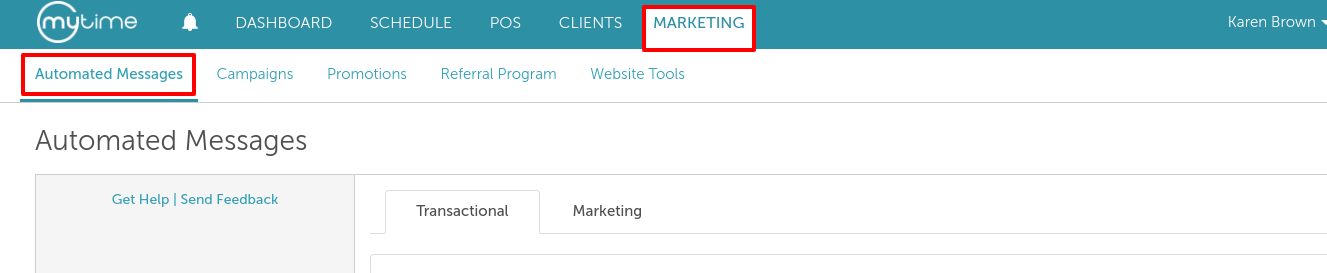
1. Go to Marketing > Automated Messages
2. Navigate to the "Membership" section 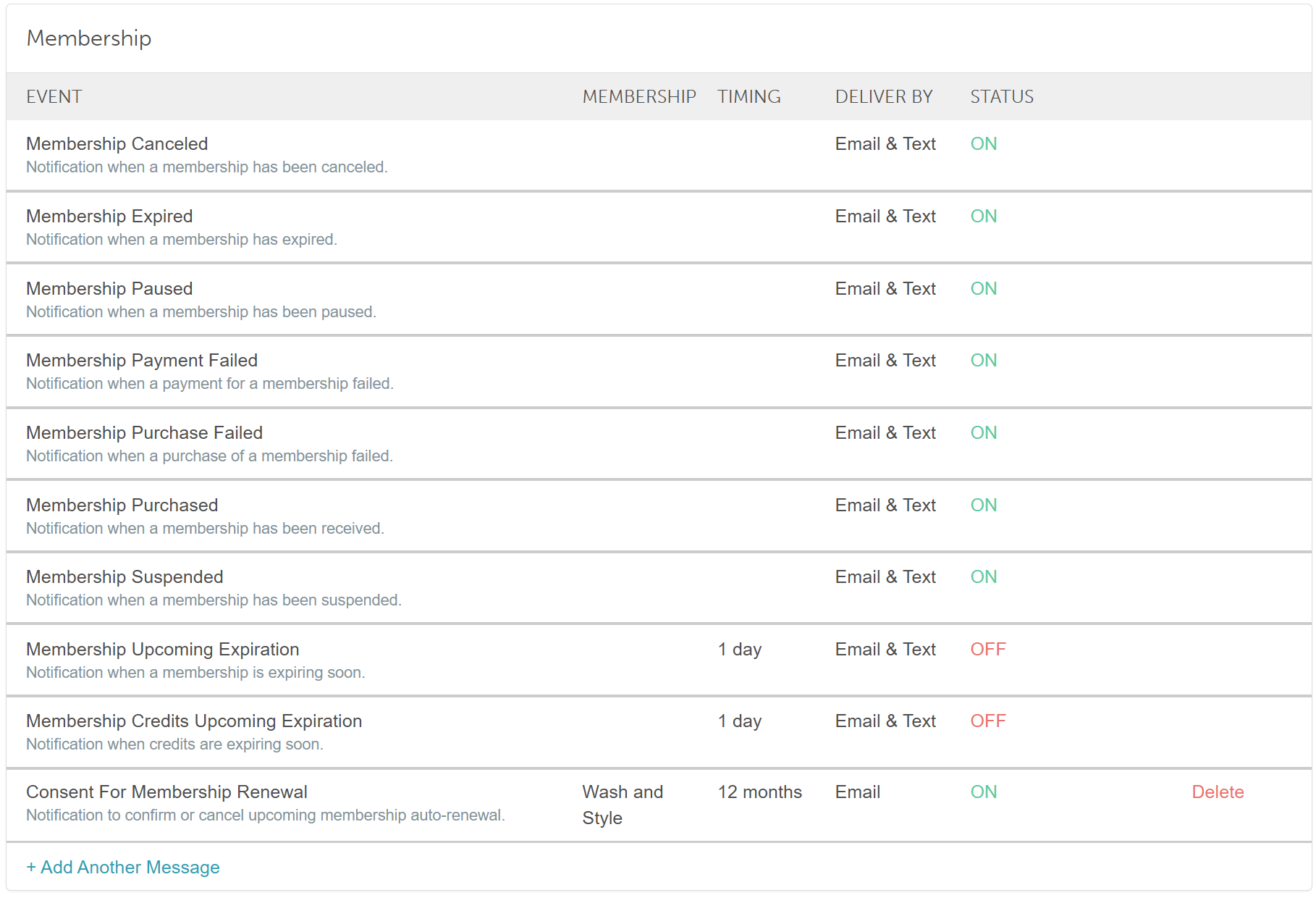
3. Hover over one of the notification statuses to see the options to 'View' or 'Activate' the template
4. Select the 'View' option
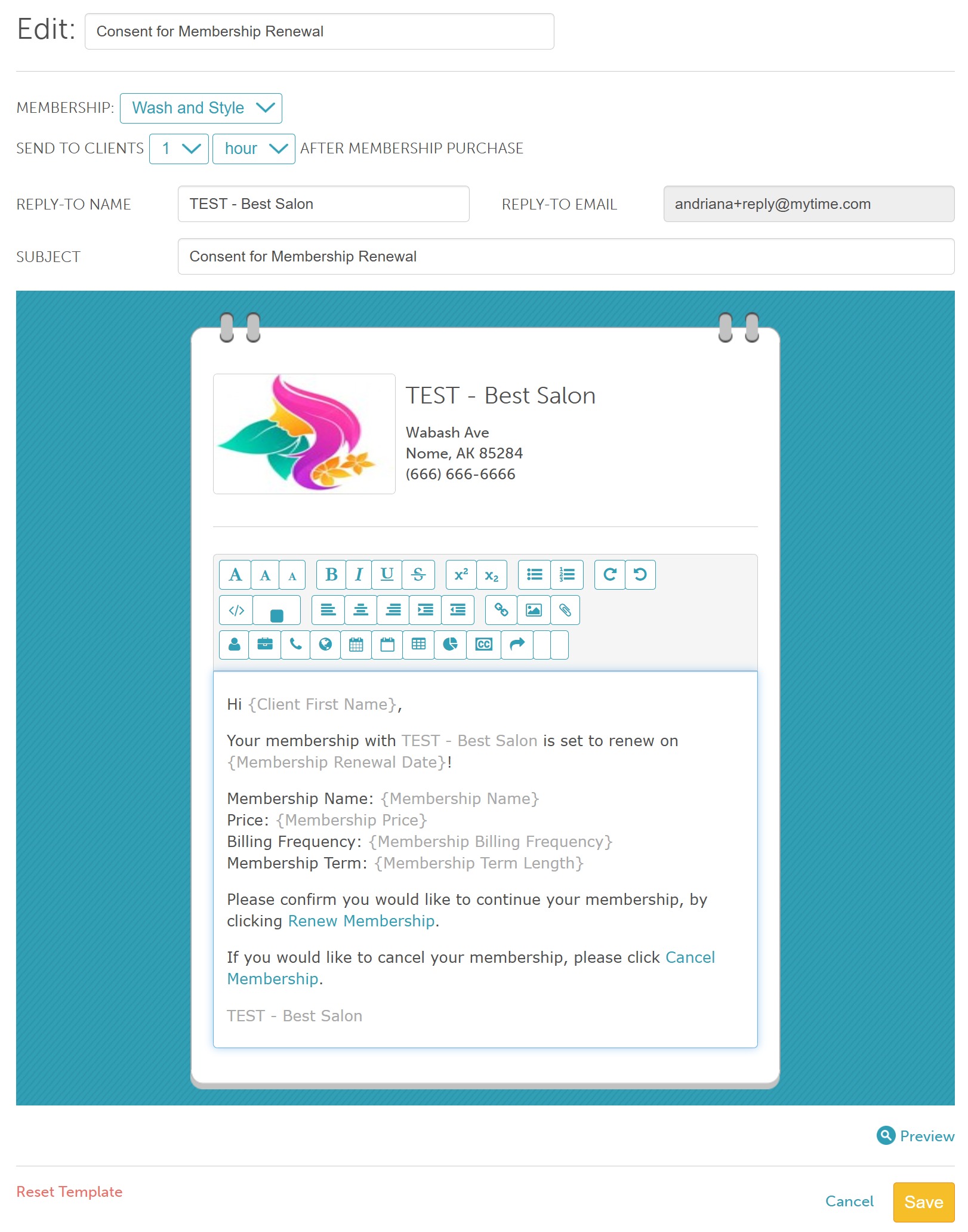
From here, you can set your preferences and edit the template:
- Membership: Select one or more membership plans to target clients enrolled in specific memberships. Only clients enrolled in a selected plan will receive this message. To customize renewal consent messages for different memberships, create separate templates using the + Add Another Message option.
- Send to clients X after membership purchase: Select the timeframe (hours, days, weeks, months, and years) for when the template should be sent after a membership purchase.
- Delivery by: You can specify a fallback delivery method (email or SMS) when the primary method is unavailable.
- Use if available: This is the primary method that will be attempted first
- Use if other methods not available: This method will be attempted if the primary option is unavailable (because contact information is not on file or the user opted out)
- Never Use: This method will not be used, even if none of the other options are available
- Delivery methods configured before February 3, 2025 (when fallback delivery methods were introduced), will have the following default selections:
- For enabled delivery methods, the 'Use if available' option will be selected.
- For disabled delivery methods, the 'Use if others are not available' option will be selected
- Reply-to-Name: This is the name that appears when clients reply to an automated email. By default, it is pulled from the business name set on the Business Profile page.
- Reply-To-Email: By default, this is set to the location's email address configured under Business Setup > Business Profile > Edit Location.
- If no email is configured for the location, the system will use the location's owner's email address instead.
- If the "Use a specific reply-to-email for outbound emails" hidden setting is enabled, the system will use the email address entered in the "Reply-To-Email for Outbound Emails" field
- Email Subject: The subject line of the email as it will appear in the client’s inbox.
- Body of the template: This is the content of the email that will be sent to your clients. You can customize the message, include dynamic fields, and apply styling as needed.
5. Select the "Save" option at the bottom of the screen
Creating New Membership Renewal Consent Notification
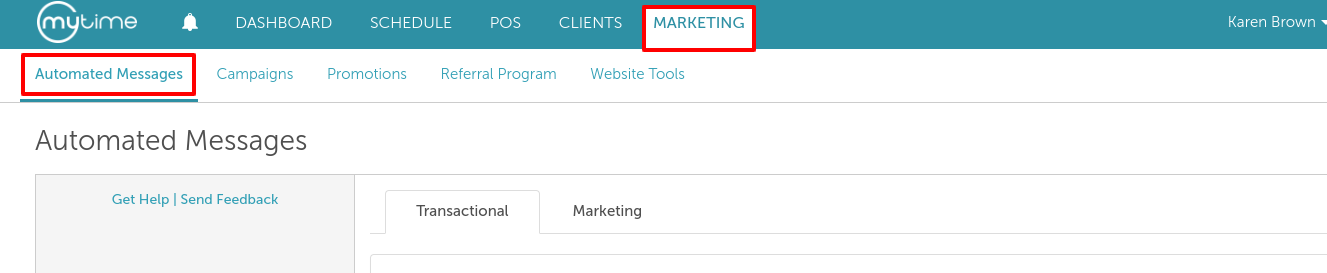
- Go to Marketing > Automated Messages
- Navigate to the "Membership" section
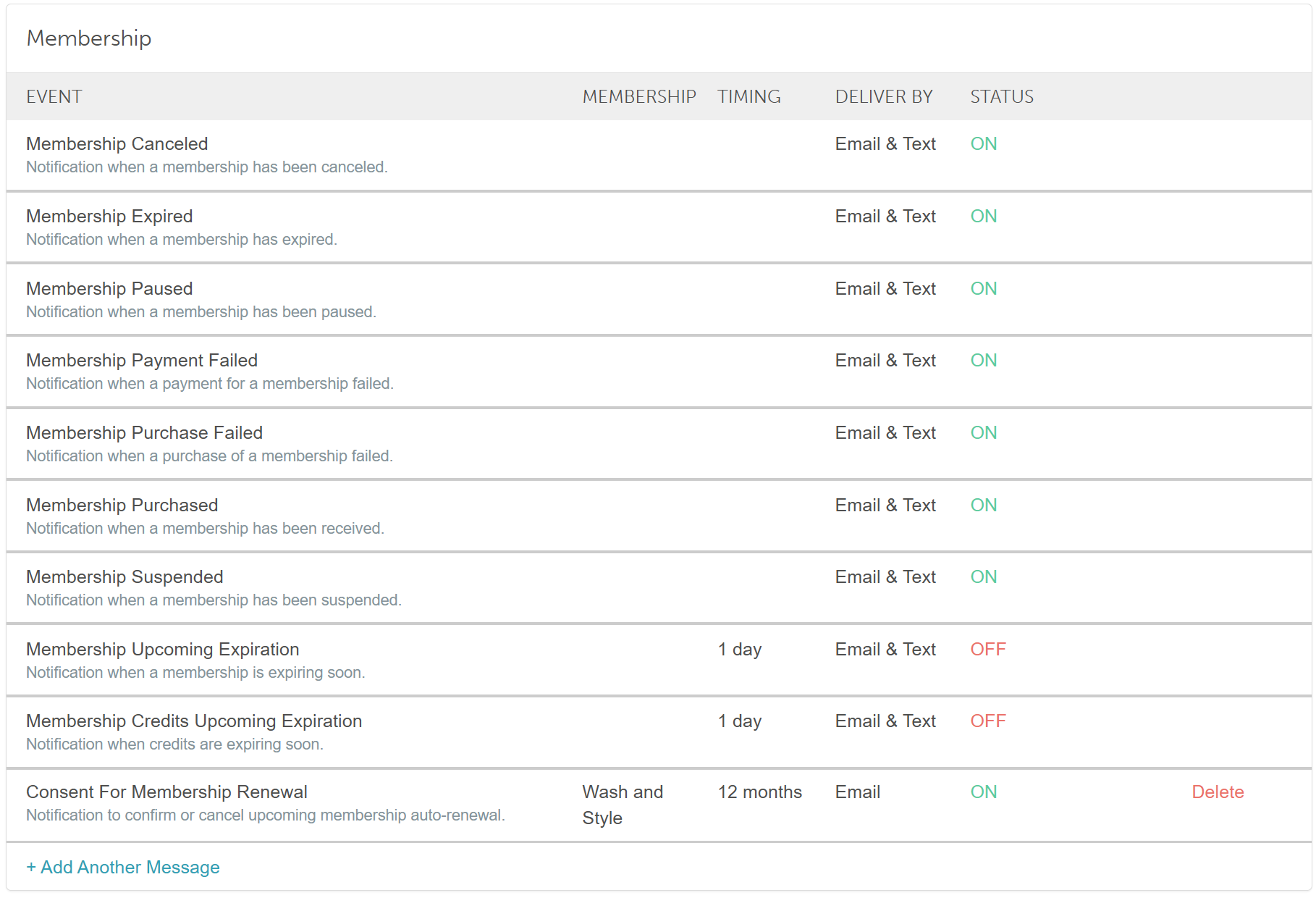
- Click the "+Add Another Message"
- Follow the steps above to edit the template
Notification sent to clients
For more information, contact us at support@mytime.com.
Related Articles
Transactional vs Marketing Automated Messages
Customizing Automated Messages
Automated Message Template Icons
Activate/Deactivate Automated Messages
Fallback Delivery Method for Automated Messages
Push Notifications for Automated Messages
Configure Pre-Appointment/Pre-Class Reminder Notifications
Configure Appointment Confirmation Notification
Configure Appointment Review Notification
Configure Class Review Notification
Configure Pre-Appointment/Pre-Class Reminder Notifications
Configure Expiration Reminder Notifications
Configure Membership Notifications
Configure Package Notifications
Configure Package Expiration Reminder Notifications
Configure Consent for Membership Renewal Notifications
Configure Post-Appointment Notifications
Opting In and Out From Marketing and Transactional Notifications
Was this article helpful?
That’s Great!
Thank you for your feedback
Sorry! We couldn't be helpful
Thank you for your feedback
Feedback sent
We appreciate your effort and will try to fix the article