In this article, we’ll guide you step-by-step through mapping customer feedback, star ratings, and submission dates, then importing these client reviews into MyTime using the provided CSV template.
Things to know:
- The ability to import client reviews is governed by the "Manage Clients Setup Menu" access control setting.
- Your upload must be saved in CSV format and follow the official MyTime Client Review Import Template
- While larger files are supported, we recommend capping each upload file at 1,000 client reviews to ensure optimal performance and avoid processing timeouts
- To protect the integrity of your review data, the system automatically checks every row during upload:
- Required Fields: First Name, Review Content, Star Rating, and Review Date are mandatory. Rows missing any of these fields will fail validation and be skipped.
- No Future Dates: Review dates must be set in the past or present.
- Valid Date Formatting: Dates must be valid calendar dates (e.g., an invalid date such as 30-Feb-2026 will cause the row to fail).
- Column Structure: Do not delete or rearrange any default columns in the template. You may only add, remove, or reorder columns corresponding to custom fields.
- Custom Field Formatting: Any custom field column names added to the template must be written in lowercase letters; otherwise, the import will fail.
- When importing client reviews, the system processes duplicate entries, updates, and validation errors according to the following rules:
- Re-Importing Unchanged Files (No Duplicates): Uploading an identical CSV file again will not create duplicate entries. Existing ratings, descriptions, visibility settings, and dates will remain unchanged.
- Updating Existing Reviews via CSV: Re-uploading a file with modified fields for an existing client will update that review in place:
- Rating: Updates to the new star rating.
- Review Content: Appends or updates the existing review description.
- Review Date: Updates the timestamp to the new valid date provided.
- Multiple Rows for the Same Client in One File: If a single CSV upload contains multiple rows for the same client and location, the system processes them sequentially—the final row in the file takes precedence and sets the record's final values.
- Validation Errors & Failed Re-Imports: If an imported row contains invalid values (e.g., star ratings outside 1–5, text in numeric fields, malformed dates, or future dates), the system will flag the row as validation_failed. The existing review will remain completely untouched without overwriting or clearing existing data.
- For franchise accounts that share clients, the client_id column (or external_id) in your CSV import file is unique to each individual location, not across the entire franchise network.
- Location-Specific IDs: When importing client files at a child location level, ensure the client_id values belong strictly to that specific child account.
- Avoid Cross-Location Collisions: If you assign a client_id that already exists under a sibling location or parent account, the system may overwrite or update the existing client profile instead of creating a new one.
Contents:
Import Client Review List
To import your client reviews:
- Navigate to the Clients tab
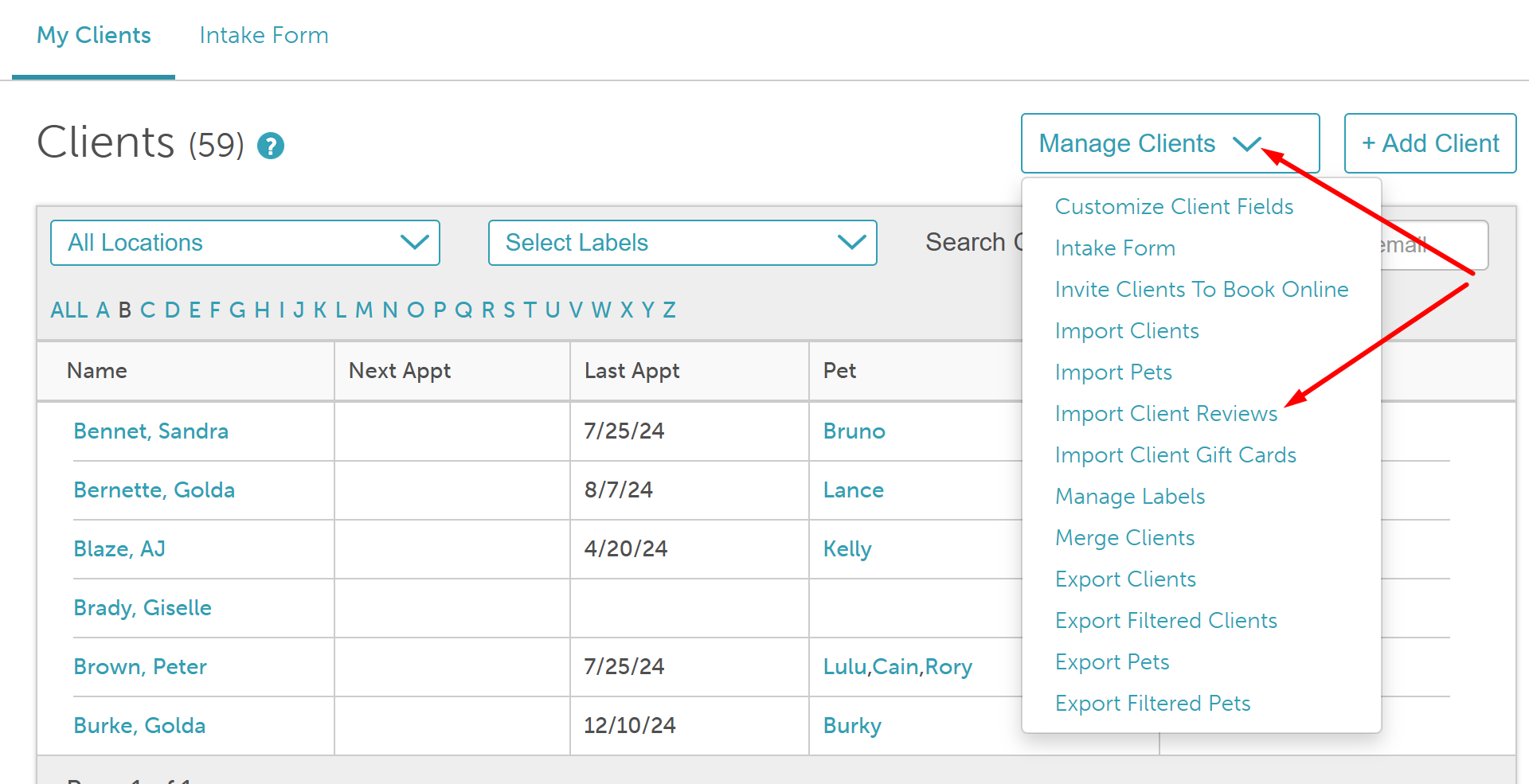
- Select the ‘Manage Clients’ drop-down menu > Import Client Reviews
- The Import Reviews screen will appear. Download the 'MyTime Client Import' template.
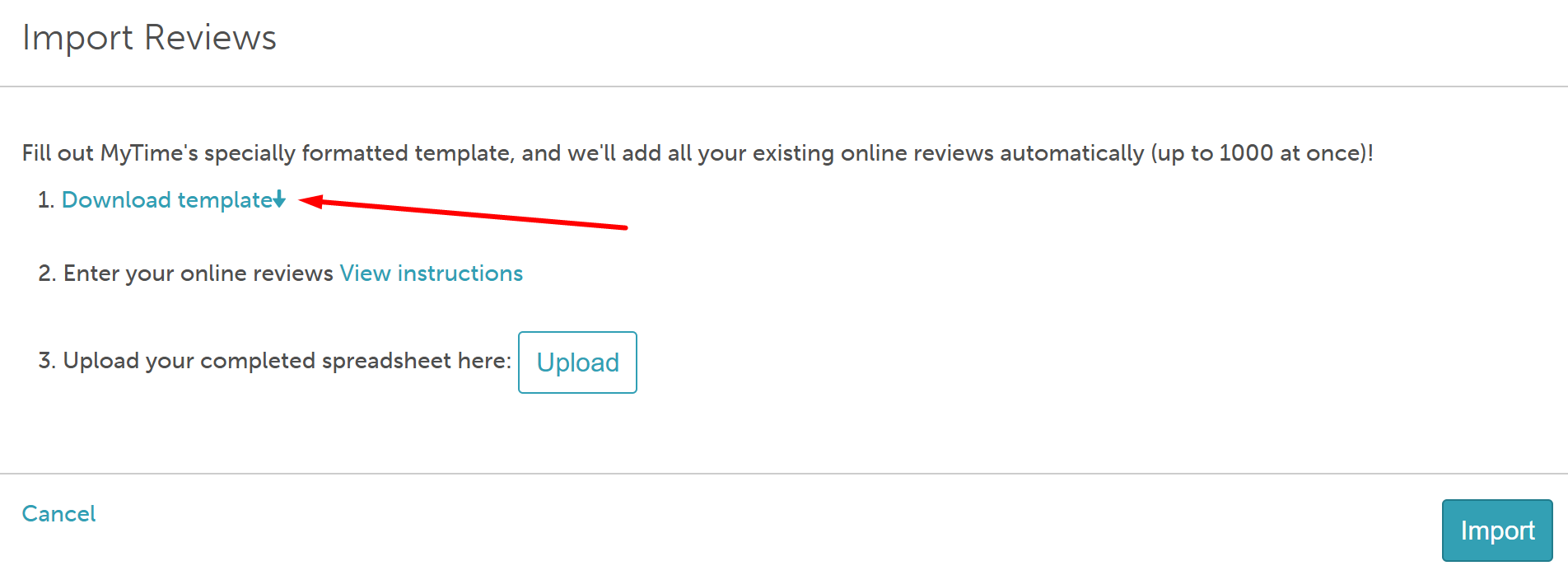
- Find the downloaded spreadsheet on your computer and open it
- Enter your client review information into the designated columns. Verify the accuracy and completeness of the data to ensure a seamless import process

- After completing the entry of your clients' information, save the file as a CSV
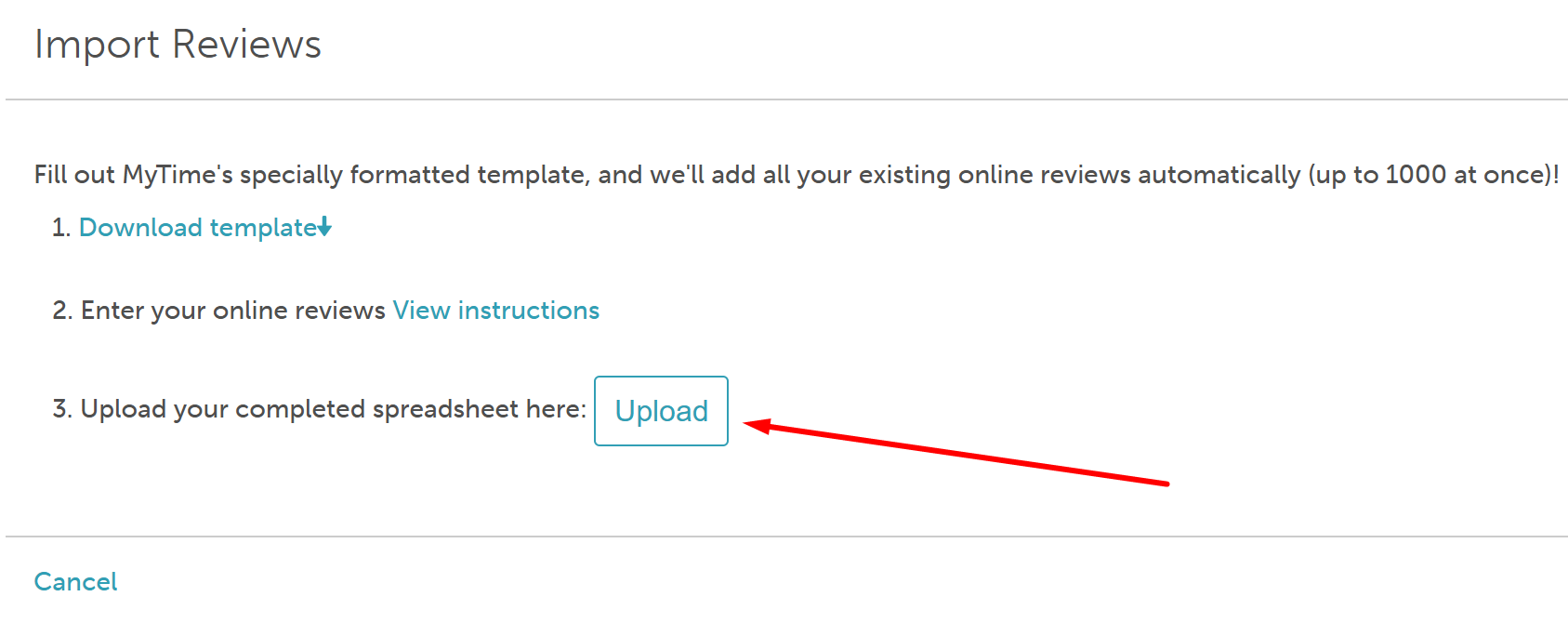
- Return to the Import section and then click the "Upload" button
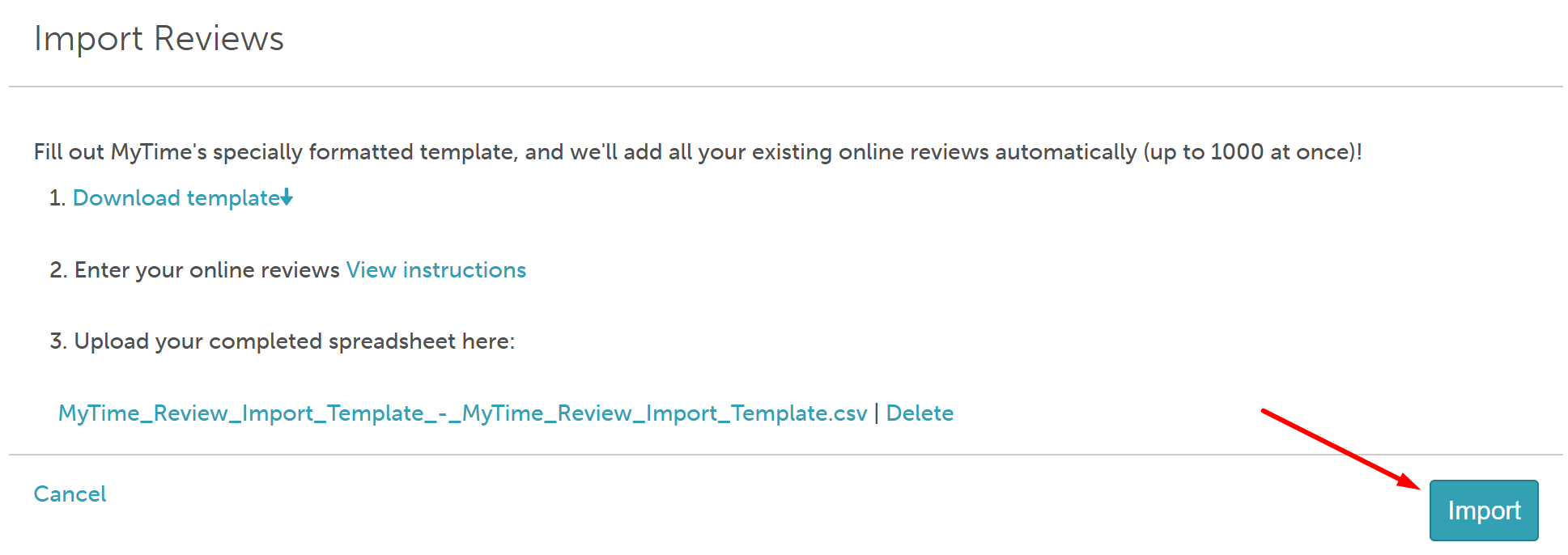
- Select the CSV file from the download list. Once your file has been uploaded, click the "Import" button
Congratulations! You've successfully imported clients into MyTime using a CSV file.
Column Descriptions
| Column | Description |
| client_id | A unique ID for the client in your local database (the same client_id you used in the Clients import). This field is optional; however, if provided, the review is matched to that client first; if it is blank or not found, we fall back to matching by first and last name. This field is optional. |
| client_first_name (required) | The first name of the client |
| client_last_name (required) | The last name of the client |
| review_title | A short title for the review. When imported, it combines with the review text as "Title - Content". This field is optional. |
| review_content (required) | The full text body of the client review. |
| star_rating (required) | The numerical rating. Enter a whole number from 1 to 5. |
| review_date (required) | The date the review was submitted. Must be formatted as YYYY-MM-DD (e.g., 2026-01-15). Dates cannot be set in the future. |
| mytime_location_id | The specific Location ID found under Business Setup → Business Profile → Edit Location. Leave this blank to assign the review to your account's primary/default location. This field is optional. |
| visible | Controls whether the review is publicly visible. Enter TRUE or FALSE. If left blank, this defaults to TRUE. This field is optional. |
Your client's review will now be visible in your client's profile.
For more information, contact us at support@mytime.com.
Related Articles:
Was this article helpful?
That’s Great!
Thank you for your feedback
Sorry! We couldn't be helpful
Thank you for your feedback
Feedback sent
We appreciate your effort and will try to fix the article