You can cancel appointments directly from the appointment modal in just a few clicks. This article outlines key details, conditions, and how tickets are handled when an appointment is canceled.
Things to Know:
- The ability to cancel appointments is controlled by the "Accessing Appointments" access control setting.
- Once canceled, the appointment is immediately removed from the calendar schedule.
- If the appointment is part of a recurring series, you can choose to cancel only the selected occurrence or all future appointments in the series.
- If payment has already been collected for an appointment, the system will prevent cancellation and display an error: “This appointment has been paid for. Please refund or edit the ticket before canceling.” To cancel a paid appointment, you must issue a full refund first.
- Exceptions: A refund is not required prior to cancellation if the ticket total is $0, or if the service was paid using a membership or package credit.
- Ticket Behaviors
- When an appointment is canceled, the system updates the associated ticket status automatically:
- No Ticket Created: The modal displays the Create Ticket button.
- Ticket Already Exists: The modal displays the View Ticket link.
- No Fee Charged: If no cancellation fee is enforced, the original ticket will display on the appointment modal marked as Voided.
- Canceling In-Store
- When an Appointment Booked Online is Canceled In-Store:
- The system automatically updates the appointment value to $0
- If no cancellation fee is charged, only the original ticket will appear on the appointment modal as voided.
- If a cancellation fee is configured, the fee is automatically charged to the card on file, and two tickets will appear on the appointment modal:
- One voided ticket for the original appointment
- One closed ticket for the cancellation fee
- When an Appointment Booked In-Store is Canceled In-Store:
- If a cancellation fee is configured, you will be redirected to POS to manually process the payment. On the payment screen, you can choose to charge the card on file or select another payment method.
- No ticket is created for the canceled appointment
- A ticket for the cancellation fee will appear on the appointment modal
To cancel an appointment, simply:
- Navigate to the Scheduler
- Filter by the desired date and location (if multiple locations exist)
- Locate the appointment by:
- Manually scanning the schedule, or
- Using the search bar to find the client by name
- Click the appointment tile to open the appointment modal
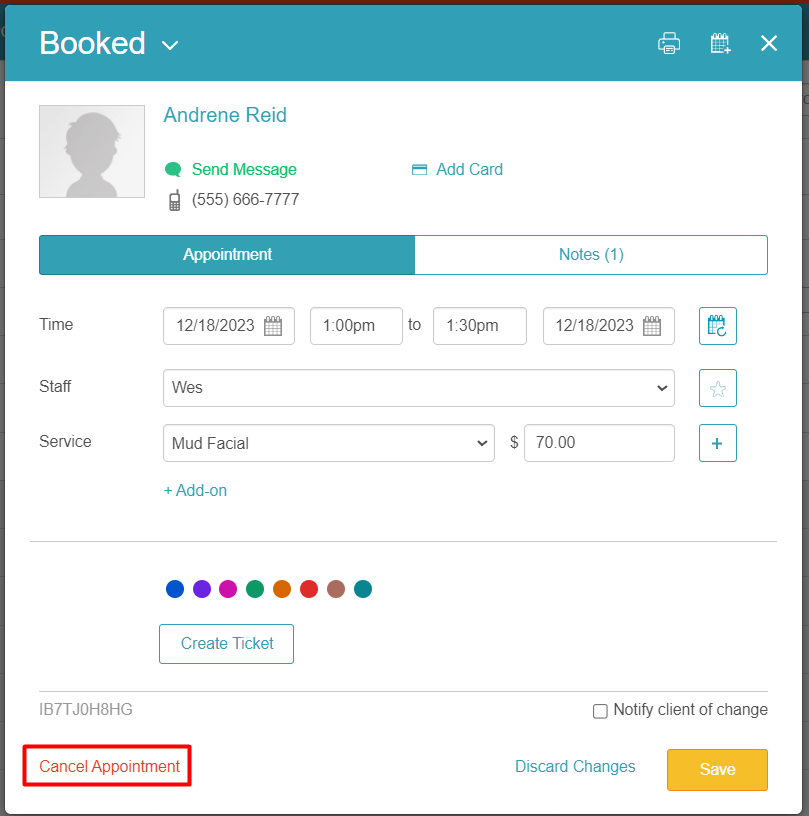
- Click Cancel Appointment
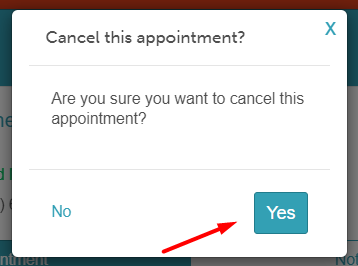
- Confirm the cancellation by clicking Yes on the confirmation pop-up
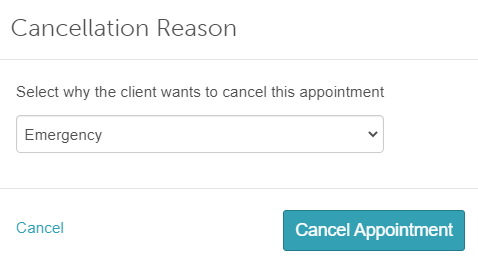
- If cancellation reasons are configured, select a reason from the list
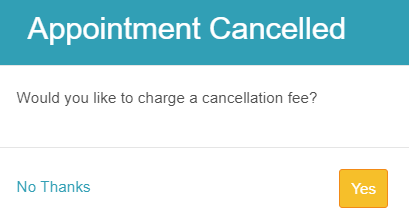
- If a cancellation fee is set up, confirm whether you would like to charge the fee
Related Articles:
Cancellation Policy for Appointments
Marking Appointments as No-Show
Canceling Appointments on Scheduler App
Scheduling Multi-Staff Appointments
Scheduling Recurring Appointments
Appointments / Bookings Report
Booking Appointments for Multi-Client Services In-store
Booking Multi-Client Appointments Online
Booking Appointments for Multiple Pets Online
Was this article helpful?
That’s Great!
Thank you for your feedback
Sorry! We couldn't be helpful
Thank you for your feedback
Feedback sent
We appreciate your effort and will try to fix the article