Gathering feedback through automated review requests is a powerful way to monitor your business's reputation and improve the customer experience. This article explains how MyTime captures reviews and how those ratings are directed based on your settings.
Things to know:
- Review requests are sent to clients when either the "Request Review" automated message is enabled or a manual "Review Request" campaign is sent.
- Automated review requests can be scheduled to send at a specific interval after an appointment, whether that is a few hours, days, or weeks later. You can choose from three frequency options based on the client's visit history. Note: For all three options, once a client leaves a review, the system will stop sending requests for any future appointments to prevent survey fatigue.
- First Appointment Only: Sends a request only after a client's very first visit to your business. Example: Sarah comes in for her very first haircut at your salon. She gets a review request afterward. Whether she leaves a review or ignores it, she will never receive another request for any future haircuts.
- First, Second, and Third Appointments: Sends a request after each of the first three visits, stopping as soon as a review is left. Example: Jenna comes in for her 1st visit, ignores the request, and leaves no review. She comes back for her 2nd visit and decides to leave a review. Because she left a review, the system stops immediately—she will not receive a request after her 3rd visit or any future appointments.
- Multiple (Every Appointment): Sends a request after every completed appointment (until they leave a review). Example: Emily is a regular who visits every month. She ignores the requests sent after her January, February, and March visits. After her April visit, she finally leaves a review. The system stops there, and she won't get a request after her May visit.
- If you redirect clients to an external site (like Google or Facebook), they will be prompted to log in to their existing account or create a new one to post their review.
- Review Routing
- The destination of a review depends on the star rating provided by the client and your custom threshold settings:
- Positive Reviews (By default, 4 or 5 Stars): Clients are directed to your chosen external review site to share their experience publicly.
- Negative Reviews (By default, 1, 2, or 3 Stars): To allow for internal resolution, these clients are directed to a private feedback form instead of an external site.
- Customizing Your Threshold: You can change this routing behavior at any time using the "Suggest External Review Site If Client Rating Is Equal To Or Above" setting. For example, if you prefer to direct all ratings (1–5 stars) to your public external sites, you can adjust this threshold accordingly.
- Staff Notifications: If a client submits a private MyTime feedback form (either for a negative review or because no external site has been configured), an immediate email notification is sent to staff members who have "Receive operations alerts email" enabled.
- Internal Tracking
- Private MyTime Feedback: Every star rating and written comment submitted via the private MyTime feedback loop is automatically logged and saved in full within your Reviews & Staff Ratings report.
- External Reviews (e.g., Google, Facebook): For reviews left on external sites, only the star rating is captured in the client and staff rating reports. The written text from external reviews is not displayed in these internal reports.
- If your subscription includes the Listing and Reputation Manager, you can monitor, track, and respond to reviews left across various external sites directly from your SOCi dashboard.
Contents:
How to Leave a Review
After receiving the request review automated message or manual campaign, your clients should do the following:
- Tap their desired star rating directly within the message
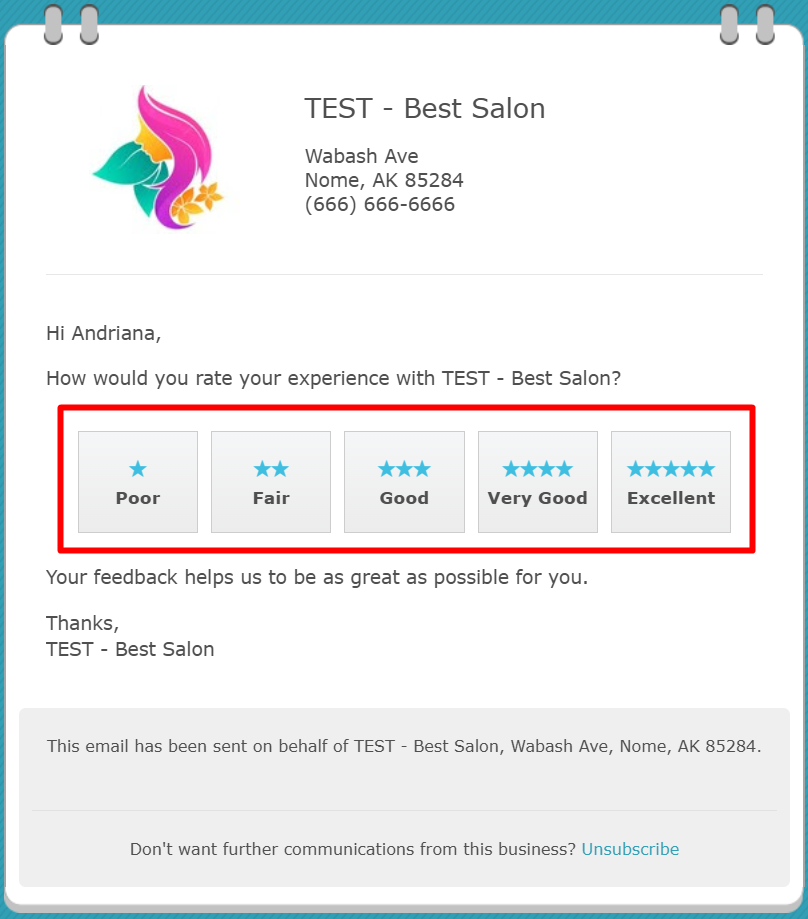
- Automatic Redirection:
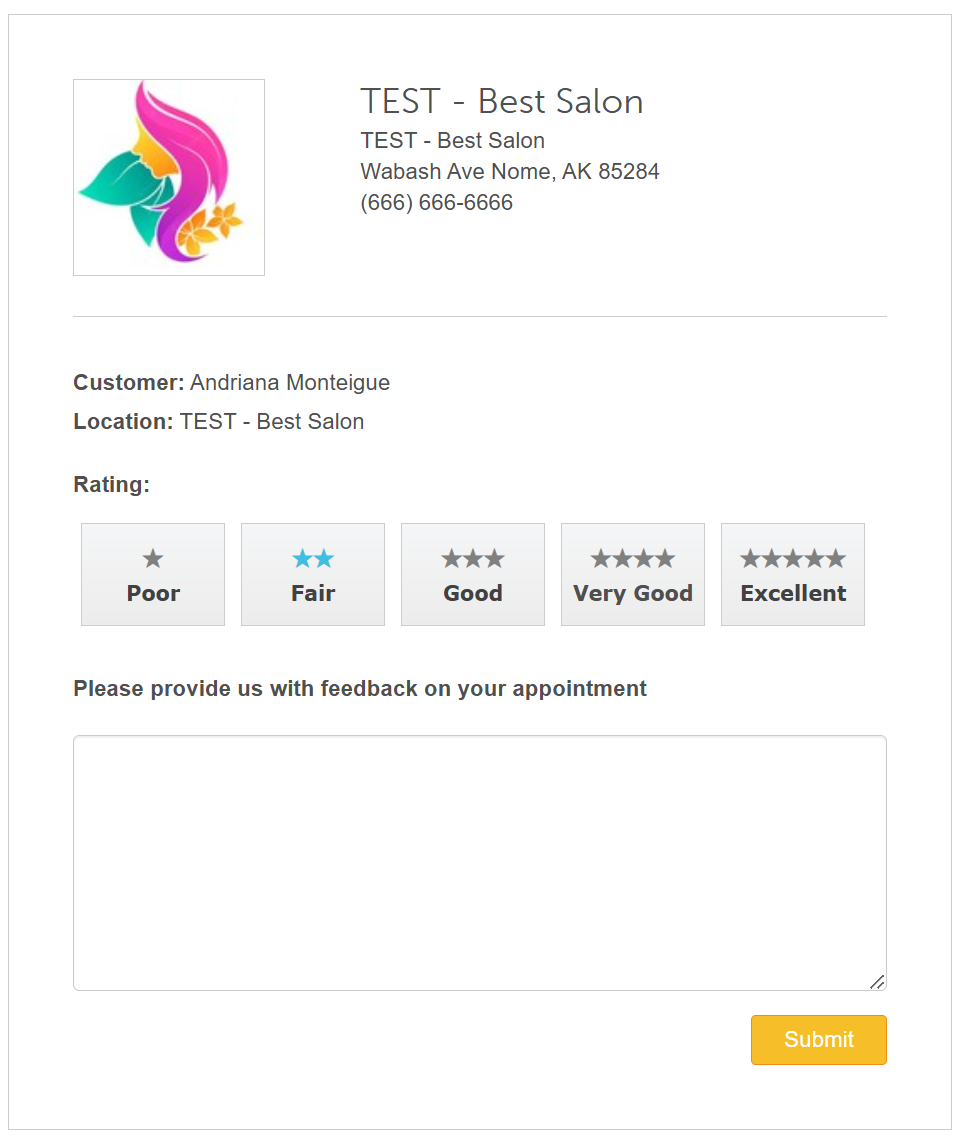
- 1–3 Stars: The client is sent to a private MyTime feedback form
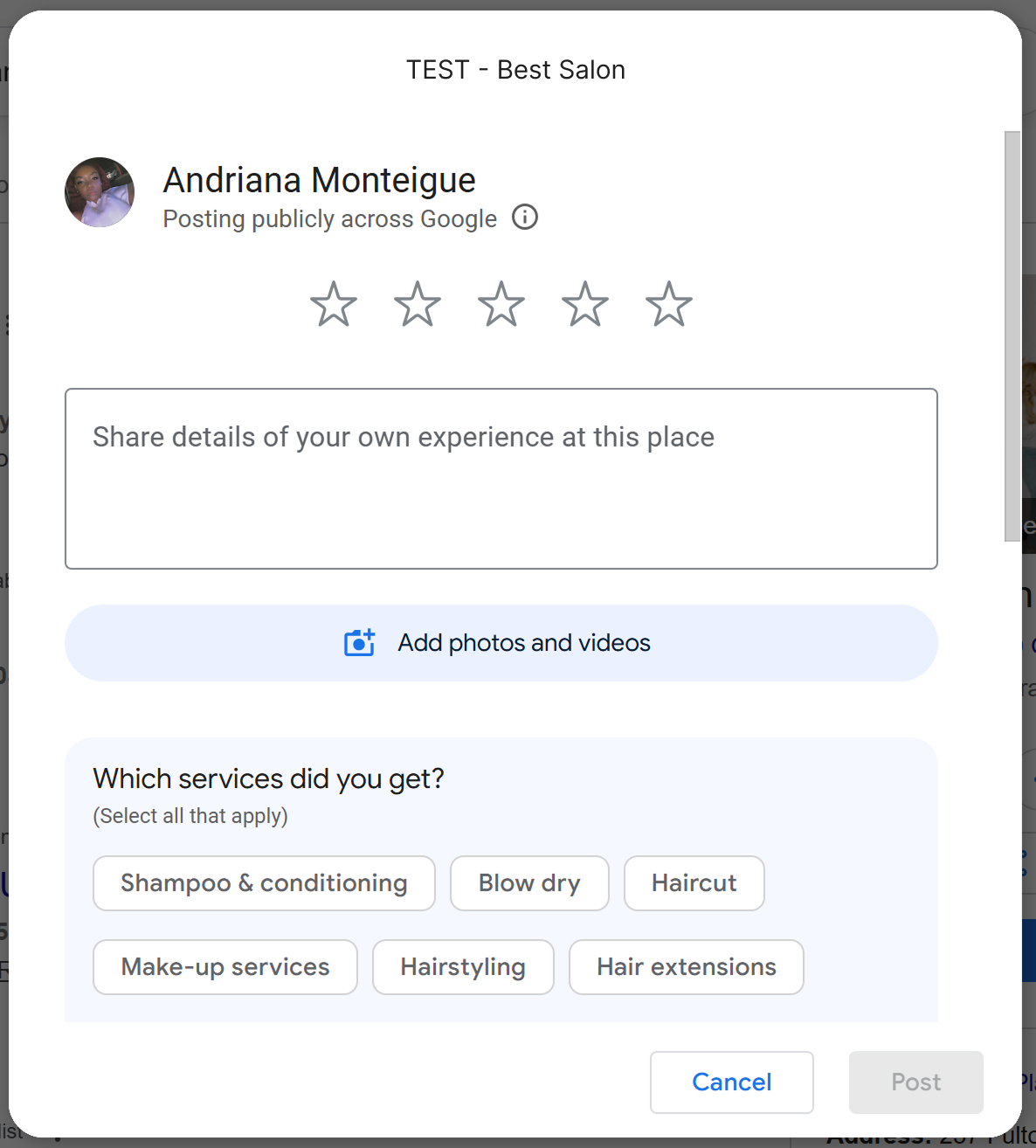
- 4–5 Stars: The client is redirected to your external review site (e.g., Google or Facebook)
- 1–3 Stars: The client is sent to a private MyTime feedback form
- The client writes their comments regarding their experience
- Once the client has written their feedback, they can complete the process by selecting the final submission button based on the platform:
- Private Feedback: The client clicks "Submit" to send their review directly to your MyTime internal reports.
- External Listings: If redirected to your Google listing, the client clicks "Post" to make their review visible to the public.
When a private MyTime review is submitted, any staff member with "Operations Alerts" enabled will receive a notification email immediately.
Email received by staff member

Review Scenarios
The table below illustrates how different client actions affect where feedback is stored and displayed
| Scenarios | Results |
The client clicks a 4 or 5-star rating in the feedback email and is automatically redirected to Google. From there, they leave their review and click the "Post" button to successfully submit it.. | The review and rating will be published on Google, and the rating will be saved in MyTime's Reviews & Staff Ratings report |
| The client clicks a 4-5 star rating in the feedback email and successfully redirects to Google, but exits before clicking the "Post" button.. | The rating will appear in MyTime's Reviews & Staff Ratings report, but the review will not appear on Google |
| The client clicks on a 1-3 rating in the email and was redirected to Google. From there, they leave their review and click the 'Post' button to successfully submit it. | The review and rating will be published on Google, and the rating will be saved in MyTime's Reviews & Staff Ratings report |
| The client clicked on a 1-3 rating in the email and was directed to MyTime's private feedback page, where he/she selected a rating from 1-3 and left a review. | The review and rating will only be saved in MyTime's Reviews & Staff Ratings report |
The client clicked on the 1-3 rating on the email, which sent him/her to the MyTime review page, where he/she chose a rating from 4-5 and left a review | The review and rating will only be saved in MyTime's Reviews & Staff Ratings report |
Ultimately, the goal is not just to accumulate positive reviews but to foster genuine engagement with your clients. Actively listening to their feedback, whether positive or negative, and incorporating that feedback into your business practices can lead to continuous improvement and increased customer satisfaction.
Related Articles:
Net Promoter Score (NPS) Report
Was this article helpful?
That’s Great!
Thank you for your feedback
Sorry! We couldn't be helpful
Thank you for your feedback
Feedback sent
We appreciate your effort and will try to fix the article