MyTime makes it easy to add multiple family member profiles at once. This article provides a step-by-step guide to help you import family members profiles quickly and seamlessly into your MyTime account.
Things to Know:
- The ability to import family members is controlled by the "Manage Client Setup" access control setting.
- Do not delete or reorder any columns in the spreadsheet, except for the custom field columns.
- For a successful import, ensure the file is in CSV format
- Any changes to custom field columns in the import template must be entered in lowercase letters; otherwise, the import will fail.
- You can configure your account to display the exact age of family members directly on a client's profile. Once a date of birth is added to a family member's profile, the system will automatically calculate and display both their birthdate and their current age. Example: A birthdate entered as July 18, 1997, will display on the profile as: 7/18/97 (28 years and 11 months old).
CONTENTS
Import Family Member List
To import family members:
1. Navigate to the Clients tab
2. Select the ‘Manage Clients’ drop-down menu > Import Family Members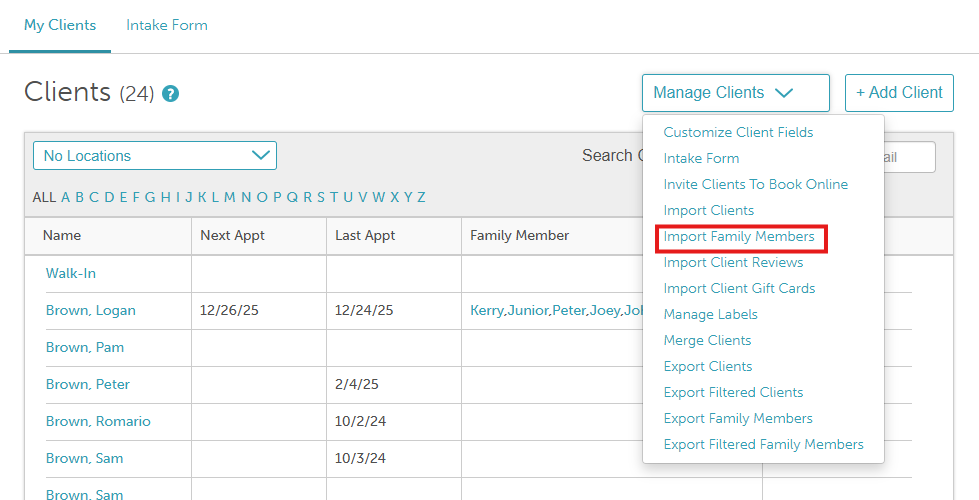
3. The screen below will appear. Download the MyTime Family Members Import Template 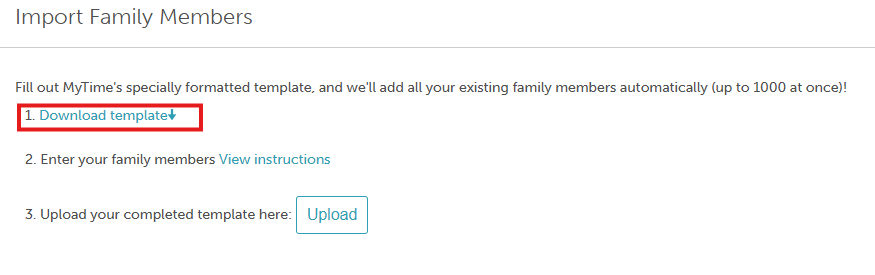
4. Find the downloaded Excel spreadsheet on your computer and open it using Microsoft Excel or any compatible spreadsheet software
5. Enter the family member information into the designated columns. Verify the accuracy and completeness of the data to ensure a seamless import process
6. After completing the entry of yourfamily member information in the MyTime Family Members spreadsheet, save the Excel file as a CSV
7. Return to the Import section and then click the "Upload" button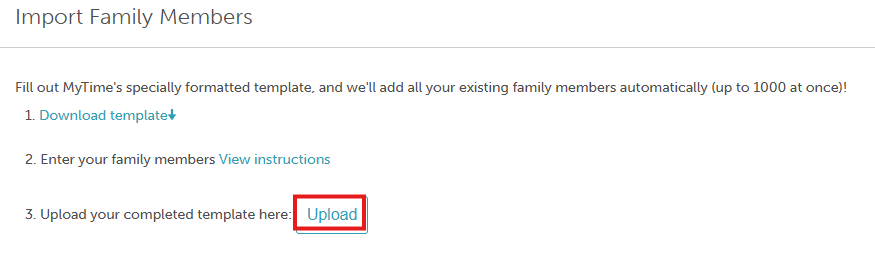
8. Select the CSV file from the download list. Once your file has been uploaded, click the "Import" button 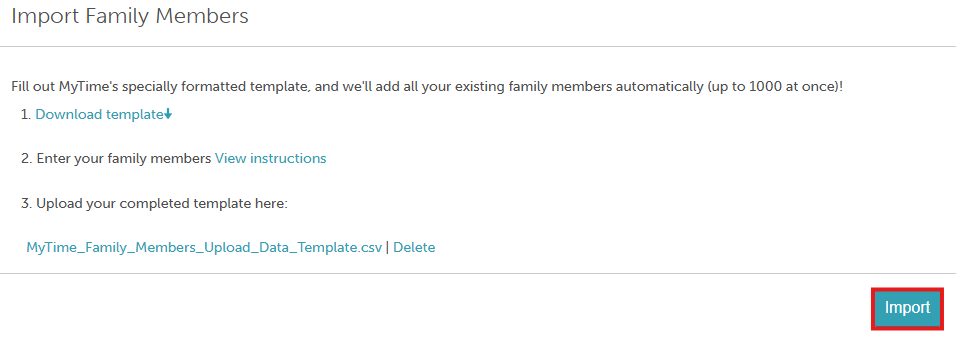
Congratulations! You've successfully imported family members into MyTime using a CSV file.
Column Descriptions
| Column | Description |
child_id | A unique ID for the family member. This is required for new family members. If you don’t already have one, generate a unique ID. |
client_id | A unique ID for the client. Required for new clients and used to link each family member profile to the correct client. If you don’t have one, generate a memorable ID (e.g., a simple number sequence). |
| mytime_child_id | The internal MyTime ID for the family member. Automatically generated by MyTime for existing family member profiles. Leave this field blank when importing a new family member. |
| mytime_client_id | The internal MyTime ID for the client. Automatically generated by MyTime for existing client profiles. Leave this field blank when importing a new client. |
| deleted | Indicates whether the family member profile should be deleted. Enter FALSE to keep the profile or TRUE to delete it. |
| custom_field X | The UUID for a custom field. You can include any number of custom fields, such as gender, age, first_name, etc. Replace X with the appropriate field reference in all lowercase letters. |
For more information, contact support@mytime.com.
Related Articles
- Adding Family Members Manually
- Adding Family Member on Scheduler App
- Editing Family Member Profiles
- Family Member Notes
- Exporting Family Members
- Creating Custom Family Member Fields
- Creating Family Member Intake Forms
- Generating Family Member Intake Form
- Hide Family Member Intake Form
- Scheduling Appointment for Family Members
- Booking Appointments Online for Family Members
- Marking a Staff Member as Preferred on a Family Member Profile
Was this article helpful?
That’s Great!
Thank you for your feedback
Sorry! We couldn't be helpful
Thank you for your feedback
Feedback sent
We appreciate your effort and will try to fix the article