Clients can purchase packages for family members via the consumer app which is similar to the way they would purchase them via the widget.
Things to Know:
- To enable online purchases for packages, the following steps must be completed:
- A payment account must be set up to process card payments. If you do not have a payment account, please email processing@mytime.com for help.
- Your account must be live.
- Online booking must be enabled. Learn more here
- In the package template, ensure that "Yes" is selected for the "Enable Online Purchase" setting.
- When purchasing packages online, clients can buy multiple packages in various quantities if the packages are set up for all family members. This feature is controlled by a hidden setting that only the MyTime team can enable. To activate this setting, please contact our Support Team at support@mytime.com. Please note that if the "Can only be purchased once per client" option is enabled during package configuration, the ability to purchase multiple quantities will not be available.
- You can configure your account to automatically apply promotions when clients purchase single or multiple packages. This feature is controlled by a hidden setting; to enable this setting, please contact MyTime Support at support@mytime.com.
- For businesses that do not have Strong Customer Authentication (SCA) enabled, clients purchasing packages on the guest app can choose not to save their card information. To opt out, they simply need to uncheck the box next to "I authorize X Company to save my card on file.
- If the “Default Commissionable Employee for Product and Prepaid Sales” company setting is configured as either “Logged in user” or “In-House Sale,” any package purchased through your custom guest app will display “In-House Sale” in the “Sold By” field on the ticket.
- Defined-Term Packages: The package end date will only be displayed on the checkout and confirmation pages if the package is configured with a specific, defined term.
- Indefinite Packages: If the package is configured as an indefinite package, no end date will appear on either page.
Once clients download your custom white-labeled MyTime app from the Google Play Store (Android) or Apple App Store (iOS), they can purchase family member packages by following these steps:
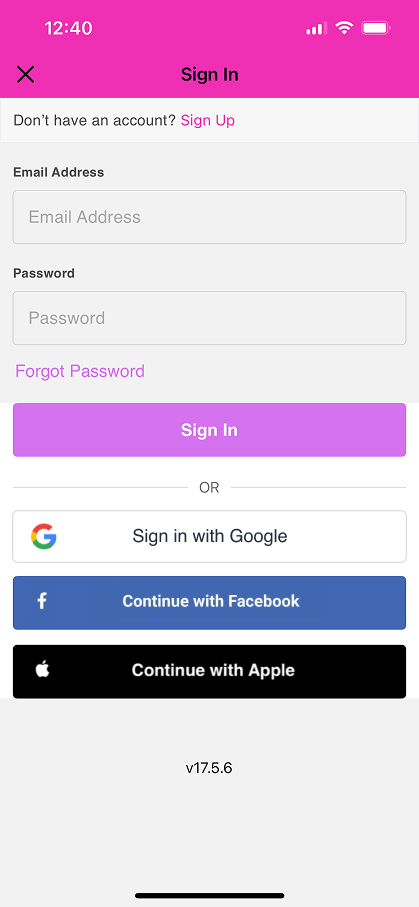
1. Upon downloading, navigate to the home screen and tap on the account icon located in the top right corner, tap sign in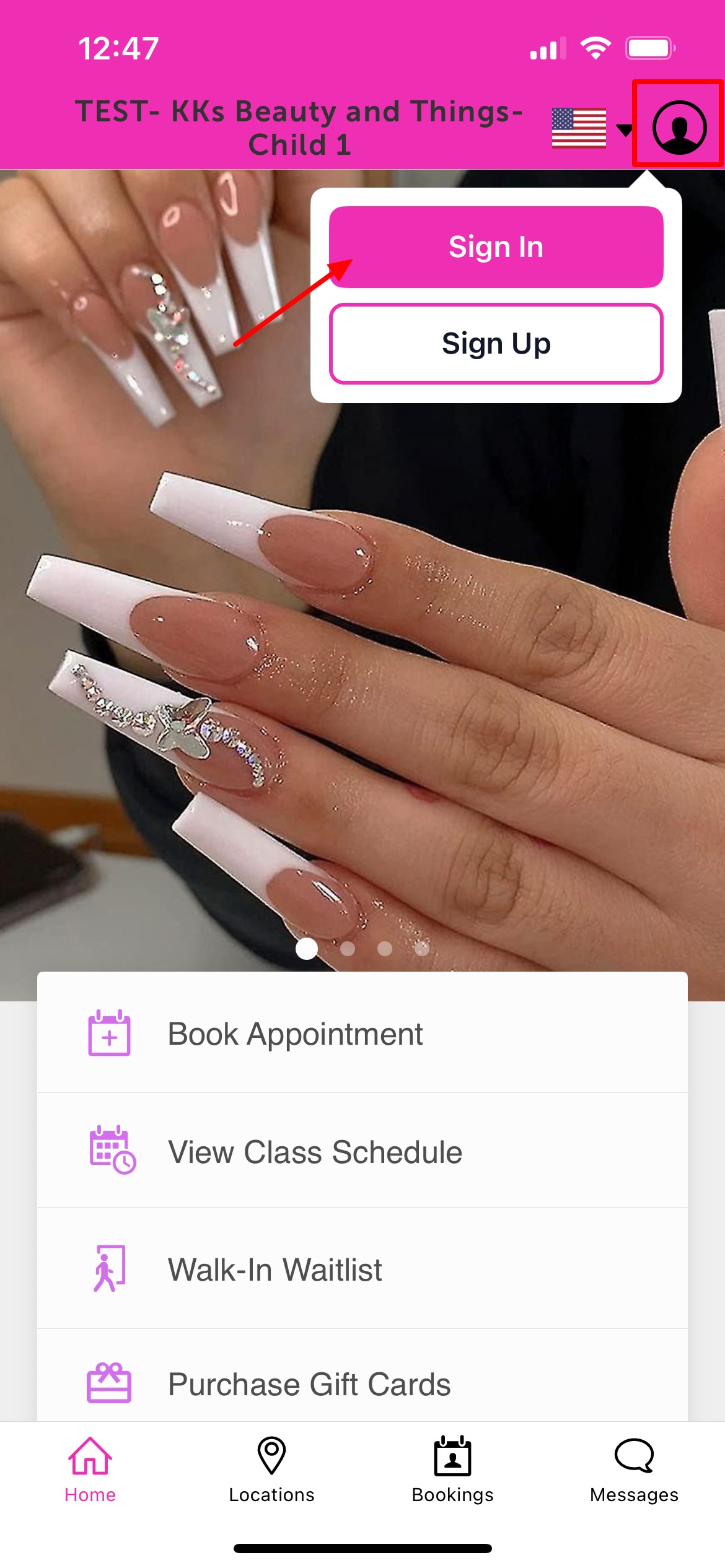 2. Choose their login method:
- Standard: Enter their registered email address and password, then click 'Sign In'.
- Social Login: Select 'Continue with Google,' 'Continue with Apple,' or 'Continue with Facebook' to use their existing social media credentials.
3. After signing in, return to the Home screen and tap Purchase Package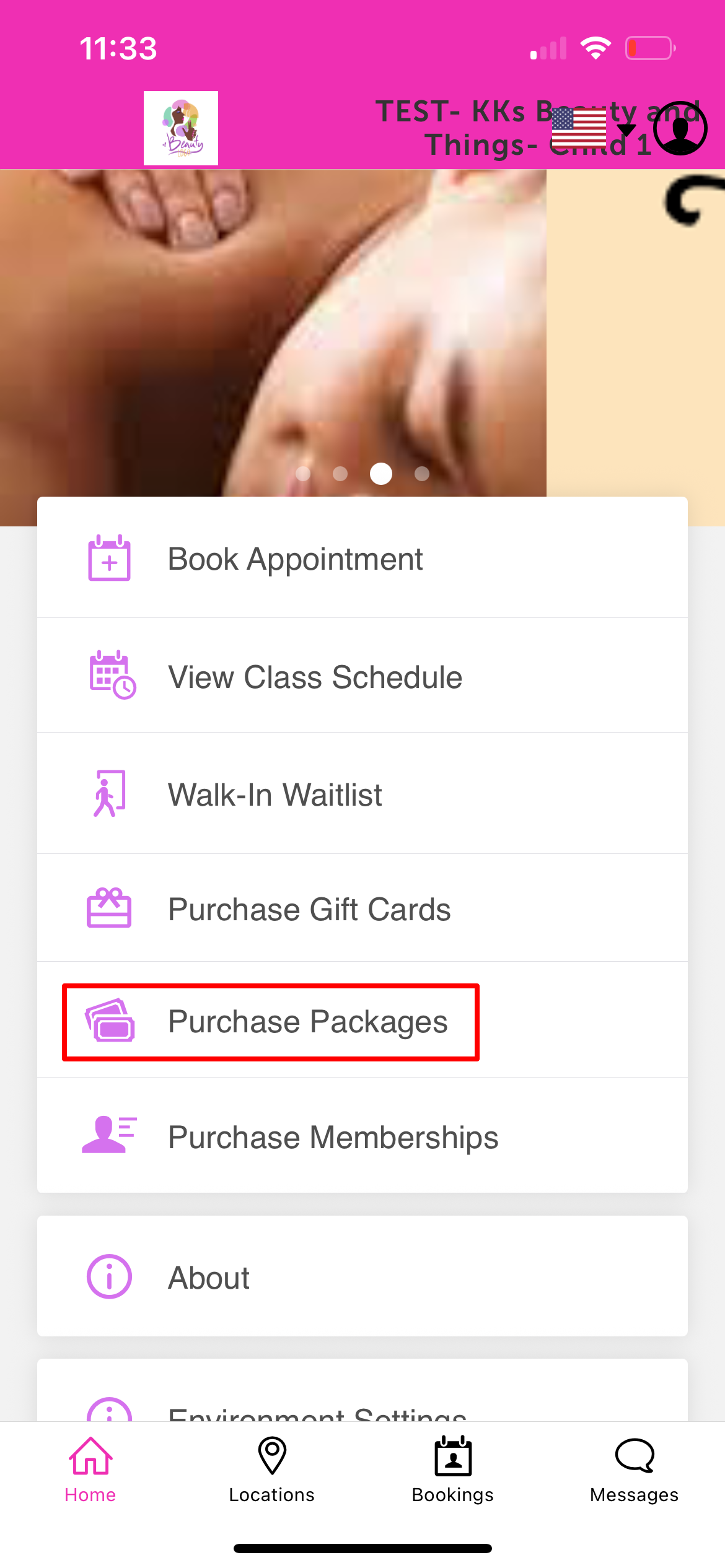
4. Select the location where the package will be used 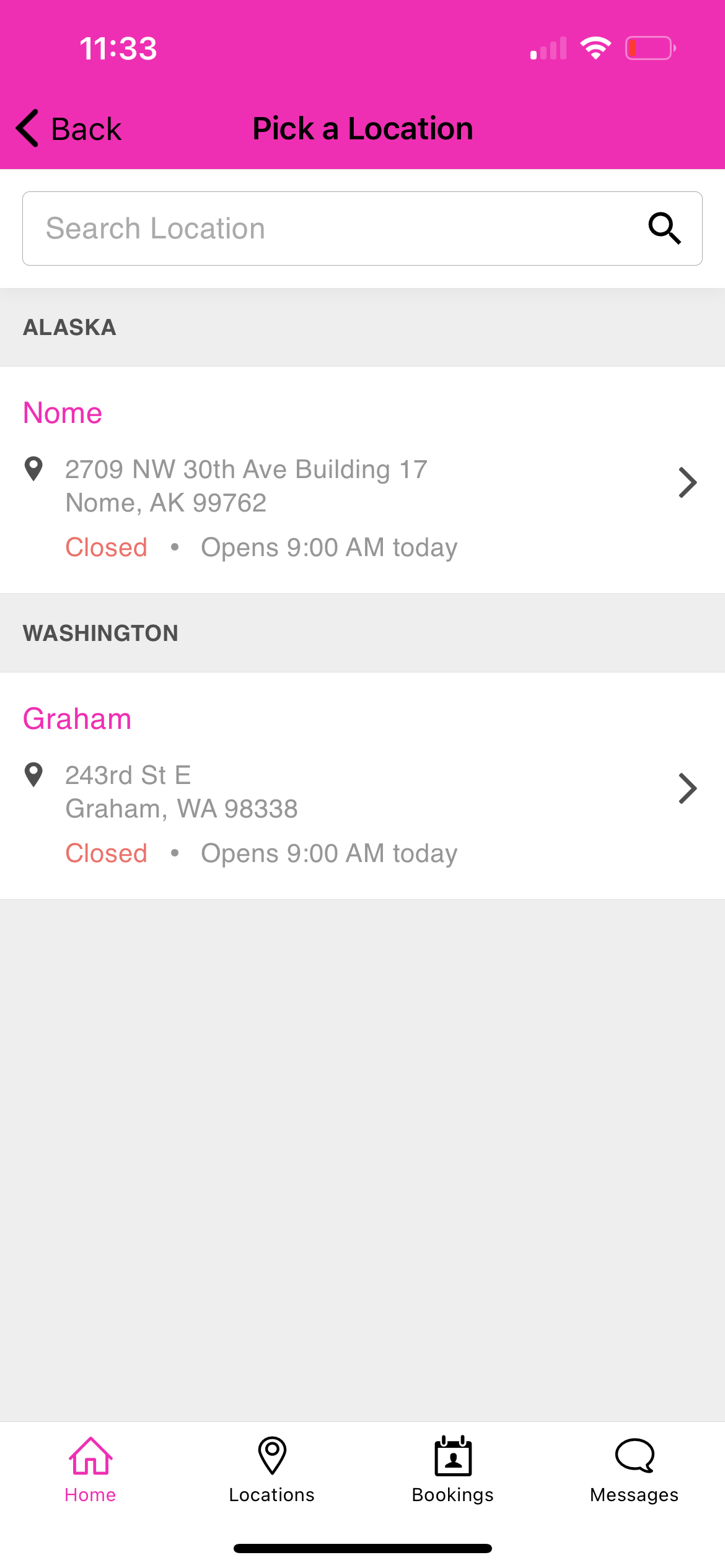
5. For individual packages, tap 'Buy' 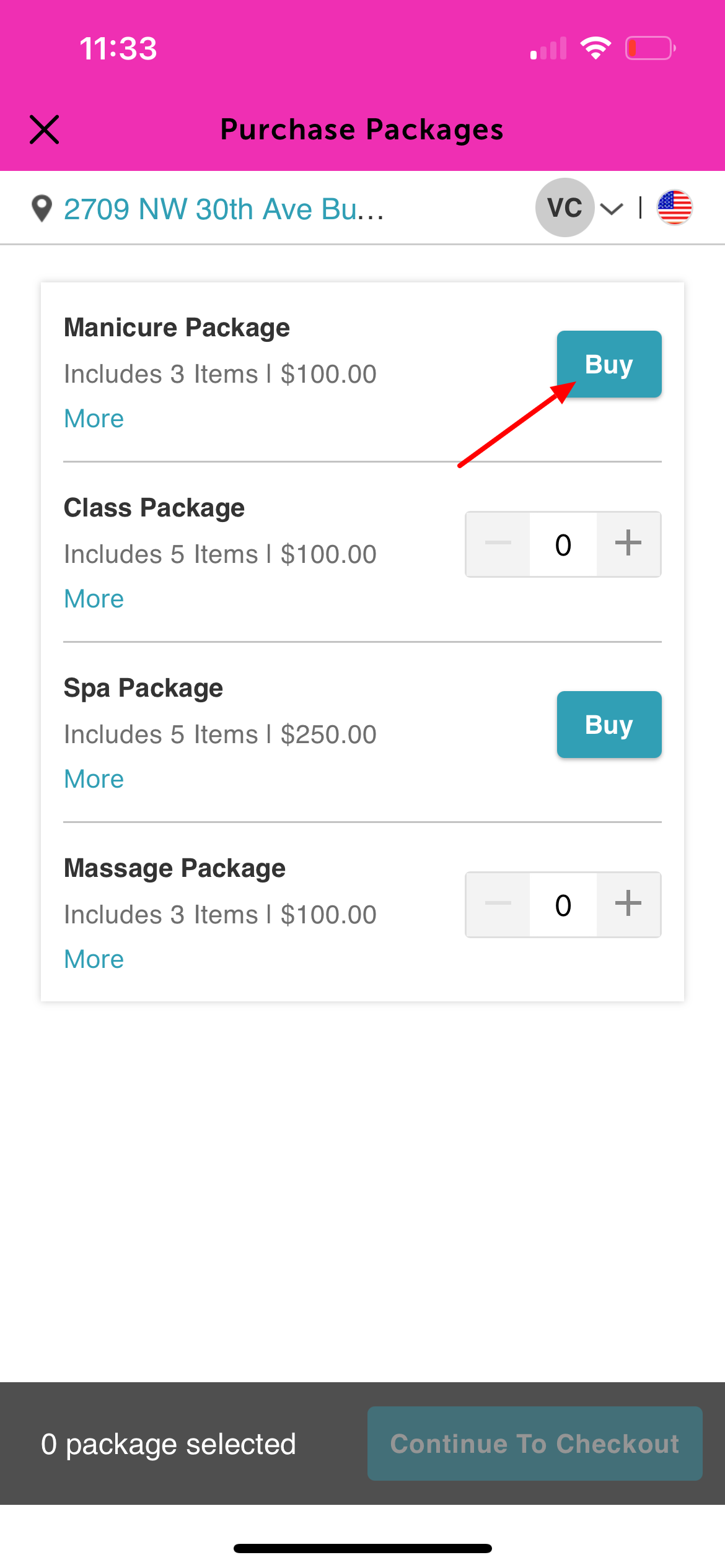
6. Choose the appropriate family member from the dropdown menu or add a new family member
7. Tap 'Buy' to proceed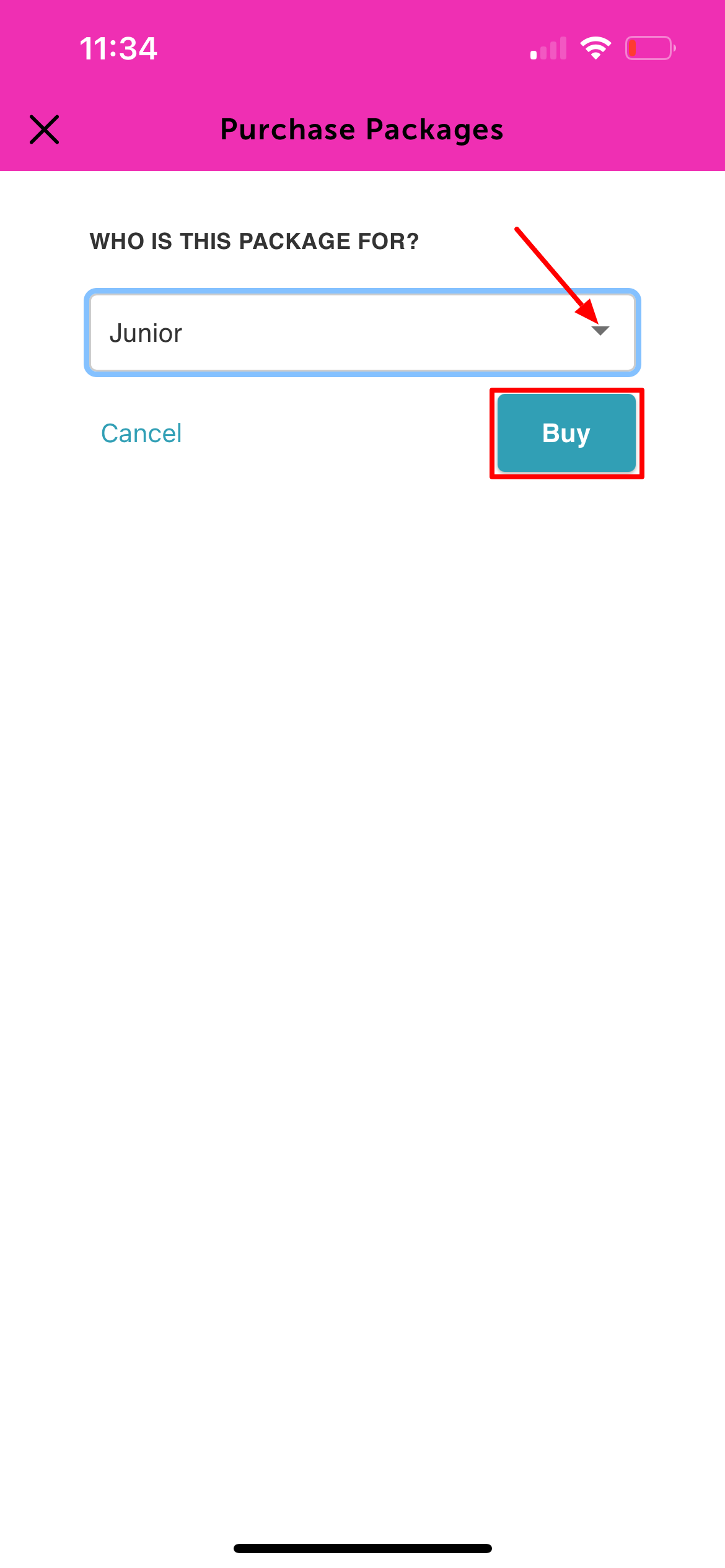
8. Enter payment details and tap Complete Purchase 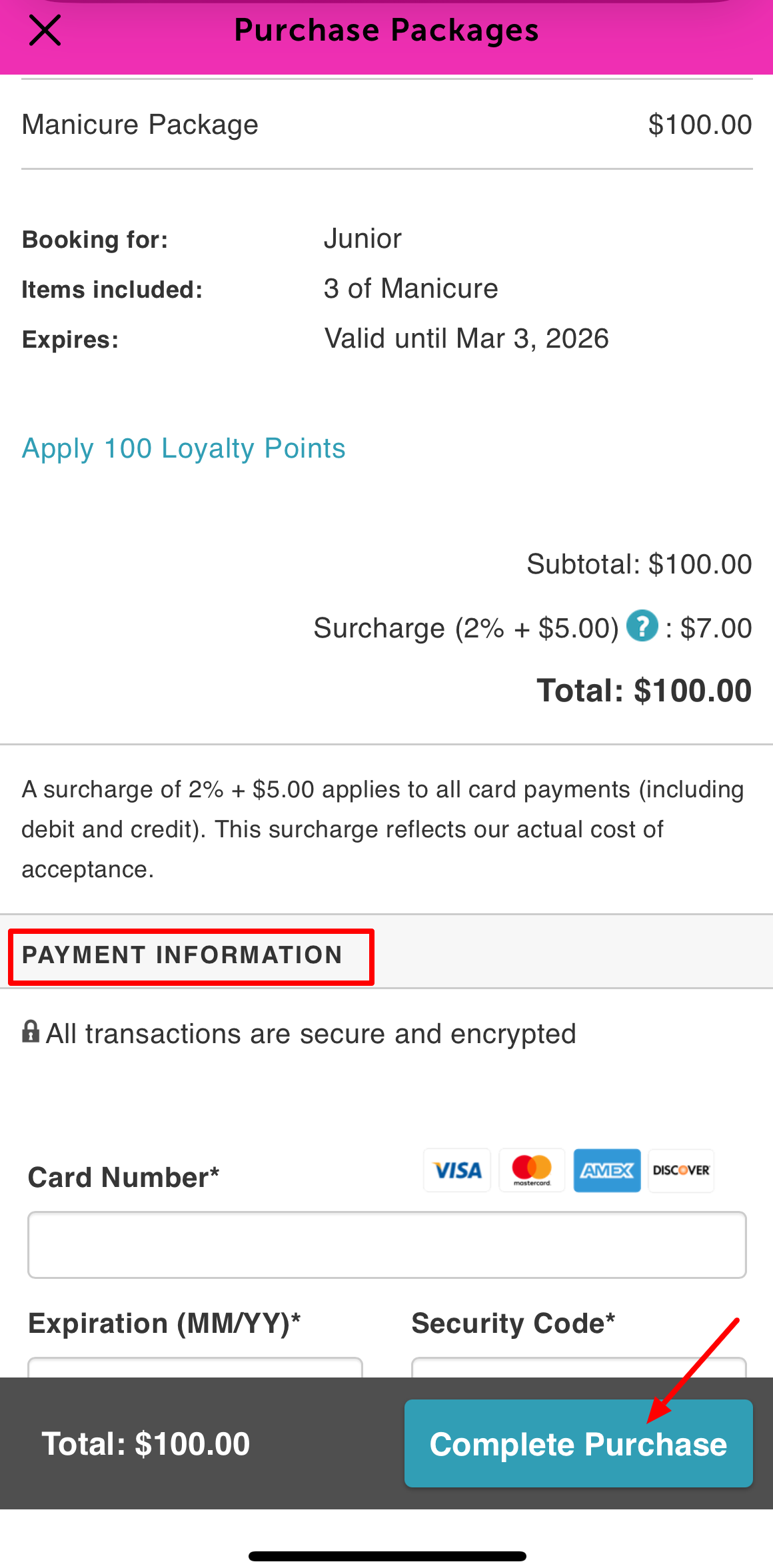
9. The confirmation screen will display the full package details 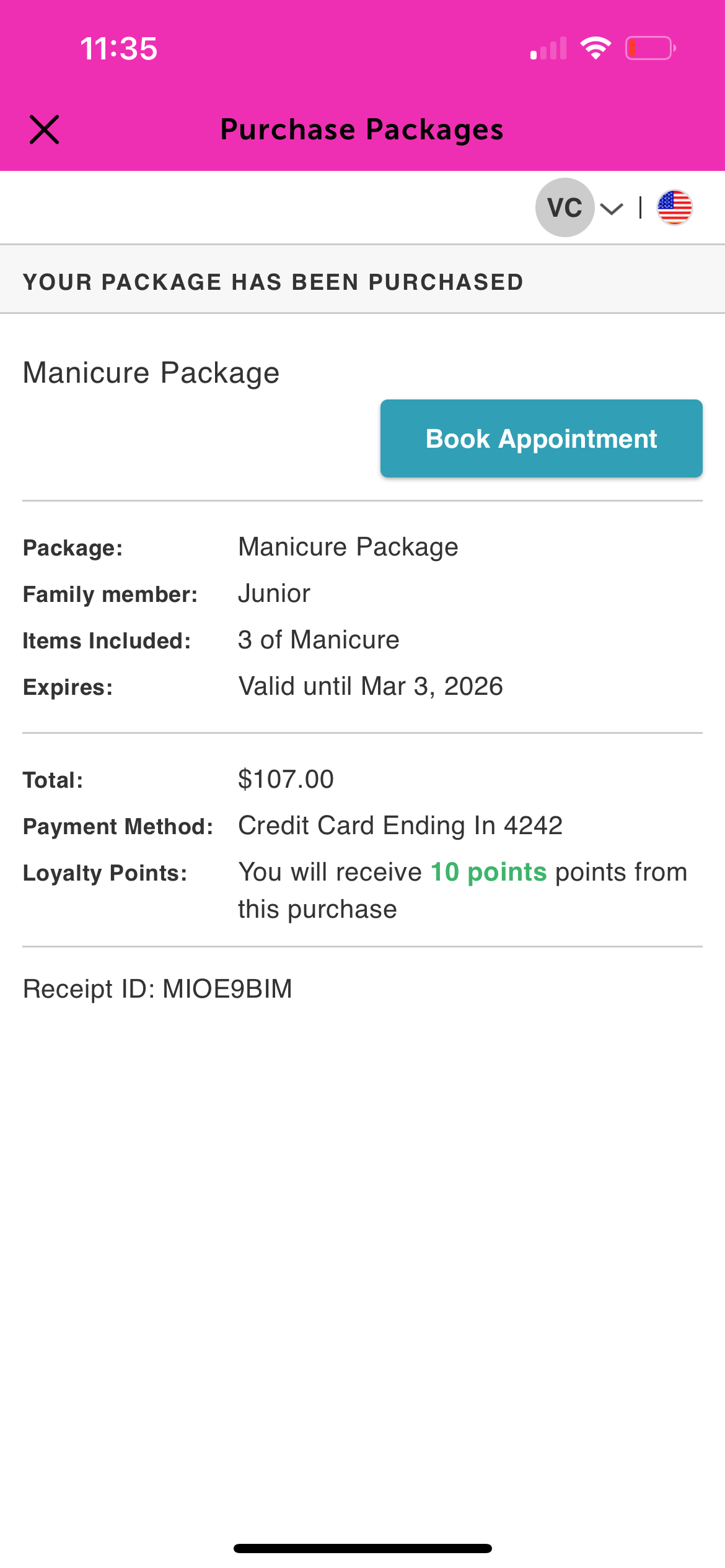
For more information contact support@mytime.com.
Related Articles:
Was this article helpful?
That’s Great!
Thank you for your feedback
Sorry! We couldn't be helpful
Thank you for your feedback
Feedback sent
We appreciate your effort and will try to fix the article