This article will guide you through the steps for deleting packages from the client's profile.
Things to know:
- The ability to delete packages is controlled by the ‘Access Packages’ access control setting.
- Deleting a package from a client’s profile will not affect any past or upcoming appointments that used that package's items.
- If an appointment is scheduled before the package is deleted, but the ticket is not created, the package benefits will not apply at checkout.
To delete a client’s package:
- Launch the MyTime Scheduler app on your device
- Choose your login method:
- Standard: Enter your registered email address and password, then tap 'Sign In'
- Social Login: Select 'Continue with Google' or 'Continue with Apple' to use your existing credentials for a faster login experience. For detailed instructions, learn more here
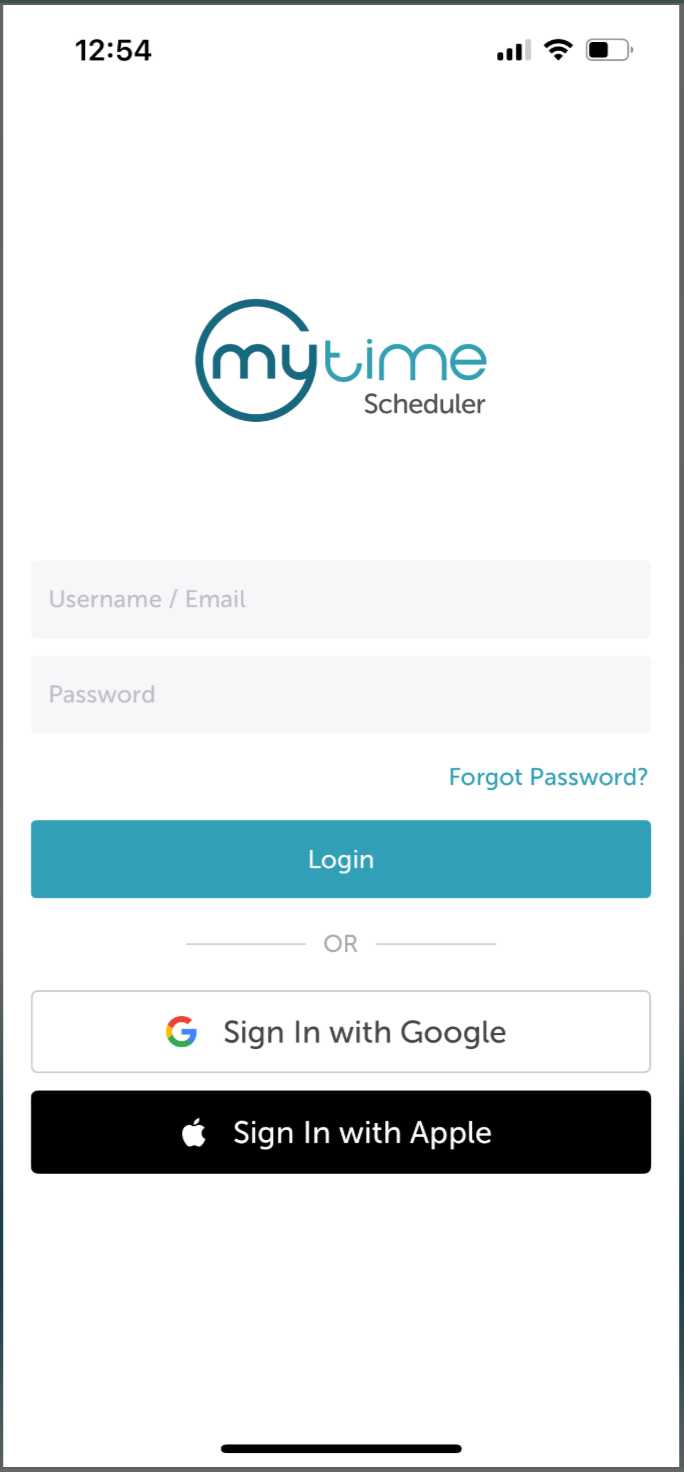
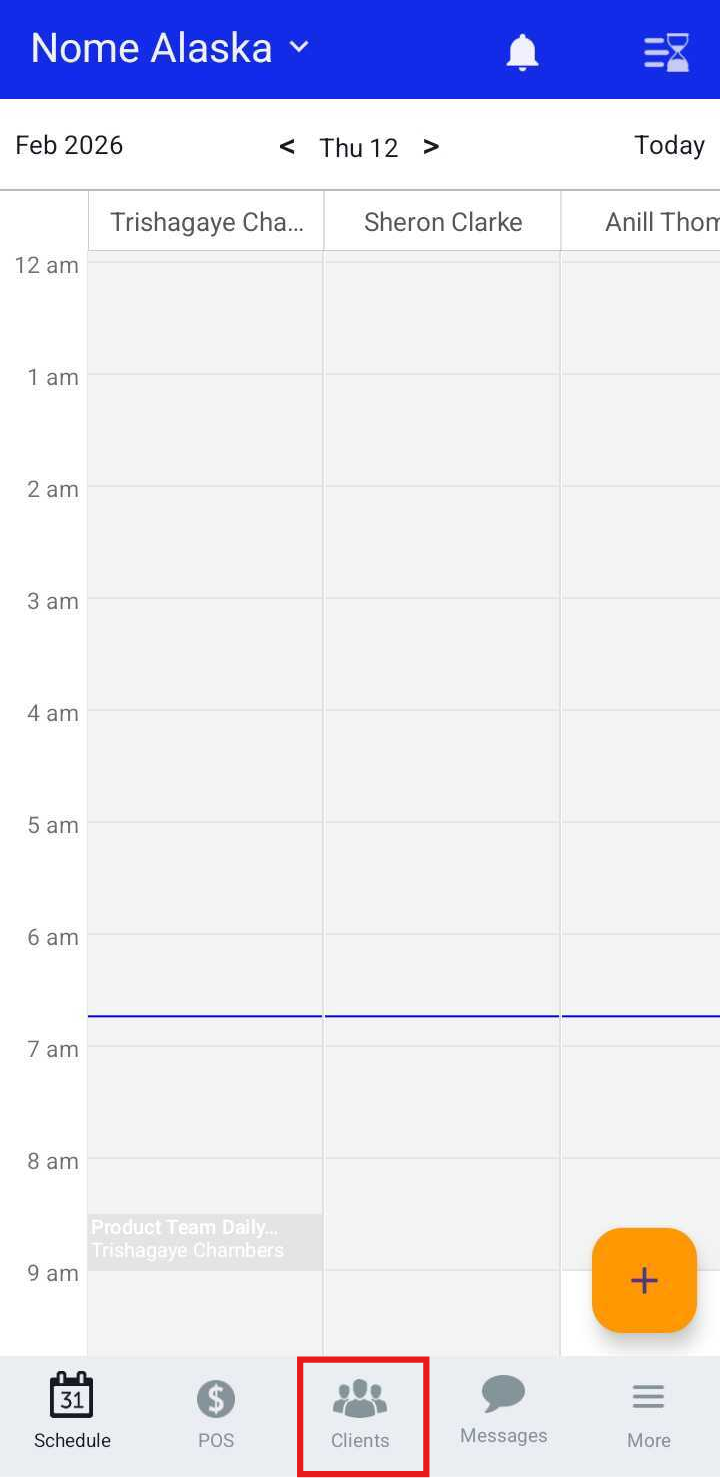
- After signing in, you will be directed to the Schedule screen by default
- Tap the Clients icon at the bottom of the screen
- Search for the client by entering their name in the Search field, or select them from the client list
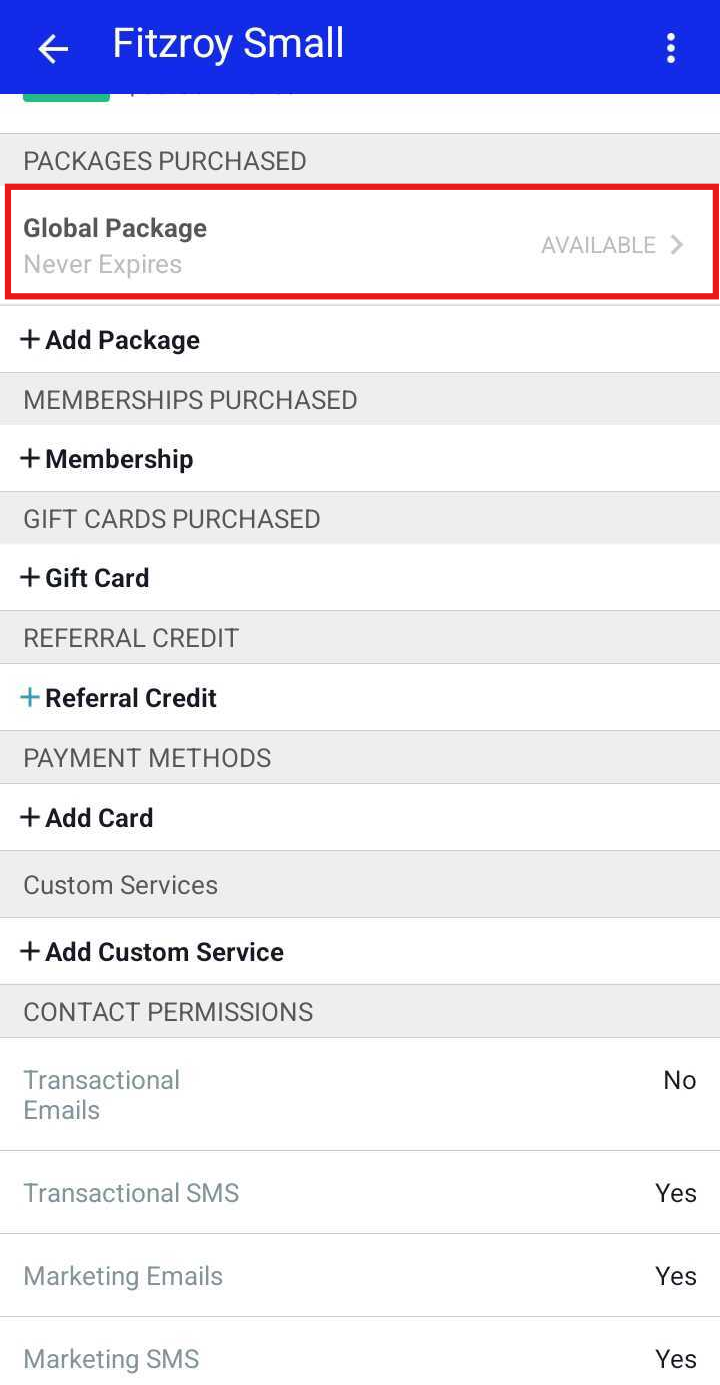
- On the client’s profile, scroll to the Packages Purchased section
- Tap the package you want to delete
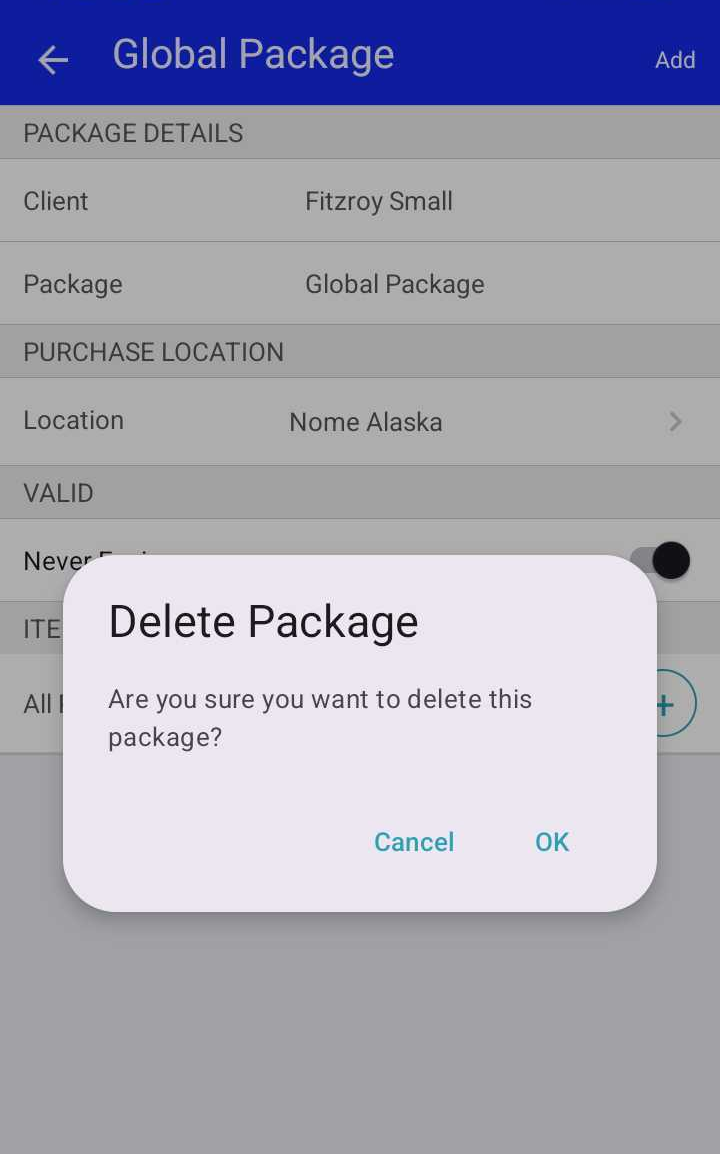
- Select Delete Package
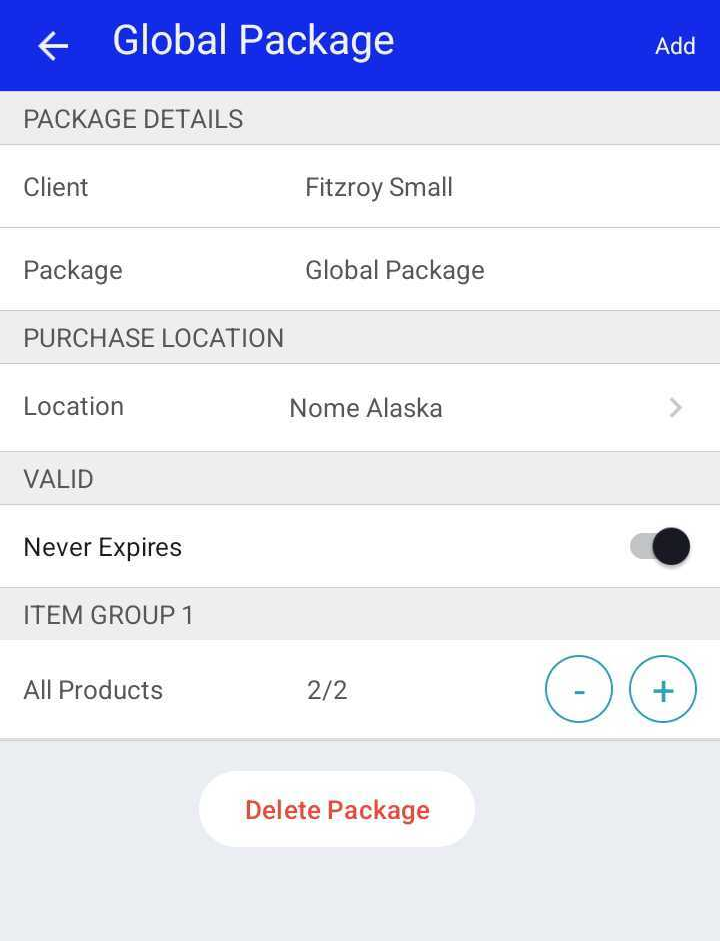
- Confirm the deletion when prompted
Once deleted, the package will no longer appear on the client’s profile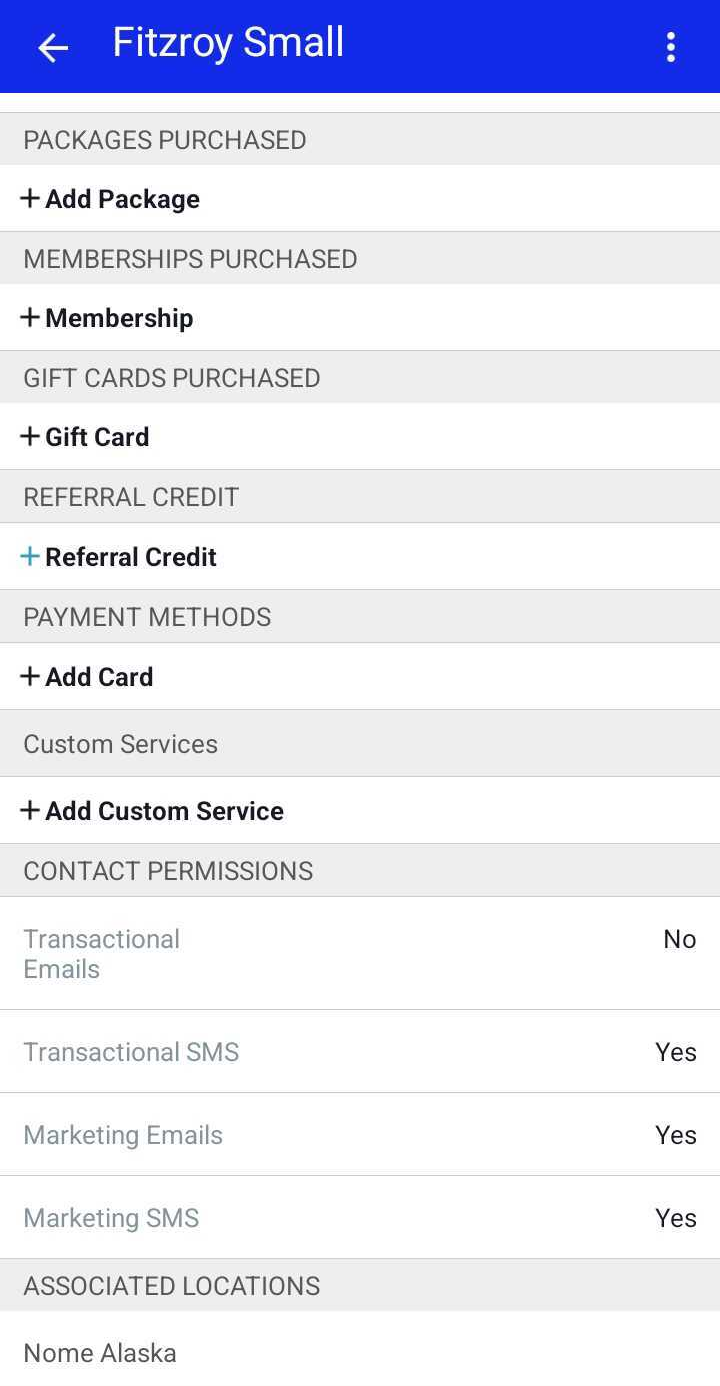
If you have any questions, please contact our support team at support@mytime.com.
Related Articles:
Installing MyTime on Scheduler App (Android and iOS)
Signing into MyTime on Scheduler App (Android and iOS)
Configure Packages for Clients
Configure Packages For Family Members
Adding Packages for Clients on Scheduler App
Adding Packages for Family Members on Scheduler App
Adding Packages for Family Members
Adding Packages for Pets on Scheduler App
Adding Packages for Pets on Client Profile
Editing Packages on Client Profiles on Scheduler App
Was this article helpful?
That’s Great!
Thank you for your feedback
Sorry! We couldn't be helpful
Thank you for your feedback
Feedback sent
We appreciate your effort and will try to fix the article