This article outlines the steps clients can take to cancel their memberships and disable membership auto-renewal in the guest app.
Things to Know:
- The ability to configure your account to allow clients to cancel their membership and membership auto-renewal is controlled by the "Access Account Settings" access permission.
- Clients can cancel their memberships and membership auto-renewal online only if the "Enable Membership Cancellation from My Account" company setting is enabled.
- All membership types (both indefinite and term-based) and all statuses (active, frozen, suspended due to failed payment, or pending a start date) are eligible for cancellation. However, term memberships will move into a "Pending Cancellation" status and remain active until the end of their contract period.
- Unused credits from canceled memberships are applied before any credits from newly added memberships. Credits follow a first-in, first-out (FIFO) application method to ensure they are used in the correct order.
- When a membership is placed in Pending Cancellation status:
- The member continues to receive all active membership benefits.
- Any associated credits (item or value) will initially display an expiration date that matches the scheduled cancellation date.
- Once the cancellation is finalized, the system will automatically update the credit expiration date based on the following settings:
- "How long should item credits be valid after membership termination?"
- "How long should value credits be valid after membership termination?"
- Example: If today is July 8, 2025, and the membership is set to cancel on July 20, credits will show an expiration of July 20, 2025, until the cancellation is processed. After cancellation, if the settings specify a 30-day validity period, the expiration will update to August 19, 2025.
- Cancellation Fees:
- Indefinite Memberships: If cancelled online and a cancellation fee applies, the fee is charged immediately, and the membership is cancelled immediately.
- Term Memberships: If cancelled online and a cancellation fee applies, the fee is charged immediately, but the membership enters "Pending Cancellation" status and stays active until the end of the contract term.
- If the client does not have a card on file or the cancellation fee payment fails, the membership will not be cancelled, and an “Error canceling membership” message will be displayed.
- Next Charge Date:
- If a membership is in "Pending Cancellation" status and a monthly or custom charge is scheduled before the termination date, the charge will still be processed as planned. For example:
- Monthly Charge Date: 1st of each month
- Cancellation Requested: October 15 (online, so membership goes into Pending Cancellation status)
- Cancellation Effect Date: November 30
- Next Scheduled Charge: November 1—$100
- Since the membership remains active until November 30 (the end of the contract period), and the next billing date (November 1) occurs before the termination date, the $100 charge will be processed as usual. The member will continue to have access and be billed according to the schedule until the contract ends.
- If the membership is set to end before the next charge date or is being cancelled immediately, the membership will end on the termination date, and no further charges will be processed. For example:
- Monthly Charge Date: 1st of each month
- Cancellation Requested: October 15 (online, so membership goes into Pending Cancellation)
- Cancellation Effect Date: October 31
- Next Scheduled Charge: November 1 — $100
- Since the termination date (October 31) falls before the next billing date (November 1), the membership will be canceled, and no further charges will be processed.
- If a membership is in "Pending Cancellation" status and a monthly or custom charge is scheduled before the termination date, the charge will still be processed as planned. For example:
Contents:
Cancel Membership
After downloading your custom white-labeled MyTime app from the Google Play Store (Android) or the Apple App Store (iOS), clients can cancel their memberships by following these steps:
1. Upon downloading, navigate to the home screen and tap on the account icon located in the top right corner, tap sign in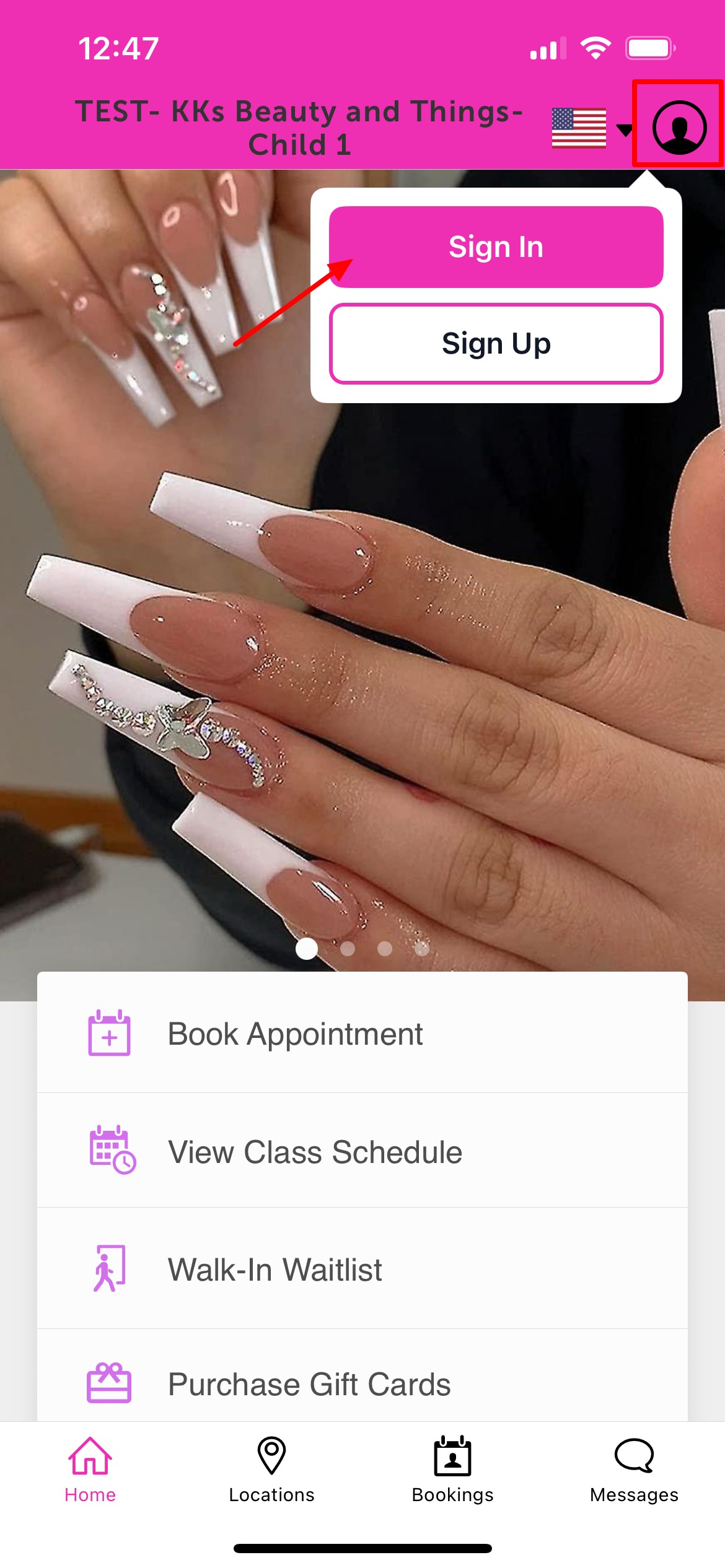 2. Choose their login method:
- Standard: Enter their registered email address and password, then click 'Sign In'.
- Social Login: Select 'Continue with Google,' 'Continue with Apple,' or 'Continue with Facebook' to use their existing social media credentials.
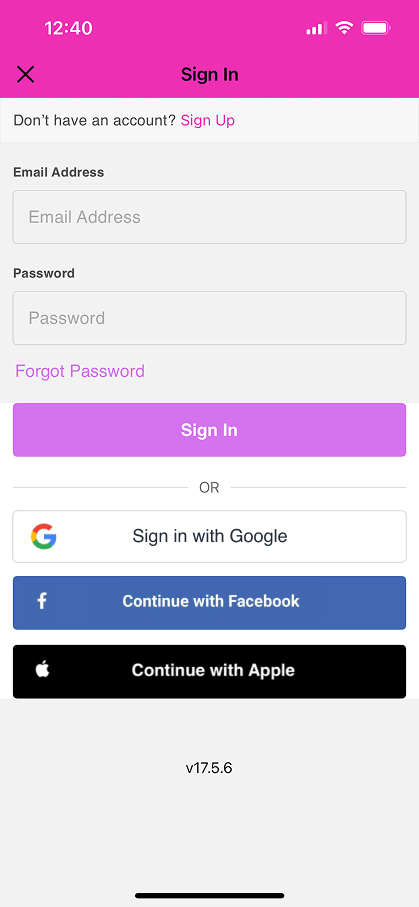
3. Once signed in, return to the Home screen and tap the profile icon in the top-right corner 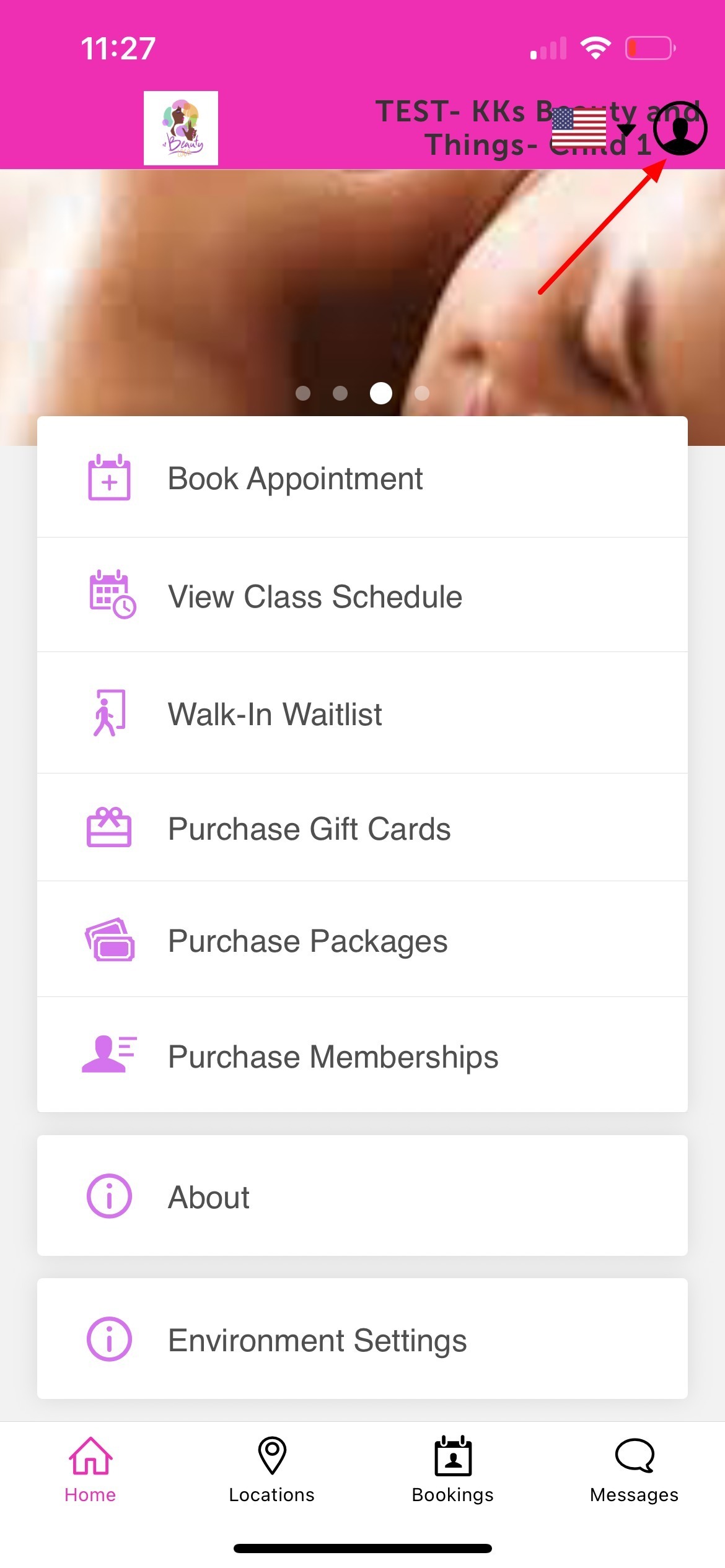
4. Tap 'Memberships' 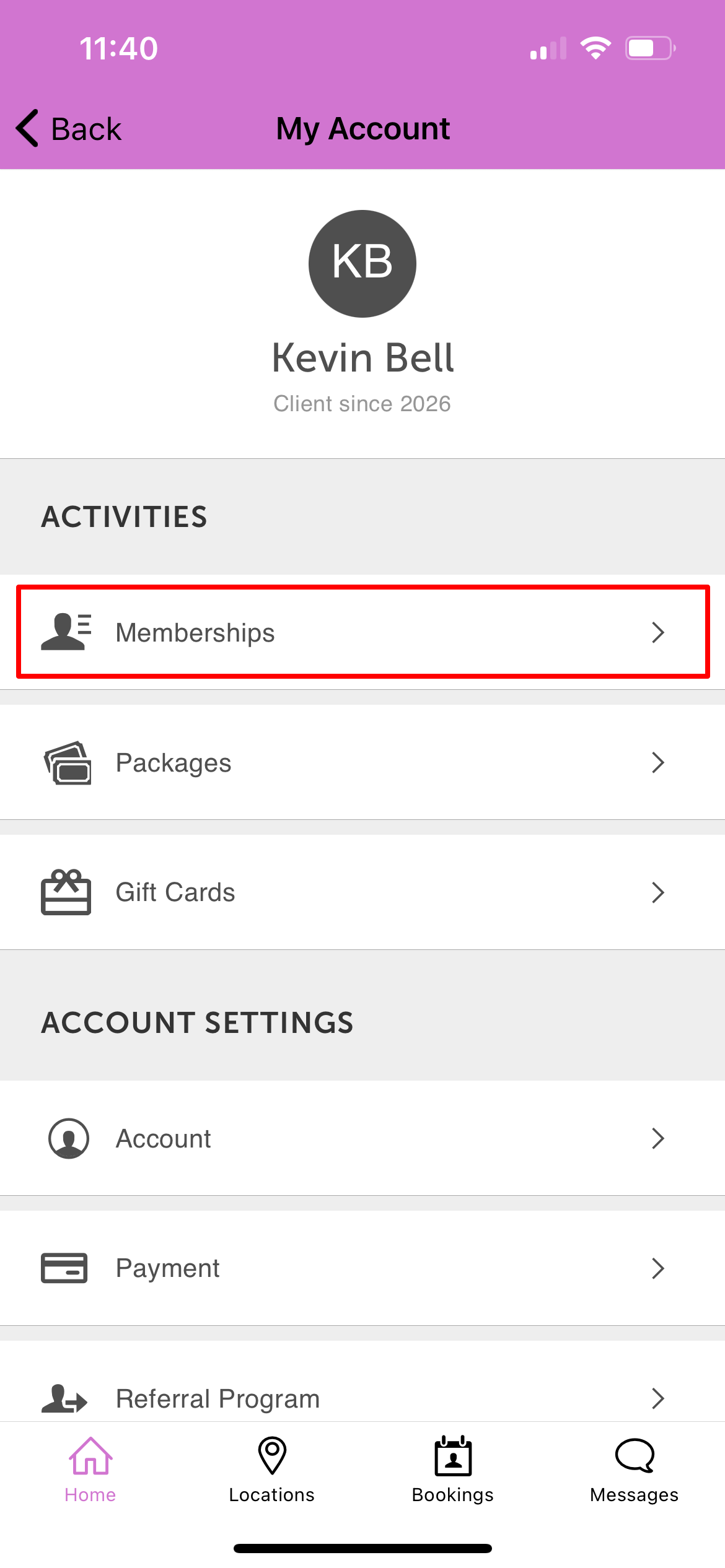
5. Select 'View Details' for the membership you wish to cancel 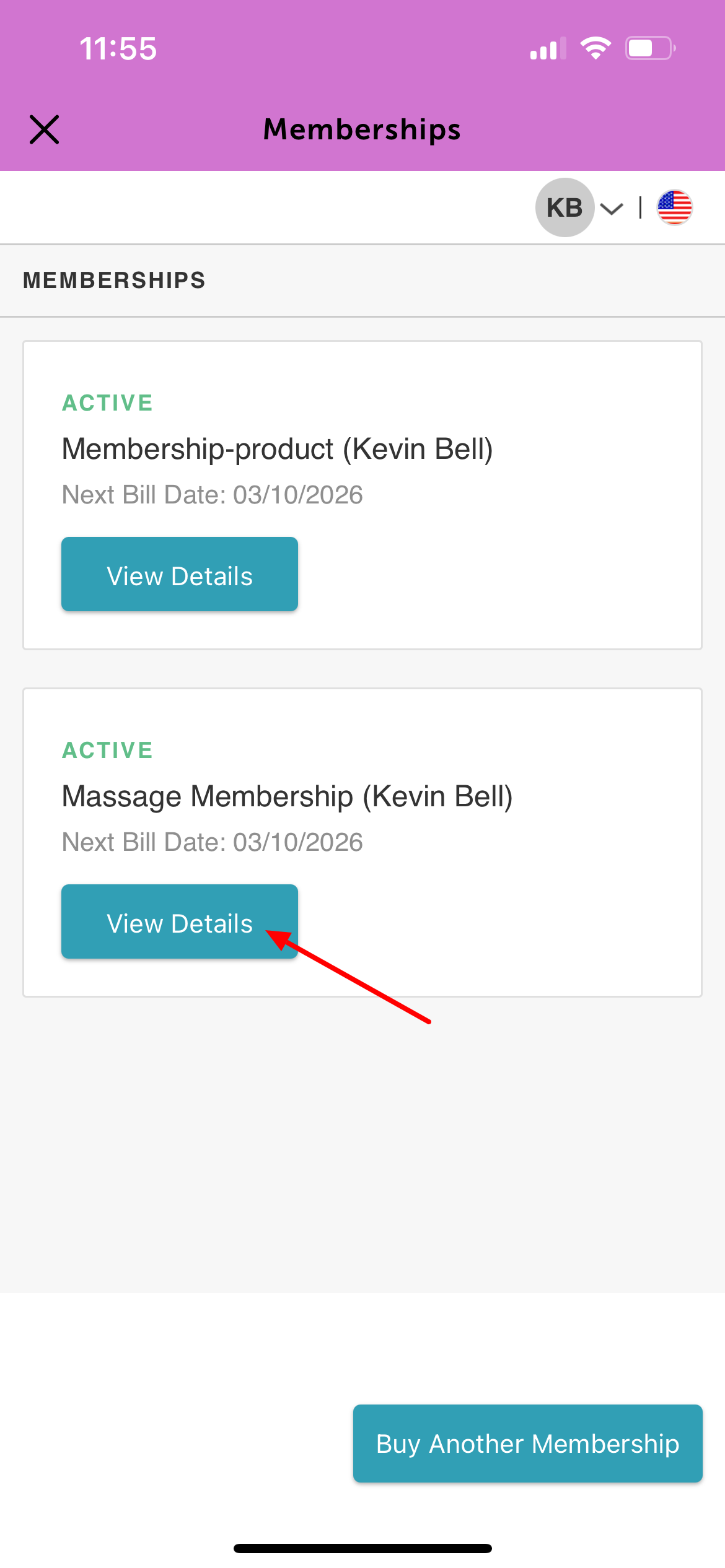
6. Scroll to the bottom of the screen and tap 'Cancel Membership' 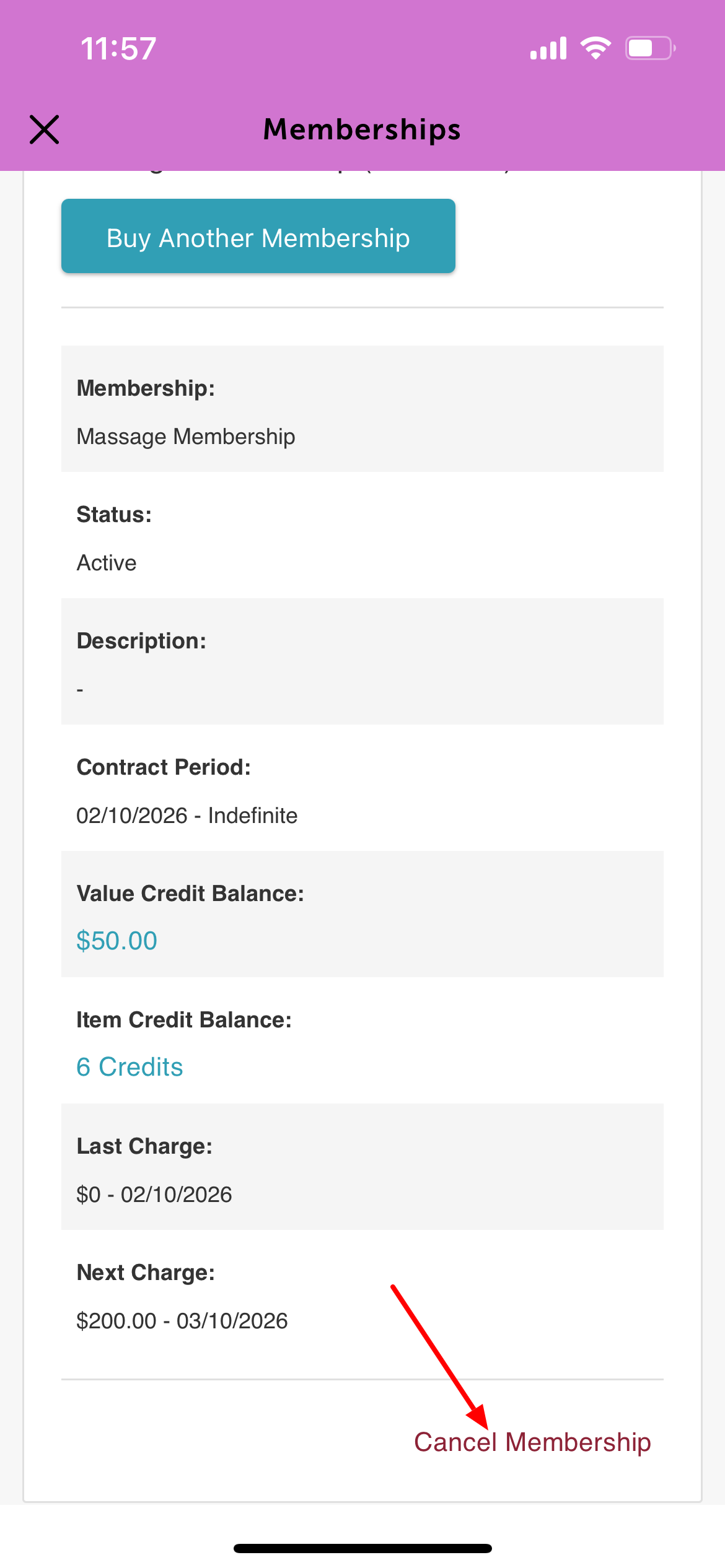
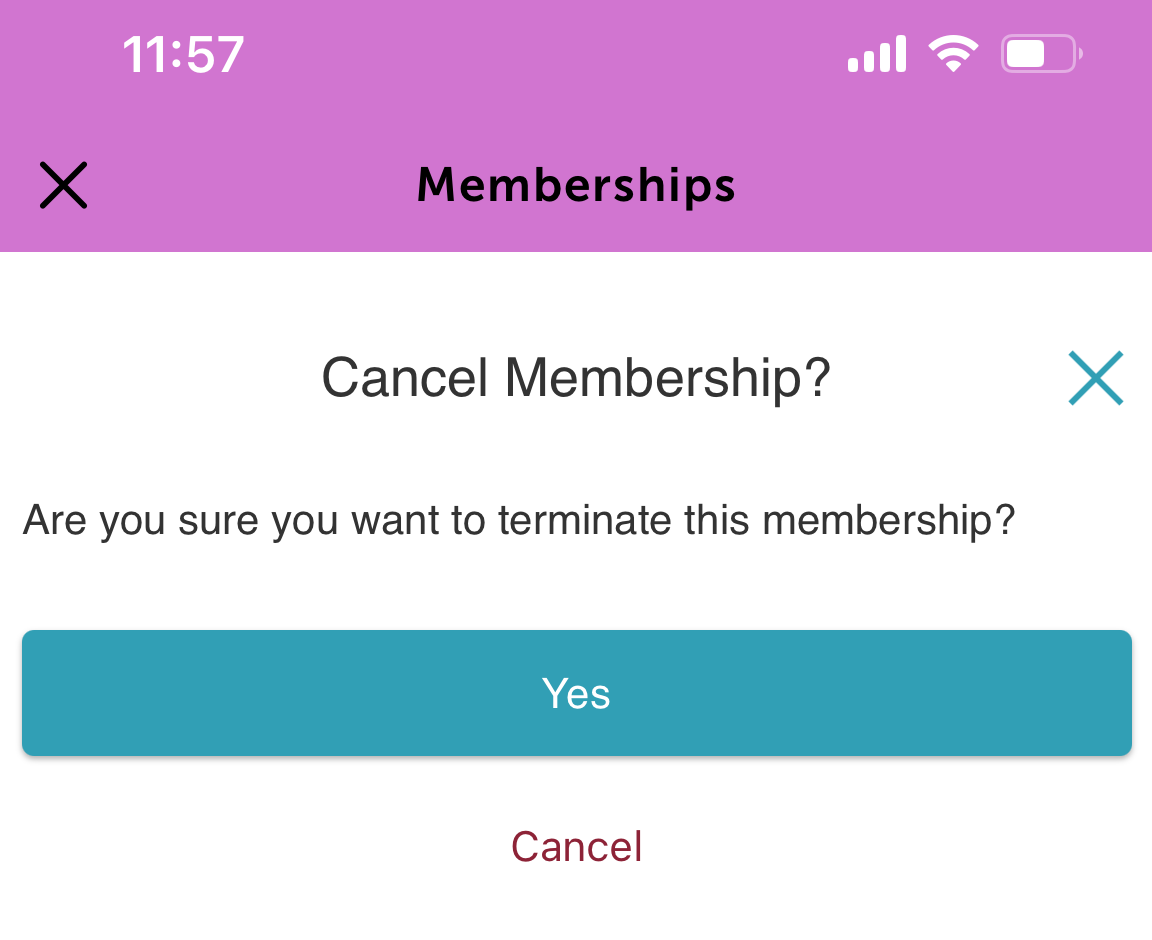
7. When the “Cancel membership?” confirmation pop-up appears, tap Yes to confirm.
- Indefinite memberships
- Termed memberships
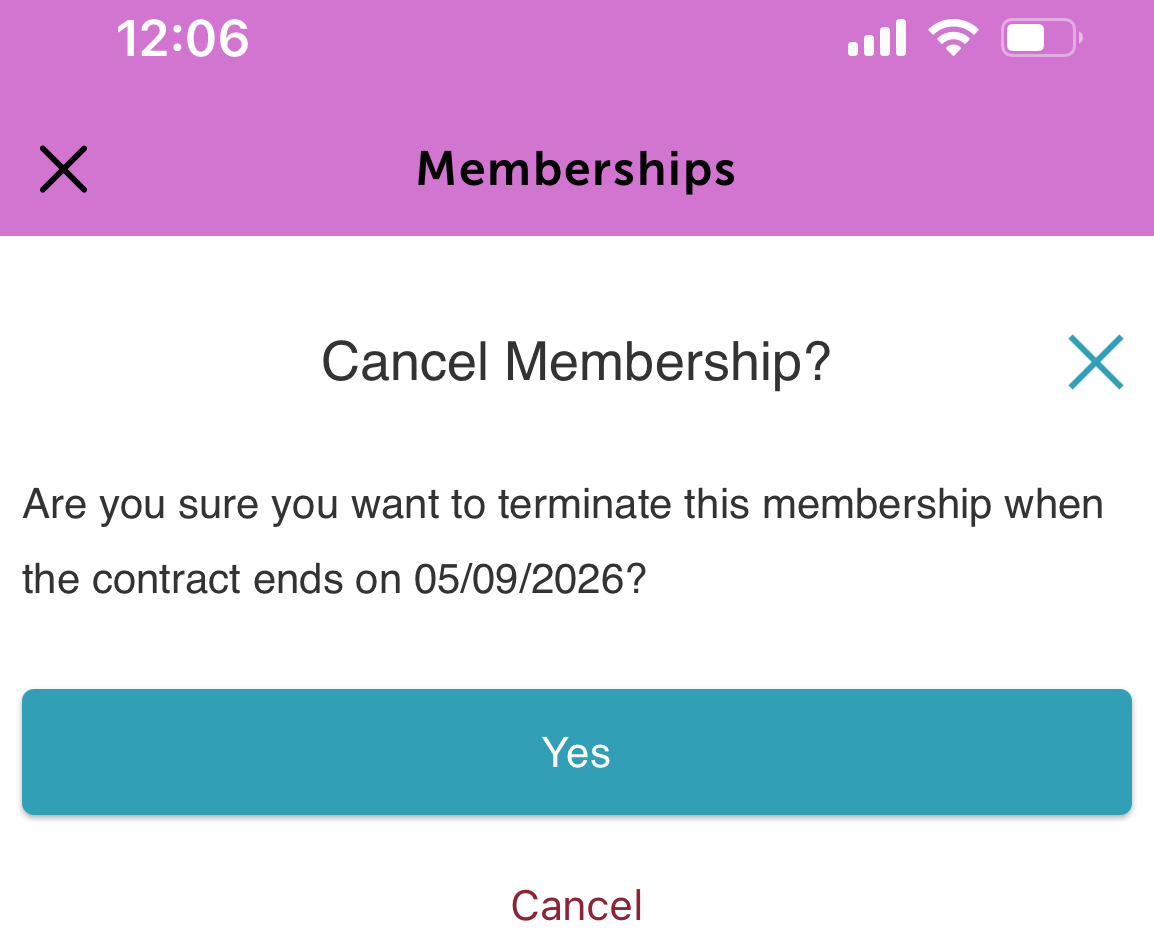
8. A confirmation message will appear at the top of the page 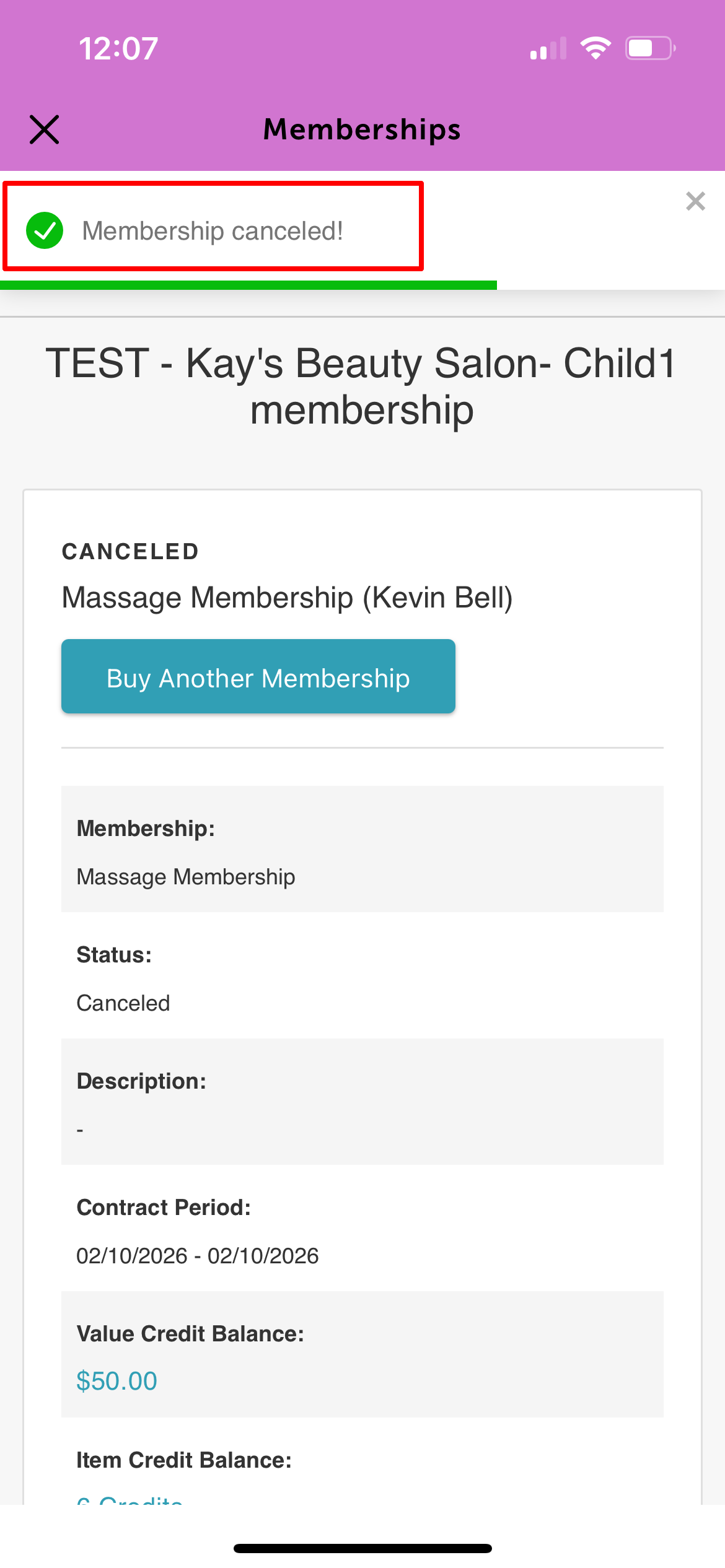
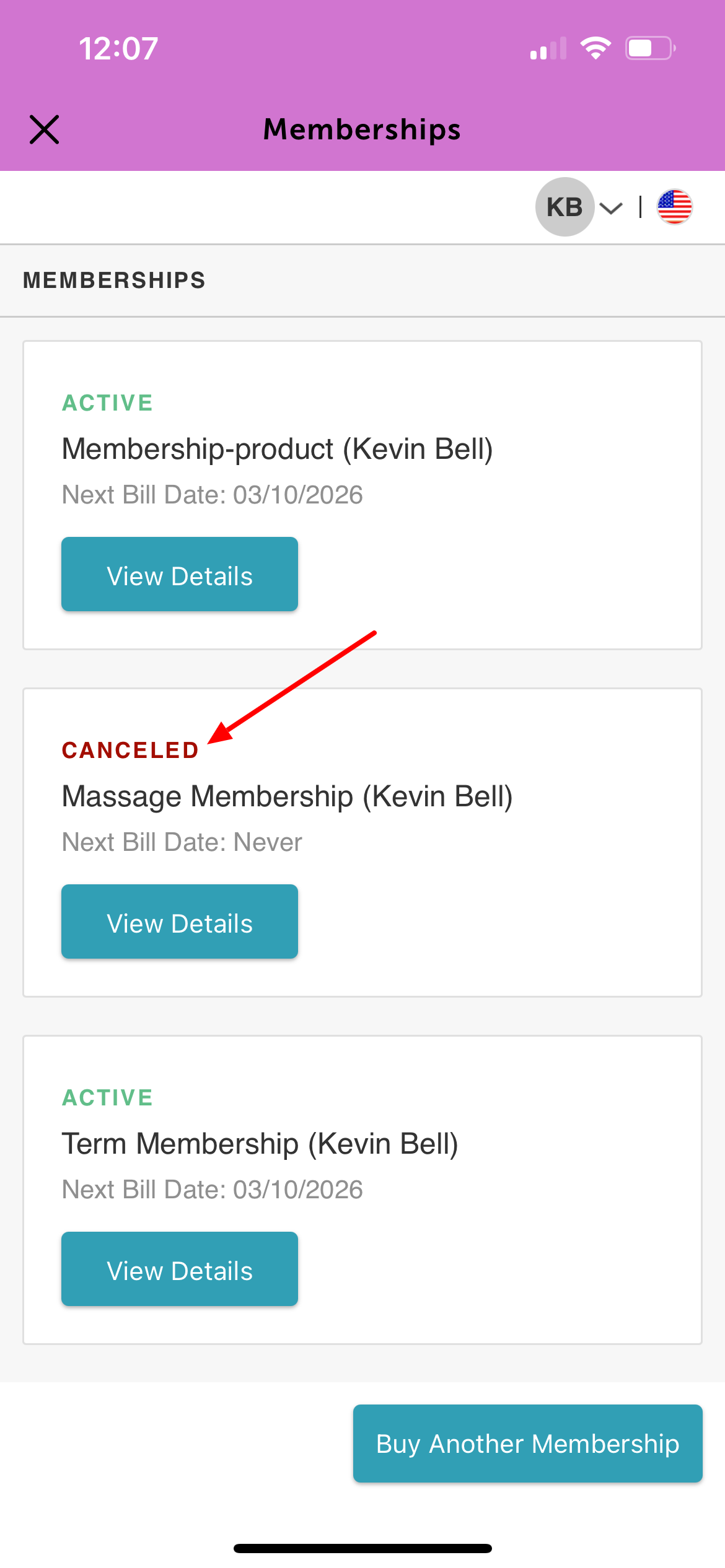
9. The membership status will update to Canceled on the membership details page. This applies to both indefinite and term-based memberships.
Cancel Membership Auto-Renewal
Clients with term-based memberships can cancel the auto-renewal feature directly from the guest app.
Things to know:
- This option is only available for term memberships.
- The 'Cancel Auto-Renew' link appears only if auto-renew is currently set to Yes.
- When a client cancels auto-renew, the membership will continue until the end of the current billing cycle.
How Clients Can Cancel Auto-Renew:
1. From the Home screen, tap the profile icon in the top-right corner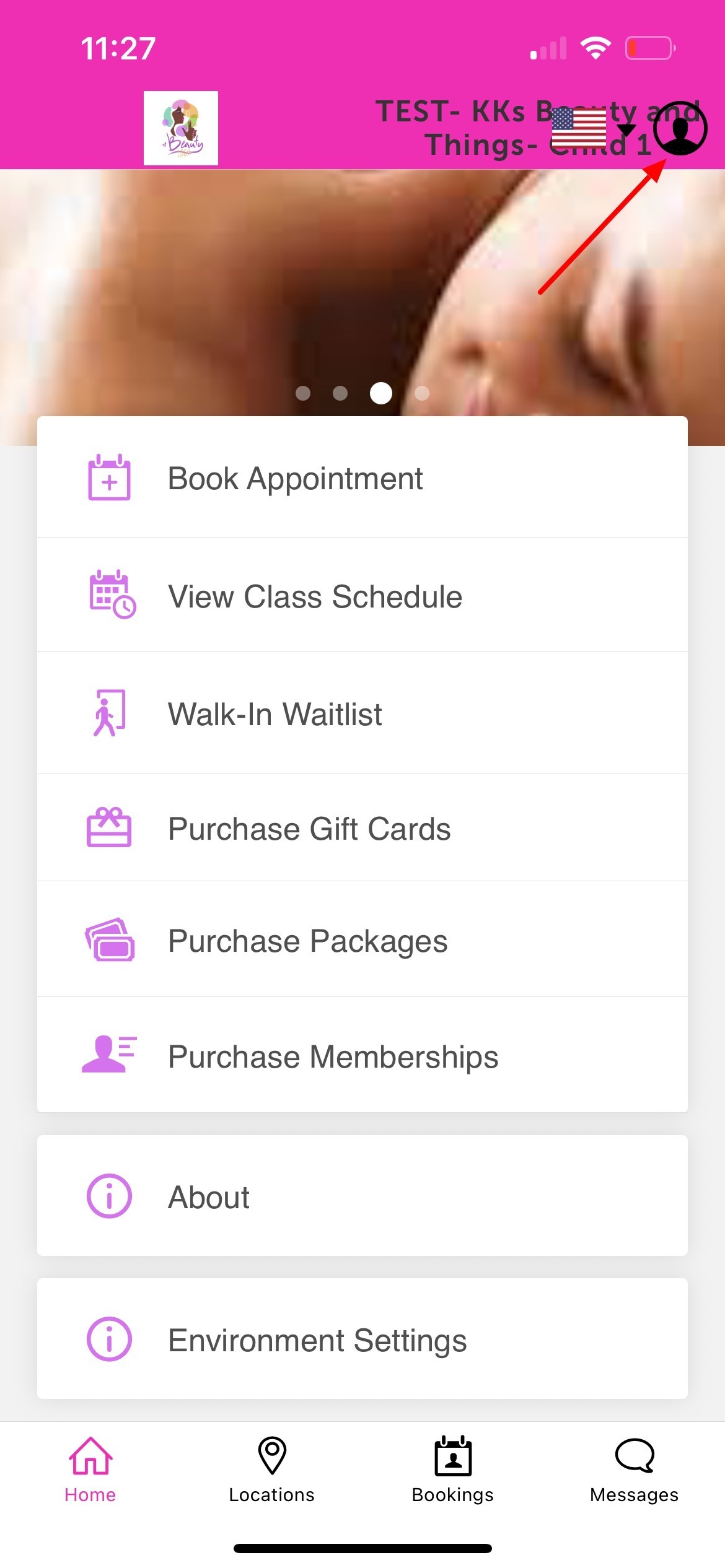
2. Login using their MyTime user credentials 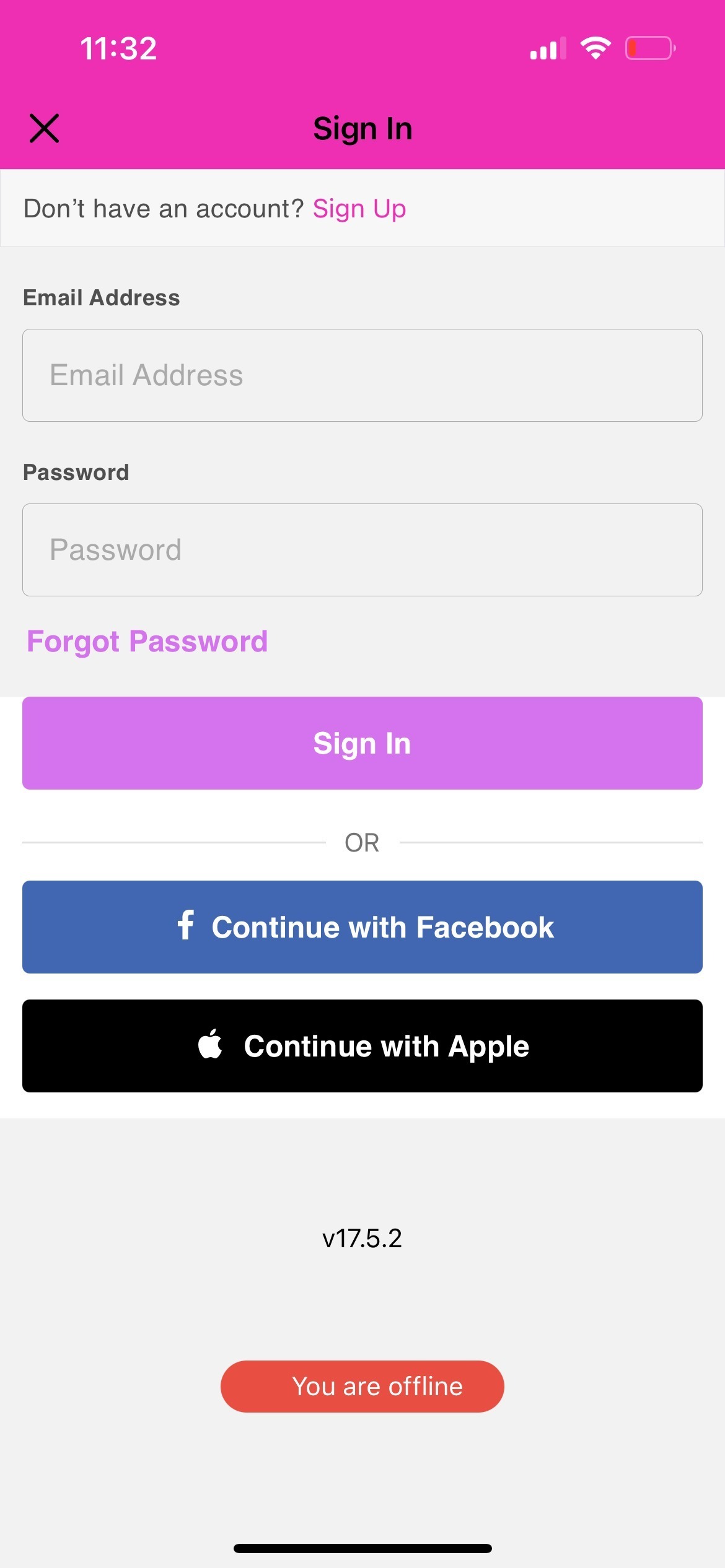
3. After signing in, return to the Home screen and tap the profile icon again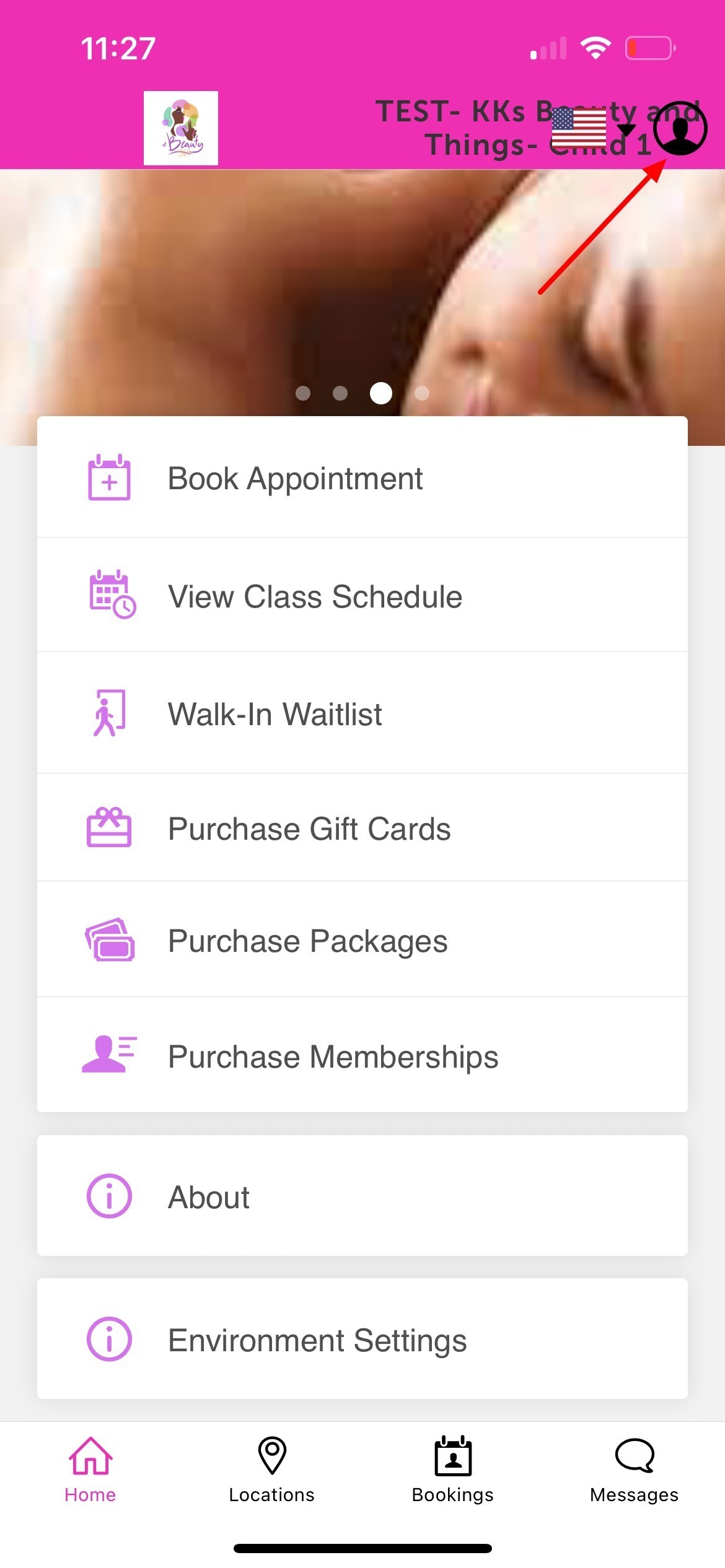
4. Tap 'Memberships' 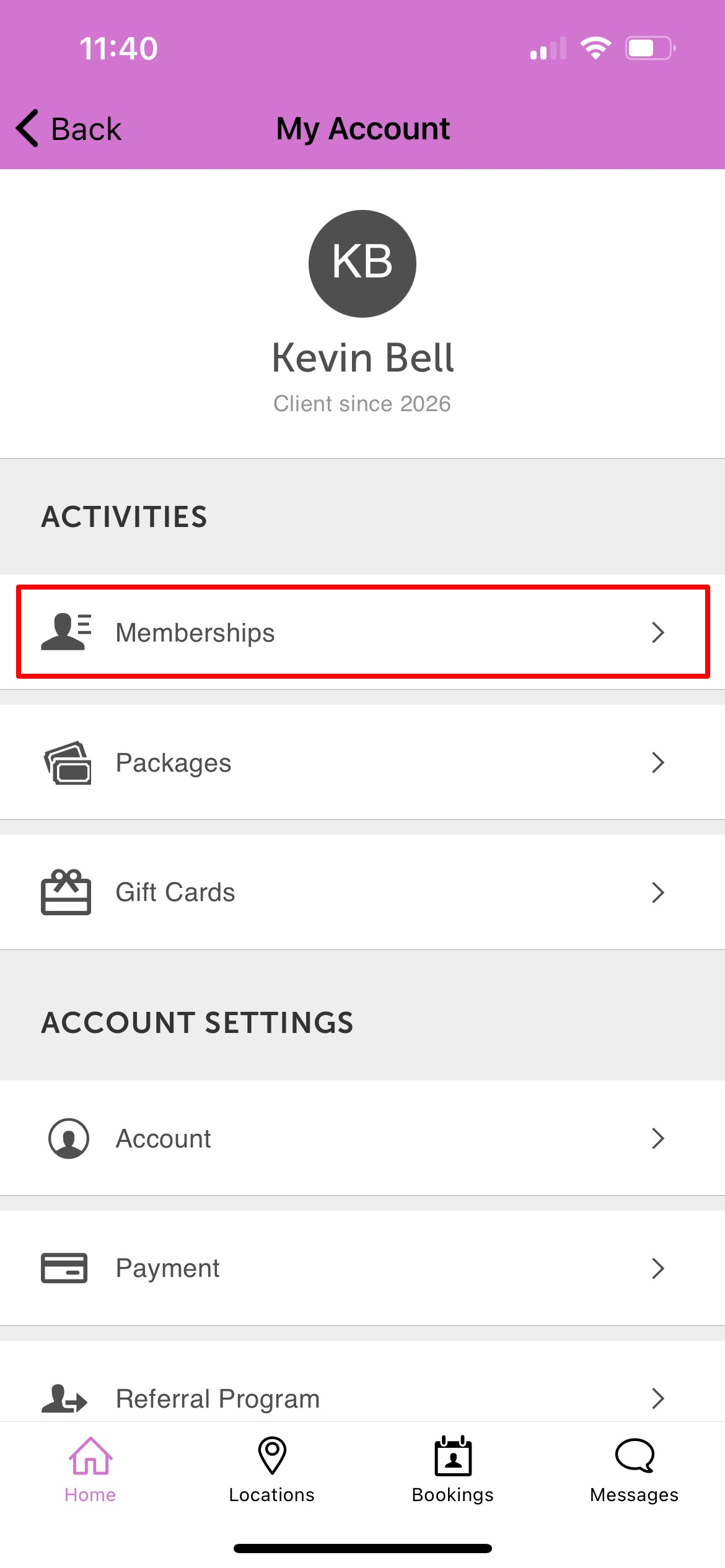
5. Select 'View Details' for the membership you want to cancel the membership auto-renewal for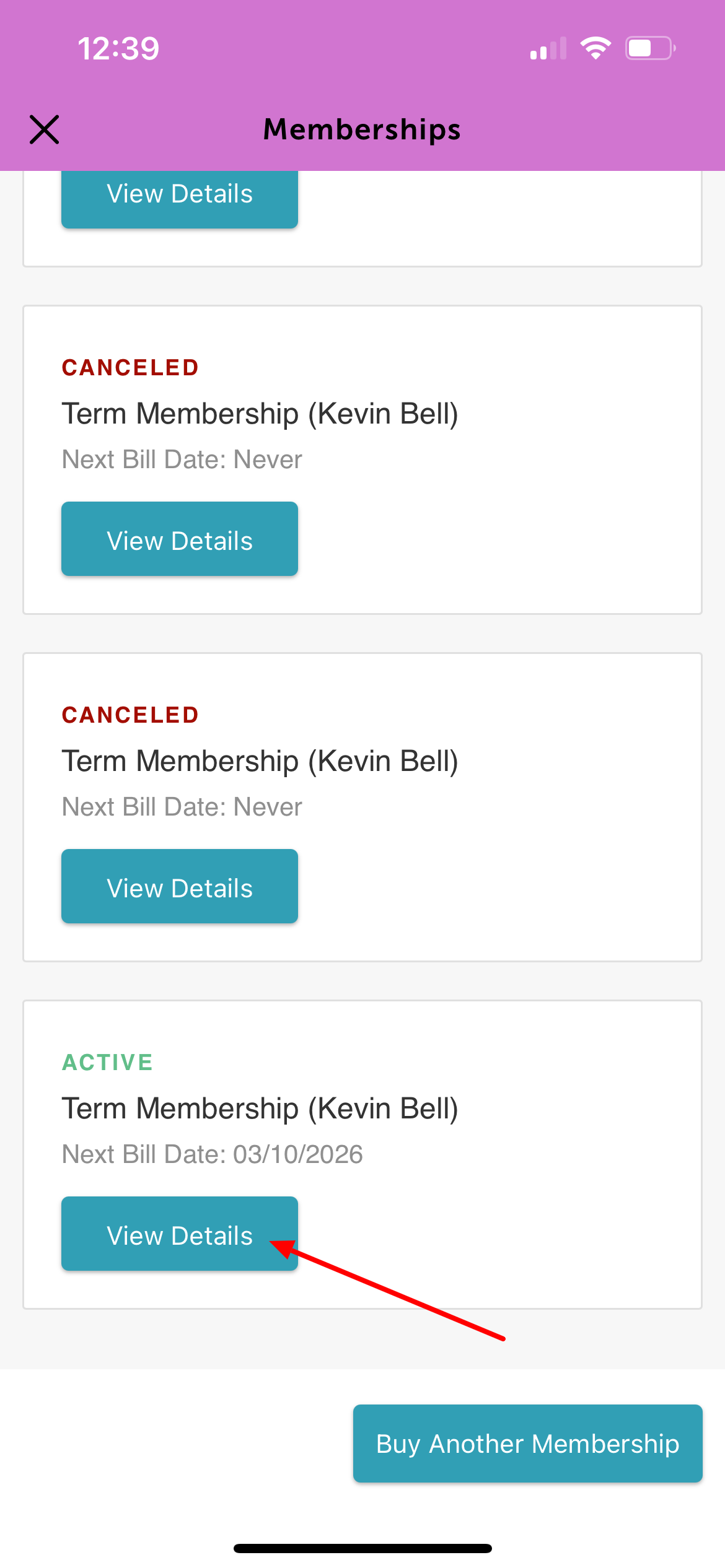
6. Scroll to the bottom of the screen and tap 'Cancel Auto-Renew' 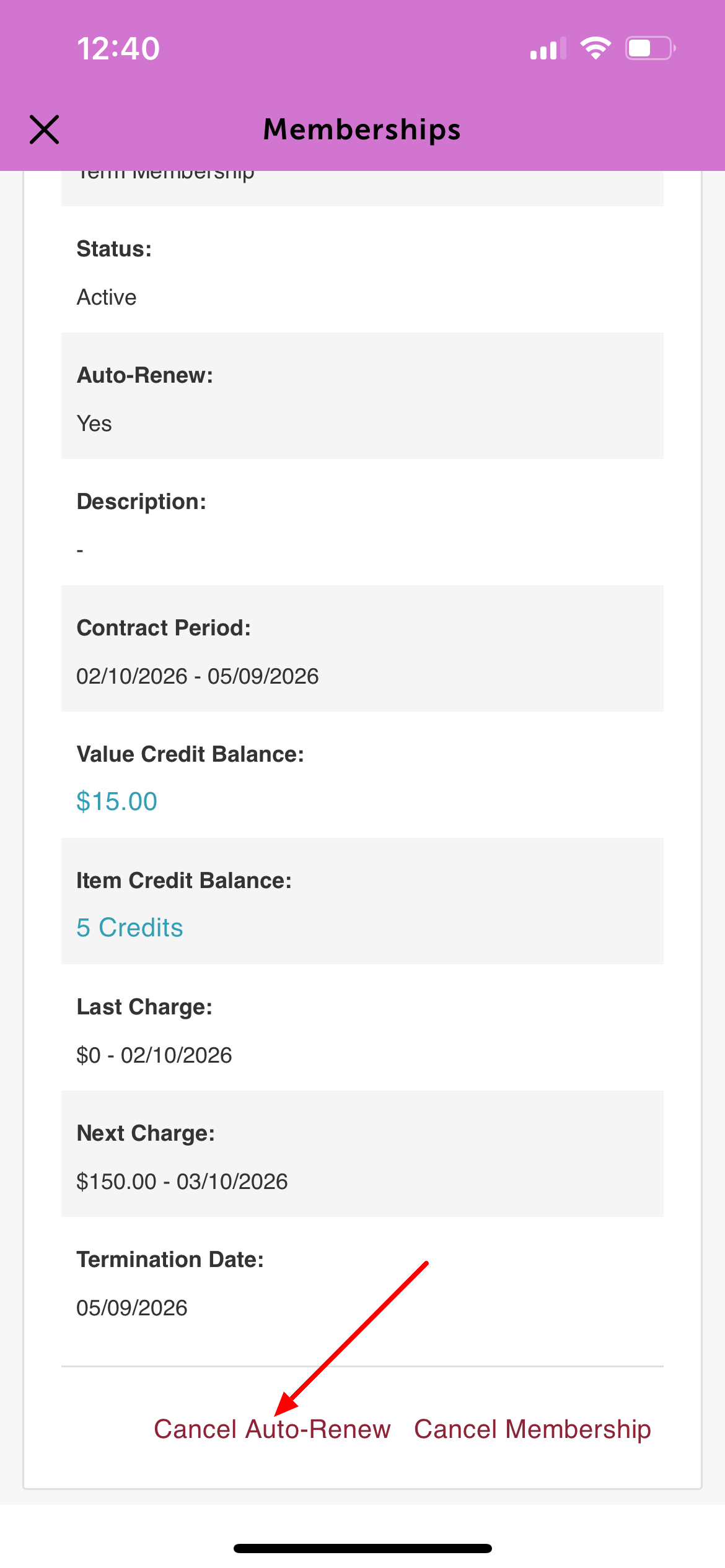
7. When the “Cancel Membership Auto Renew?” pop-up appears, tap 'Yes' to confirm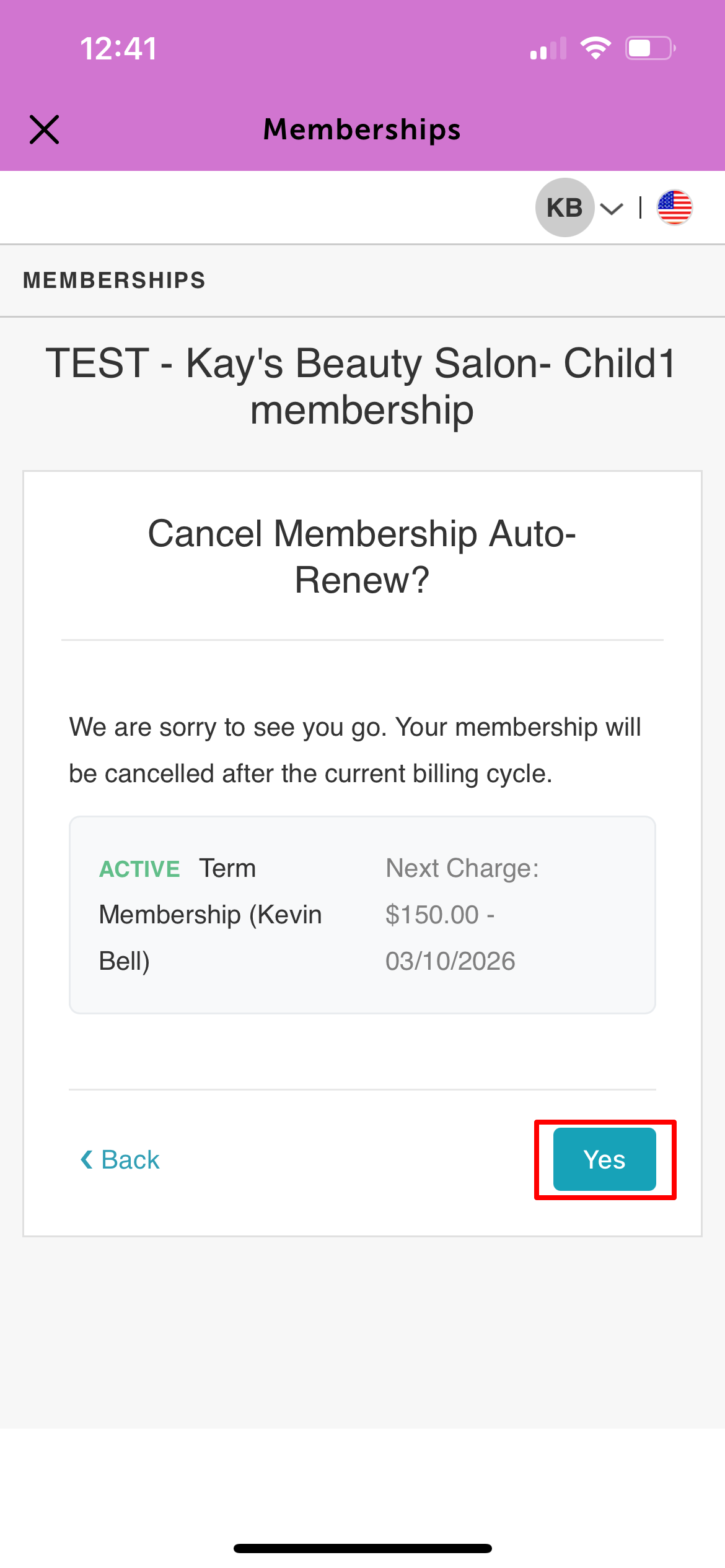
8. A confirmation message will appear at the top of the screen
9. The membership’s Auto-Renew status will now display No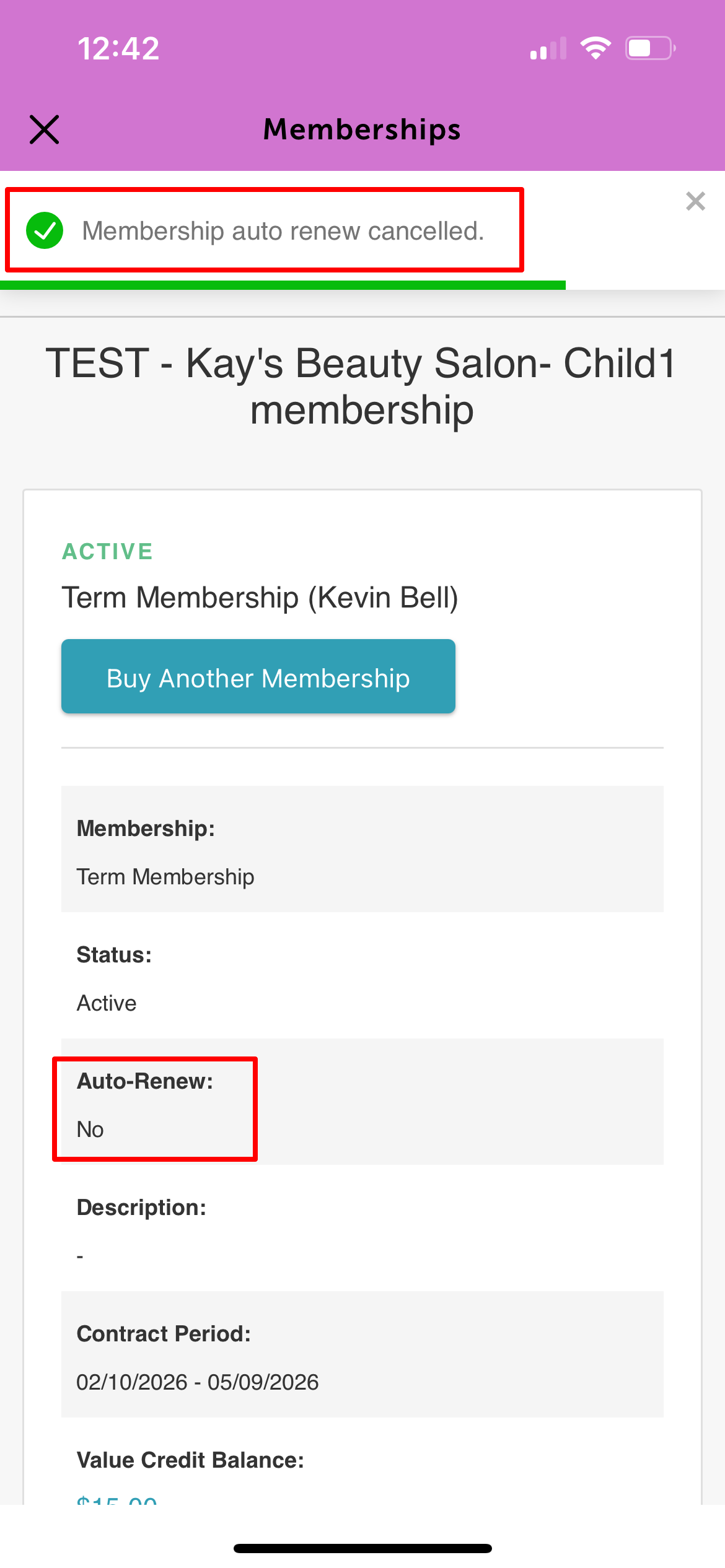
For more information contact us at support@mytime.com.
Related Articles:
Purchasing Client Memberships Online
Purchasing Memberships for Pets Online
Purchasing Memberships for Family Members Online
Selling Memberships for Clients in POS
Was this article helpful?
That’s Great!
Thank you for your feedback
Sorry! We couldn't be helpful
Thank you for your feedback
Feedback sent
We appreciate your effort and will try to fix the article