The AI Assistant for automated marketing messages helps you write, improve, and polish your automated marketing email and text messages. It reads the context of your messages—like birthdays or "we miss you" notifications—and updates your text with a single click.
Things to Know:
- To use the AI Campaign Assistant, your account must meet the following criteria:
- The "Enable Marketing Campaign AI Assistant" hidden setting must be enabled. Contact your account manager or support@mytime.com to request activation.
- The 'Accessing Automated Messages' permission must be enabled.
- The AI automatically detects which campaign you are editing (such as Birthday, Anniversary, or We miss you) and matches its tone to the occasion.
- To keep your automations running smoothly for years, the AI intentionally avoids mentioning specific dates, seasons, or temporary promotions.
- The AI only rewrites copy. It cannot change campaign scheduling, send times, or delivery delays.
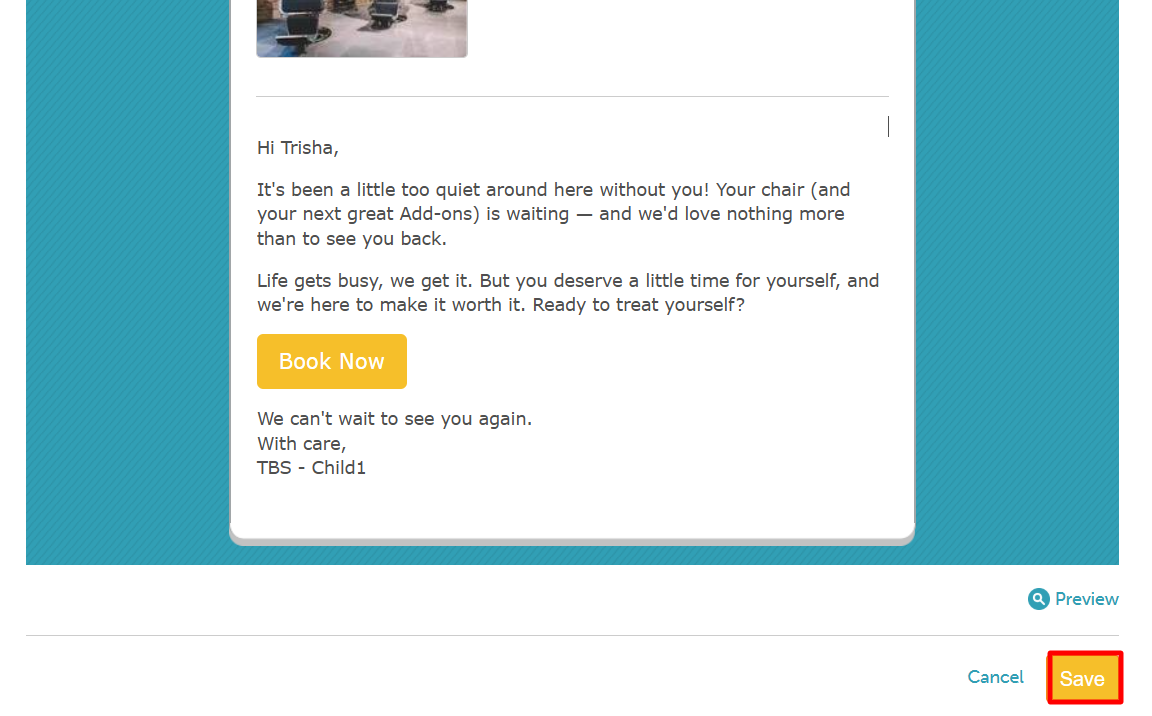
- Clicking "Apply" only inserts the AI-generated text into your template editor. You must manually click Save on the campaign page to publish your changes.
- The assistant can write and update both the email subject line and the body text at the same time.
- For text messages (SMS), the AI keeps copy short to fit standard mobile character limits and will not include emojis.
- To ensure reliable text message delivery, the AI is restricted to inserting only four specific merge fields: First Name, Company Name, Location Name, and Location Phone.
- You can chat with the assistant to fine-tune your results. If you don't like the first draft, simply type follow-up instructions (e.g., "Make it friendlier" or "Make it shorter") to get a new version.
Follow these simple steps to easily update your automated marketing messages with the help of AI:
- Go to Marketing > Automated Messages
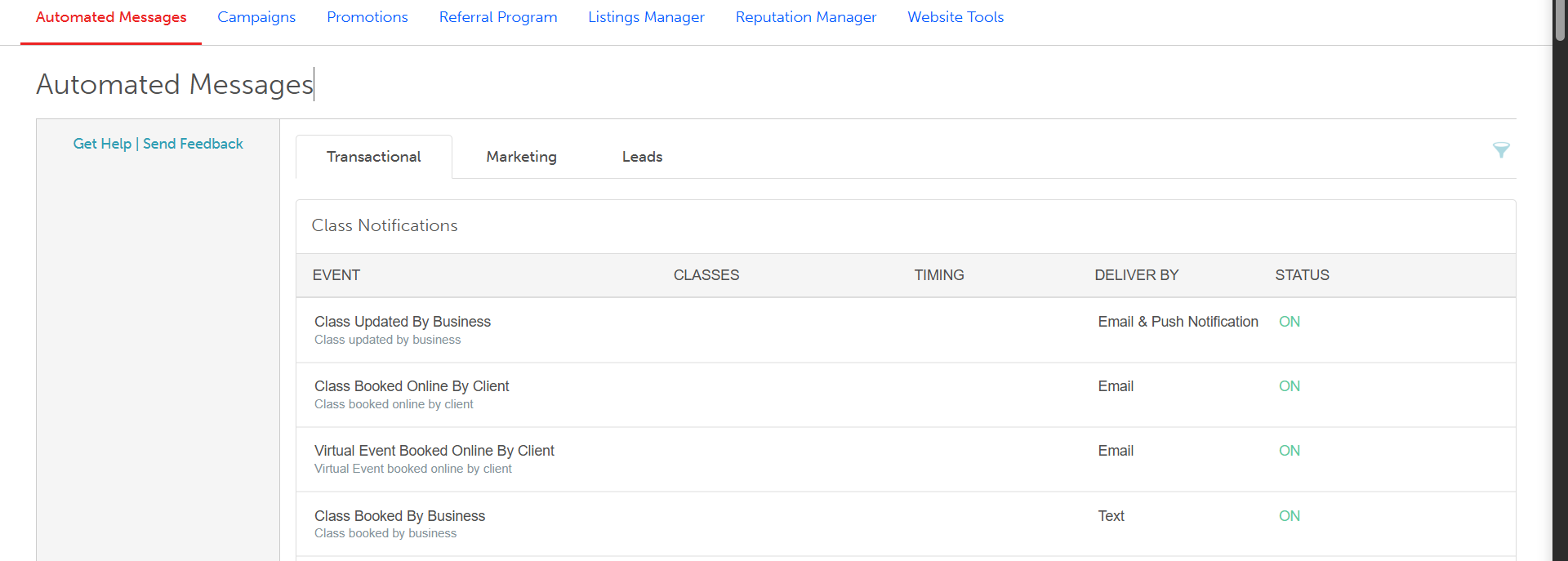
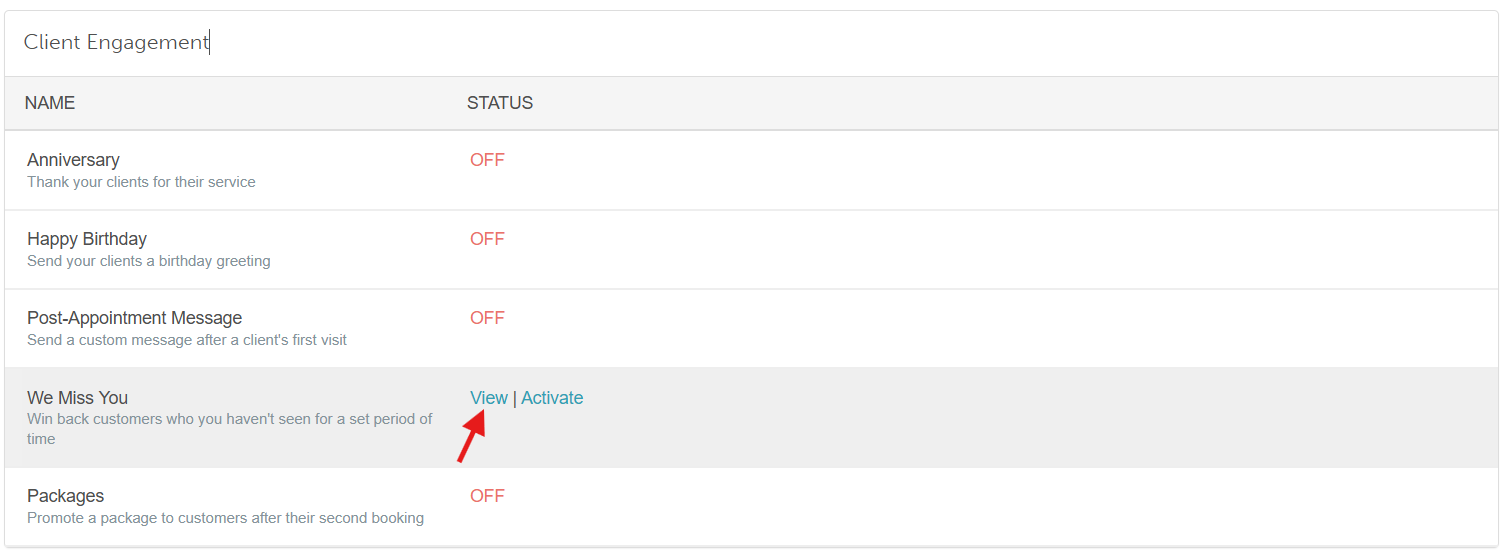
- Select the Marketing tab, find the Client Engagement section, hover over your template, and click View.
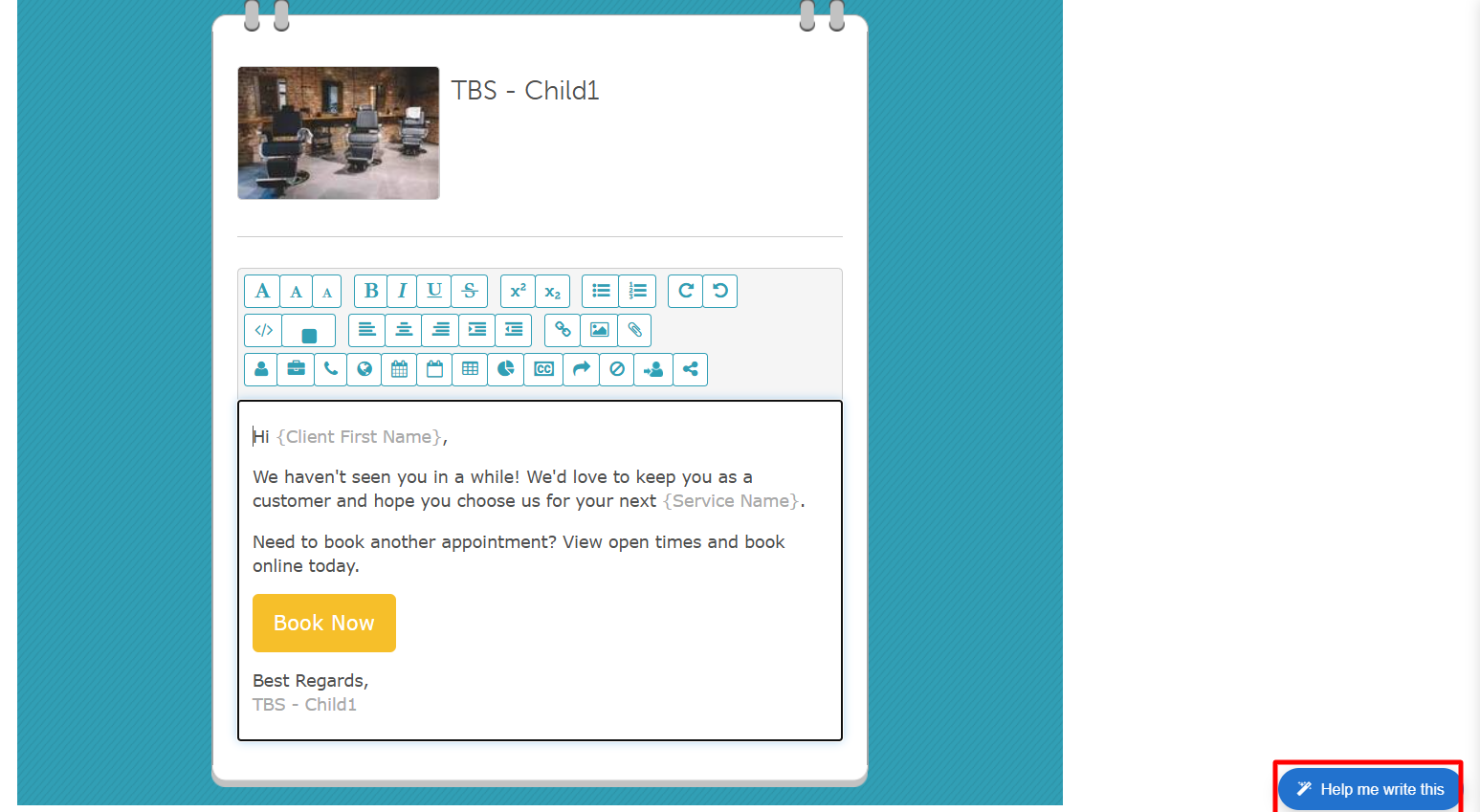
- Select the "Help me write this" button in the bottom-right corner
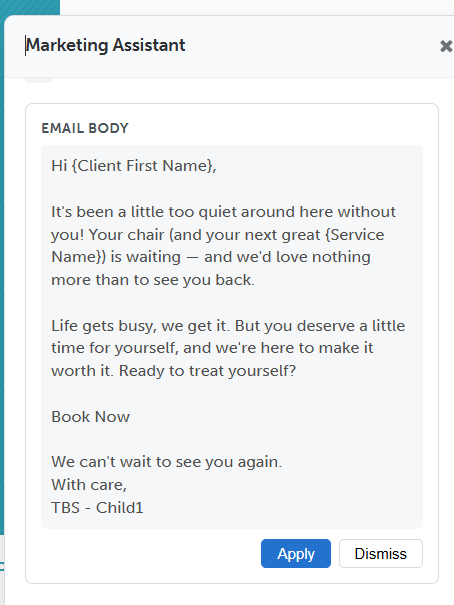
- Type your request into the chat box (e.g., "make this automated message more creative").
- Review the preview, and click Apply to insert the text
- Select Save.
For more information, contact us at support@mytime.com or (385) 233-6964.
Related Articles:
Customizing Automated Messages
Was this article helpful?
That’s Great!
Thank you for your feedback
Sorry! We couldn't be helpful
Thank you for your feedback
Feedback sent
We appreciate your effort and will try to fix the article