When a membership is redeemed to cover an appointment, class, or product, commission can be calculated based on either the regular retail price or the internal price specified in the membership template. This article explores examples of both calculation methods.
Things to know:
- Commission earned when a client redeems a membership credit is completely separate from the commission earned when selling a membership. When a client uses a credit for a service, class, or product, the commission is calculated strictly on that redemption event based on your configured compensation settings. Learn more here.
- Staff Profiles Must Have Commission Configured: To earn commission on membership redemptions, staff members must have service, class, or product compensation set up in their individual staff profile. If no commission structure is configured, the system will calculate $0 in commission, even when a credit is successfully redeemed.
- Calculation Basis:
- Retail Price vs. Internal Price: Commission is calculated using either the item's standard retail price or a custom internal price defined on the membership template:
- Default (No Internal Price): If no internal price is set, the system calculates commission based on the item's standard retail price.
- Custom Internal Price ("Price for Staff Commissions"): If an internal price is set on the membership template, the system uses that amount as the base value for calculating commission instead of the full retail price. Example: A facial service normally costs $90. If the membership template sets an internal price of $70 for staff commissions, a staff member with a 10% commission rate will earn $7 (10% of $70) rather than $9.
- Internal prices can be customized per item, per staff member, and per location within the same membership template.
Contents:
Staff Commission Calculated on Regular Retail Price
When configured, staff commission is calculated based on the retail price of the service, class, or product.
Membership Name: Full Spa Membership
Staff: Sam
| Item | Price | Commission Rate |
| Service: Men's Cut | $110 | 20% |
| Product: Tree Hut Scrub | $40 | 10% |
| Class: Yoga | $150 | 15% |
Based on the settings above, when a client books an appointment or class or purchases a product that is covered by the Full Spa Membership, the employee will receive the following commission:
- Service commission - $110 x 20% = $22
- Product commission - $40 x 10 % = $4
- Class commission - $150 x 15% = $22.50

Staff Commission Calculated on Internal Price
When configured, staff commission is calculated using the internal price specified in the membership template rather than the retail price.
To configure the internal price:
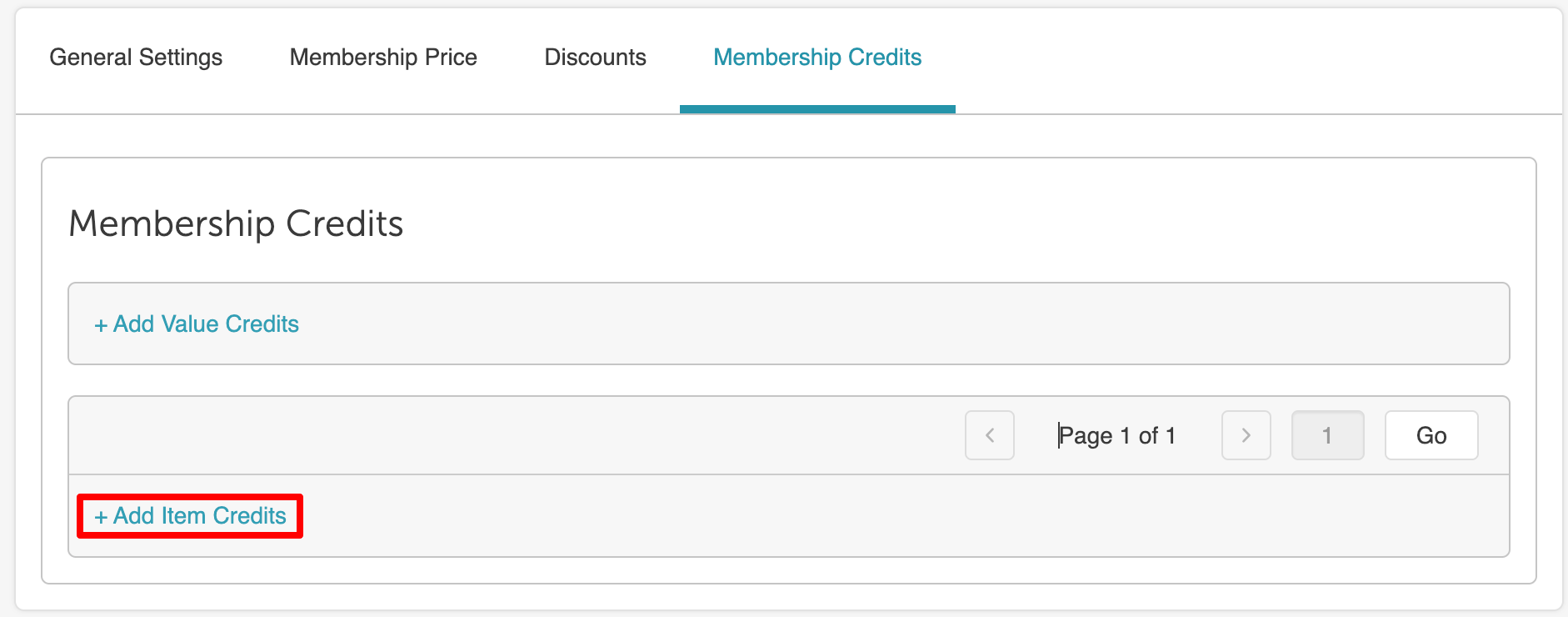
- From the membership template, navigate to the Membership Credits tab
- Click +Add Item Credits
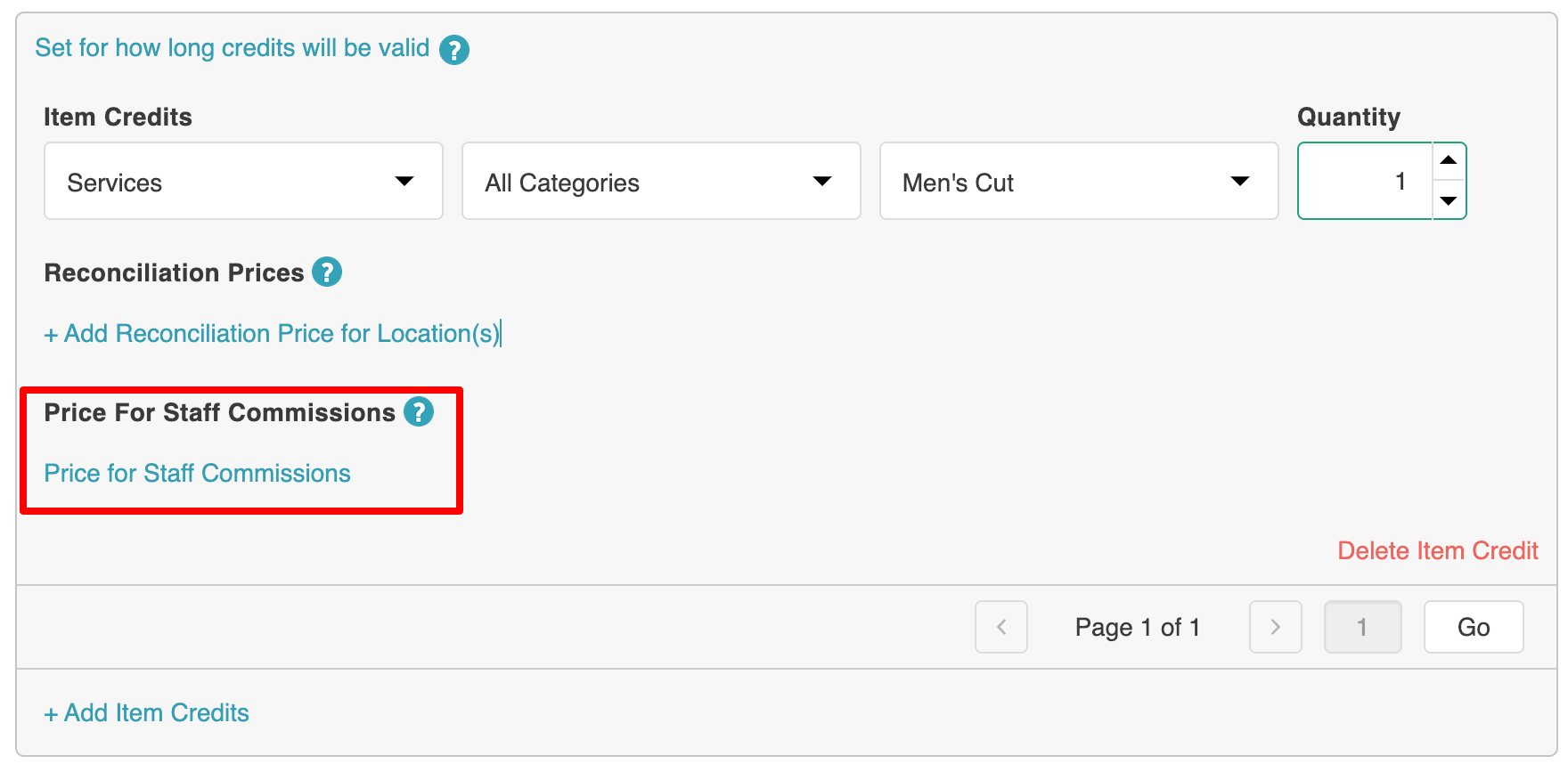
- Configure your item credit, then select the "Price for Staff Commissions" hyperlink
- In the modal, select the specific service, class, product, or all items; designate the applicable staff member(s); set the internal price; and choose the applicable locations
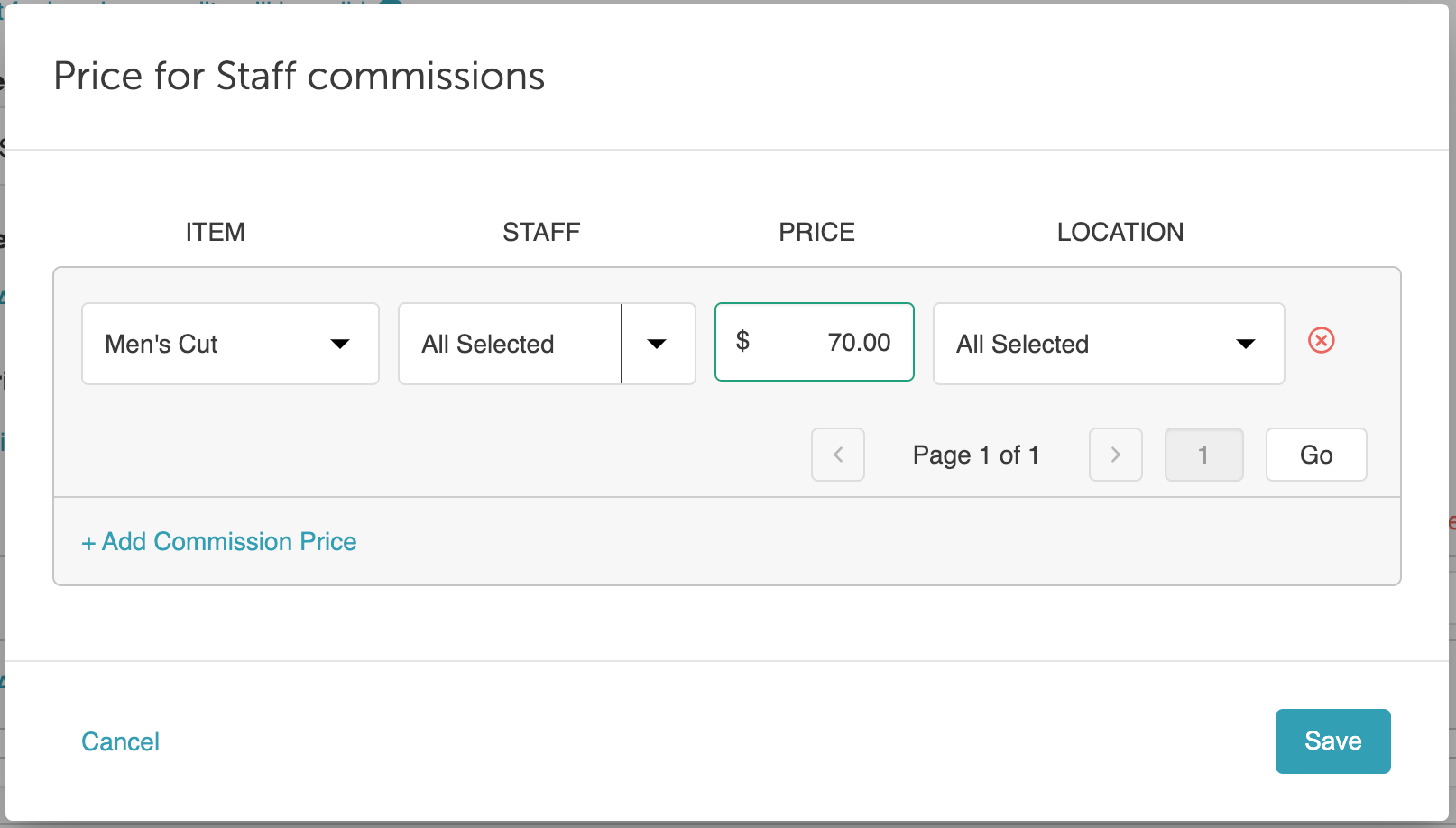
- Save changes
- Publish membership
Example:
Membership Name: Essential Membership
Staff: Pam
| Item | Internal Price | Commission Rate |
| Service | $70 | 20% |
| Product | $60 | 10% |
| Class | $100 | 15% |
Based on the settings above, when a client books an appointment or class or purchases a product that is covered by the Essential Membership, the employee will receive the following commission:
- Service commission - $70 x 20% = $14
- Class commission - $100 x 15% = $15
- Product commission - $60 x 10 % = $6

For more information, contact us at support@mytime.com or (385) 233-6964.
Related Articles:
- Appointments in Membership
- Revenue for Appointments, Classes, and Products in Membership
- Compensation on Membership Sales
- Daily Payments Report
- Compensation (by Pay Cycle) Report
Was this article helpful?
That’s Great!
Thank you for your feedback
Sorry! We couldn't be helpful
Thank you for your feedback
Feedback sent
We appreciate your effort and will try to fix the article