If your business uses Stripe as its payment processor, you can link a bank account to receive deposits from credit card transactions. This article walks you through the steps to add your bank account for credit card deposits in MyTime.
Things to Know:
- To accept online payments, you must have a payment account set up. Contact MyTime at +1 (385) 233-6964 or processing@mytime.com to get started.
- Navigate to Business Setup > Payments & Deposits, and make sure the following settings are set to Direct Deposit:
- How Should MyTime Pay You for Services?
- How Should MyTime Pay You for Product Sales?
- If you don’t select Direct Deposit, MyTime will route payments directly to staff instead of your business account.
- If payments should be sent directly to staff members, choose the “MyTime should pay staff members directly” option for both service and product sales instead of selecting Direct Deposit.
- After entering your bank account under the Services section, you don’t need to re-enter it for Product Sales. Simply select Direct Deposit (same as above) to apply to the same account.
- When a location changes ownership, the previous owner's Stripe-connected account must be deleted. However, this can only be done after all transactions are finalized and funds have been fully paid out. To replace the bank account:
- Unassign the location from the old Stripe account
- Reassign the location to the new owner’s Stripe account
- Once all transactions are settled, the old owner’s Stripe account can be safely deleted
Contents:
- Adding Bank Account For Service/Product Sale Deposits
- Enable Direct Deposits to Staff Members
- Add Bank Account to Staff Profile
- Handling Location Ownership Changes
Adding Bank Account For Service/Product Sale Deposits
- Navigate to Business Setup > Payments & Deposits
- Under the How should MyTime pay you for services? setting select 'Direct Deposit.'
- Click on the +Add Bank Account hyperlink
- In the modal, select the desired locations from the 'Select All Applicable Locations For This Account' dropdown
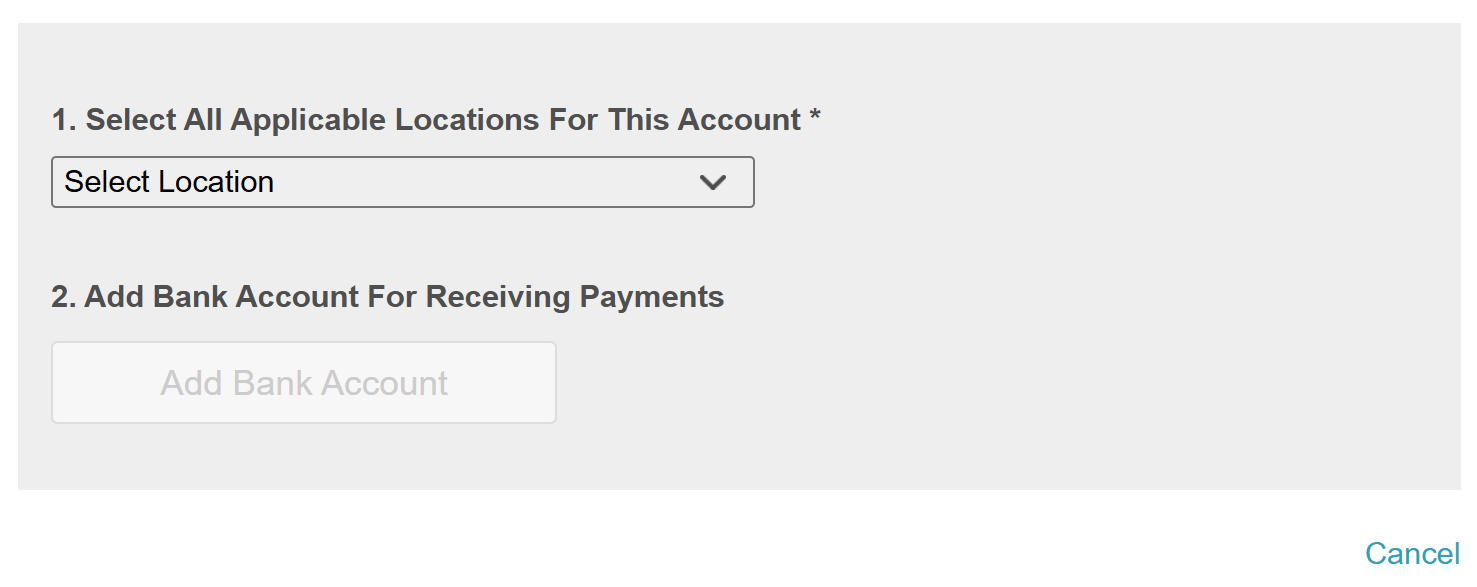
- Click 'Add Bank Account'
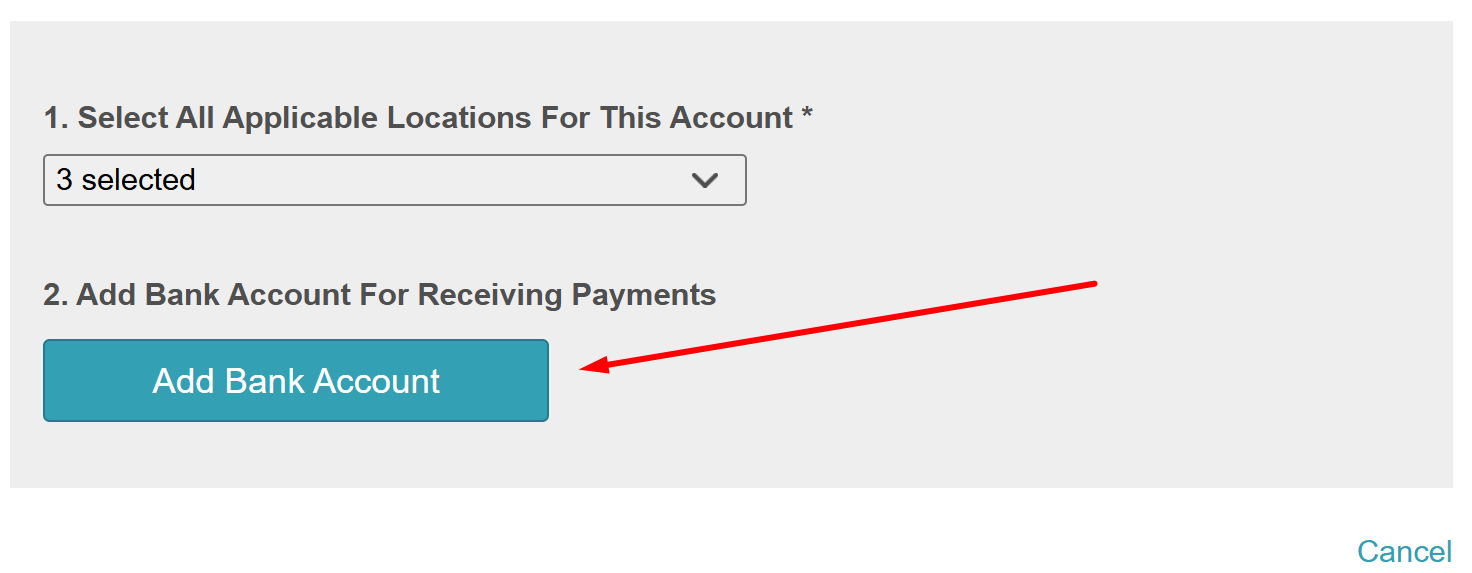
- You will then be directed to the Stripe Onboarding process, follow the instructions to add your account details
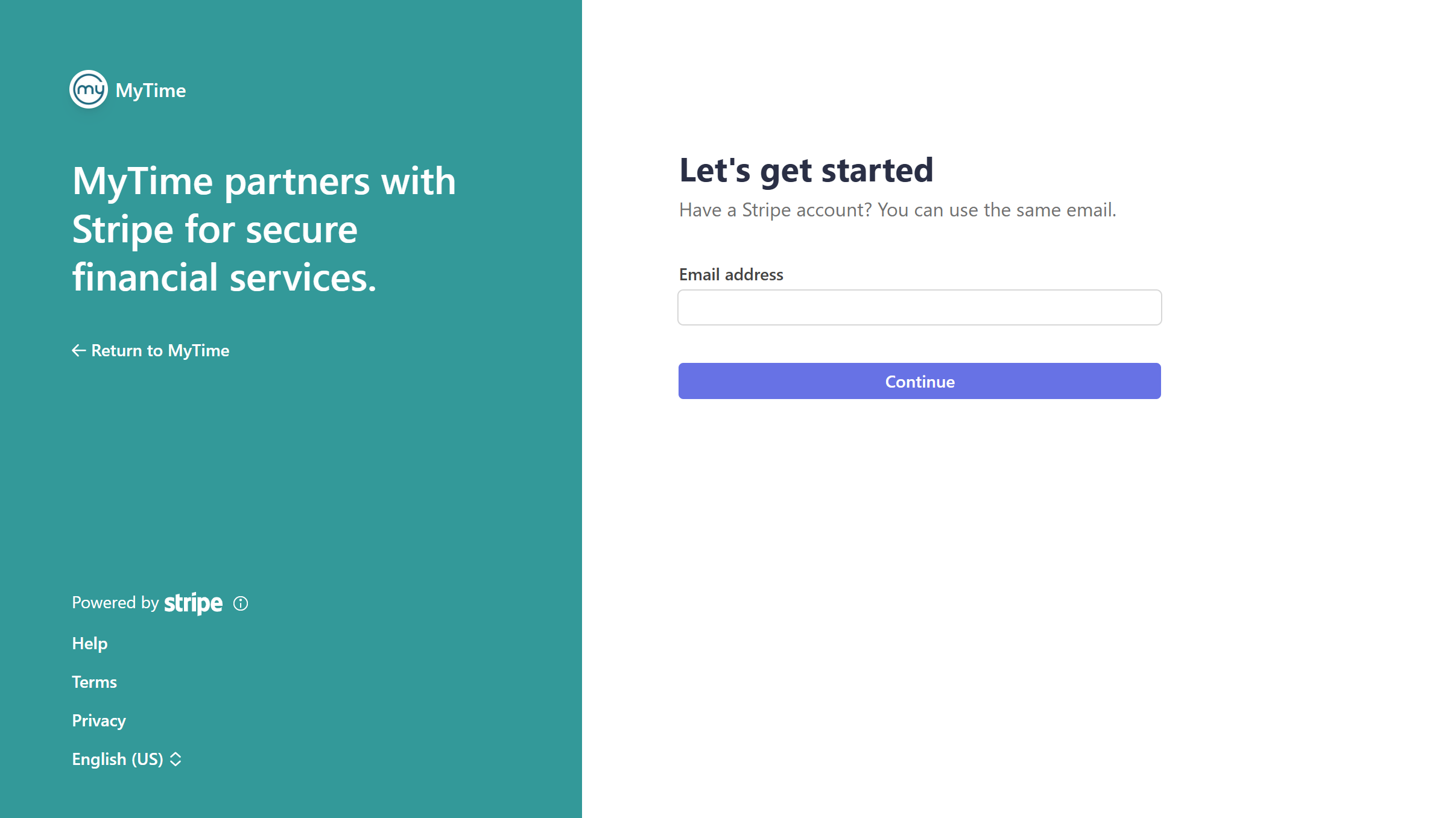
- You will be redirected back to the Payments & Deposits page in MyTime.
- If you wish to use the same payment account for your products sales, locate the "How should MyTime pay you for product sales?" setting
- Select the 'Direct Deposit (same as above)' option
- At the bottom of the screen, click "Save"


You can configure MyTime to pay staff members directly for services and product sales. Follow the steps below to enable and complete the setup.
Enable Direct Deposits to Staff Members
Direct staff payments allow service and/or revenue to be routed directly to a staff member’s bank account at the time of checkout. Because this affects how funds are distributed, there are specific configuration requirements and POS behaviors to follow.
- Mandatory Staff Setup: This is an all-or-nothing feature. To enable direct staff payments, every staff member in your business must have a connected Stripe account. The feature cannot be enabled for only some staff members.
- Bank Account Integration: Each staff member must have a bank account added to their profile in order to receive payments. This is configured by navigating to Staff & Availability and selecting the individual staff member.
- Single-Staff Tickets: This setup is designed for businesses where only one staff member is assigned per appointment. Multiple staff members cannot be included on the same POS ticket when direct staff payments are enabled.
- How Sales Are Processed: Depending on your configuration, services and products may be processed differently at checkout:
• Services to Staff / Products to Business (Most Common):
Services and products must be processed on separate POS tickets. One ticket is used for services (paid directly to the staff member), and a second ticket is used for products (paid to the business).
• Services to Staff / Products to Staff:
Services and products can be processed together on a single POS ticket, with all revenue routed directly to the staff member.
To configure your staff members to receive direct payments:
- Navigate to Business Setup > Payments & Deposits
- Under the “How should MyTime pay you for services?” and “How should MyTime pay you for product sales?” settings, select “MyTime should pay staff members directly.”
- A warning pop-up will appear, advising that direct payments are not compatible with commission-based compensation reporting. Click 'Pay' to proceed.
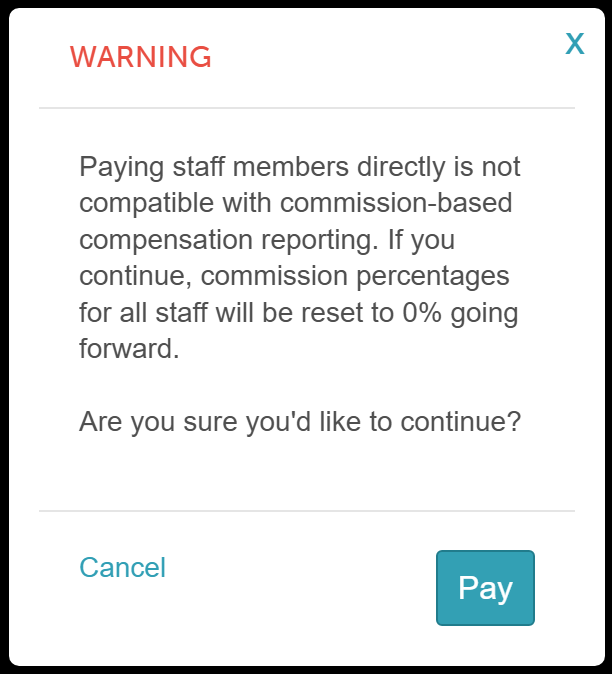
- Click Save.
Add Bank Account to Staff Profile
To add the bank account to a Staff Profile:
- Navigate to Business Setup > Staff and Availability
- Open the desired staff member's profile
- In the Payment and Deposit section, find the bank account option
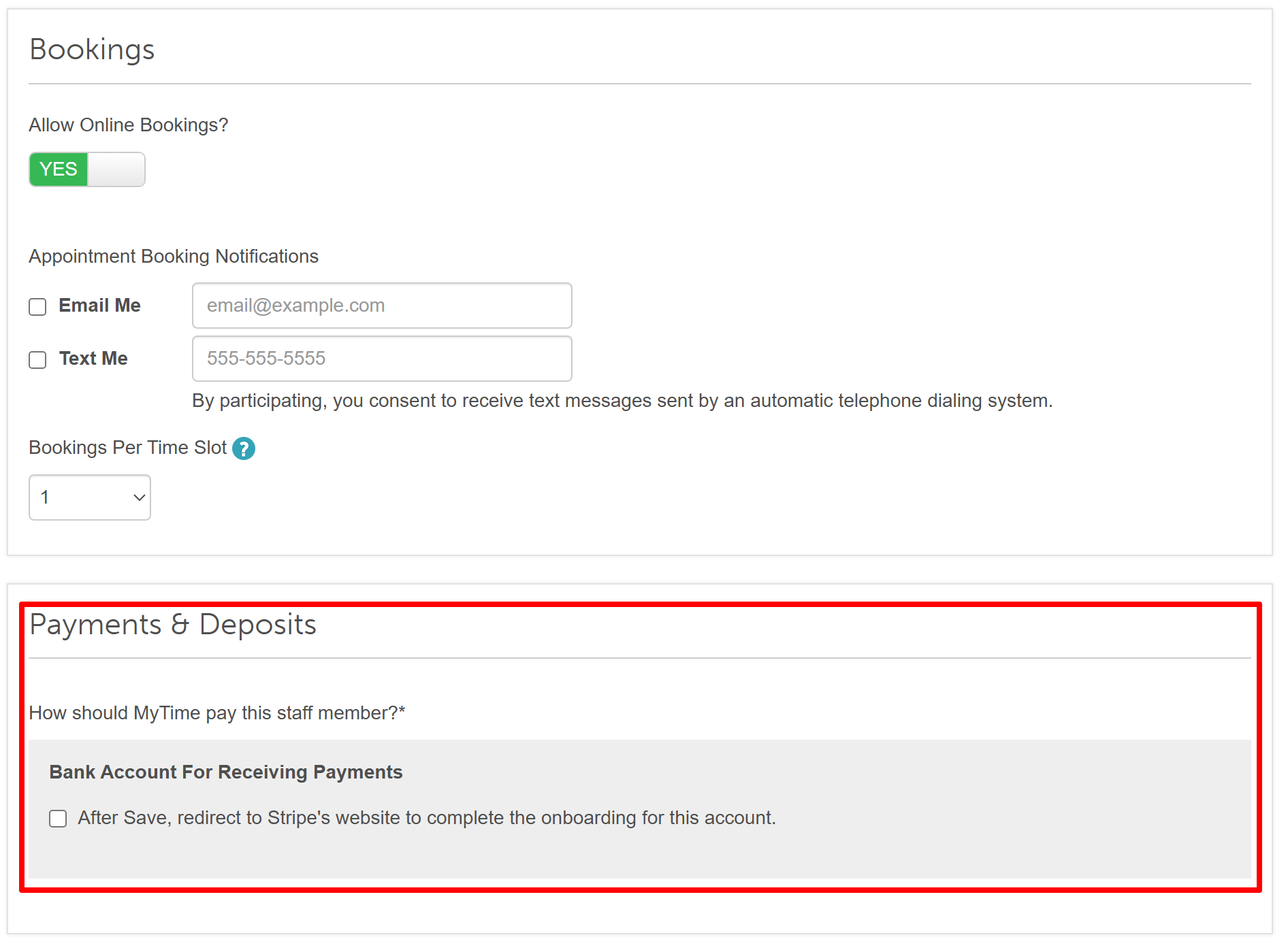
- Check the box: "After Save, redirect to Stripe’s website to complete the onboarding for this account."
- Click Save on the profile.
- Complete the Stripe Onboarding process. Once redirected back to MyTime, click Save on the staff profile one final time to finalize.
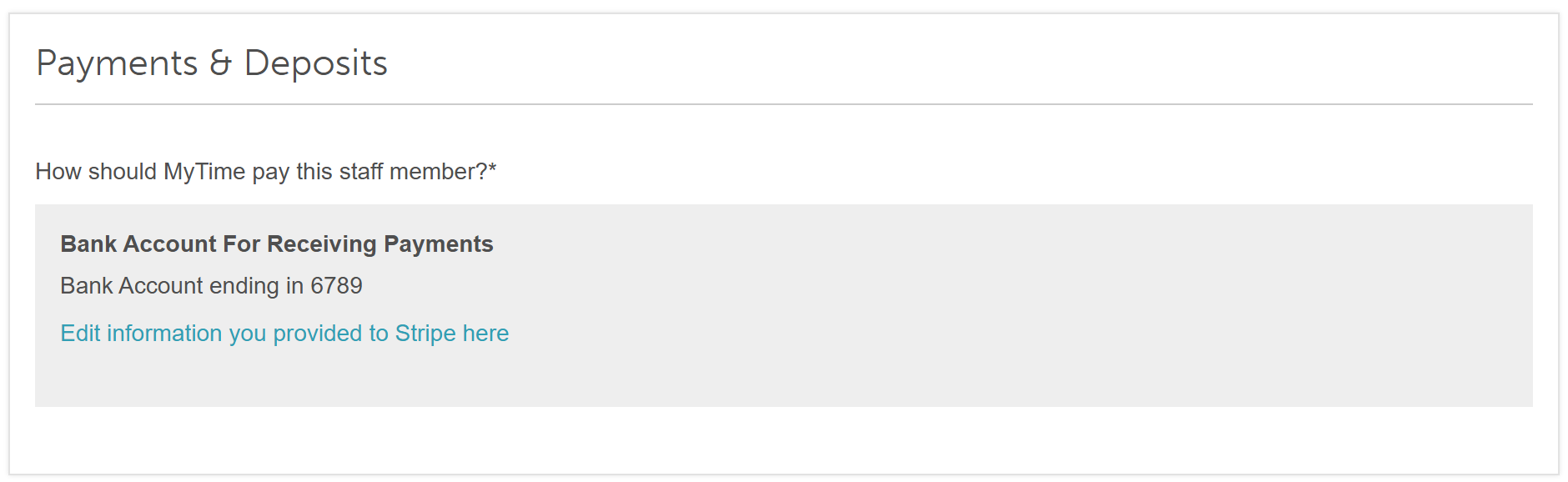
- Click Save on the staff profile to finalize.
Handling Location Ownership Changes
Scenario A: The previous owner DOES NOT need to process card payments
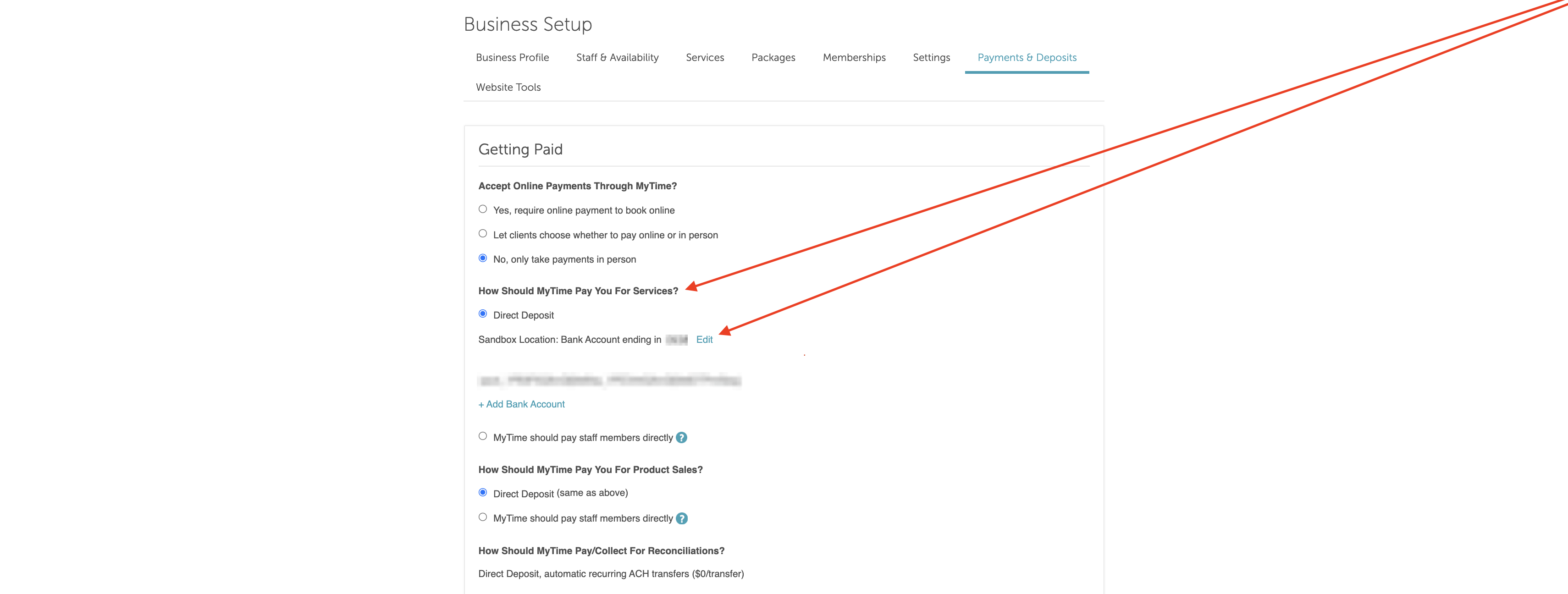
- Navigate to the "How should MyTime pay you for services?" section
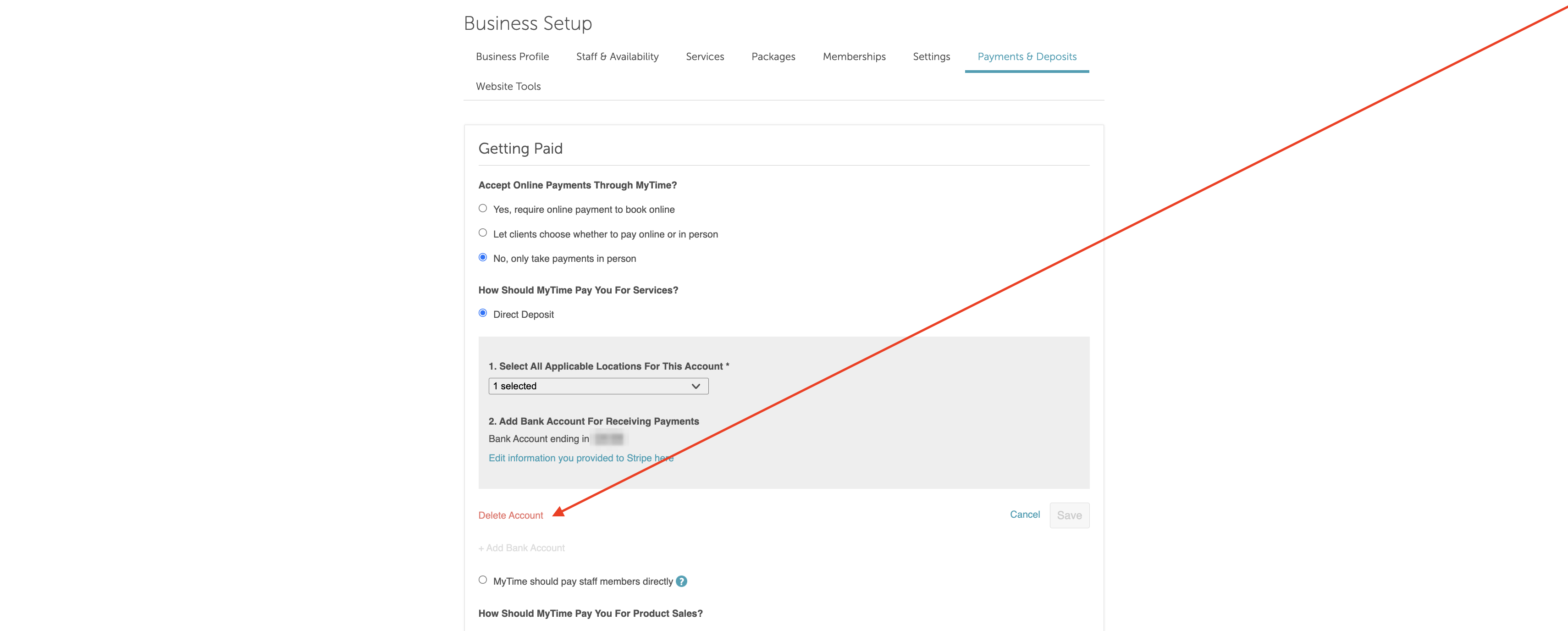
- Click "Edit," then remove the previous owner's Stripe account
- Note: Only delete the account once all pending transactions are finalized and funds have been fully paid out.
- Note: Only delete the account once all pending transactions are finalized and funds have been fully paid out.
Scenario B: The previous owner still needs to process payments or settle funds
- Wait until the business has officially closed
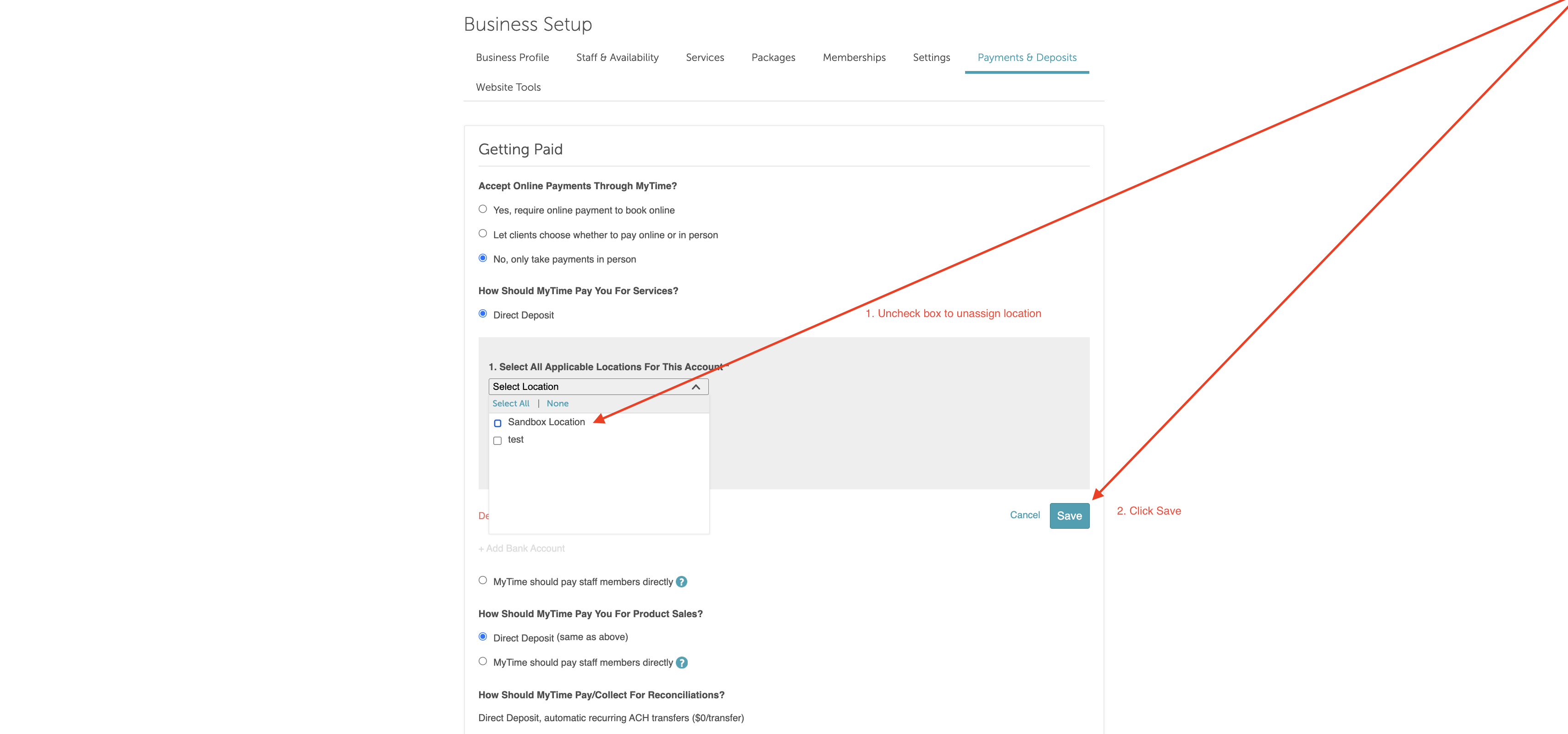
- Use the checkbox in the dropdown menu to unassign the old owner's Stripe account from the location. (Note: The location cannot process cards while unassigned.)
- Click Save
- Click +Add Bank Account to set up the new owner's Stripe account and assign it to the location.
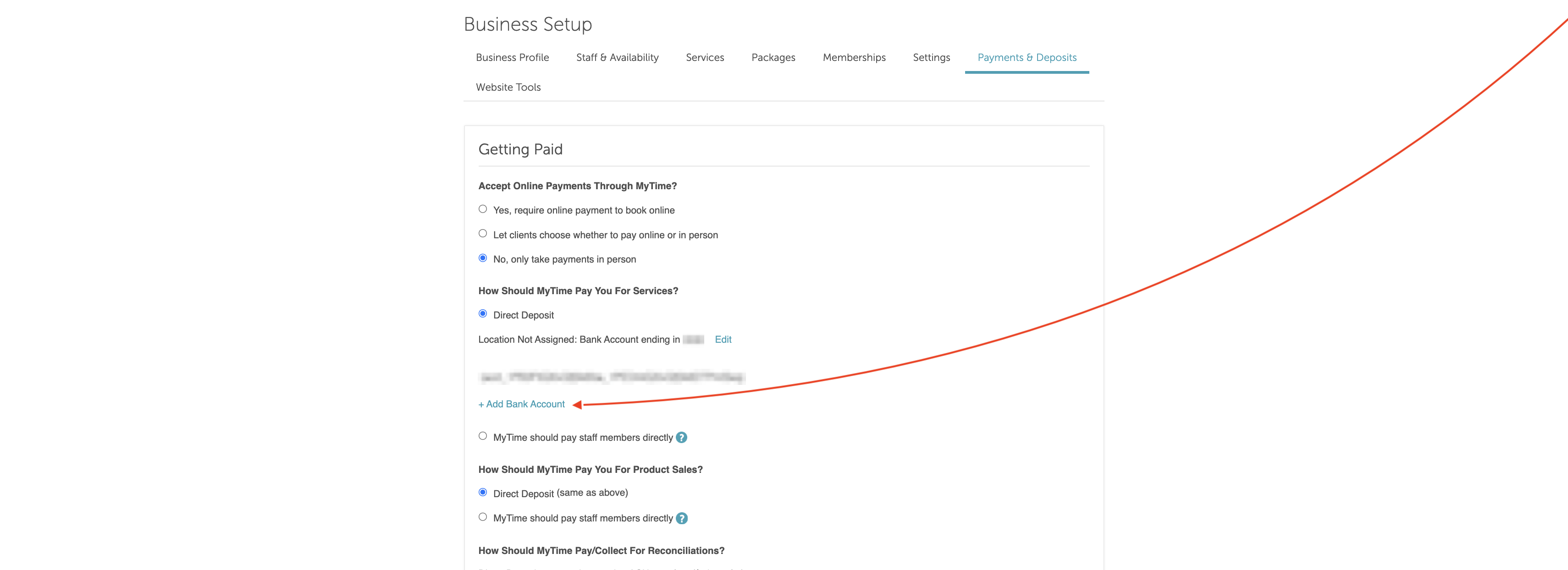
- To Settle Old Funds: If you need to temporarily revert to the old account to finish a payout, unassign the new account, reassign the old one, save, and then swap back once settled.
- Once all transactions are finalized, the old owner’s account can be safely deleted.
For more information, contact us at support@mytime.com or (385) 233-6964.
Related Articles:
Configuring Bank Account for Royalty Fee Collection
Configure Bank Account for Reconciliation
Configuring a Bank Account to Receive ACH Payments
Was this article helpful?
That’s Great!
Thank you for your feedback
Sorry! We couldn't be helpful
Thank you for your feedback
Feedback sent
We appreciate your effort and will try to fix the article