This article explains how clients can access and use the Account Management feature within the booking widget.
Things to know:
- The ability to add account management to your website is governed by the "Accessing Website Tools" access control setting.
- If you update the booking widget configuration, you must re-embed the widget on your website for the changes to take effect.
- Location-Based ACH Account Management
- For franchise businesses, you can add and manage ACH bank accounts on a per-location basis directly from the booking widget or the express checkout link.
- Where to Find It: Once a specific location is selected, the option to add or manage a bank account will be displayed directly below the credit card management section.
- Dynamic Visibility: This section is managed dynamically. The bank account configuration fields will only appear if the chosen child location has ACH payment processing explicitly enabled.
- Note: If a child location does not have ACH enabled in their processing environment, this section will automatically remain hidden from the checkout link and widget for that specific site.
Contents
Accessing My Account
Clients can access their account from either the stand-alone widget or the appointment booking widget.
- Navigate to your business website or booking widget
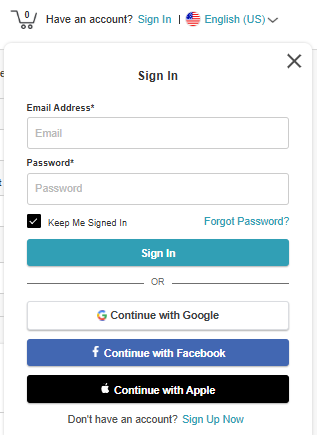
- Click Sign In at the top of the page

- Choose their login method:
- Standard: Enter their registered email address and password, then click 'Sign In'
- Social Login: Select 'Continue with Google,' 'Continue with Apple,' or 'Continue with Facebook' to use their existing social media credentials
- Click the dropdown next to the client’s initials
- Select Account
- After signing in, clients can navigate between sections using the left sidebar. Account Settings is displayed by default.
Account Management Features
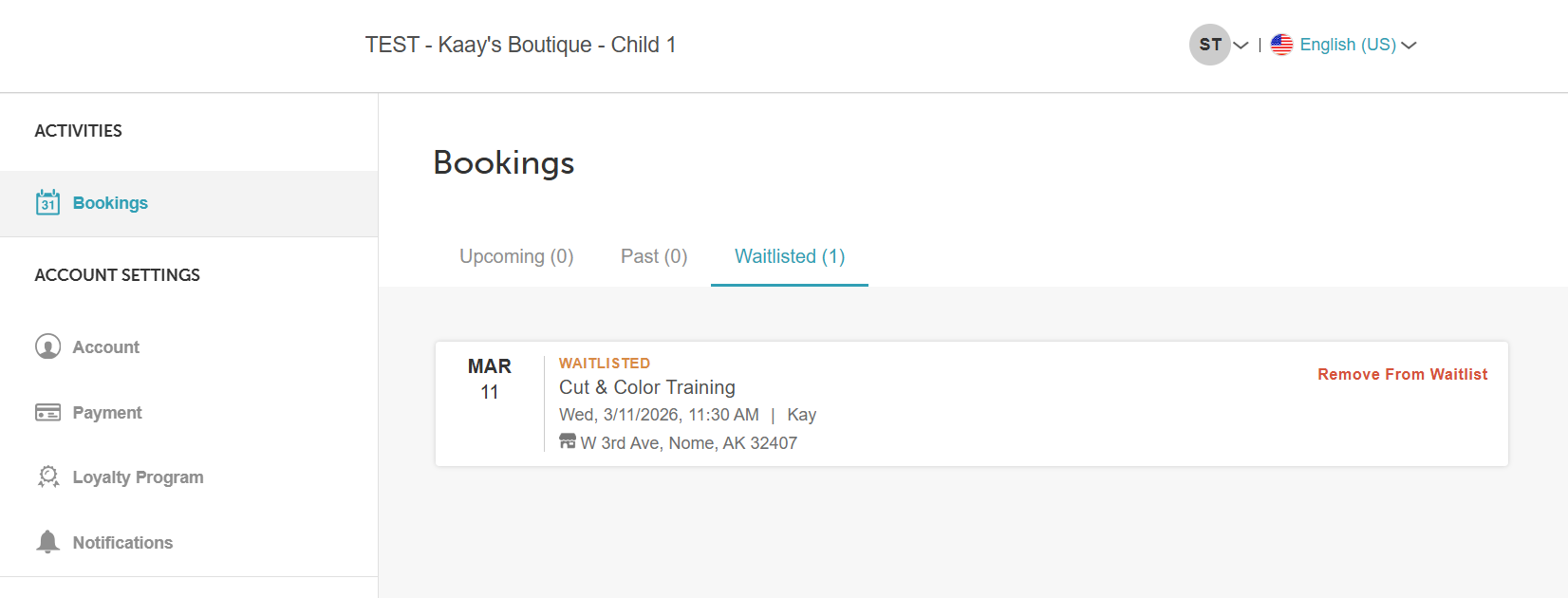
Bookings
The Bookings section provides a complete history of client activity:
- Upcoming & Past Bookings: All scheduled and completed appointments or classes
- Waitlist Entries: Displays active waitlist positions (if enabled)
Memberships
Displays all memberships purchased by the client, regardless of status (if enabled in the widget).
Clients can: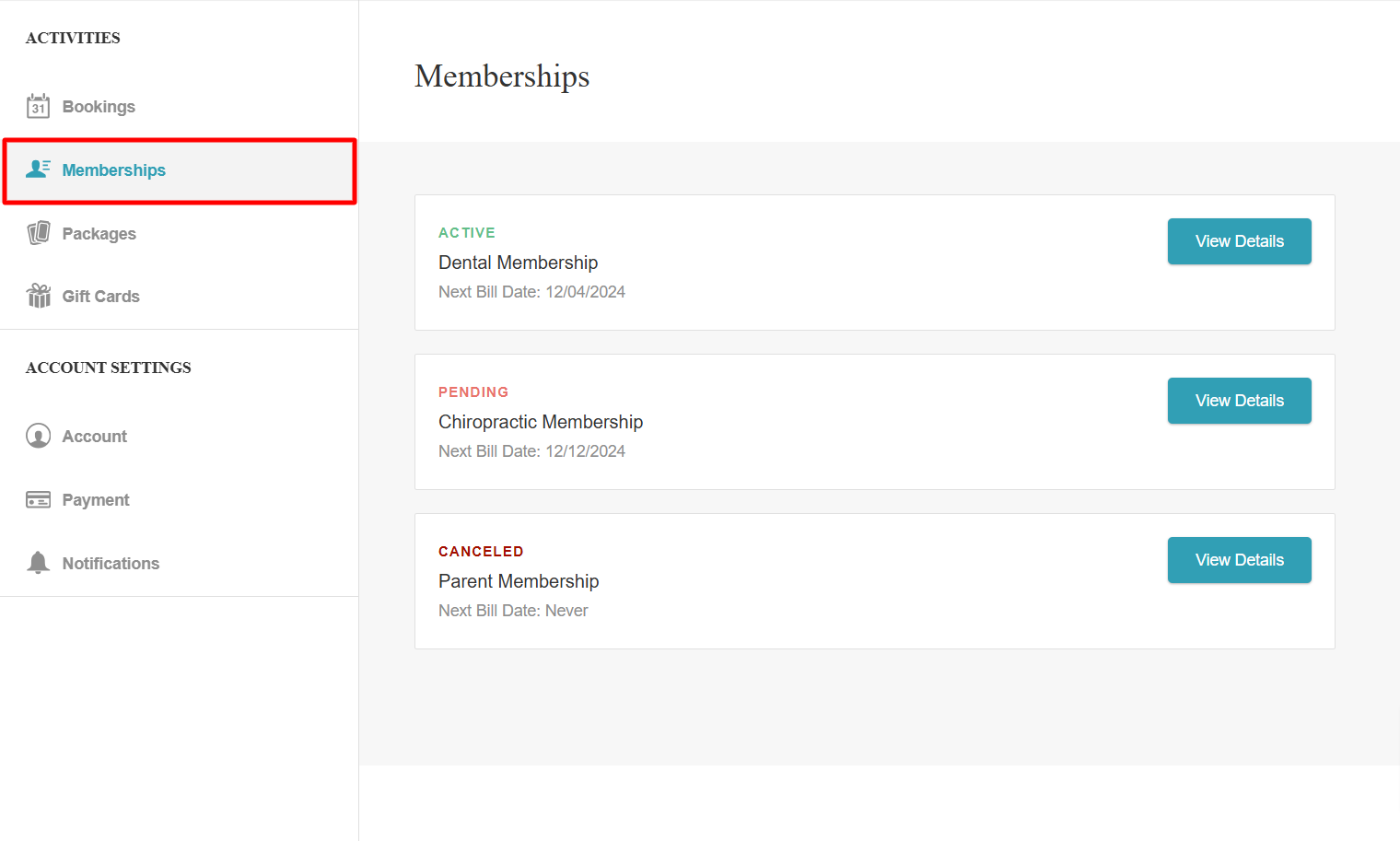
- Click View Details to see contract period, credits, and billing dates
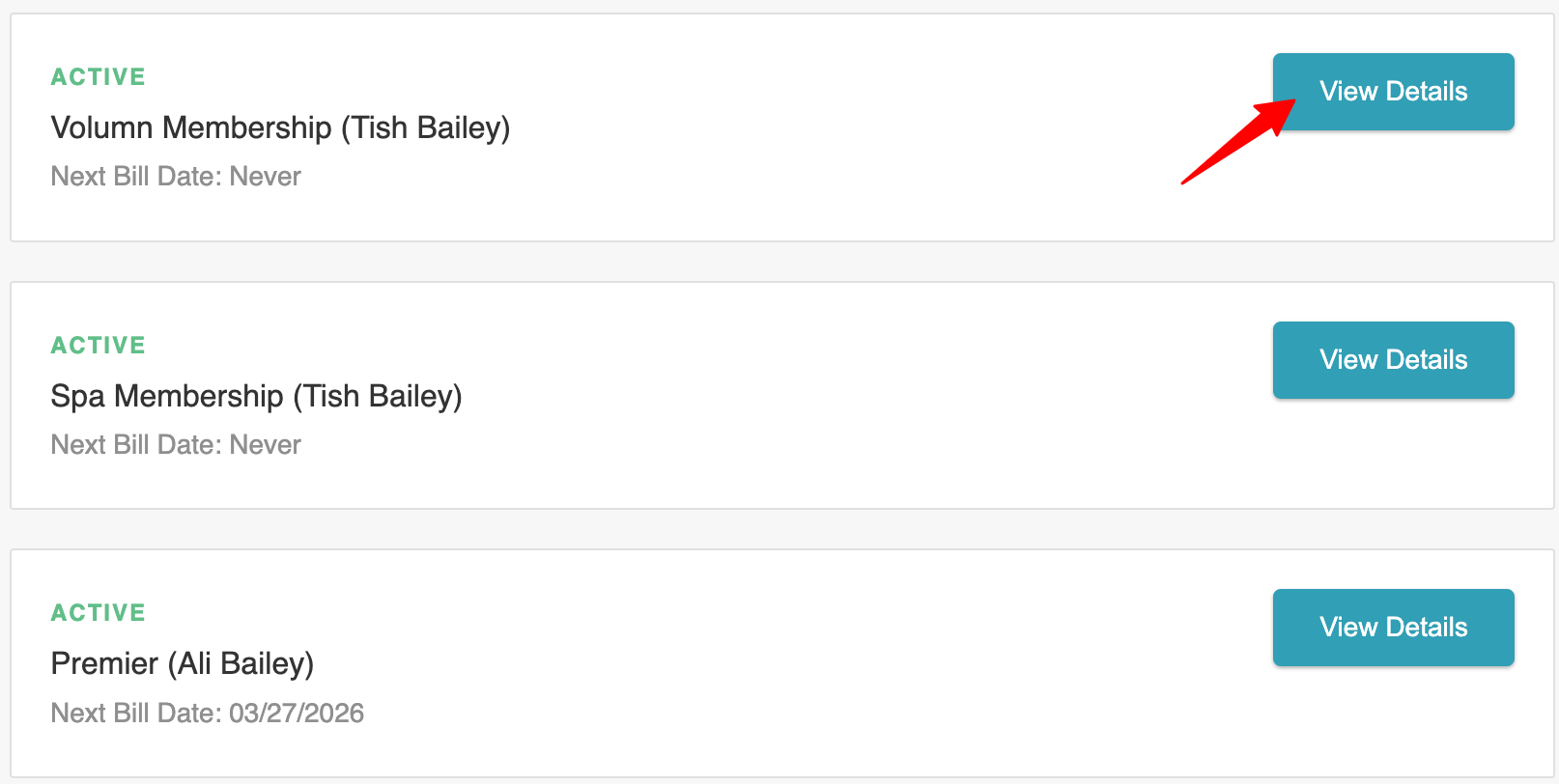
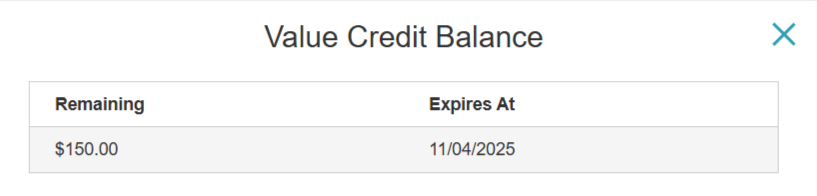
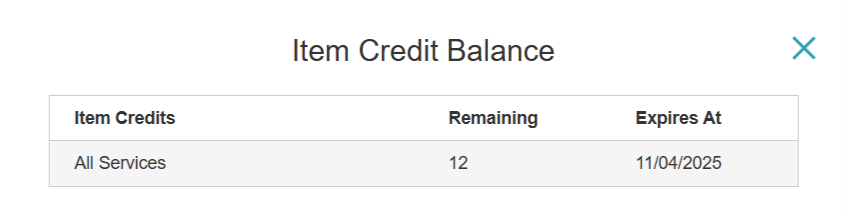
- View credit balances and expiration dates via clickable links:
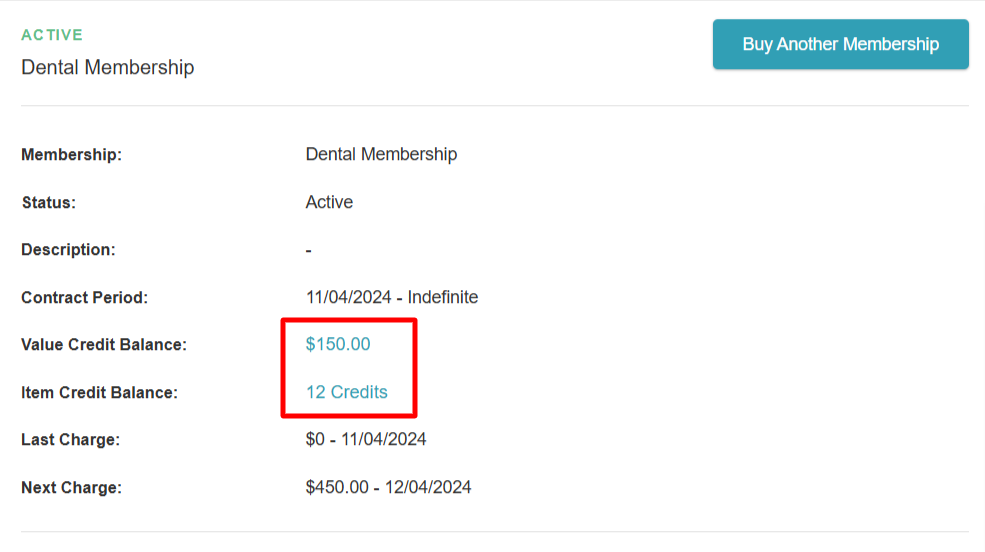
- Value Credits: Shows remaining balance and expiration
- Item Credits: Shows included items, remaining quantity, and expiration
Packages
Displays all purchased packages and remaining credits. (Visible only if enabled in the widget.)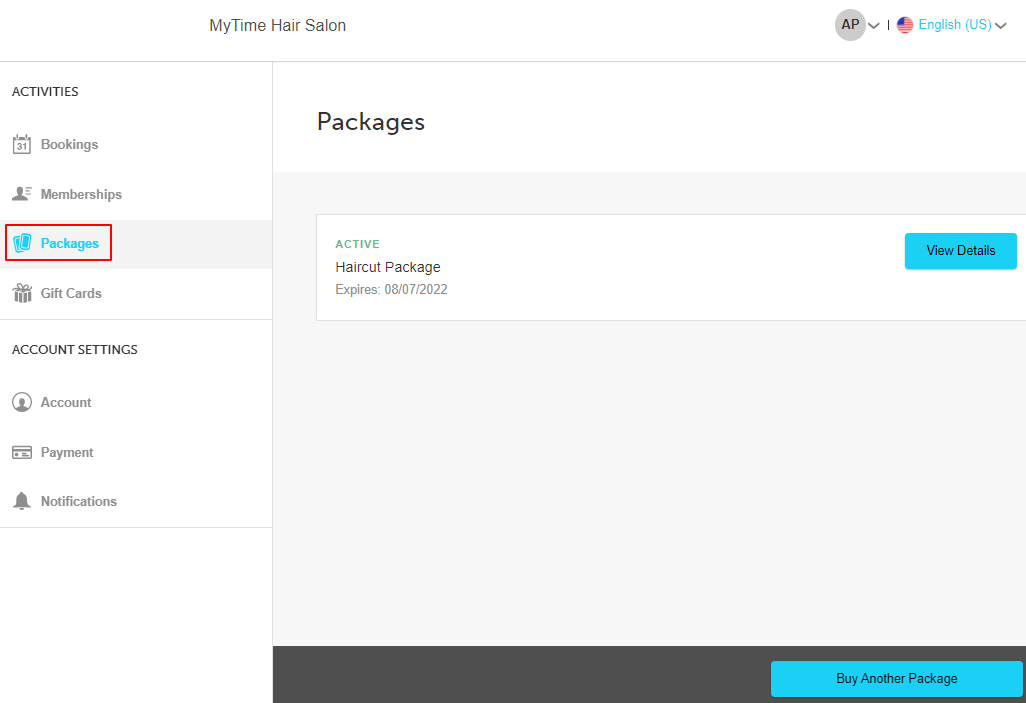
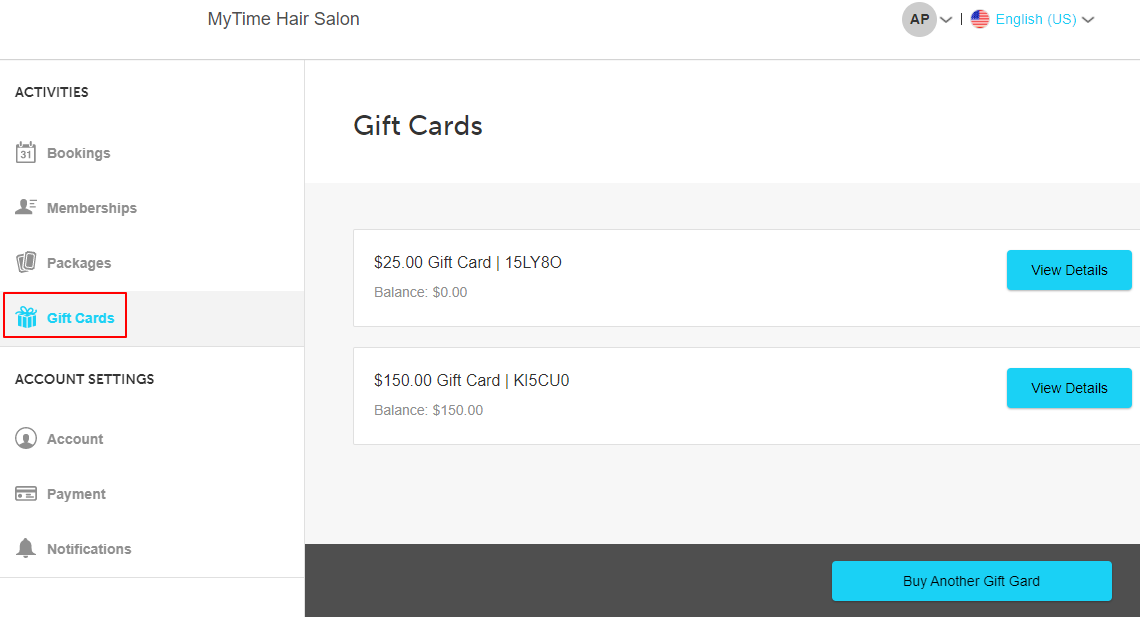
Gift Cards
Displays all purchased and received gift cards, including remaining balances.
- Gift cards purchased at one franchise location are visible across all linked locations (global database)
- Clients can also purchase new gift cards from this section
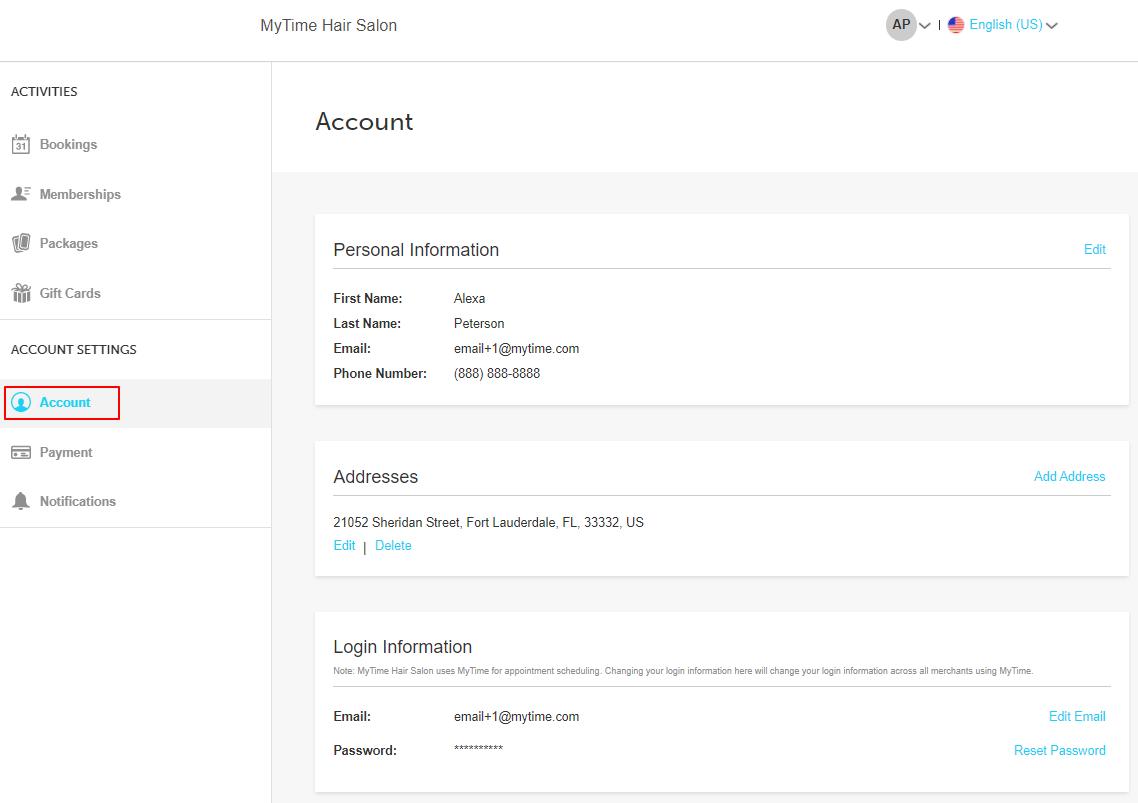
Account Settings
Displays and allows updates to:
- Name, email, and phone number
- Address and login details
- Clients can update their email or reset their password at any time.
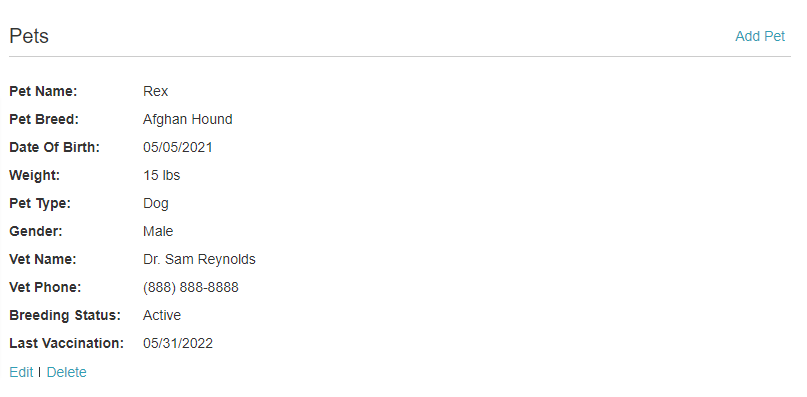
Pet Businesses:
- Clients can manage pet profiles (add, edit, delete)
- Note: Custom fields and pet notes are not visible.
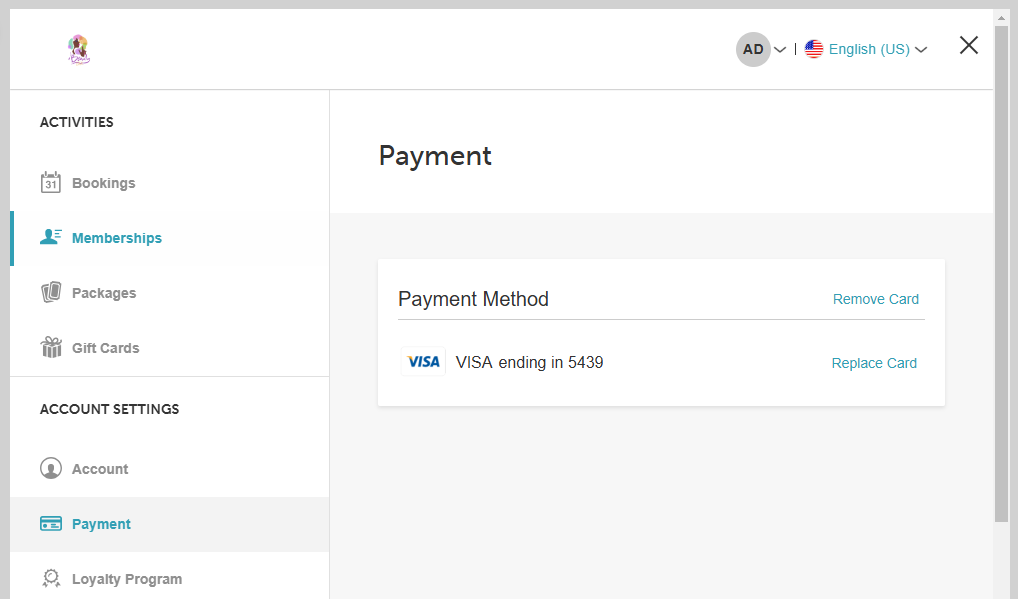
- Payment
- Displays saved payment methods
- Clients can:
- Add, remove, or replace a card
- Cannot remove a card tied to a future prepaid appointment
Franchise Behavior:
The Payment section appears only if the selected location has an active payment account
If no locations have payment accounts, this section is hidden
- Parent Widget Behavior:
- Clients must select a location before adding or managing a card
Security:
If the "Enable reCAPTCHA on booking widget" setting is enabled (Cloud9 accounts), clients will be prompted to complete a reCAPTCHA when entering payment details
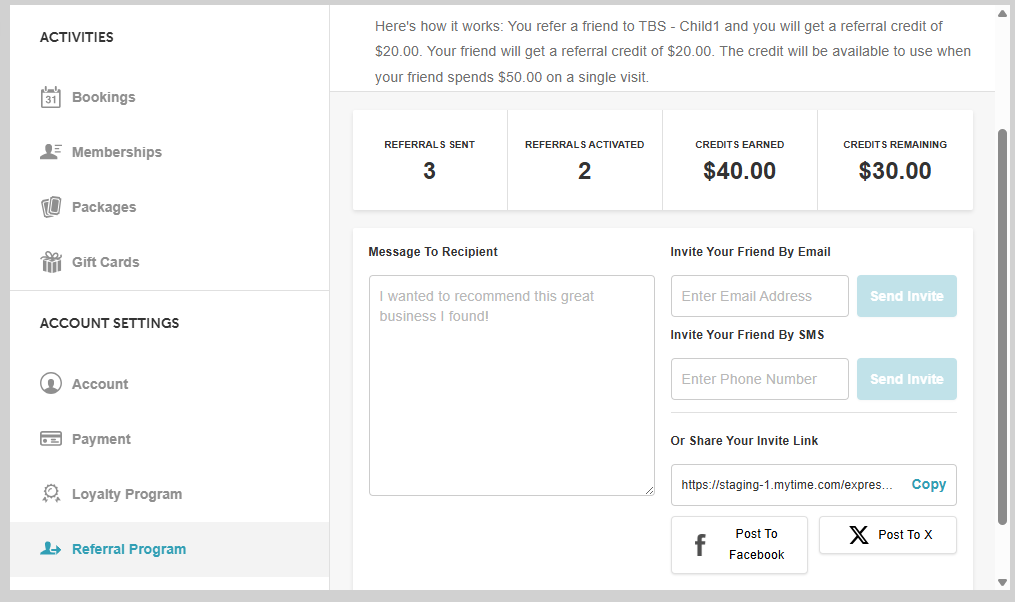
Referral Program
Clients can:
- Track referral credits
- View number of referrals
- Refer friends and family
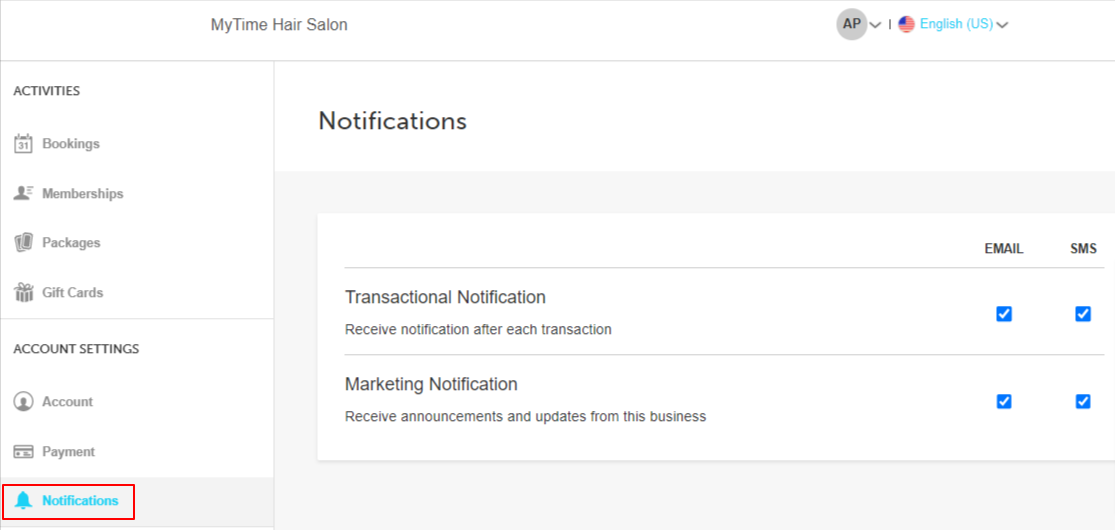
Notifications
Clients can manage preferences for:
- Transactional notifications
- Marketing email and SMS
For more information please contact us at support@mytime.com.
Related Articles:
- Add My Account Management to Your Website
- Booking Appointments Online
- Booking Appointments Online for Pets
- Booking Appointments Online for Family Members
- Purchasing Client Memberships Online
- Purchasing Memberships for Family Members Online
- Purchasing Memberships for Pets Online
- Cancelling Memberships Online
- Purchasing Client Packages Online
- Purchasing Packages for Pets Online
- Purchasing Packages for Family Members Online
- Purchasing Gift Cards Online
- Storing Client Credit Card Online
- Loyalty Program on My Account
- Referral Program on Booking Widget
Was this article helpful?
That’s Great!
Thank you for your feedback
Sorry! We couldn't be helpful
Thank you for your feedback
Feedback sent
We appreciate your effort and will try to fix the article