Error 150 means your terminal can’t connect to our payment server. This usually happens because of a network or terminal configuration issue.
- If your terminal was working before, start by checking its network connection.
- If you’re setting up a new terminal, check both the network connection and the terminal configuration. Make sure the terminal is powered on, connected to the internet, and that the serial number in MyTime matches the one on the terminal label.
If several terminals stopped working at the same time, check the MyTime Status page and contact MyTime Support before changing any terminal settings.
Find your model below, restart the terminal, and follow the steps for its connection type: Ethernet, Wi-Fi, or LTE.
Restart your terminal
- TETRA (Link/2500, Lane/3000, Lane/3600, Lane/7000, Lane/8000, Move/5000): On the terminal, hold the yellow key and # together for 3 seconds. If a Link/2500 or Move/5000 powers off on battery, hold the green key to turn it back on.
- AXIUM RX5000 and RX7000: Press the yellow key and # together.
- AXIUM DX8000 and EX8000: Hold the power button until the power menu appears, then select Restart.
- AXIUM RX9000: Hold the power button until the power menu appears (the power button is on the back upper half of the terminal), then select Restart or disconnect and reconnect the terminal’s power source.
Check connection status
AXIUM terminals
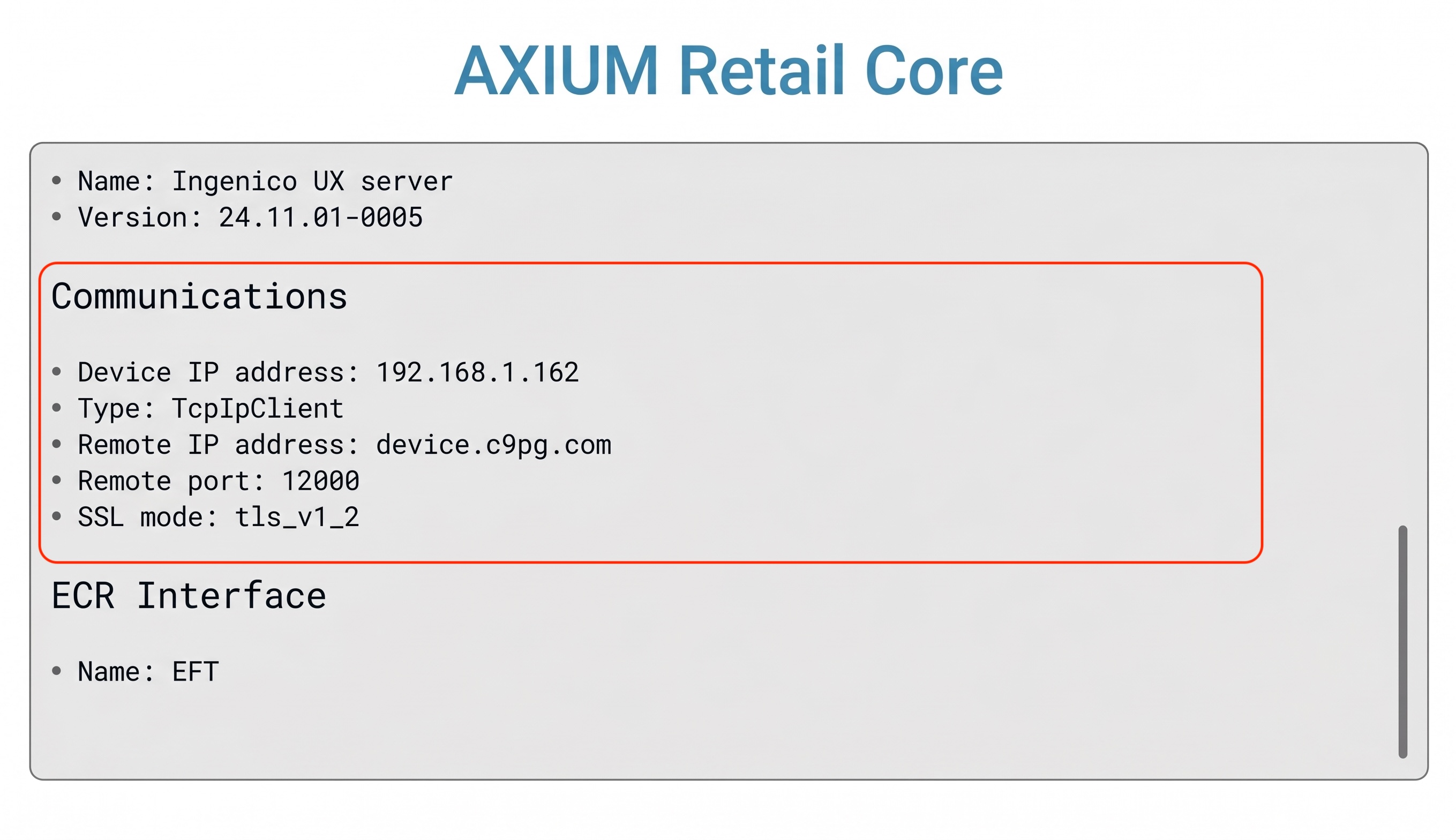
From the terminal home screen, tap the top-left corner of the screenfour times and scroll to Communications. Check Comm Method and Comm Status. If you use Ethernet or Wi-Fi, also check IP Address. The screenshot shows an example Wi-Fi connection. If the screen is missing or the values look wrong, send MyTime Support a photo.
TETRA terminals
From the terminal home screen, enter 0000. Look for Connection Status and IP Address. If the status shows Connected or Active and the error continues, check the terminal’s network connection below. If the status is disconnected, the IP address is blank or 0.0.0.0, or your setup does not show a status field, use the same connection checks. The screenshot shows an example Ethernet configuration.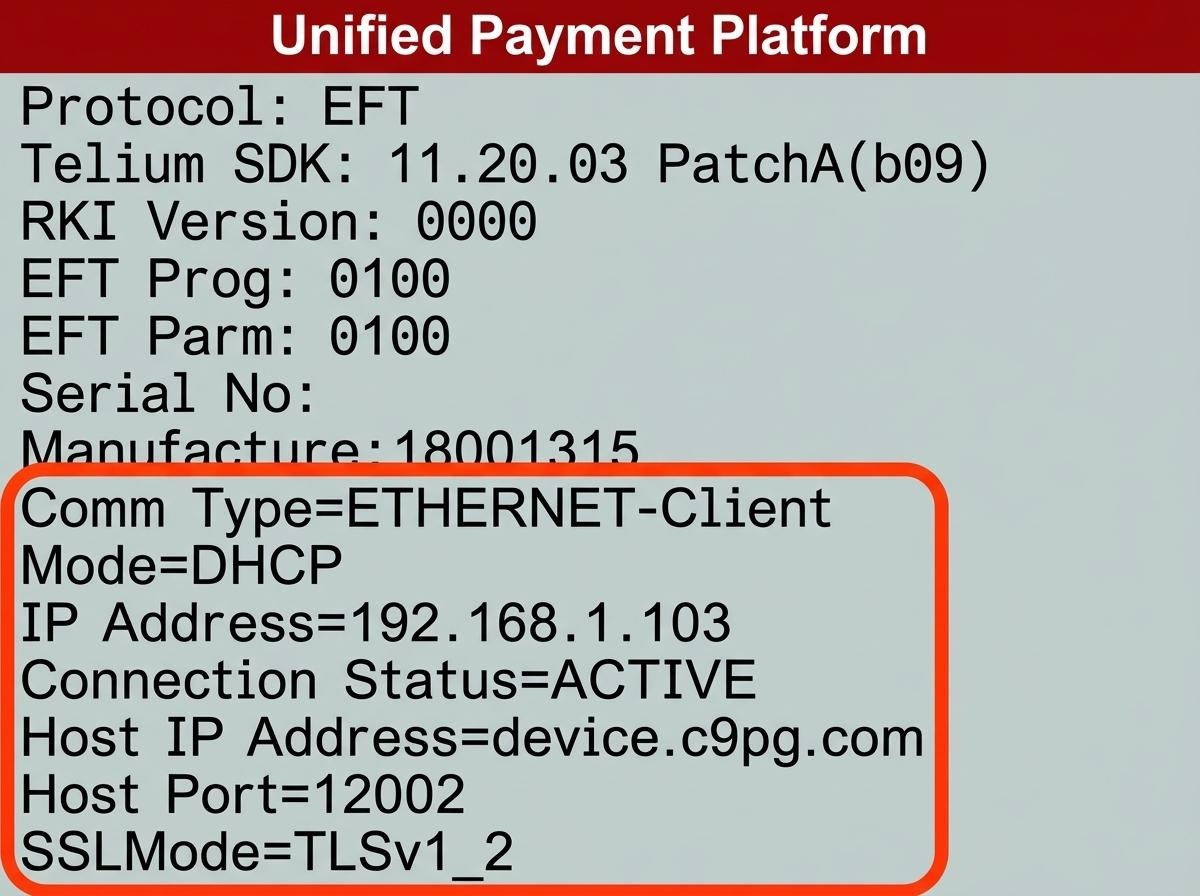
For a TETRA terminal configured for MyTime CloudPDC, use these references if a setting differs from the values confirmed for your device:
- Comm Type: See Update Comm Type.
- Mode: See Update DHCP Mode if the terminal was unintentionally set to Static.
- IP Address: This will vary for every user
- Connection Status: Should show Active or Connected
- Host IP Port: See Update Host IP Port.
- Host IP Address: See Update Host IP Address.
Troubleshoot Ethernet
- Trace the Ethernet cable from the terminal or its splitter to the network jack, router, or switch. Unplug and firmly reconnect both ends. Check that each plug clicks into place.
- If the cable runs through an Ethernet switch, check that the switch has power. Try a known-good LAN port on the same network or ask your network administrator to test the connection. If the issue started after a network change, tell your administrator what changed.
- Try a known-good Ethernet cable. Test one change at a time. If you need a replacement, use a Cat6 Ethernet cable and, where applicable, the Ingenico splitter cable. Check compatibility with your terminal model before ordering.
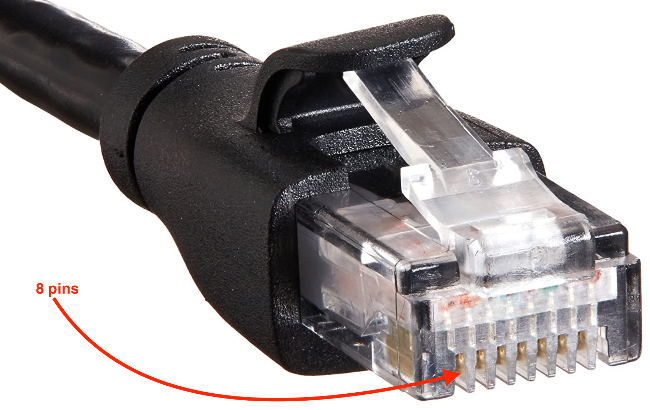
RJ45 Ethernet plug with eight contacts.
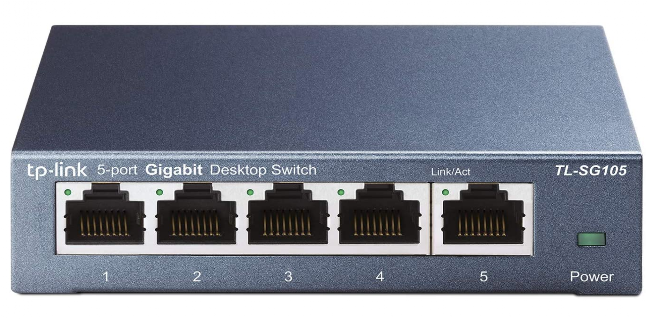
Example of a five-port Ethernet switch (TP-Link TL-SG105).
Troubleshoot Wi-Fi
Check that the terminal is connected to the expected Wi-Fi network. On supported TETRA models, press 2634 from the home screen to see the Wi-Fi indicator. A green indicator means the terminal has joined Wi-Fi. It can still have trouble reaching Cloud9.
If the terminal needs to reconnect, follow the Wi-Fi instructions for its model. Make sure you have the Wi-Fi password before removing a saved network.
- Link/2500 Wi-Fi setup
- Move/5000 Wi-Fi setup
- Lane/7000 or Lane/8000 Deluxe Wi-Fi setup
- AXIUM setup for Wi-Fi-capable models
If Wi-Fi drops intermittently, check signal strength near the terminal. Ask your network administrator whether a test on a dedicated 2.4 GHz network would help isolate the issue.
Troubleshoot LTE
Check cellular signal in the terminal’s status screen. Try moving the terminal to a spot with stronger reception. For a Move/5000 provisioned for LTE, follow the Move/5000 LTE setup guide for the required settings. If a cellular-enabled AXIUM terminal still cannot connect, contact MyTime Support.
Check the firewall or restart network equipment
- Firewall: If the terminal is on a restricted network or firewall rules recently changed, ask your network administrator to contact MyTime Support for the required connection settings.
- Modem and router: If other devices are also losing internet access, coordinate a restart with your network administrator. For separate devices, reconnect the modem and wait until it is online, then reconnect the router. For a combined modem/router, restart the single device and wait for it to reconnect.
Update TETRA settings
MyTime terminals are preconfigured. Use these steps only for TETRA and only after MyTime Support confirms the correct settings for your configuration. If the menu or field is unavailable, contact Support for model-specific instructions.
- From the home screen, enter 2634, then press F. See Ingenico Configuration Menus for the key location on your model.
- Go to TDA → Configuration → Communication → Ethernet Settings. Update only the setting you need below.
- Press the green key to save the field. Press the red X until Save and Reboot? appears, then select Yes.
Update Host IP Address
Select Host IP Address and enter the hostname confirmed for your setup. MyTime documents device.c9pg.com for the standard Link/2500 setup. For Move/5000 LTE, use its separate setup guide for the numeric host address.
Update Host IP Port
Select Host IP Port and enter the port confirmed by MyTime Support for your setup. Use 12002 only if Support confirms that value for your terminal.
Update Comm Type
If MyTime Support confirms the terminal should use Ethernet-Client and the connection method is different, select Connection Method → Client. If the underlying communication type also differs, ask Support to confirm the correct option for your setup.
Update DHCP Mode
If your network administrator confirms that the terminal should obtain its IP automatically, select Boot Protocol → DHCP. A router-side DHCP reservation also uses DHCP on the terminal. If your location uses a manually configured static IP, have your network administrator verify the existing settings.
Test the terminal or contact Support
If a payment was interrupted, confirm whether the original charge went through before retrying it. Once the terminal is back online, follow your model’s setup guide to run a test transaction.
If error 150 continues, email support@mytime.com with your location, terminal model, connection type (Ethernet, Wi-Fi, or LTE), when the error started, and a photo of the status or Communications screen. Include whether other terminals at the location are affected.
Was this article helpful?
That’s Great!
Thank you for your feedback
Sorry! We couldn't be helpful
Thank you for your feedback
Feedback sent
We appreciate your effort and will try to fix the article