Organizing your team and setting accurate service pricing and durations is essential for smooth operations. MyTime provides a centralized location to manage all staff titles. This article will walk you through the process of managing staff titles effectively.
Things to know:
- Staff titles are primarily used to scale service prices and durations by experience level (e.g., Senior vs. Junior Stylist).
- Staff titles are completely hidden from clients on the booking widget. Clients will see the price associated with a title, but never the title name itself.
- Titles do not dictate commissions; these must be configured individually on each staff profile.
- For franchise businesses, staff titles can be created at both the parent and child account levels.
- Titles created at the parent level are available across all child accounts and are marked with a globe icon at the child level.
- Titles created at the child level are only visible and usable at locations belonging to that specific child account.
- Service prices can be set based on these titles. For franchises, the Service Pricing & Duration by Title/Location Group setting is managed at Business Setup > Settings on the parent account. This setting is inherited by all child accounts and cannot be changed at the child level. Learn more here.
- Deleting Staff Titles
- Deleting a staff title from one location removes it from all locations under that corresponding child account.
- If a title is deleted after service prices have been configured for it, any staff member assigned to that title automatically reverts to the "Employees without a title" price. This fallback price applies both online and in the in-store appointment modal.
- For franchise businesses, if a parent-level title is assigned to a staff member at a child location and is later deleted at the parent level, the title is automatically stripped from the staff member's profile and removed from the child location's list.
Contents:
Creating Staff Titles
To create titles for staff members:
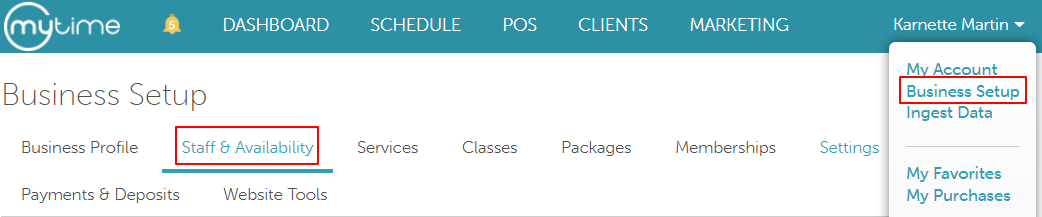
- Navigate to Business Setup > Staff & Availability
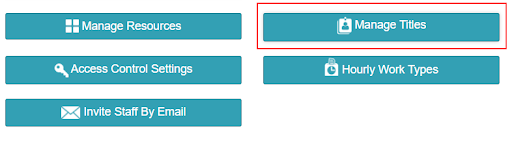
- Select the "Manage Titles "button at the bottom of the page
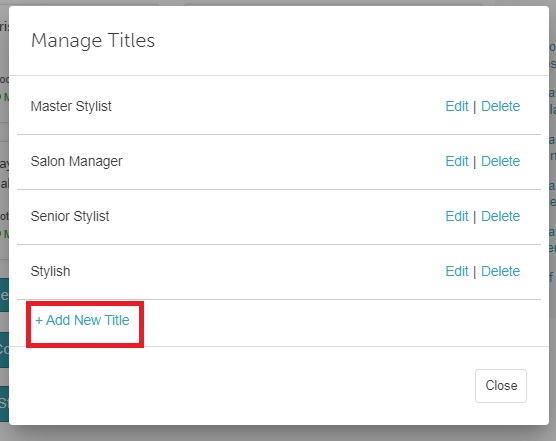
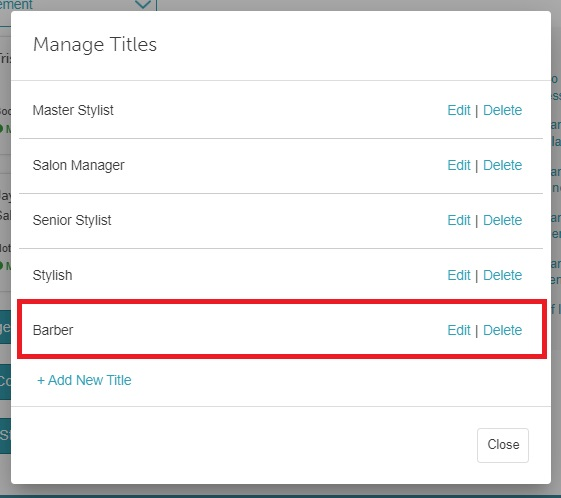
- The "Manage Titles" modal will open, allowing you to add as many employee titles as you wish
- To add a new title, click on the "+Add New Title" hyperlink
- A text field will appear where you can enter the new title
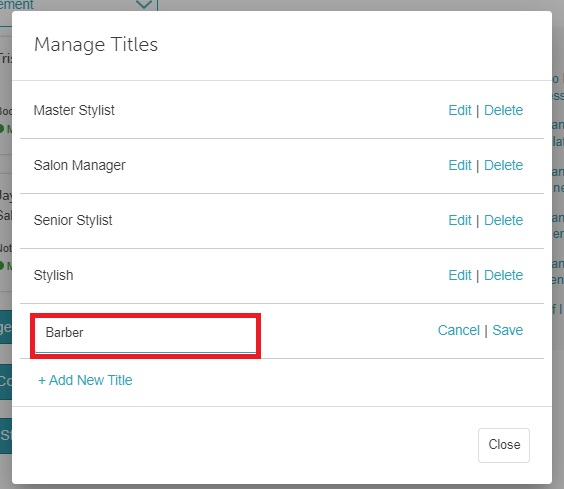
- Enter the title, then click "Save"
- Once saved, the title will appear in the "Manage Titles" list. From there, you can edit or delete it as needed.
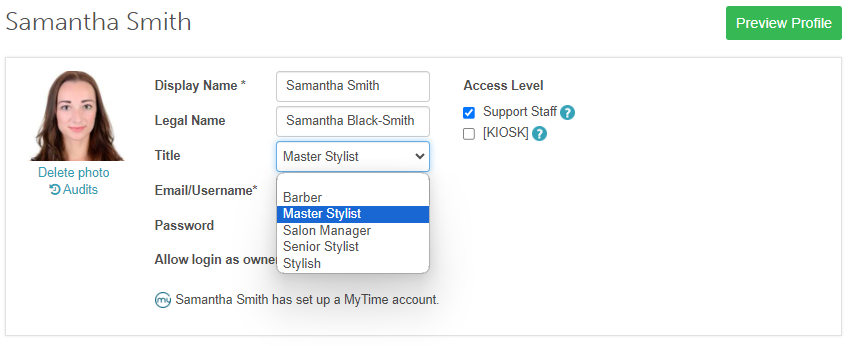
- When assigning a title to a staff member, the Title dropdown will display all titles that have been added to the account, allowing you to select the appropriate one.
Editing Staff Titles
To modify staff titles:
- Navigate to Business Setup > Staff & Availability
- Select the "Manage Titles" button at the bottom of the page
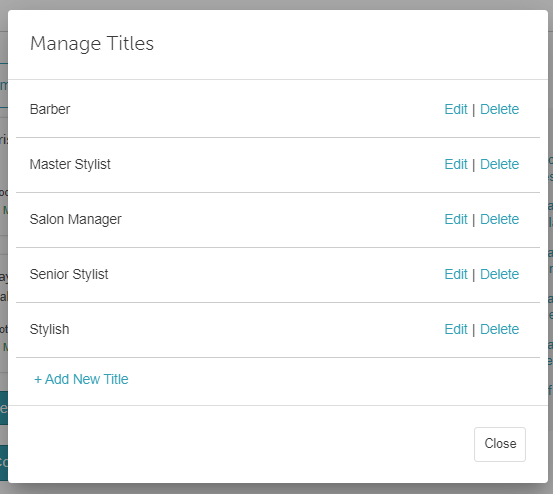
The "Manage Titles" modal will open. Locate the title you want to edit
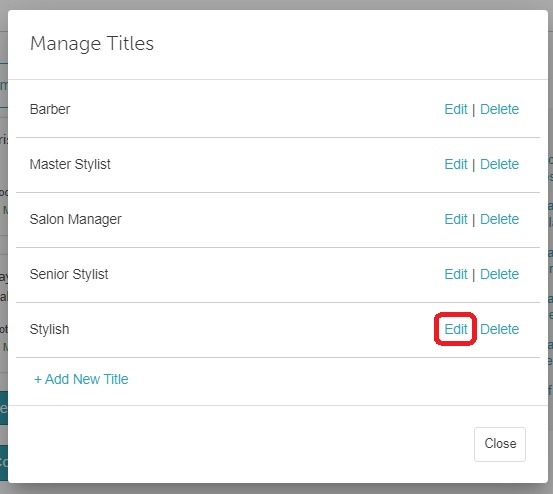
Click "Edit"
Update the title as needed
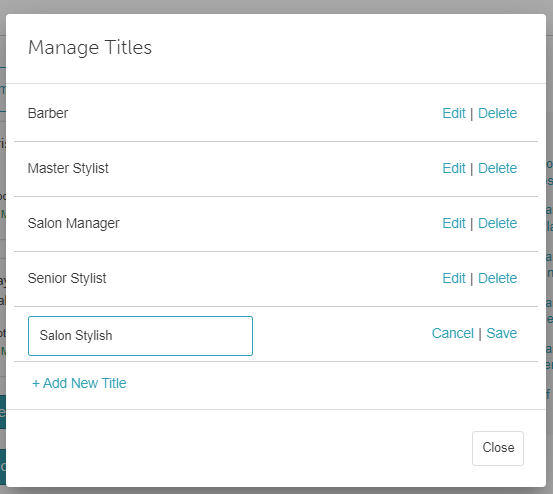
Click "Save" to apply your changes
The "Manage Titles" list will display the updated title
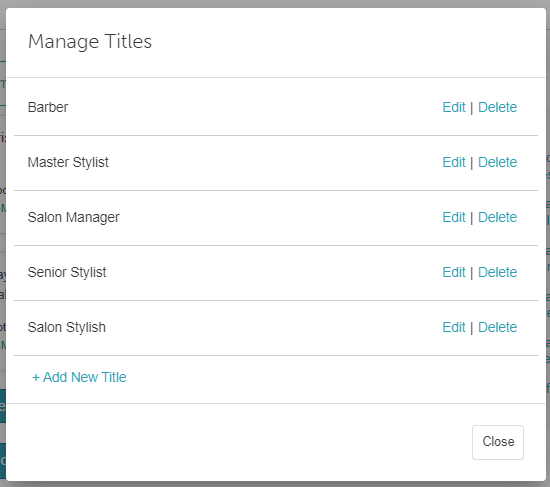
When assigning a title to a staff member, the Title dropdown will display the updated title


Deleting Staff Titles
To delete staff titles:
- Navigate to Business Setup > Staff & Availability
- Select the "Manage Titles "button at the bottom of the page
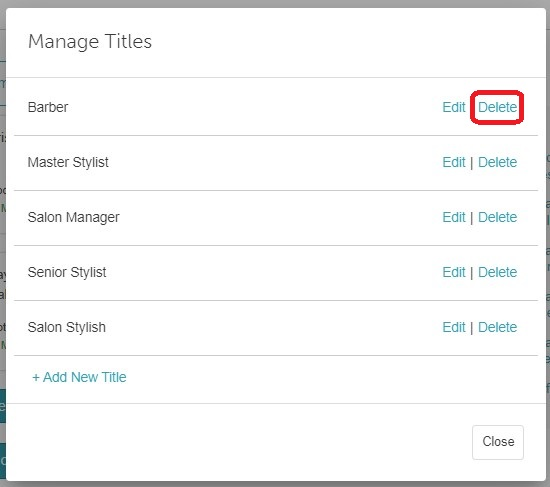
- The "Manage Titles" modal will open. Locate the title you want to delete
- Click "Delete"
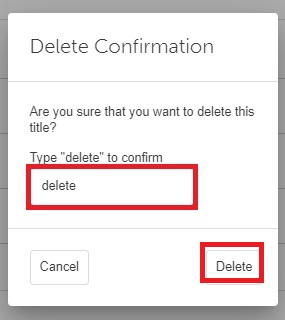
- A confirmation will appear asking you to confirm the deletion
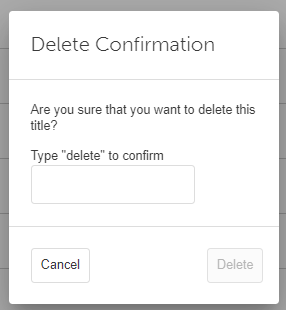
- Type "delete" to confirm, then click the "Delete" button
- The title will be removed from the "Manage Titles" list
- When assigning a title to a staff member, the deleted title will no longer appear in the Title dropdown menu


For more information, contact us at support@mytime.com or (385) 233-6964.
Related Articles:
Was this article helpful?
That’s Great!
Thank you for your feedback
Sorry! We couldn't be helpful
Thank you for your feedback
Feedback sent
We appreciate your effort and will try to fix the article