Staff profiles can be created in a similar manner, allowing them to possess the same access level to the system, identical working schedules, offer the same services, and have the same compensation setup. This article will provide steps on how to add a staff member by cloning.
Things to know:
- The option to clone staff members is managed through the "Accessing Staff & Availability" access control permission.
- The access level, services, compensation, working hours, location, online booking setting, and booking time slot fields will be automatically populated in the cloned profile.
- The name, title, and appointment booking notification fields for the new staff member will have to be filled in manually.
- When cloning an existing staff member, the price and duration should automatically carry over to the newly created staff profile.
- The setup option displayed in the top-right user menu depends on how you access the account and your assigned role:
- When navigating from the Parent Account (Location Management tab):
- Admin: Displays Business Setup when viewing the location account.
- Login As: Displays Location Setup when viewing the location account.
- When logged in directly at the Location Level:
- Location Owners & Location Managers: Display Location Setup.
- Service Providers & All Other Roles: Display Profile Setup.
To clone a staff member's profile:
1. Go to Business Setup / Location Setup > Staff
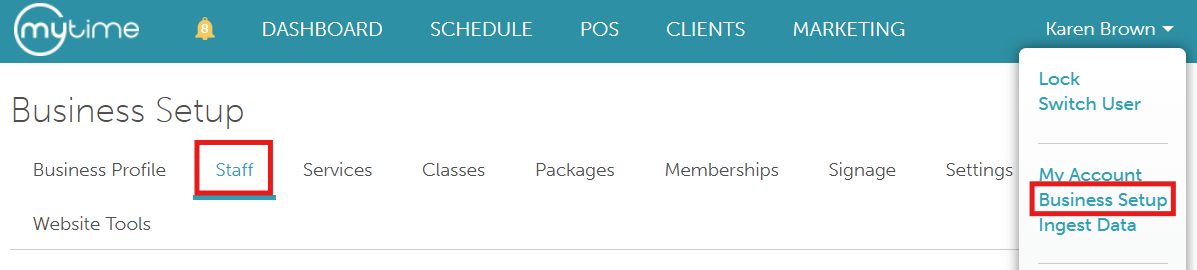
2. Select the staff you would like to clone
3. At the bottom of the staff member's profile, select "Duplicate"

4. The new cloned profile will open
5. Enter the new staff member's details on the profile

6. Save

The profile of the cloned staff member will be included on the main staff page.
For more information contact us at support@mytime.com.
Related Articles:
Was this article helpful?
That’s Great!
Thank you for your feedback
Sorry! We couldn't be helpful
Thank you for your feedback
Feedback sent
We appreciate your effort and will try to fix the article