MyTime allows businesses to mark individual clients as tax-exempt. This status enables those clients to make purchases without being charged certain applicable taxes.
Things to know:
- The ability to mark clients as tax-exempt is controlled by the "Editing Client Tax Status" access control setting. By default, this permission is blocked for all roles except the account owner.
- To configure sales tax settings, learn more here.
- Once a client is marked as tax-exempt, they will either be fully exempt from taxes or be charged the exemption rate configured during your tax setup, depending on your tax configuration.
To mark a client as tax-exempt via POS:
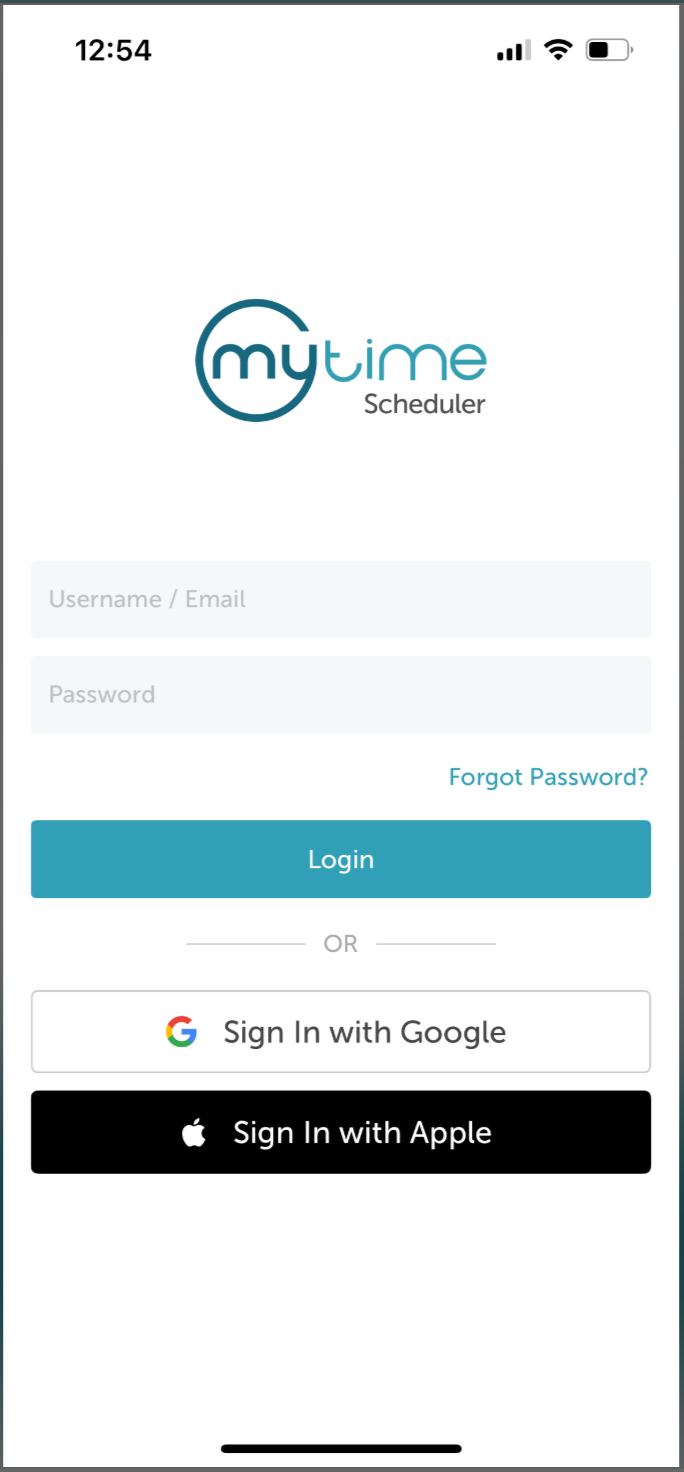
- Launch the MyTime Scheduler app on your device
- Choose your login method:
- Standard: Enter your registered email address and password, then tap 'Sign In'
- Social Login: Select 'Continue with Google' or 'Continue with Apple' to use your existing credentials for a faster login experience. For detailed instructions, learn more here
- Once signed in, you will be directed to the schedule by default
- Select the POS icon
- Add a client to the ticket
- Add an item to the ticket
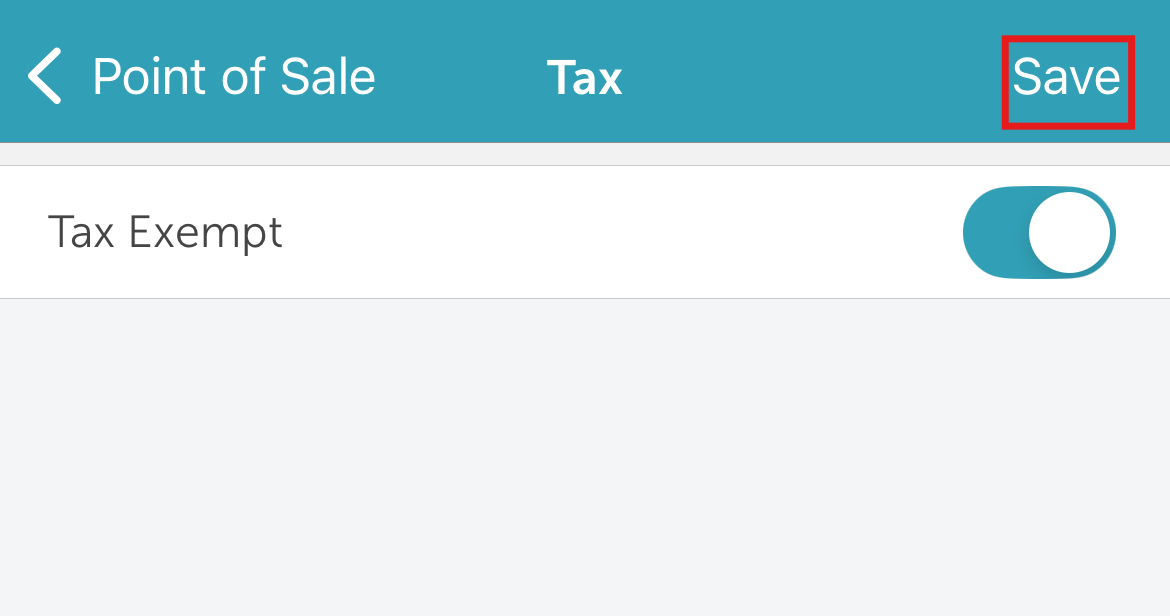
- Tap "Tax"
- Toggle the Tax Exempt button
- Enter the client’s tax exemption number or the reason for tax exemption
- Click Save
- Tap Save at the top of the page
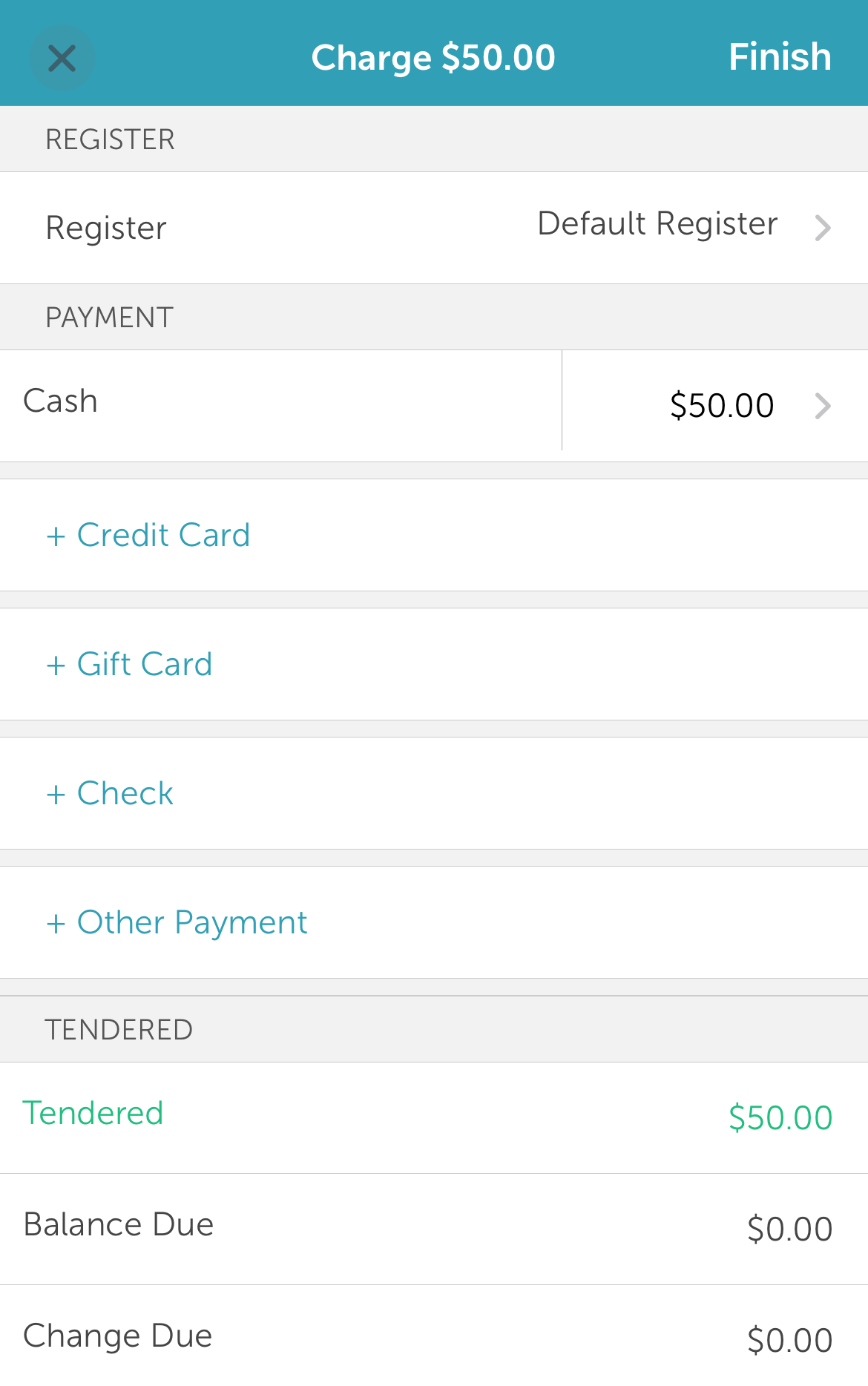
- Tap Pay
- Select your preferred payment method and close the ticket
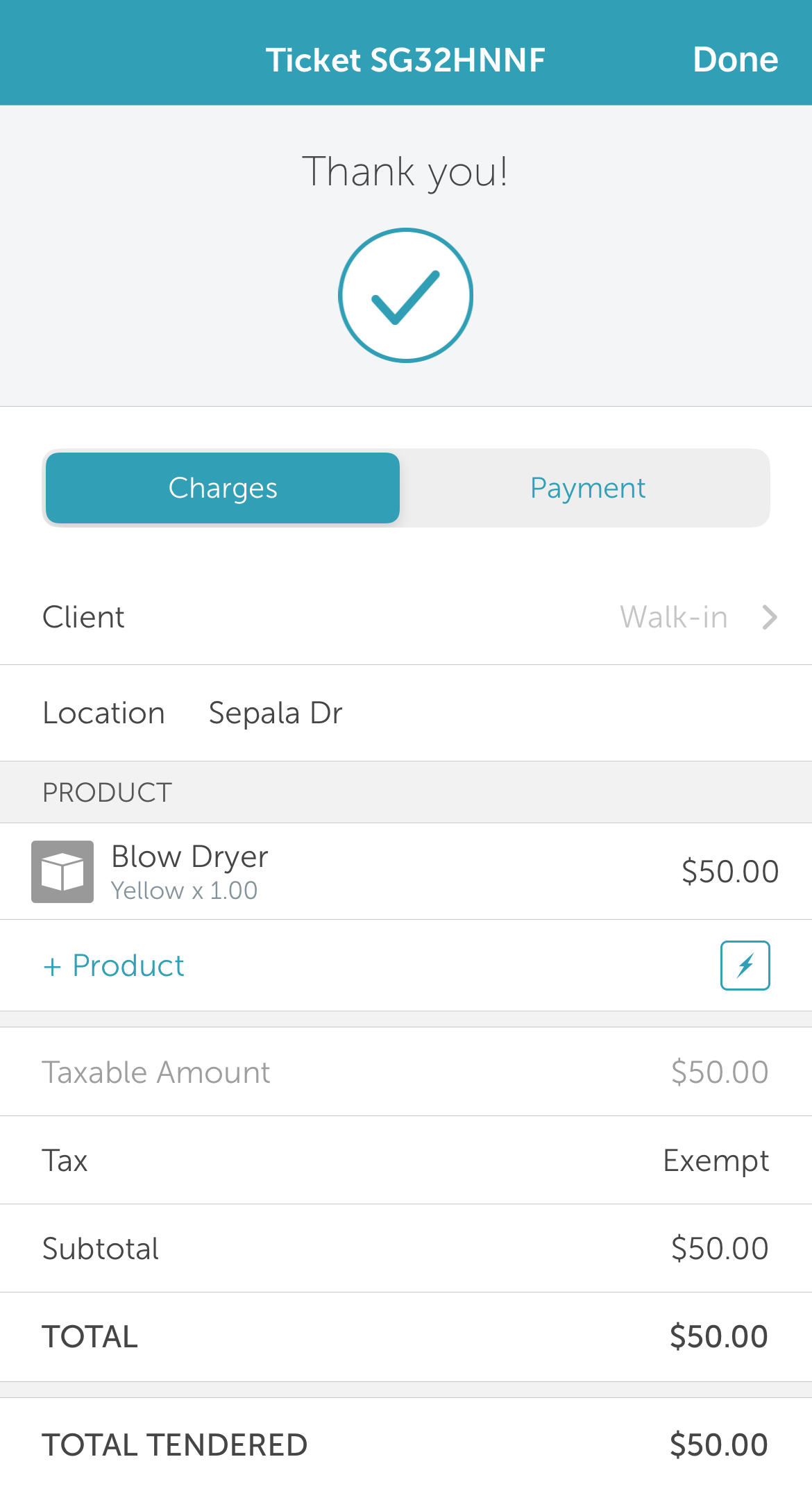
- You will be redirected to the payment confirmation page
For more information, contact us at support@mytime.com.
Related Articles:
Was this article helpful?
That’s Great!
Thank you for your feedback
Sorry! We couldn't be helpful
Thank you for your feedback
Feedback sent
We appreciate your effort and will try to fix the article