This article will guide you through the steps for applying promotions to services, classes, memberships, packages, and gift cards on the guest app.
Things to know:
- To learn how to configure promotions for online use, please click here
- Promotions can be applied to services, classes, memberships, packages, and gift cards online
- You can configure your account to automatically apply promotions to class bookings, as well as membership, package, and gift card purchases. To enable any of these features, please contact MyTime Support at support@mytime.com.
- Promotions set to auto-apply during online appointment scheduling will not be applicable to clients who have a membership or package that already covers the service being booked.
- Promotions cannot be used to pay for taxes or fees
- By default, promotions are applied to the least expensive item. However, you can configure your account to apply promotions to the most expensive item instead. This option is managed through the "Apply Promotions in Order of Highest to Lowest Item Cost" setting on the Business Setup > Settings page. For franchise businesses, this setting is controlled at the parent level.
- You can configure your account so that promotions are applied online in the same order as they are in the POS system.
- Flash Sale Discounts: If a flash sale is active, these discounts are applied first and override all other discounts.
- Membership Discounts: If no flash sale is active, membership discounts are applied next.
- Auto Promotions (e.g., BOGOs): These are applied after membership discounts.
- The discount amount will be visible on both the “Pick a Time” page and at checkout.
- This is controlled by a hidden setting. To enable or disable this setting, contact MyTime support for assistance.
- To simplify the online checkout experience for your clients, you can choose to display separate input fields for gift cards and promo codes during redemption. This helps reduce confusion and makes the process more user-friendly. This feature is controlled by a hidden setting and can only be enabled by the MyTime team. To activate it, please contact support@mytime.com.
Contents:
- Applying Promotions to Services
- Applying Promotions to Classes
- Applying Promotions to Memberships
- Applying Promotions to Packages
- Applying Promotions to Gift Cards
Applying Promotions to Services
Promotion setup:
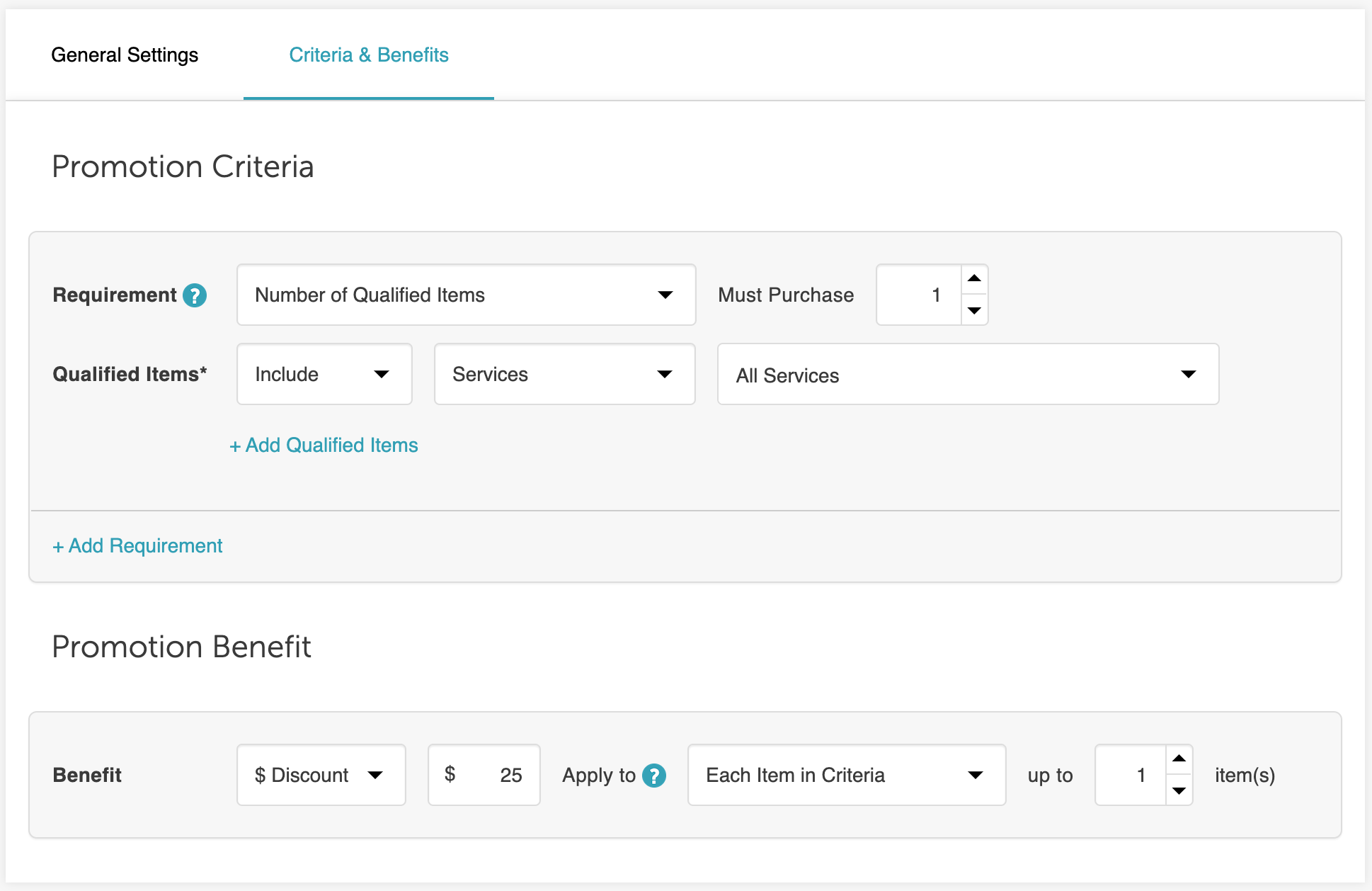 To apply the promotion when booking a service in the guest app, clients should follow these steps:
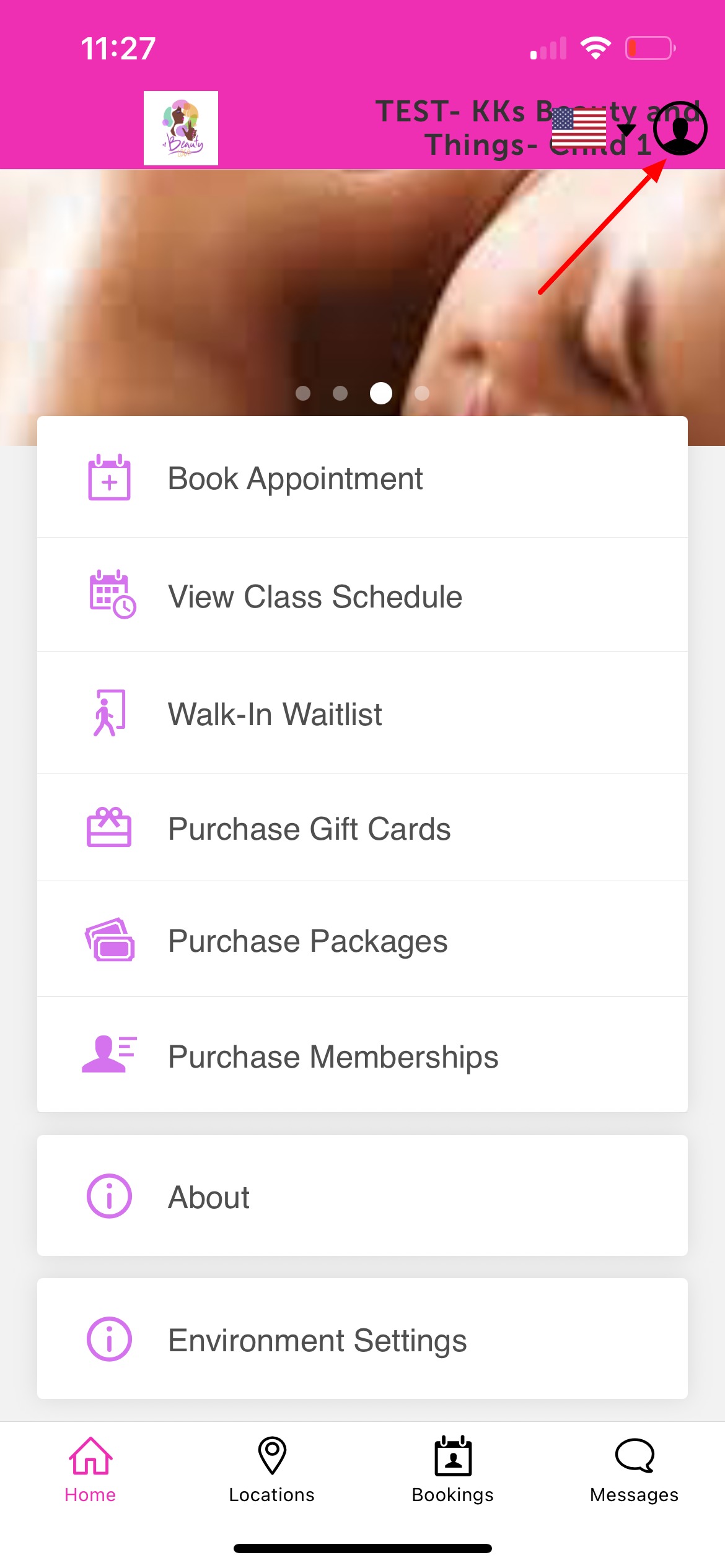
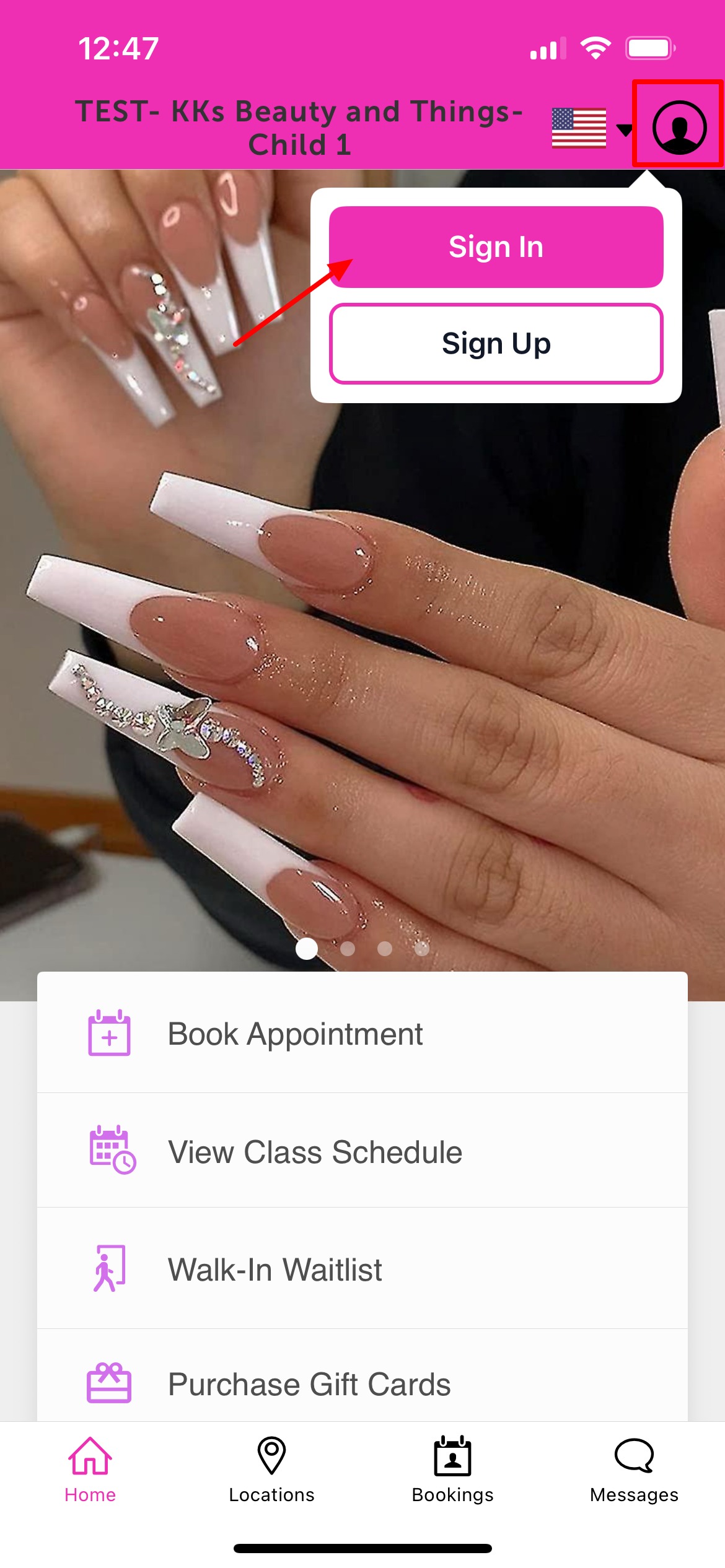
2. Upon downloading, navigate to the home screen and tap on the account icon located in the top right corner, tap sign in
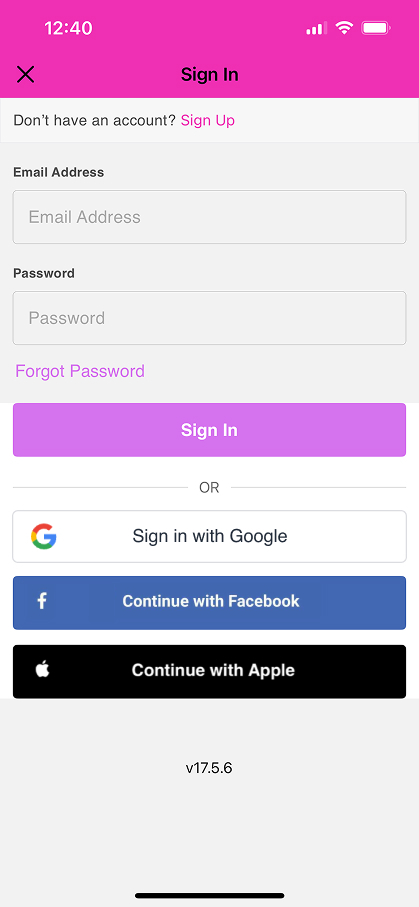
 3. Choose their login method:
- Standard: Enter their registered email address and password, then click 'Sign In'.
- Social Login: Select 'Continue with Google,' 'Continue with Apple,' or 'Continue with Facebook' to use their existing social media credentials.
4. After signing in, return to the Home screen
5. Tap Book Appointment to begin scheduling
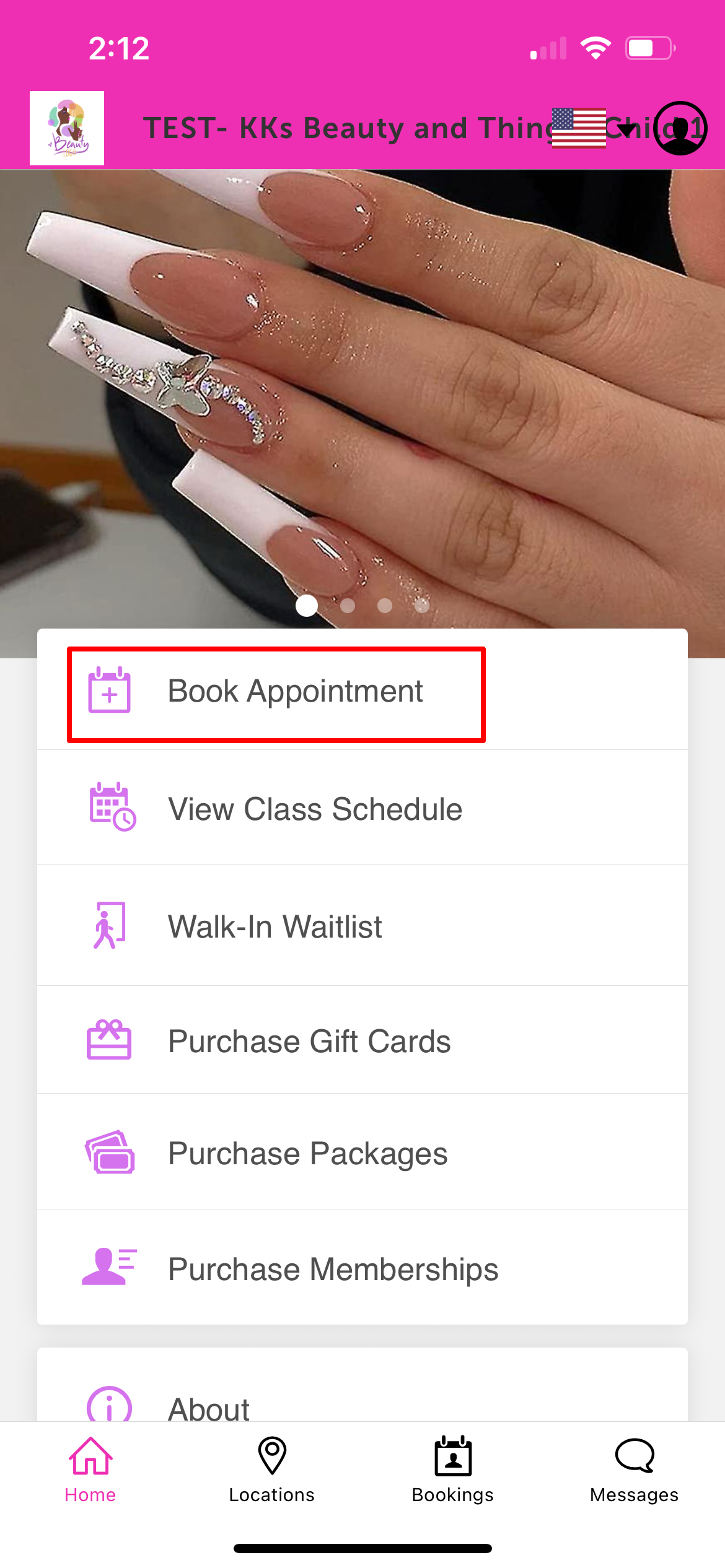
6. Select the location where the appointment will take place 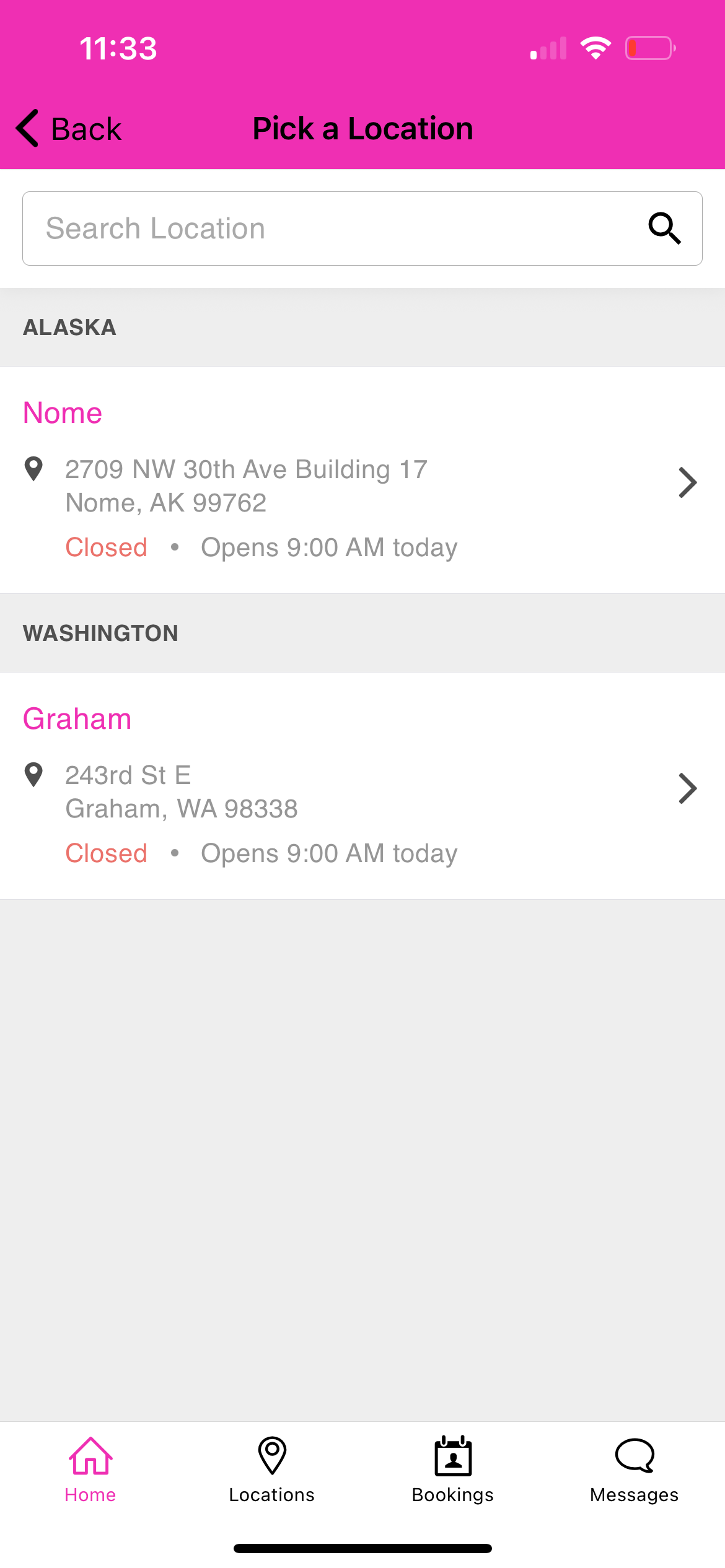
7. Tap Book next to the desired service 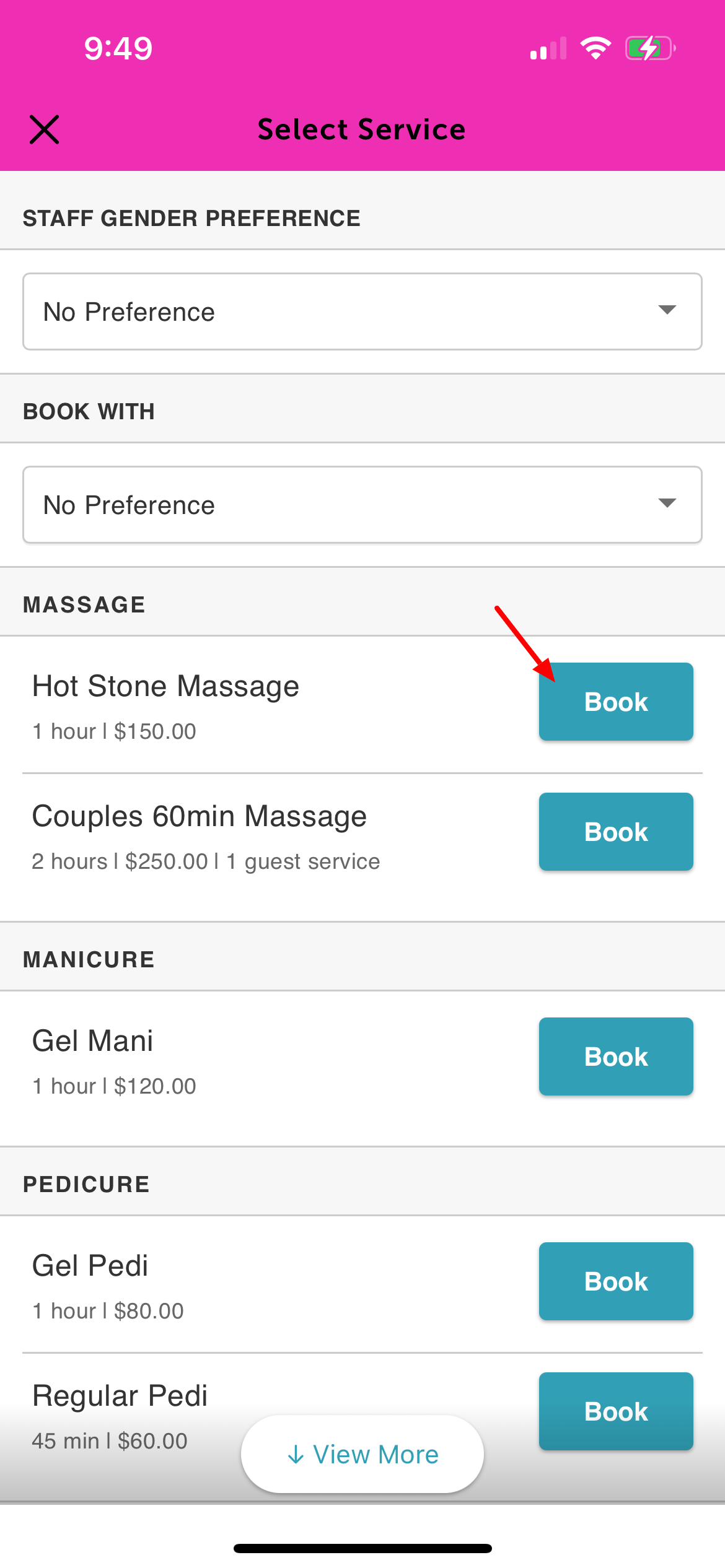
8. Choose the date and time for the appointment
9. On the checkout screen, complete the intake form and enter payment details, if required 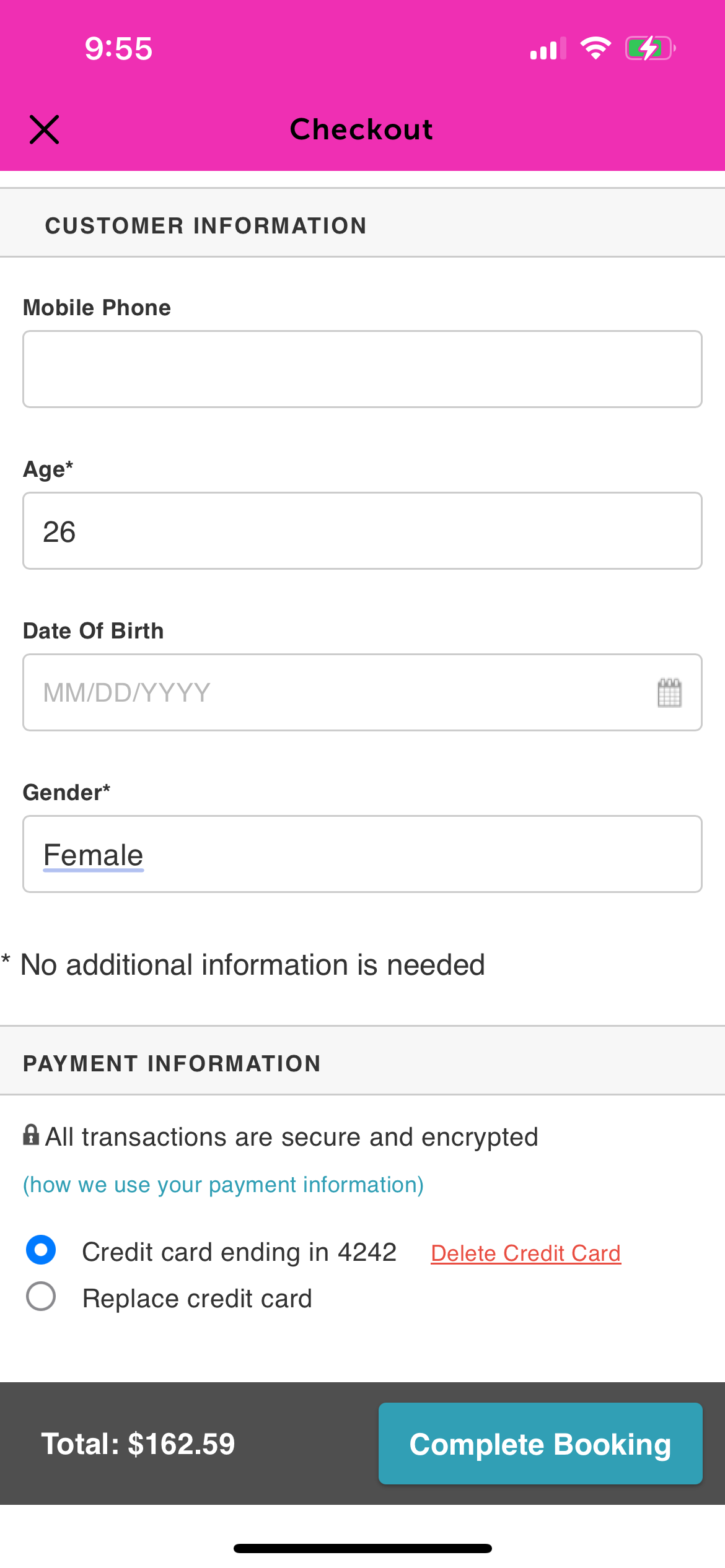
10. Enter the promo code in the 'Apply Promo Code' field. If the promotion is set to auto-apply, no manual entry is required.
11. Tap Apply to apply the promotion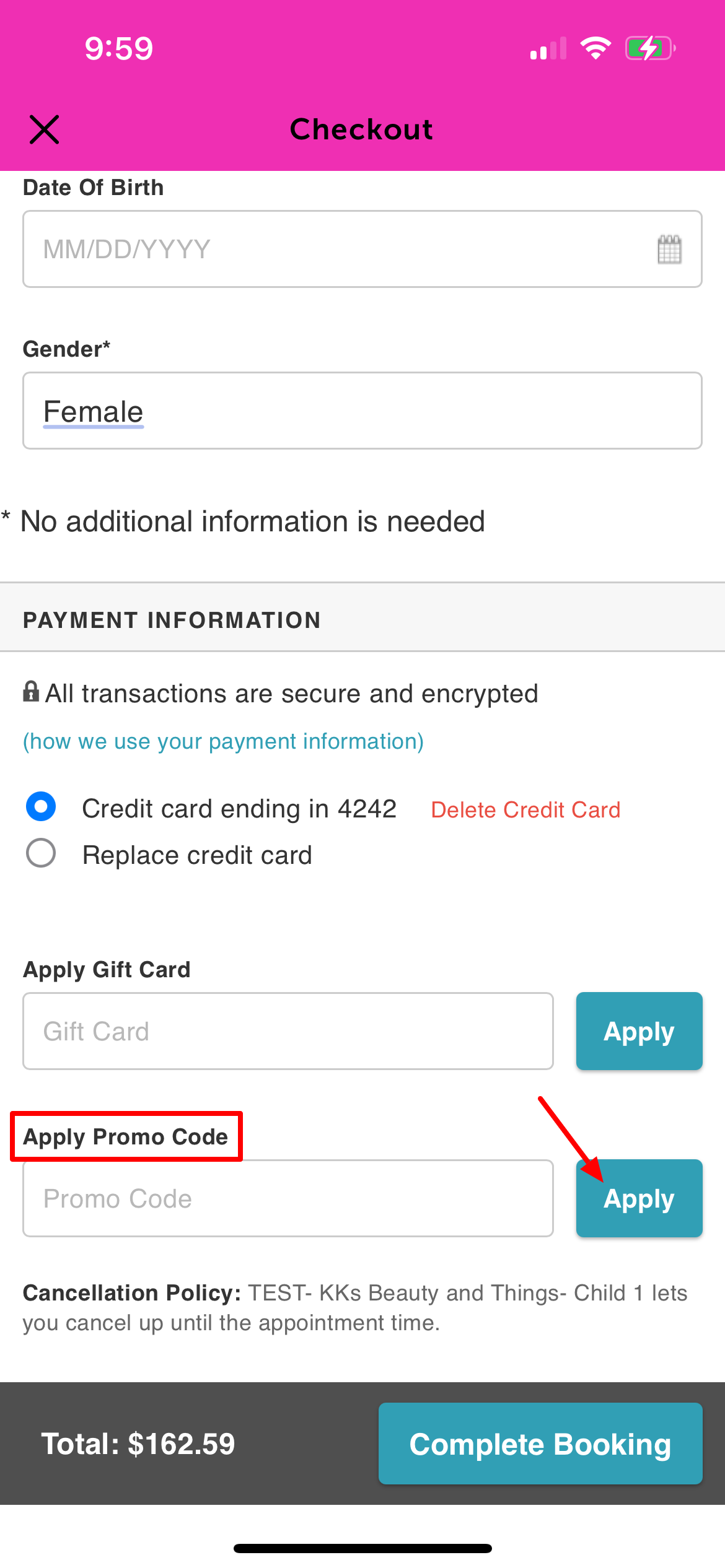
12. Based on the promotion’s configuration, $25 will be applied toward the cost of the selected service 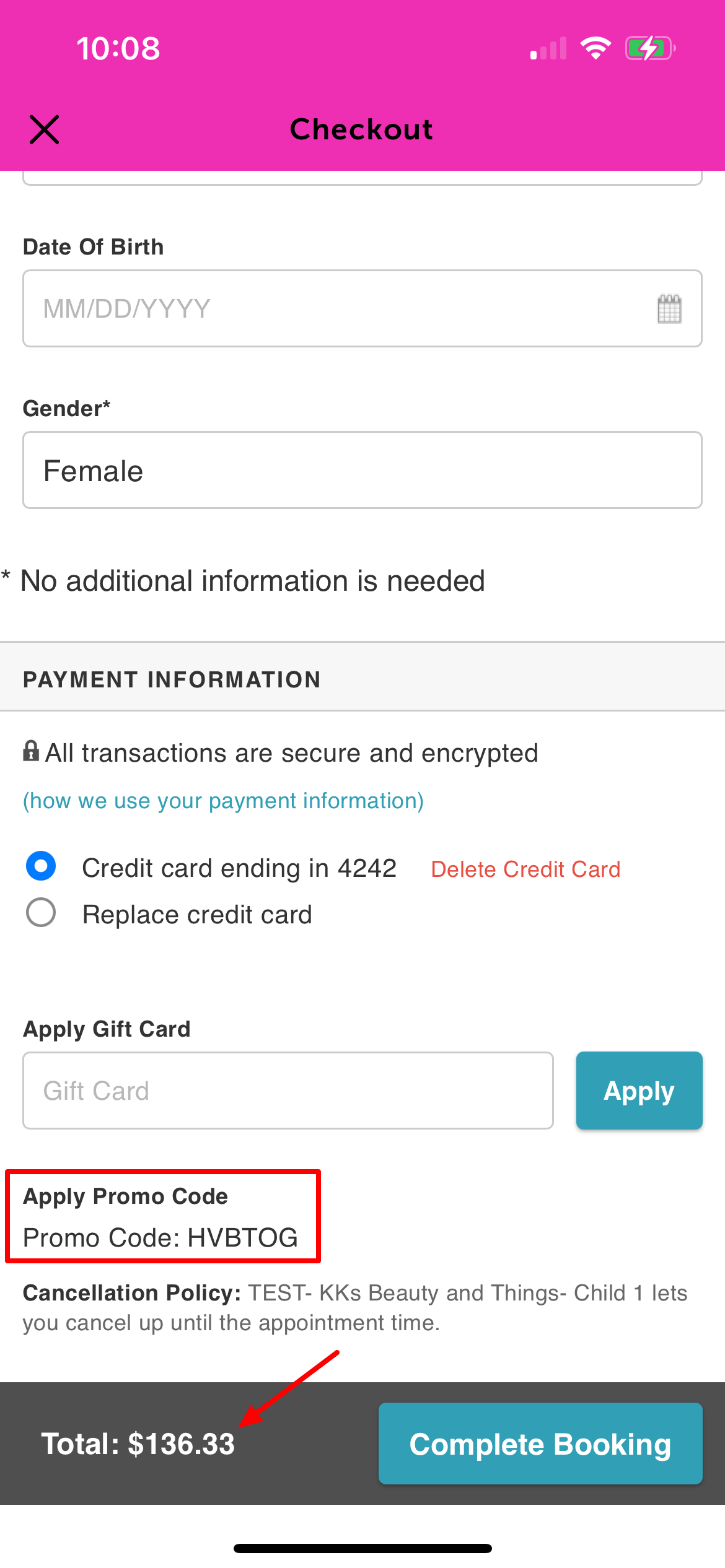
Applying Promotions to Classes
Promotion setup
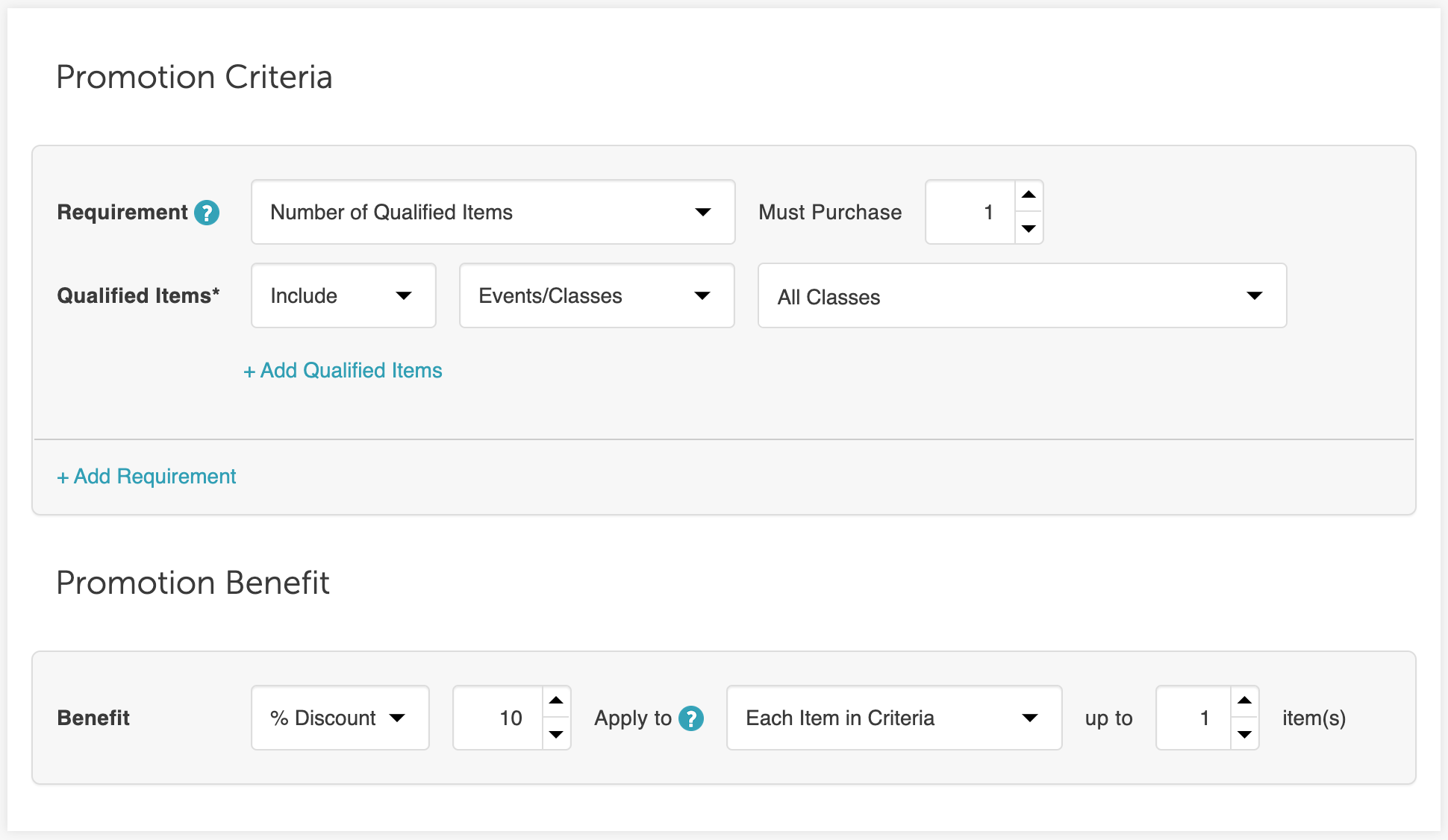
To apply the promotion when booking a class in the guest app, clients should follow these steps:
1. After signing in, they will be redirected to the Home screen.
2. Tap 'View Class Schedule' to browse available classes. 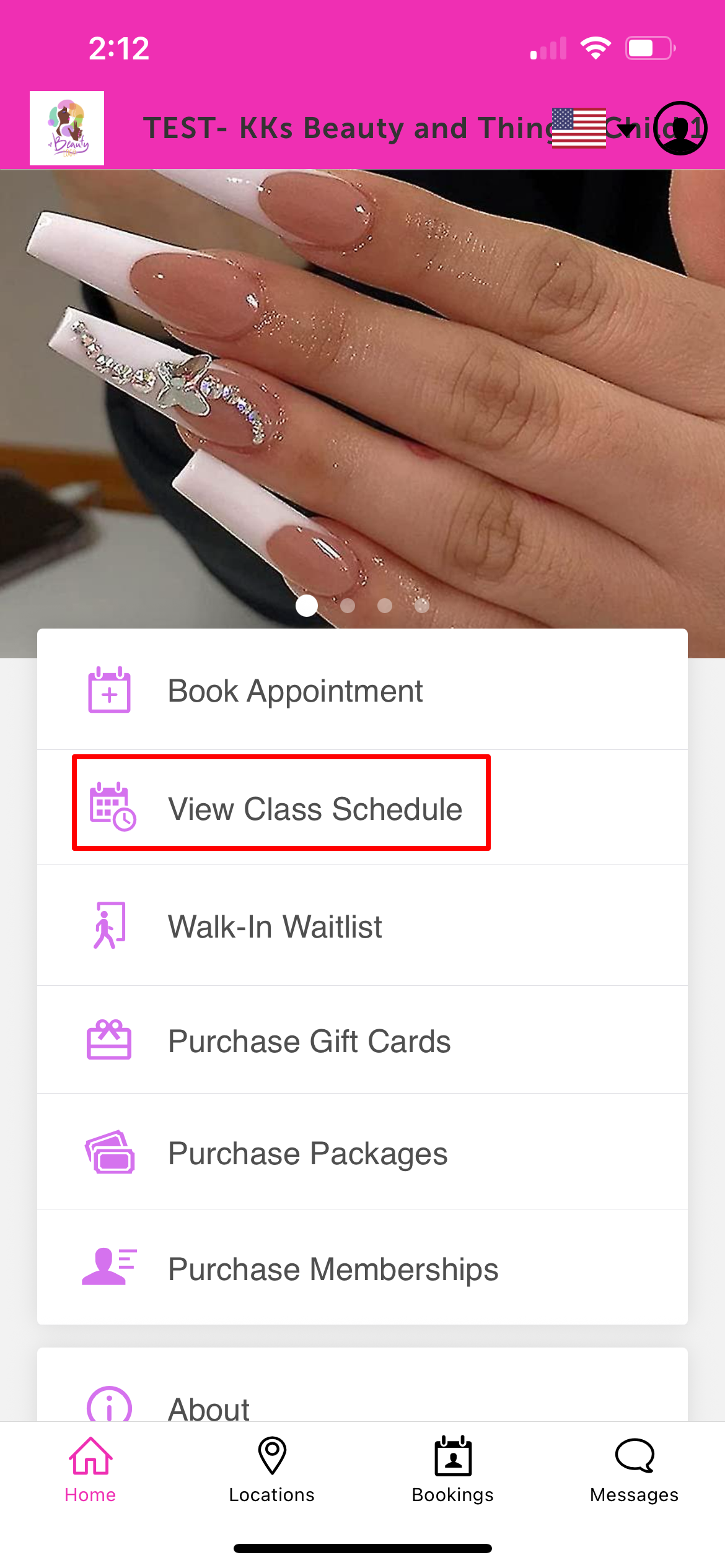
3. Select the desired location 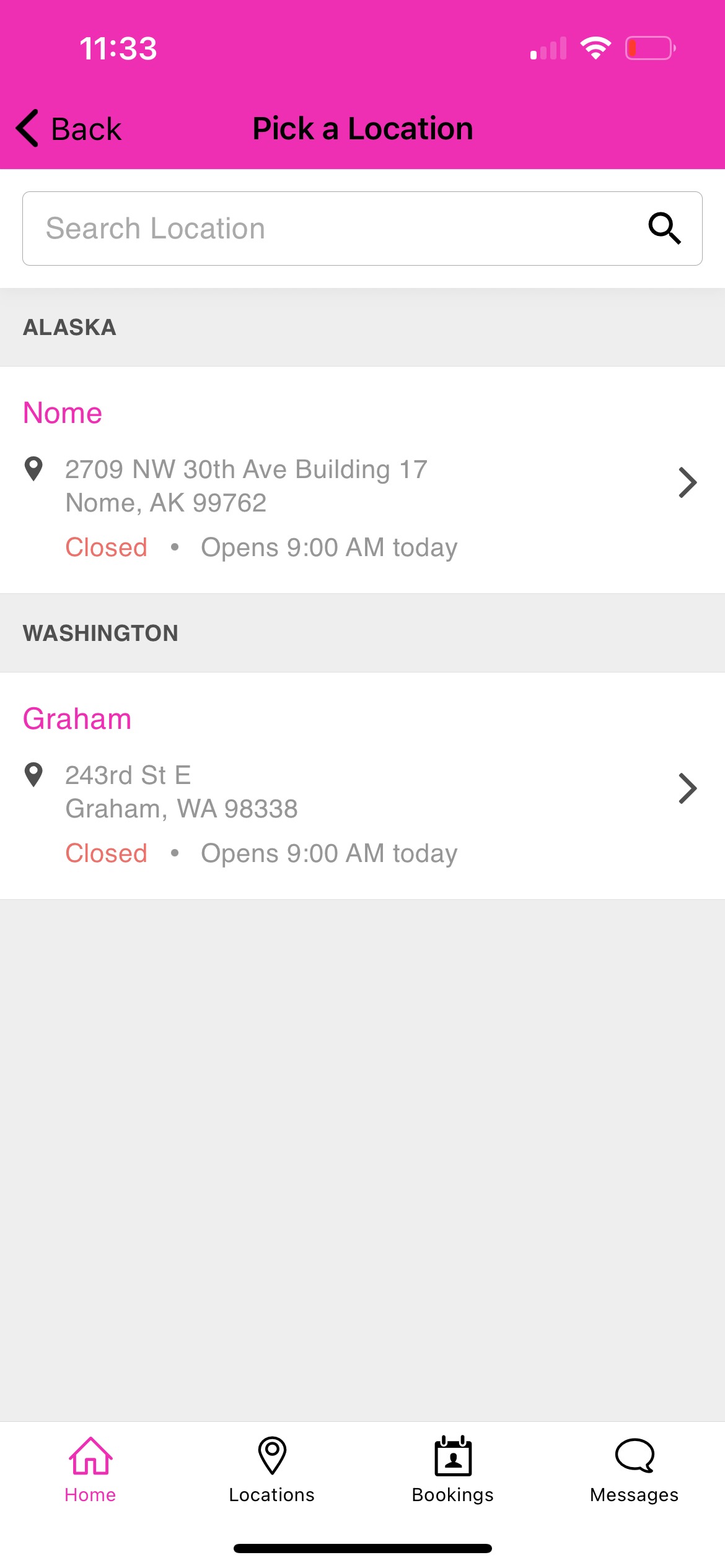
4. On the class schedule page, tap Select next to the preferred class 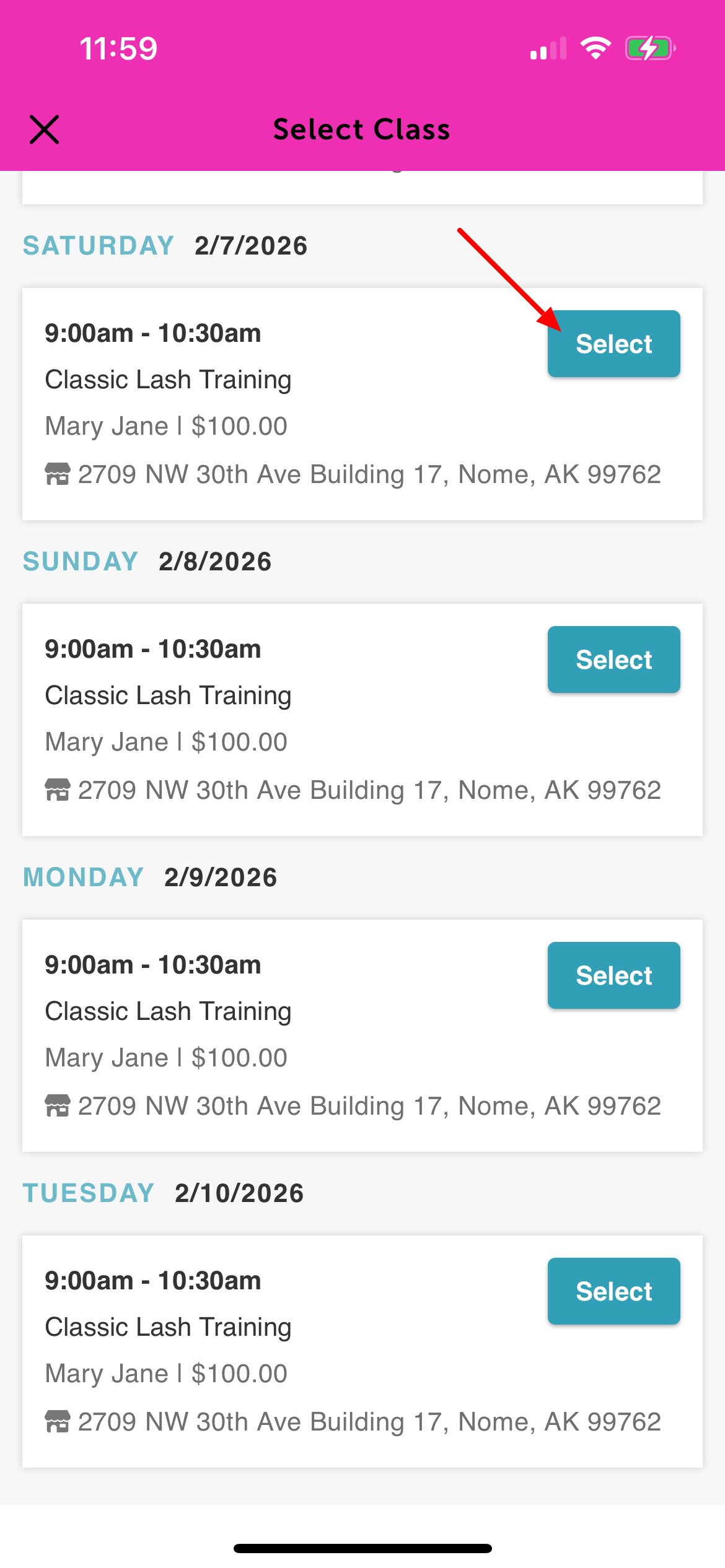
5. Choose the Attendee Type, then proceed to the checkout page
6. Complete the intake form (if applicable)
7. Enter payment details, if required. A credit card is only required if there is a cancellation fee or if online payment is mandatory.
8. Enter the promo code in the Apply Promo Code field. If the promotion is set to auto-apply, no manual entry is required.
9. Tap Apply to apply the promotion.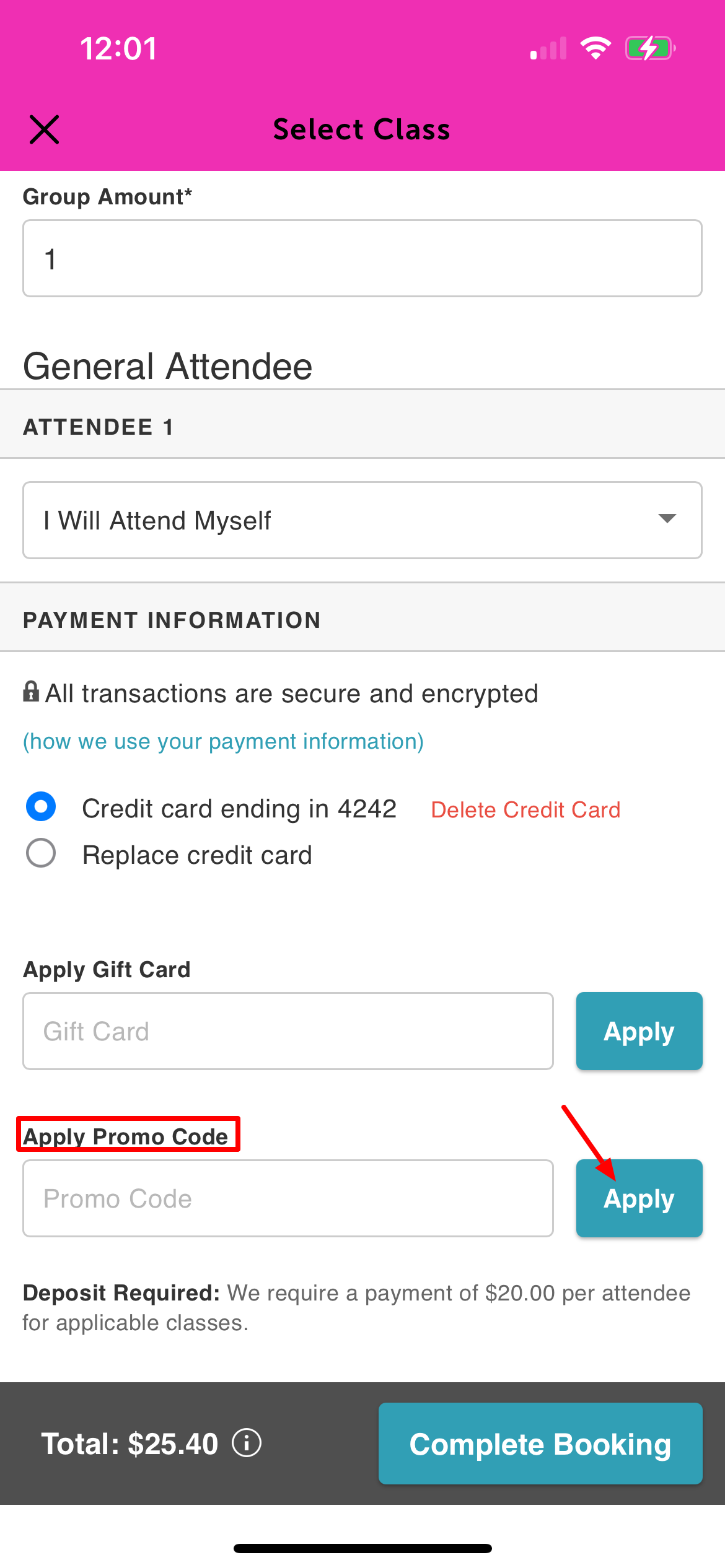
10. Based on the promotion’s configuration, 10% will be applied toward the cost of the class. 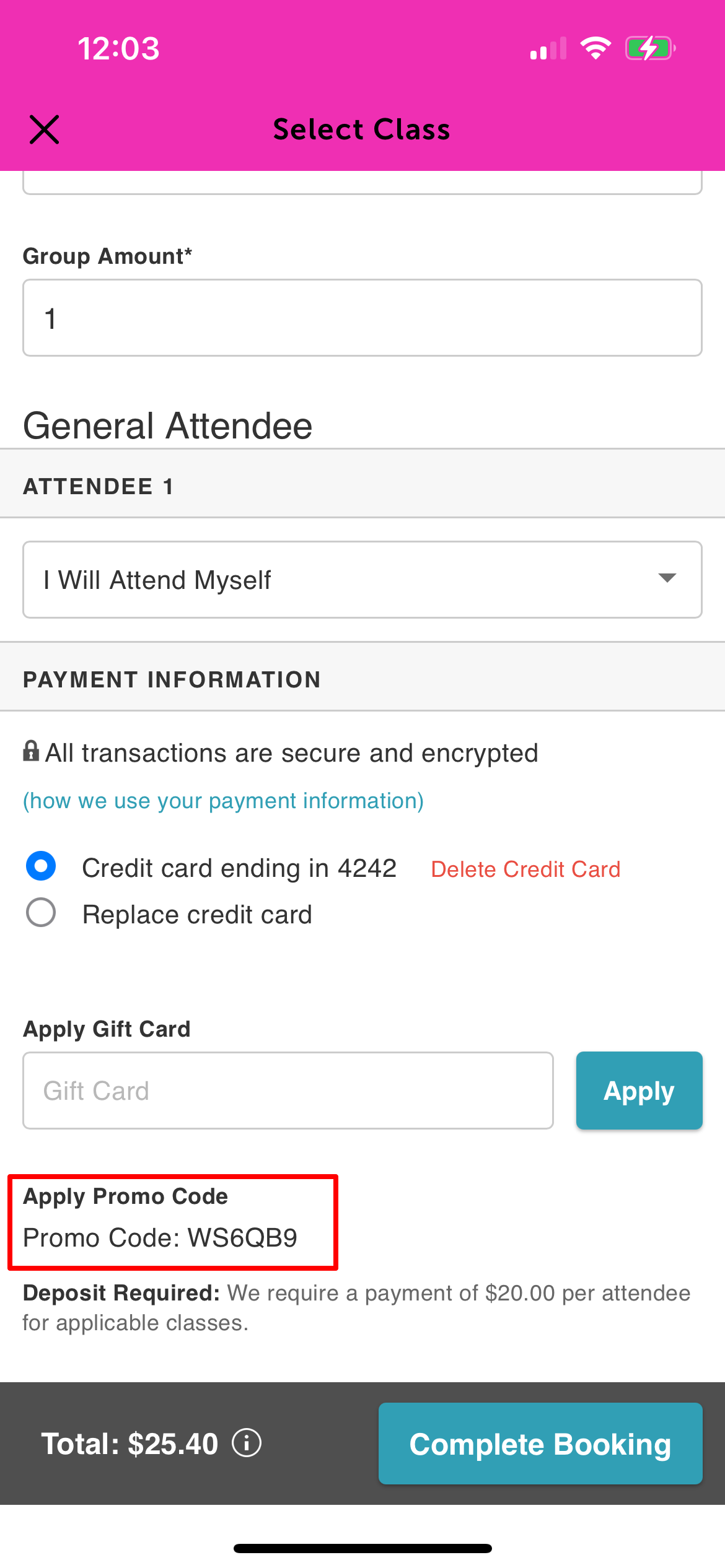
Applying Promotions to Memberships
Promotion Setup
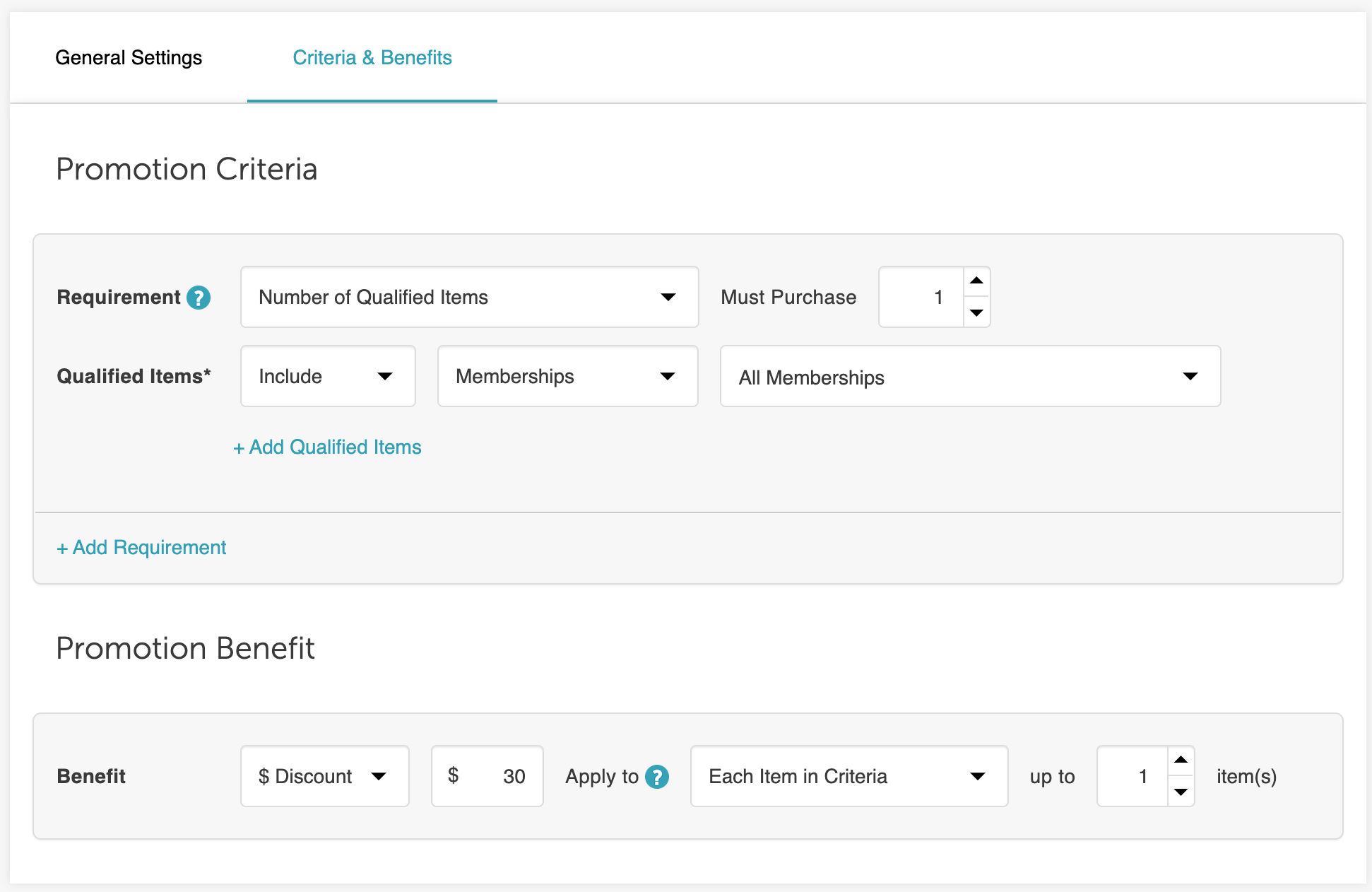
To apply the promotion when purchasing a membership in the guest app, clients should follow these steps:
1. After signing in, they will be redirected to the Home screen.
2. Tap 'Purchase Memberships' 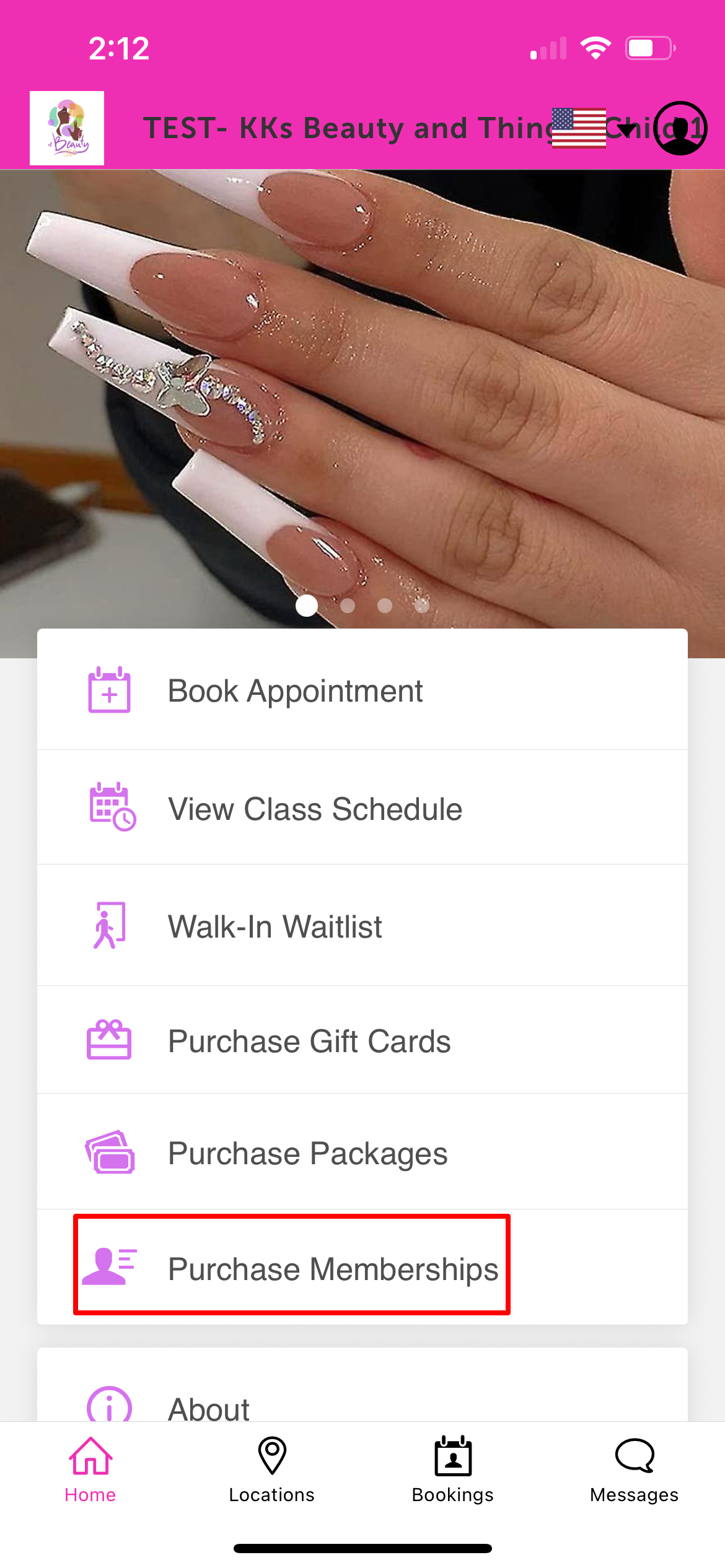
3. Select the desired location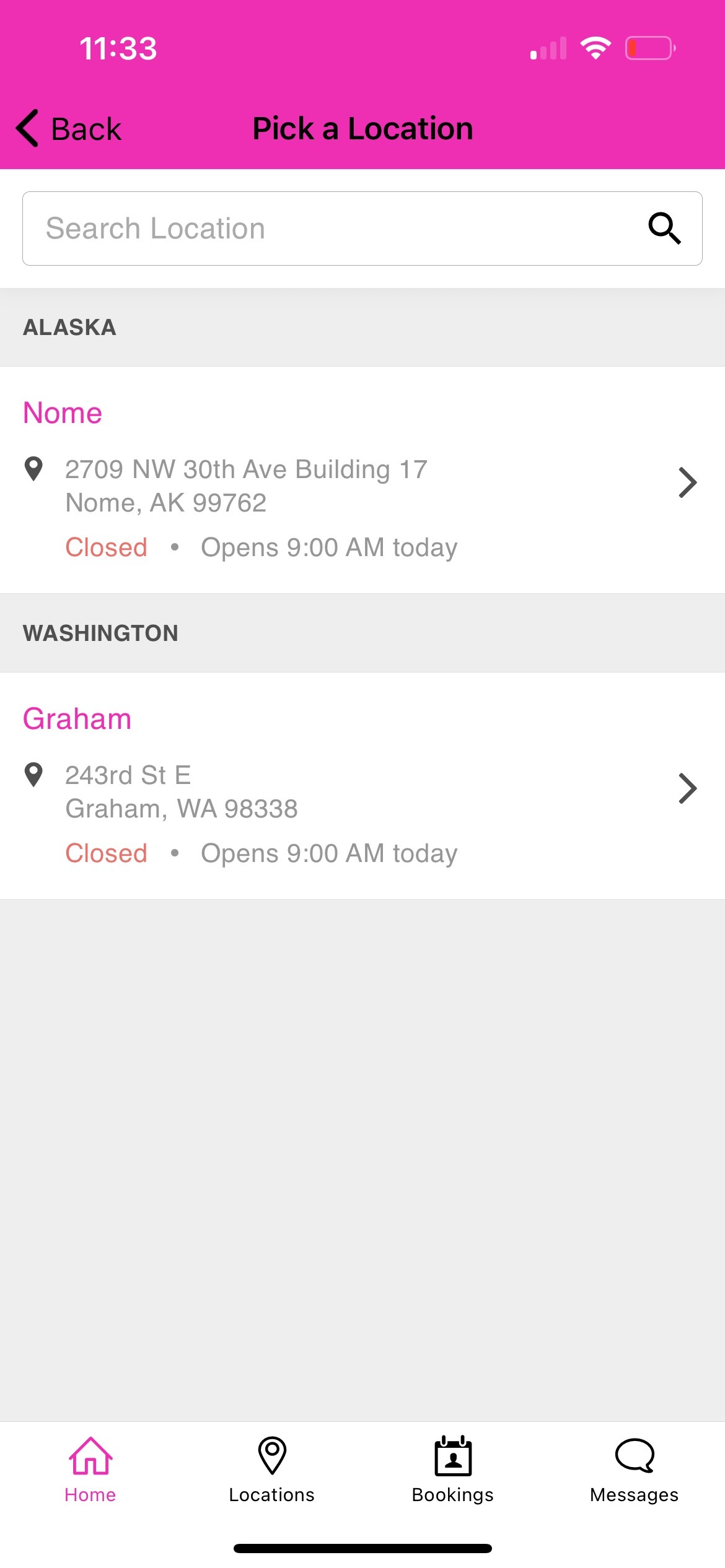
4. Choose a membership and tap 'Buy'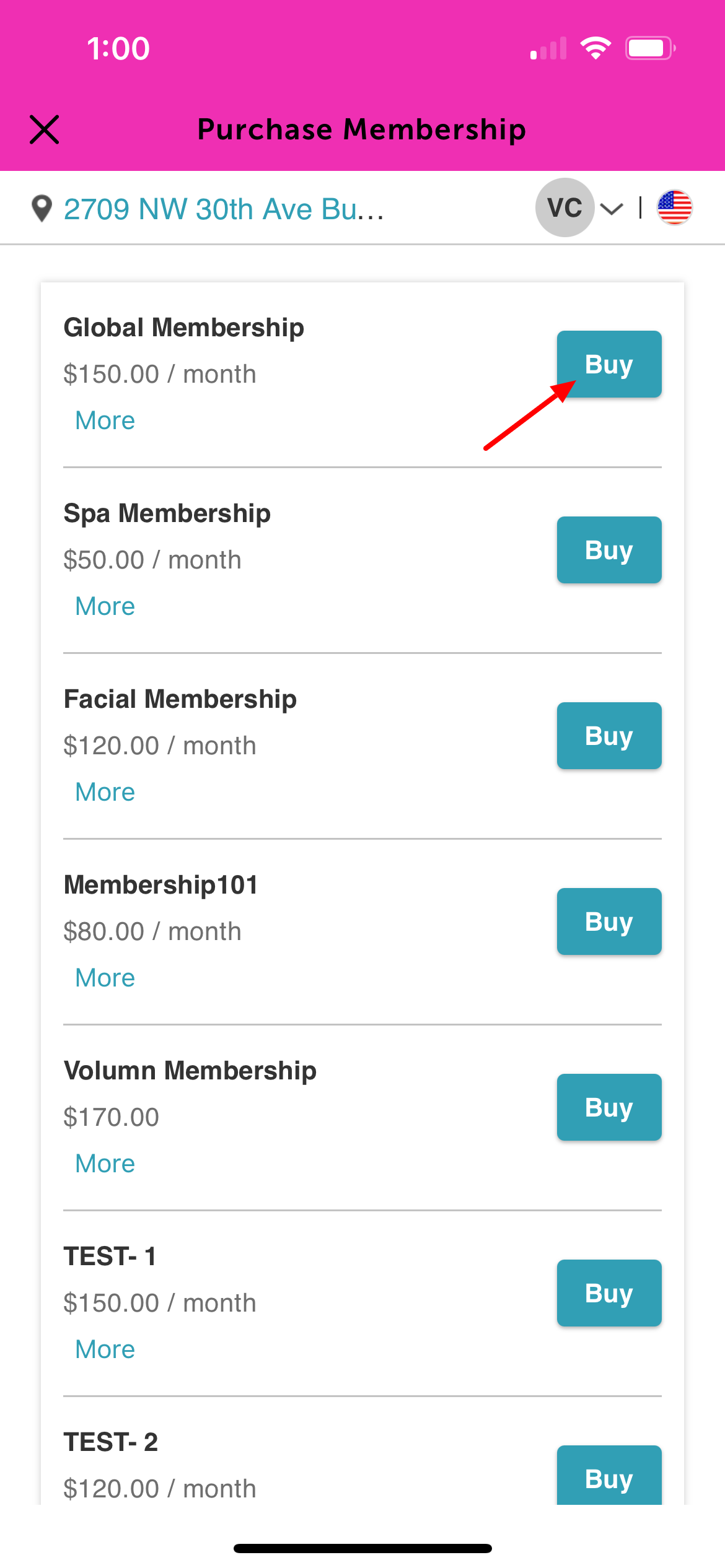
5. Complete the intake form (if applicable)
6. Enter payment details
8. Enter the promo code in the Apply Promo Code field. If the promotion is set to auto-apply, no manual entry is required.
9. Tap 'Apply' to apply the promotion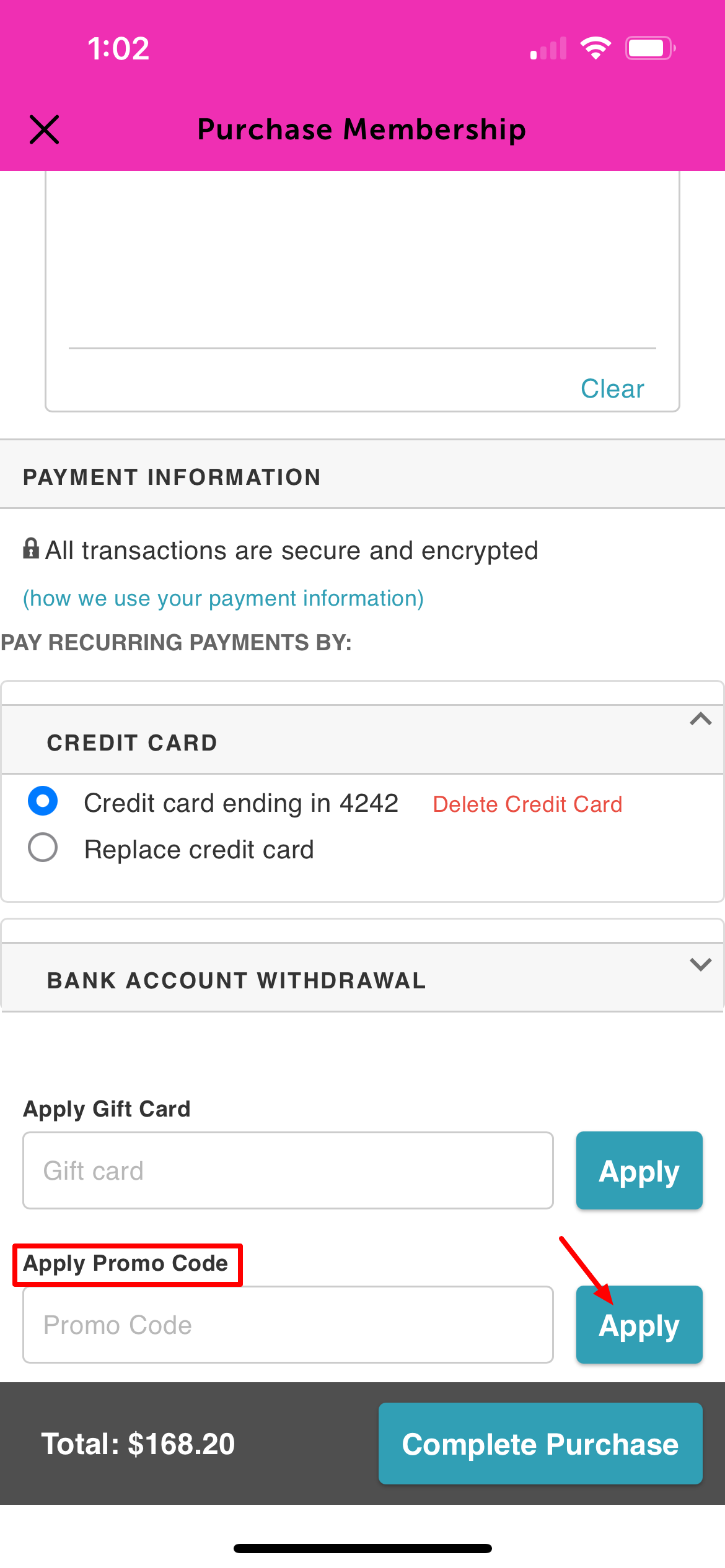
10. Based on the promotion’s configuration, $30 will be applied toward the cost of the membership.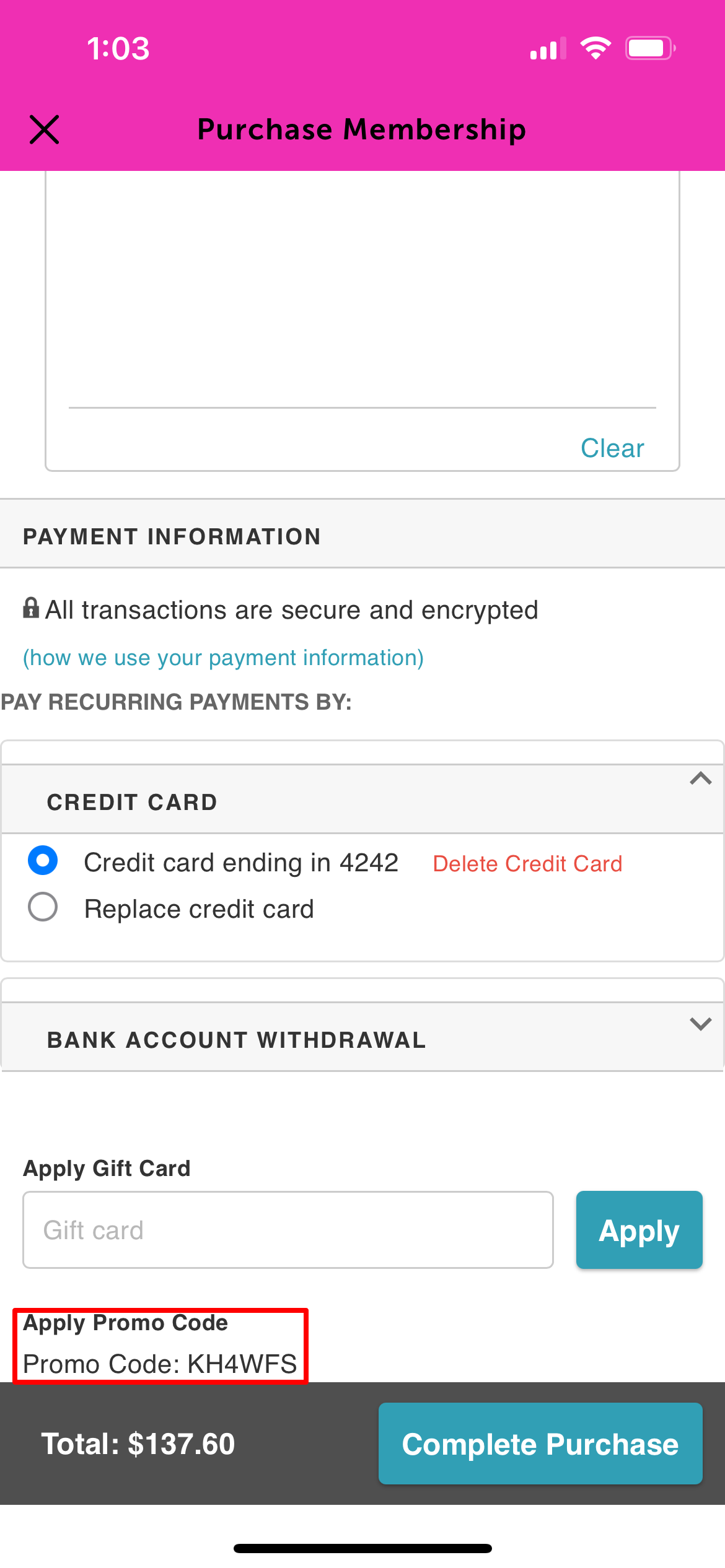
Applying Promotions to Packages
Promotion Setup
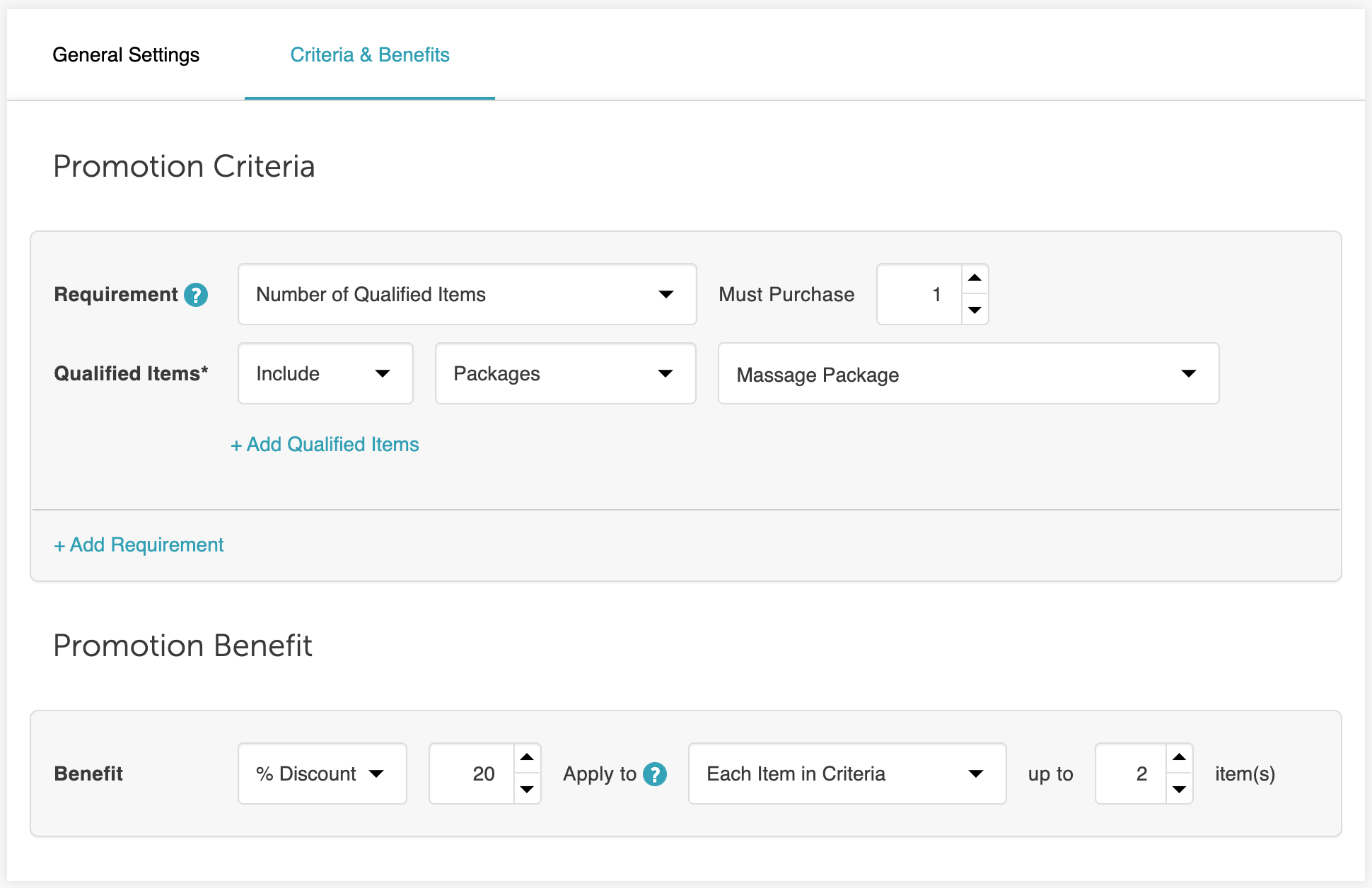
To apply the promotion when purchasing a package in the guest app, clients should follow these steps:
1. After signing in, they will be redirected to the Home screen.
2. Tap 'Purchase Packages'
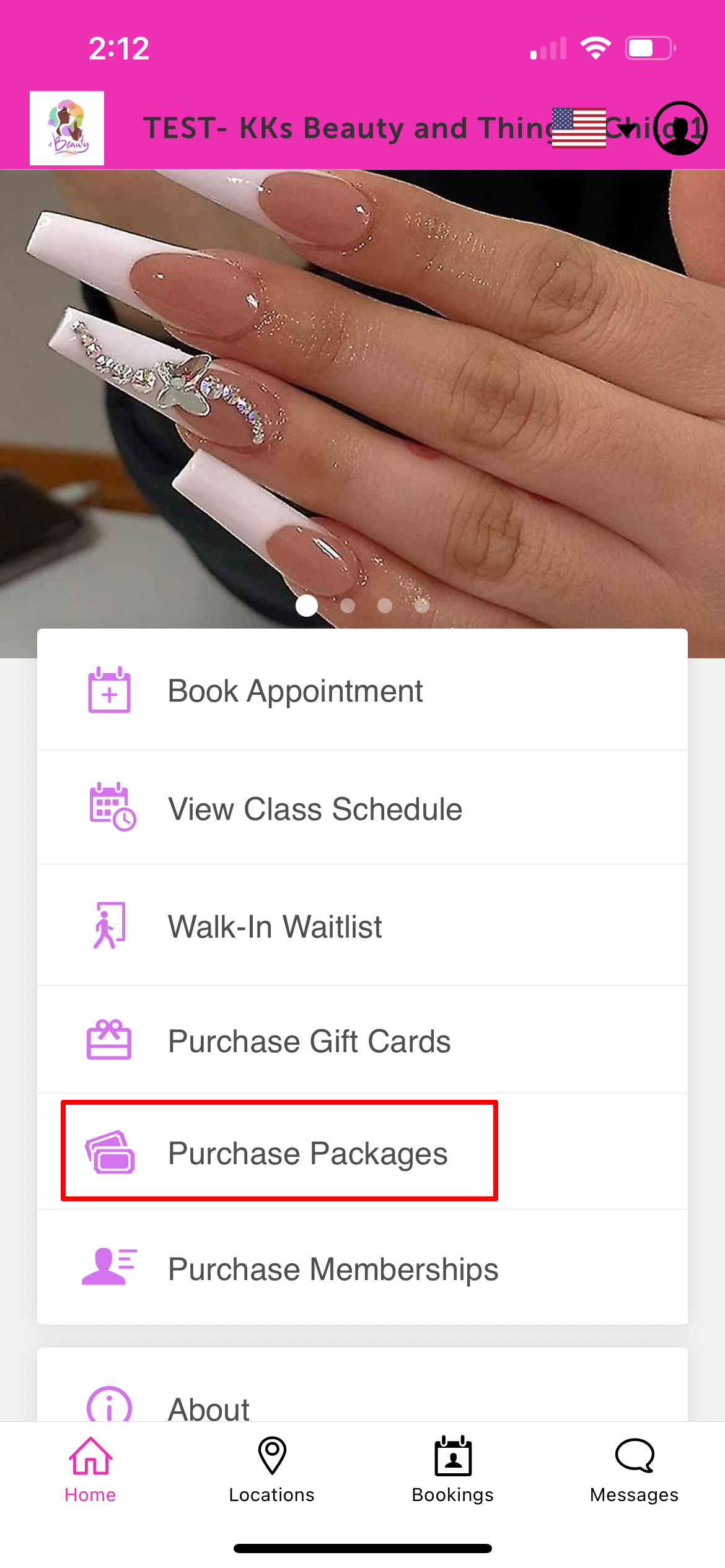
3. Select the purchase location 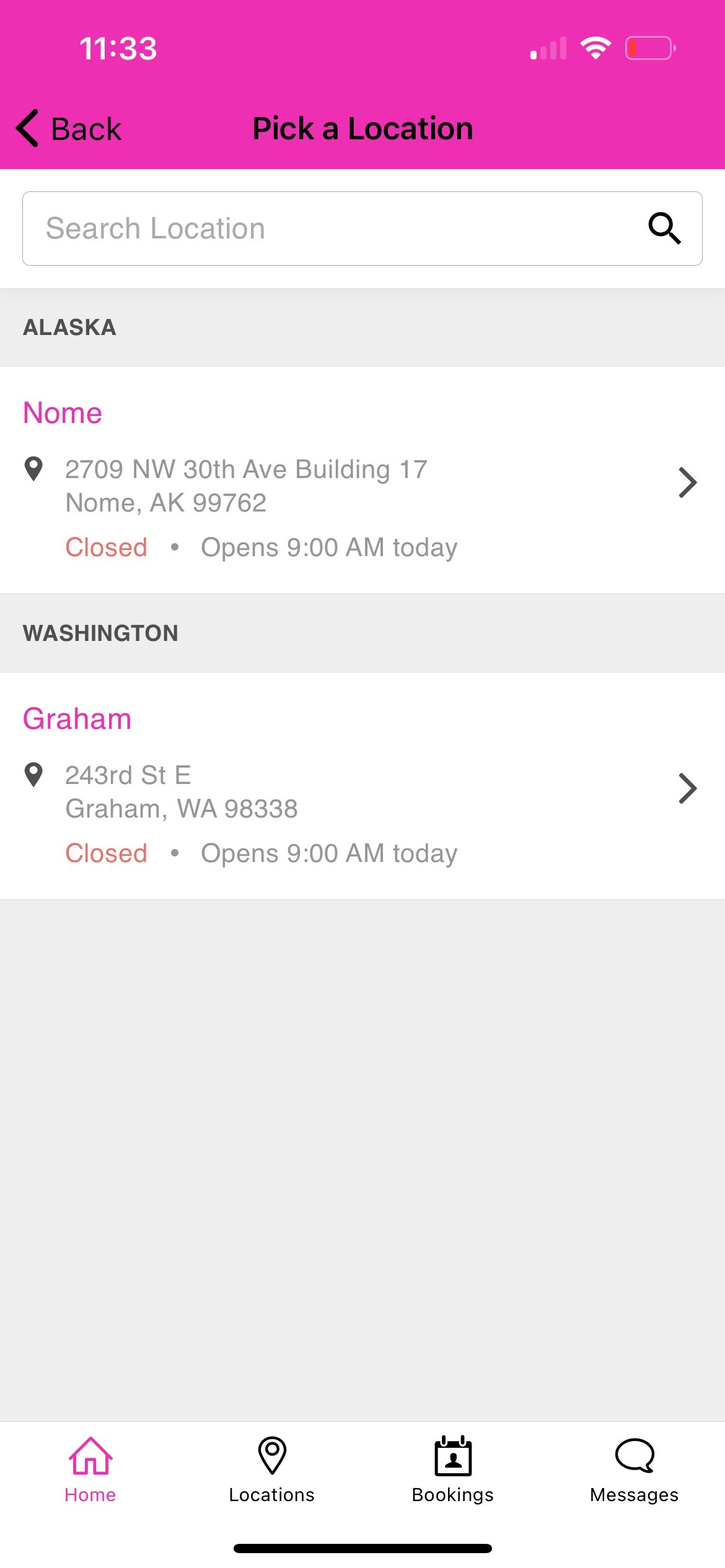
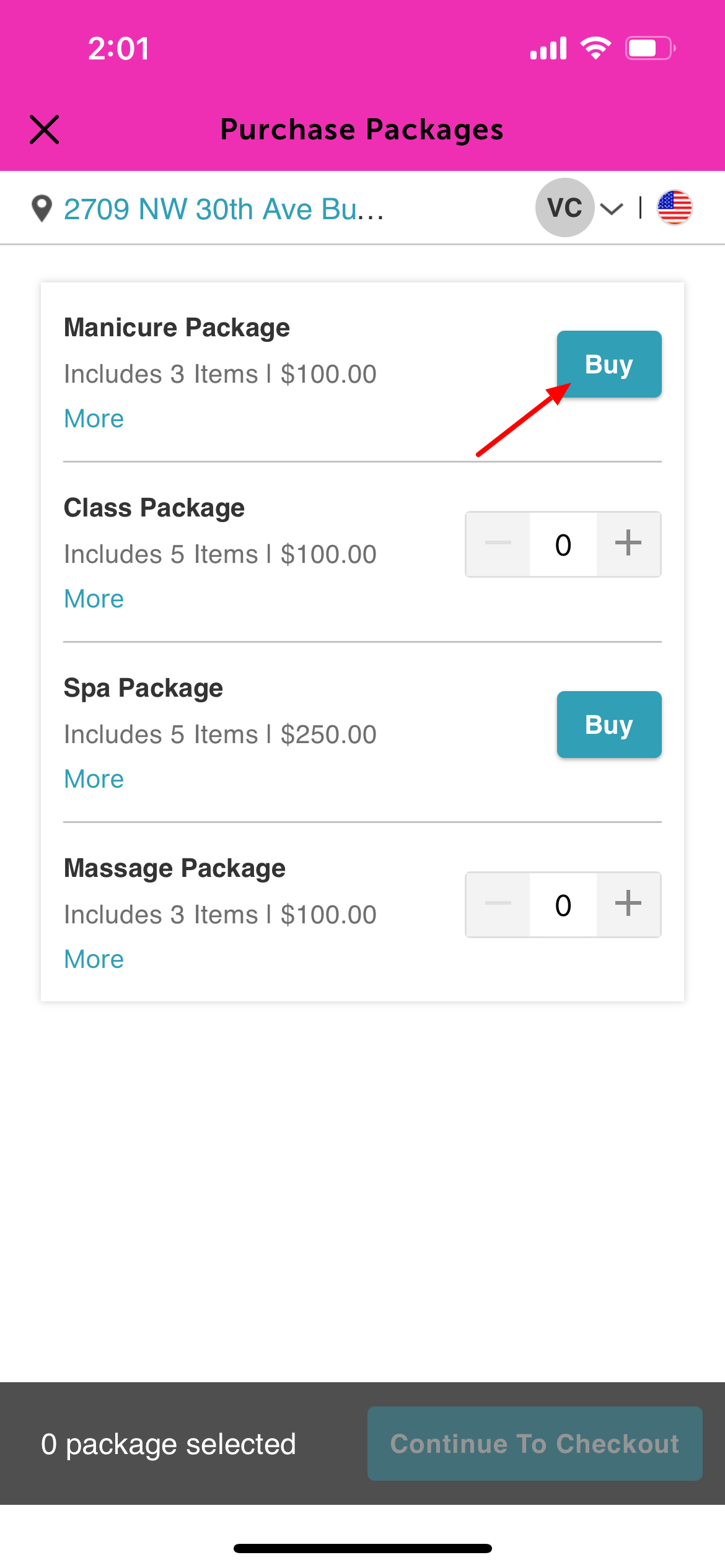
4. Choose a package and tap Buy. For packages configured for all family members or pets (for pet merchants), clients can specify the quantity they wish to purchase.
5. Enter payment details
6. Enter the code in the 'Apply Promo Code' field. If the promotion is set to auto-apply, there is no need to enter the code manually, as the promotion will be applied automatically.
7. Tap 'Apply' to apply the promotion 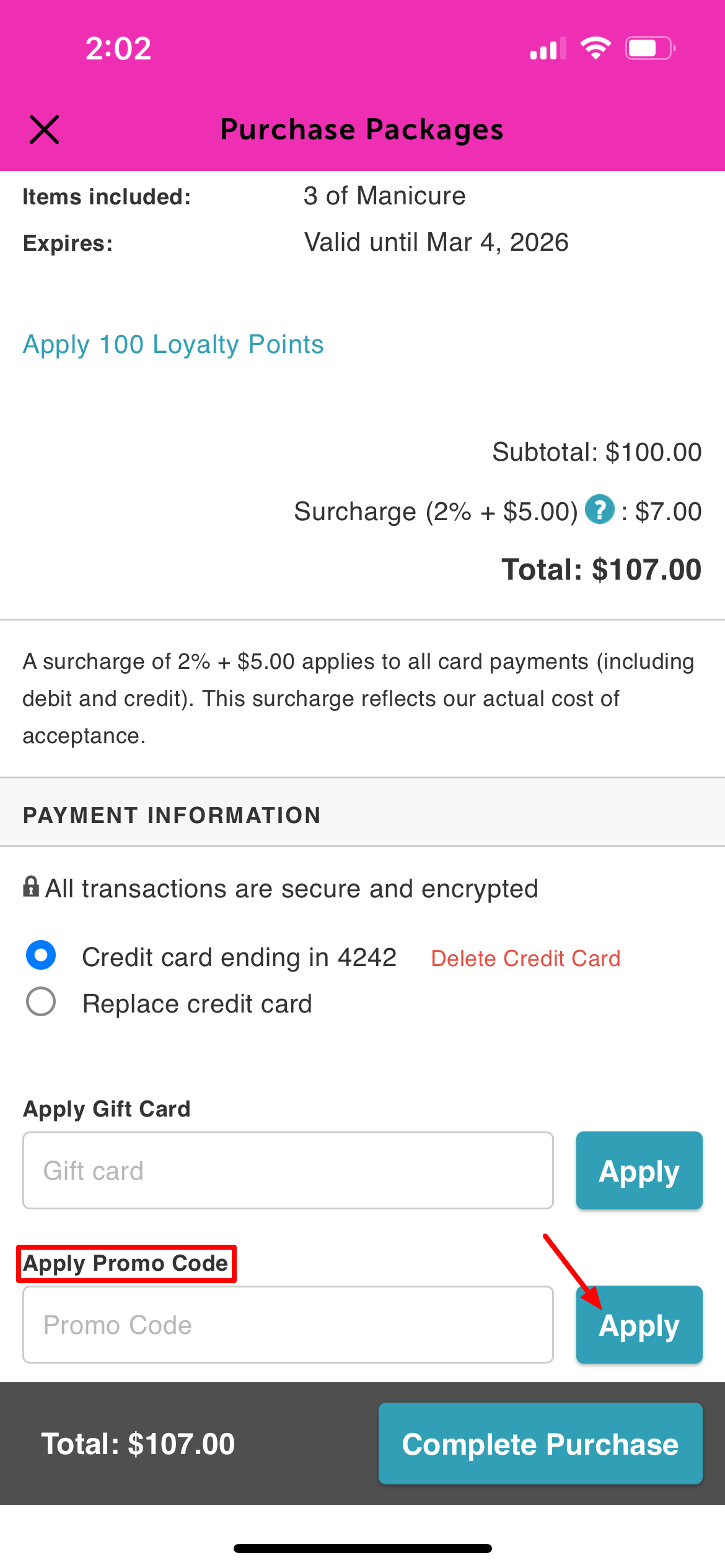
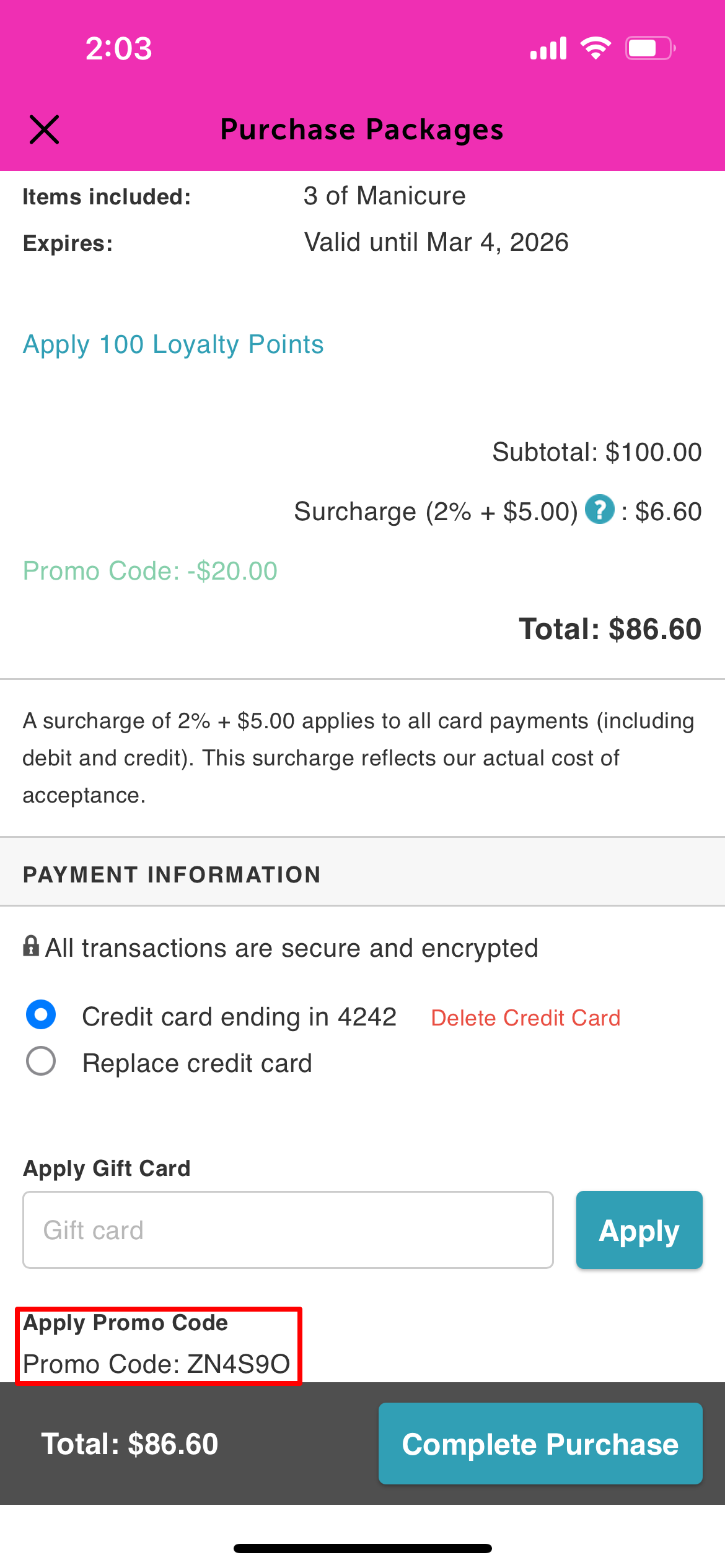
8. Based on the promotion’s configuration, 20% will be applied toward the cost of the package.
Applying Promotions to Gift Cards
Promotion Setup
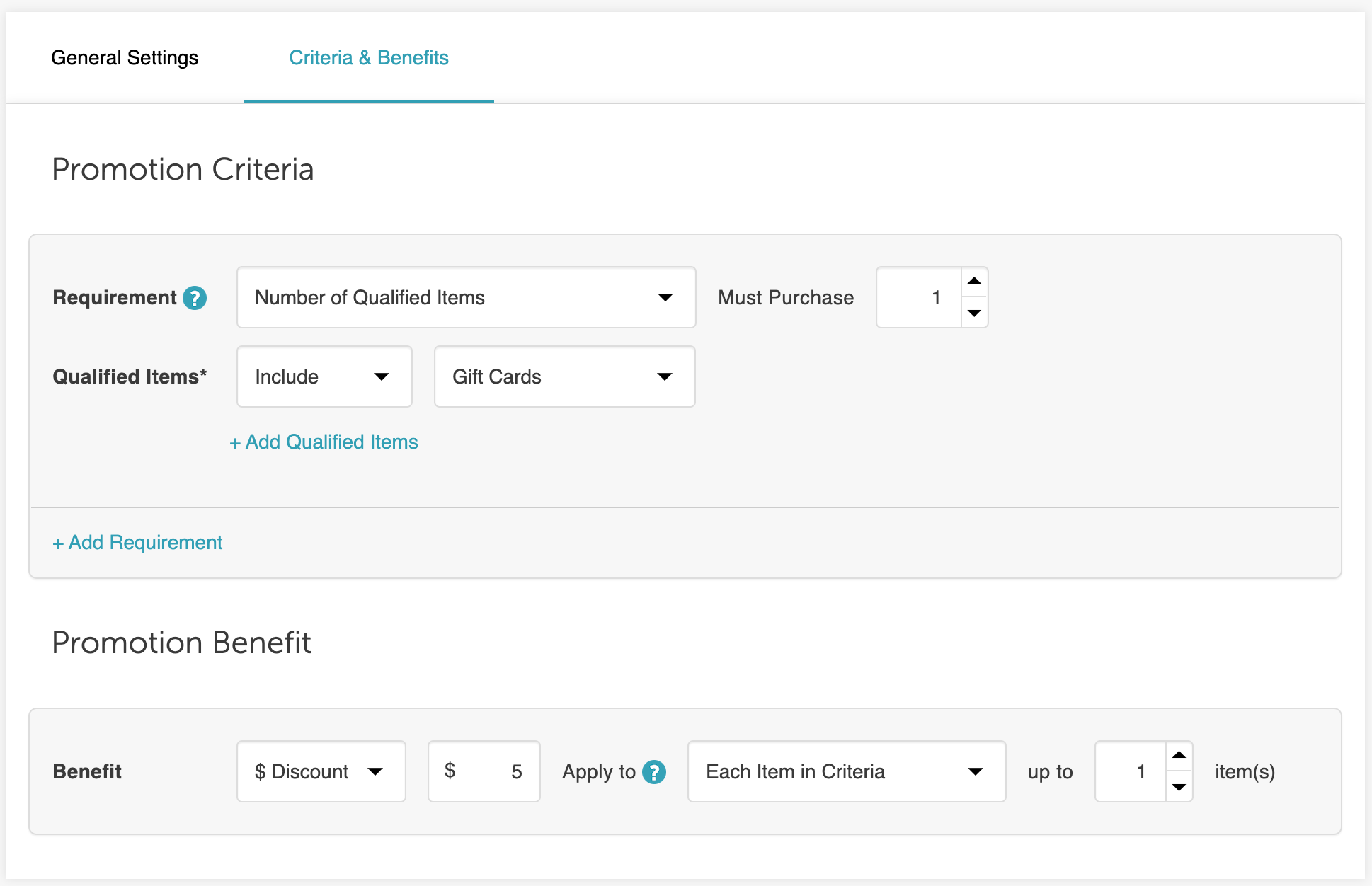
To apply the promotion when purchasing a gift card in the guest app, clients should follow these steps:
1. After signing in, they will be redirected to the Home screen.
2. Tap 'Purchase Gift Cards' 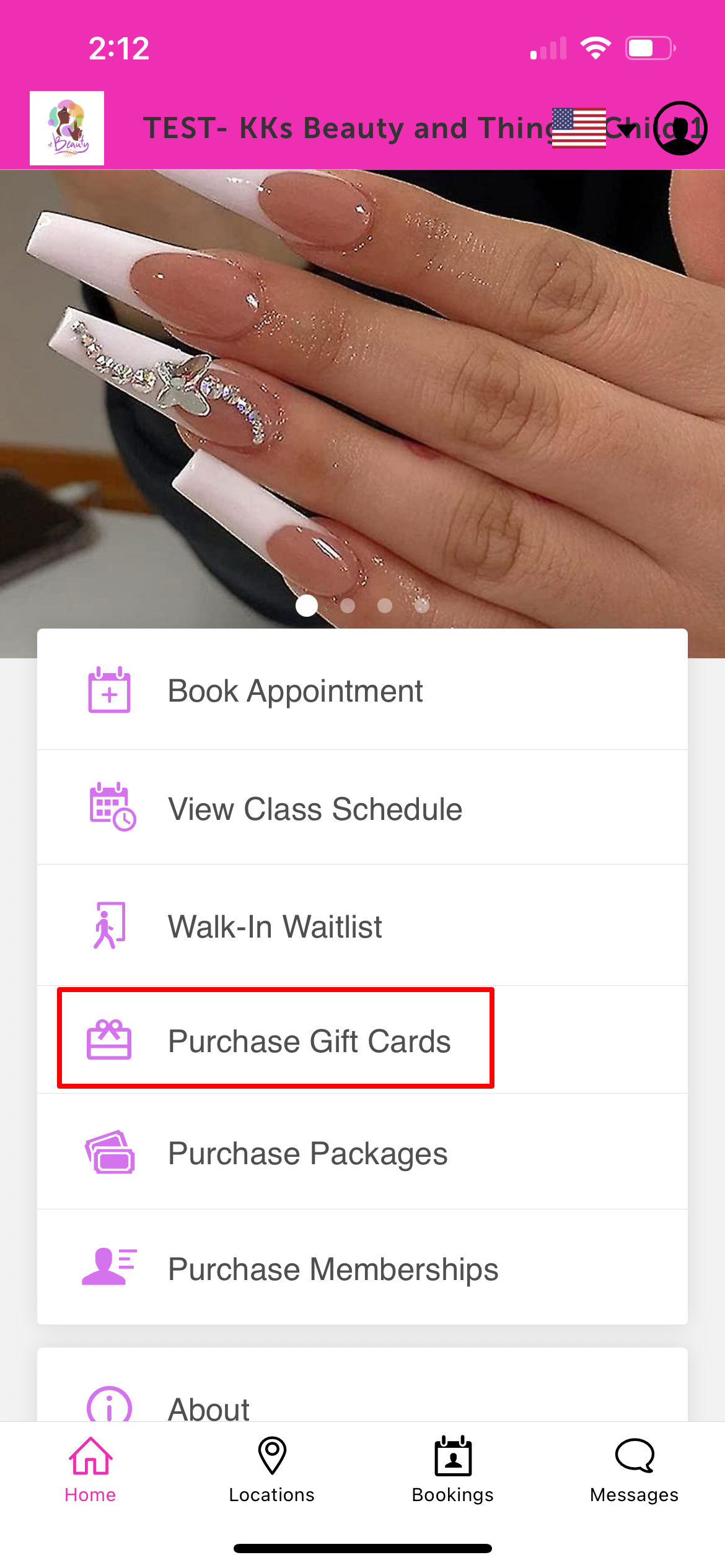
3. Tap 'Buy Gift Card'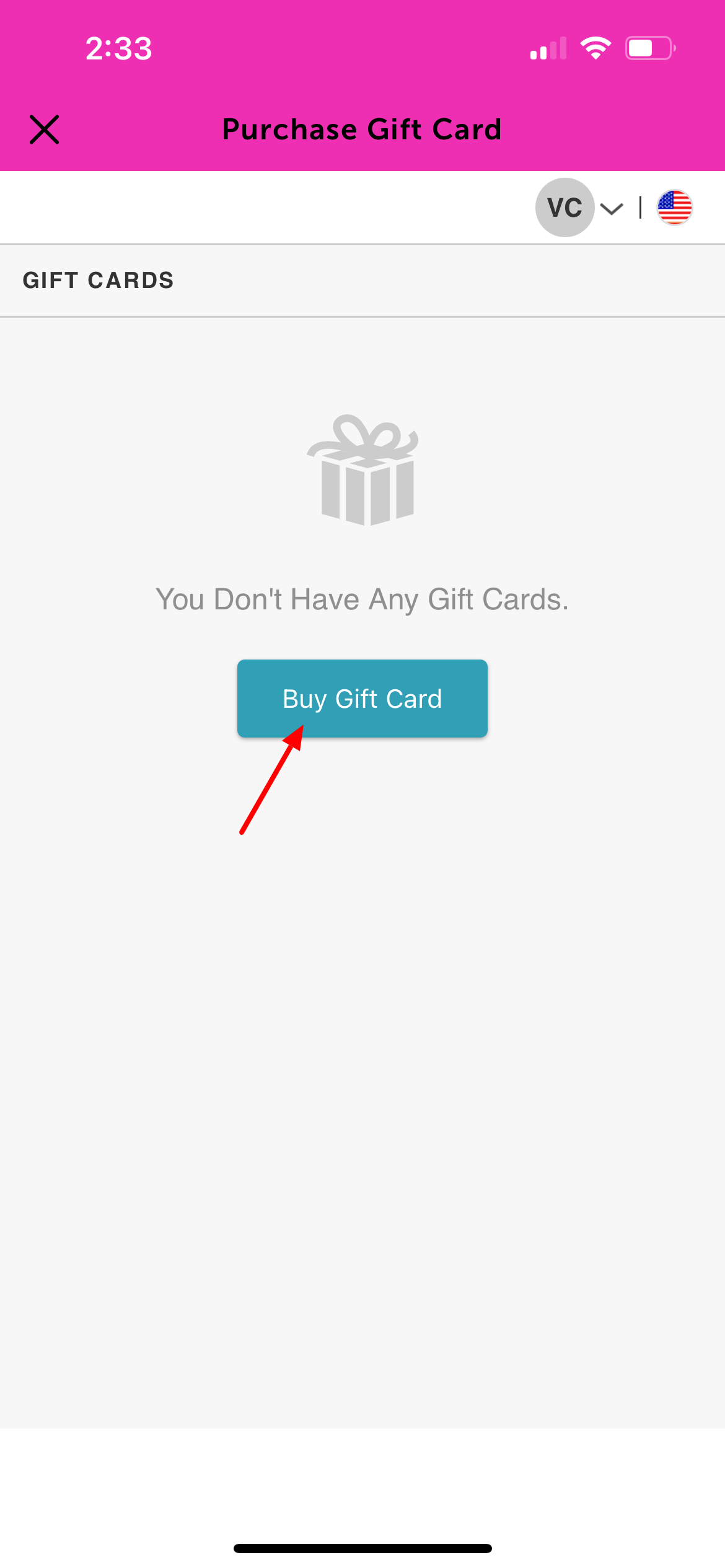
4. Select the purchase location 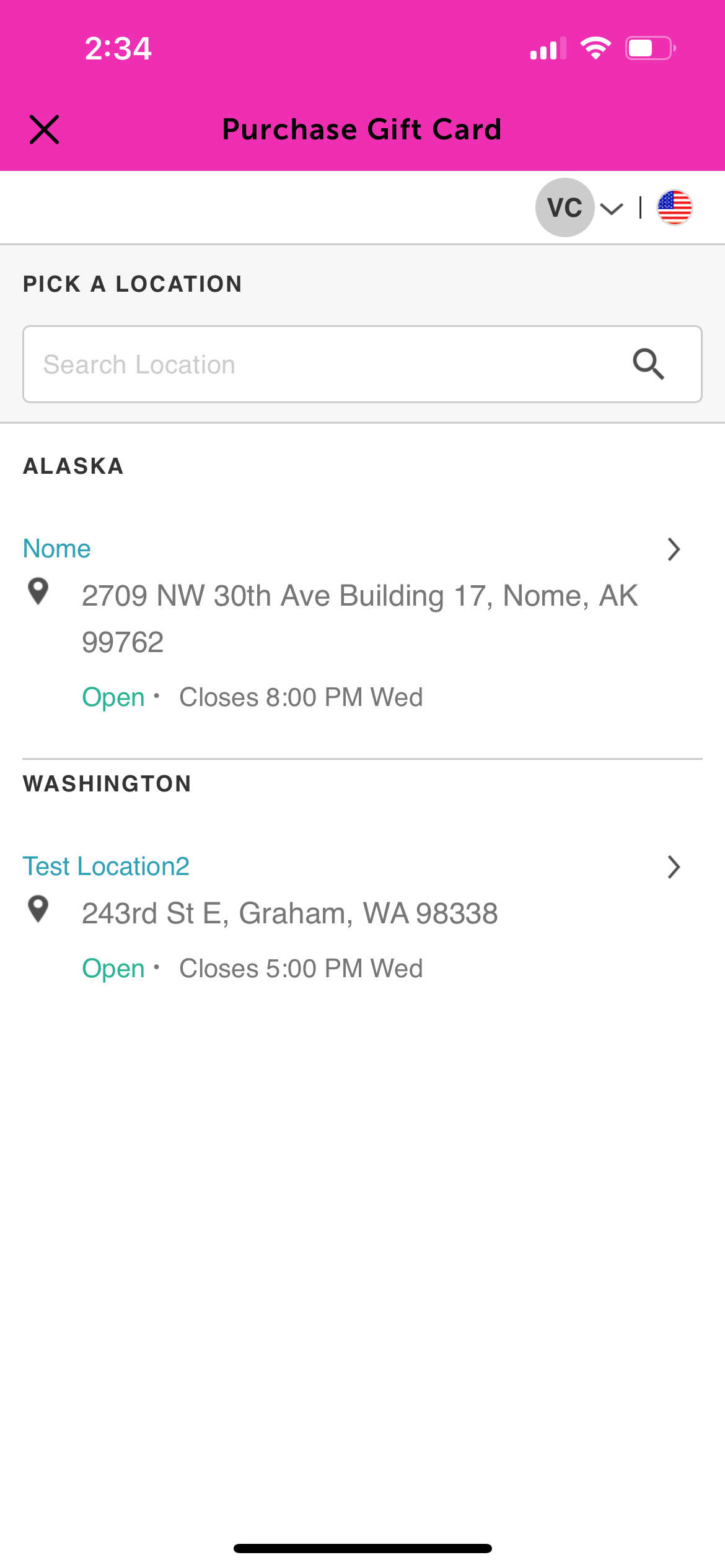
5. Enter the gift card details, such as the amount, recipient, and sender.
6. Tap 'Continue Checkout'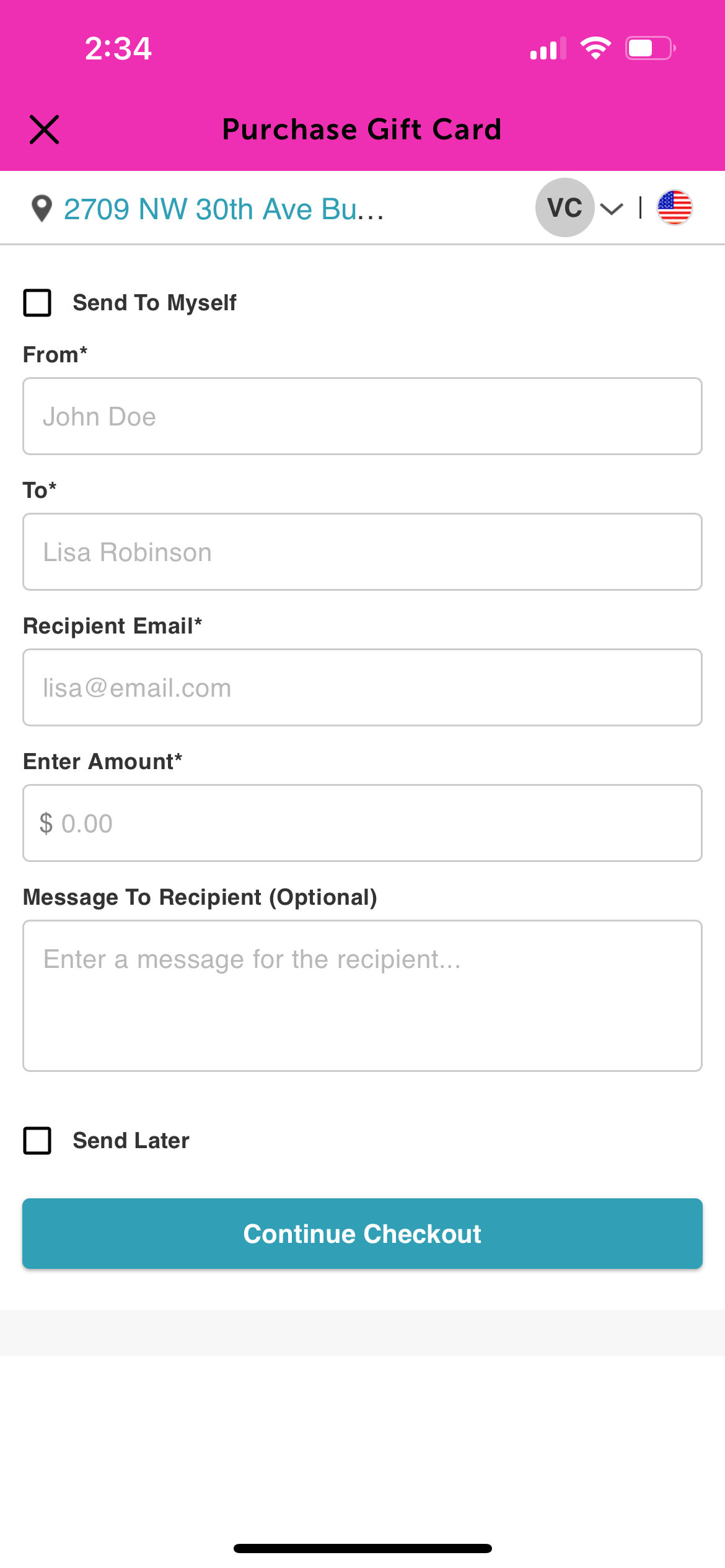
7. Enter payment details
8. Enter the promo code in the 'Apply Promo Code' field. If the promotion is set to auto-apply, no manual entry is required
9. Tap 'Apply' to apply the promotion. 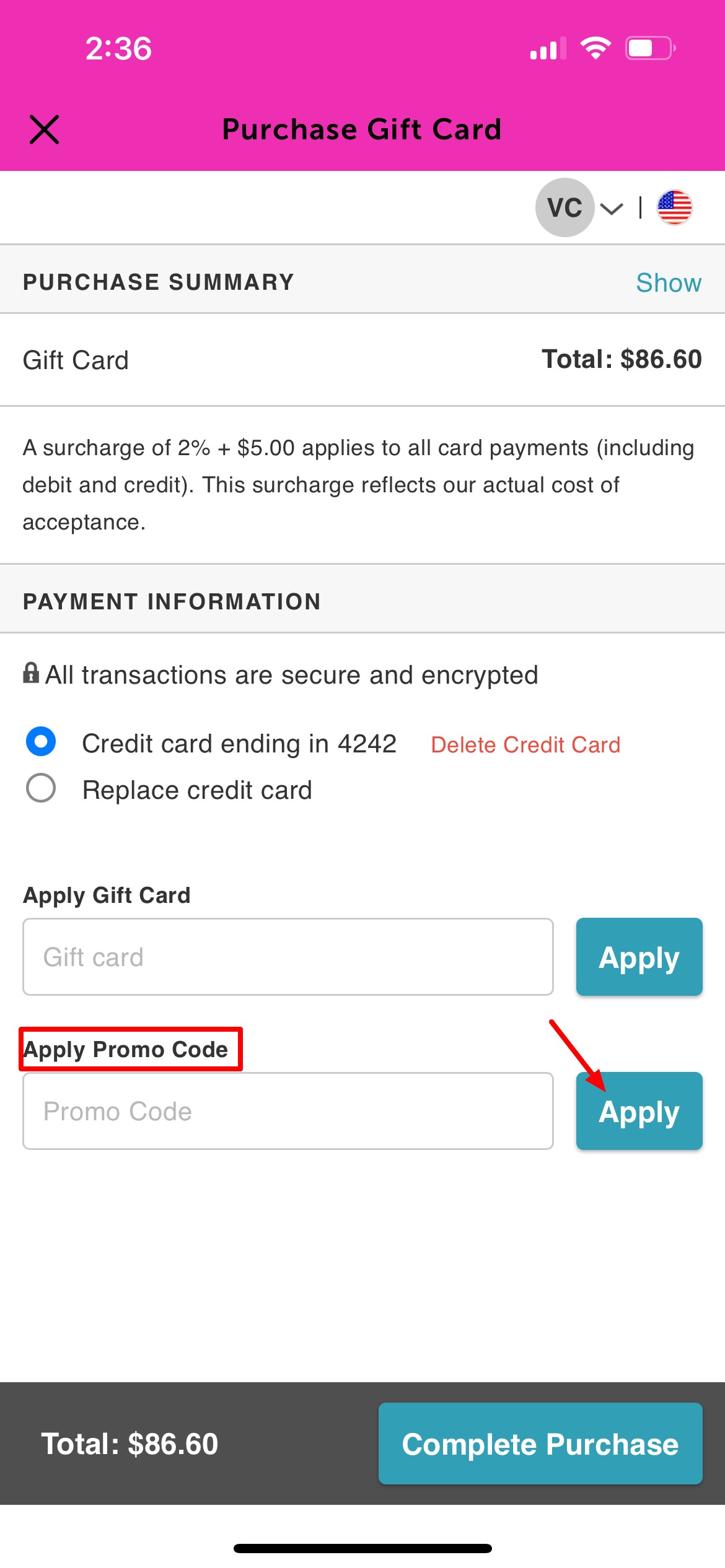
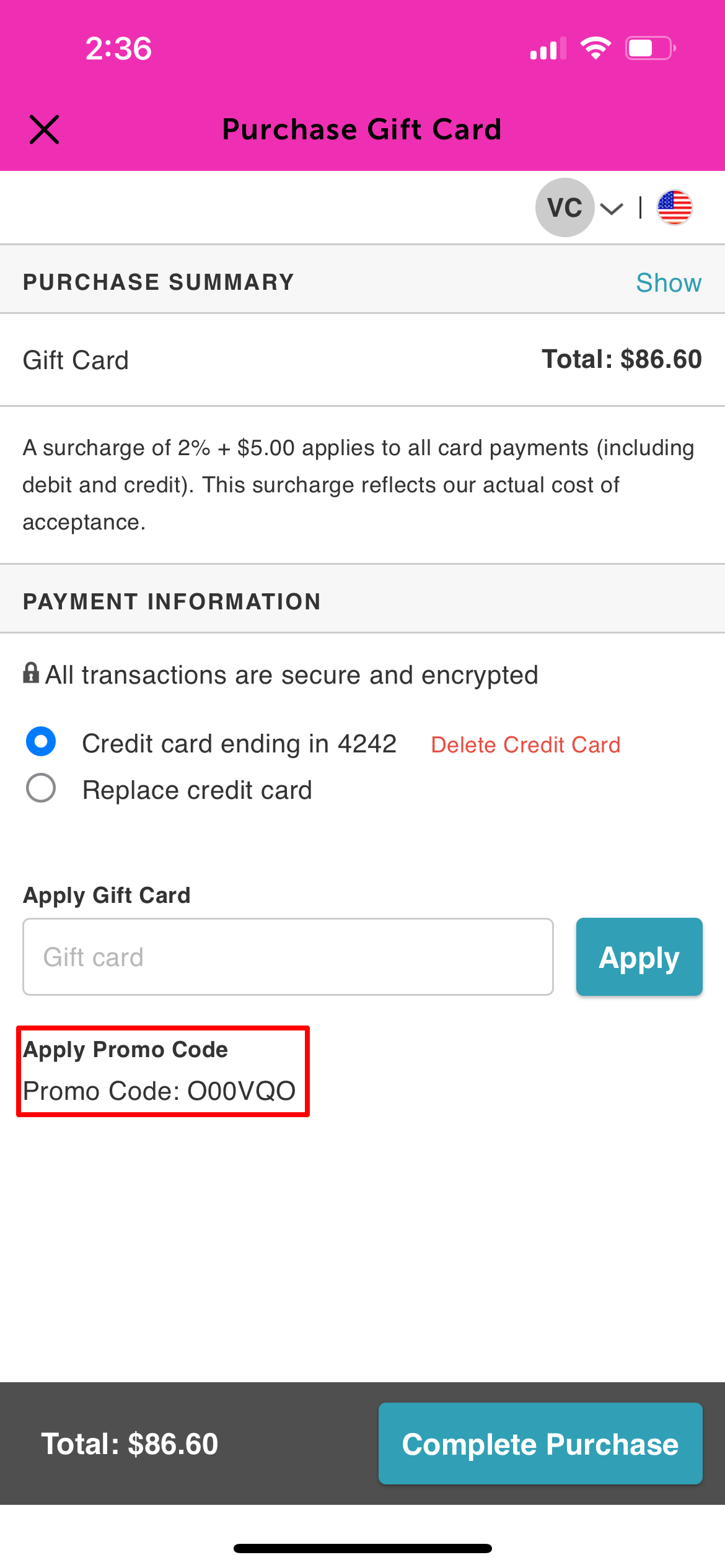
10. Based on the promotion’s configuration, $5 will be applied toward the cost of the gift card.
For more information please contact us at support@mytime.com.
Related Articles:
Booking Appointments on Guest App
Purchasing Gift Cards on Guest App
Was this article helpful?
That’s Great!
Thank you for your feedback
Sorry! We couldn't be helpful
Thank you for your feedback
Feedback sent
We appreciate your effort and will try to fix the article