This article will guide you through the steps for processing a package refund.
Things to Know:
- The ability to refund a ticket is controlled by the "Edit/Refund Closed Tickets" access control
- By default, package purchases can be refunded normally if none of the package credits have been redeemed. However, once a package credit has been used, the system automatically enforces strict controls on the original purchase ticket to maintain accounting and data integrity. To prevent processing errors, the following actions are automatically restricted when package credits are active or partially used:
- Refund Restrictions: The selection checkbox for the initial package purchase is completely removed from the refund screen, preventing the package from being selected for a standard refund.
- Line-Item Adjustments: The Remove link directly beneath the package line item on the ticket is disabled, preventing staff from manually removing the package from the transaction.
- Ticket Deletion: The Delete button at the bottom of the original purchase ticket is disabled, preventing the entire transaction from being deleted.
- Note: If the "Allow refunding used packages" setting is enabled in your business configuration:
- You still cannot manually delete a package line item from a ticket.
- However, the system will allow you to successfully process a refund for the package despite credit usage.
- If the company setting “Allow refunding packages even after they have been used” is enabled, when processing a refund, the "Remove" checkbox under the "Membership/Package Credits" column on the refund page will be selected by default when processing a refund—regardless of whether the package has been used. For example, if a client purchased a 10-session facial package and has already used 3 sessions, you can still refund the package (in full or in part) because the setting allows refunds even for used packages. However, if the setting is disabled, it follows the default behavior listed above.
- Once a package is refunded, it will be removed from the client's profile
- Refunds and edits cannot be processed for tickets linked to a deleted location or account.
- If a child account is deleted, the associated tickets will no longer be accessible.
- If a single location is deleted from a child account that still has other active locations, the tickets will remain accessible from the client profile and reports but cannot be edited or refunded.
- Once a ticket is fully refunded, or partially refunded, it cannot be reopened
- Tickets closed with a credit card as the payment method must be refunded to the same credit card and cannot be refunded using alternative methods, such as cash. However, for tickets closed with cash payments, refunds can be processed to gift cards if the 'Enable Refund to Gift Card' setting is activated.
- When an item is partially or fully refunded on a ticket, the Amount and QTY columns display both the original value and the updated balance side by side (e.g., $30.00 → $14.50 and 1.00 → 0.00) for clearer tracking of any changes made to the ticket.
- If a ticket has been fully paid and saved, and a refund is later issued with all packages manually deleted from the ticket, you can mark it as void by clicking the 'Void Ticket' button at the bottom of the ticket page.
- Registers that appear during a refund:
- By selecting a location, the staff member is establishing their current/default location
- The most recently selected location register will be selected by default first because we assume that is where the staff member is currently located
- All applicable registers will be displayed in the register drop-down menu: the one that was selected as well as the register at the ticket's location
- If you attempt to refund a ticket containing a package that was both purchased and applied to items within the same ticket, the Refund button is disabled (greyed out).
- Tooltip: Hovering over the disabled button displays: "Ticket cannot be refunded because it has a membership or package that is used for items on this ticket. Click Edit Ticket and remove the membership or package usage before attempting a refund."
- Tooltip: Hovering over the disabled button displays: "Ticket cannot be refunded because it has a membership or package that is used for items on this ticket. Click Edit Ticket and remove the membership or package usage before attempting a refund."
To refund a package:
- Go to POS > Closed Tickets
- Add desired filters and select 'Update'
- You can enter the name of the client or the ticket ID in the "Search by Client Name, Ticket ID" field
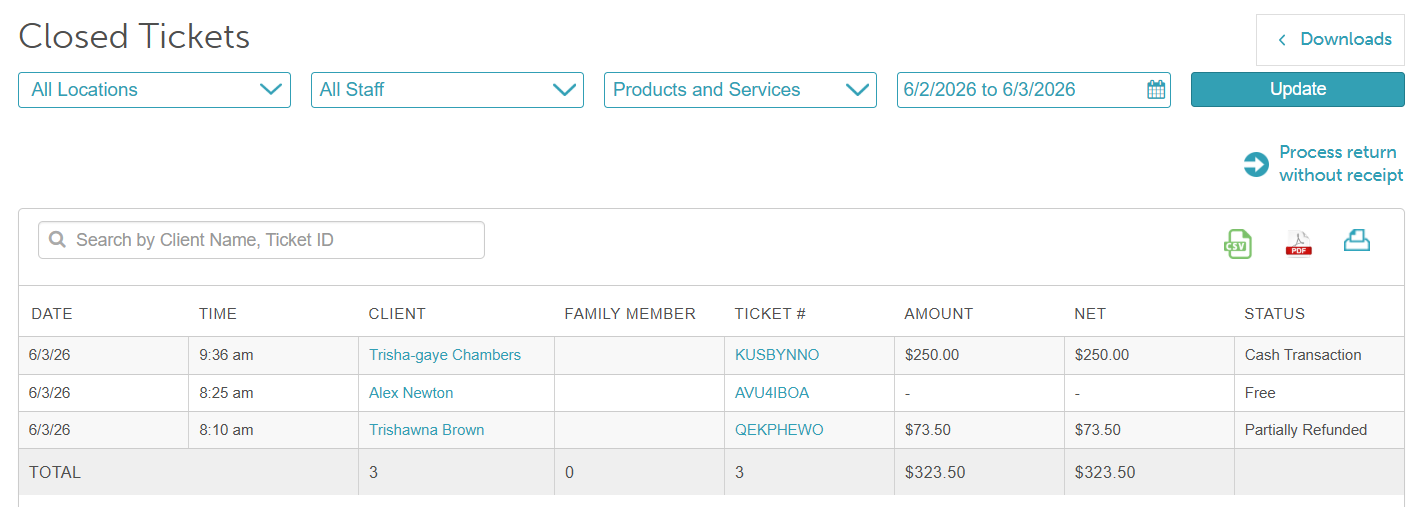
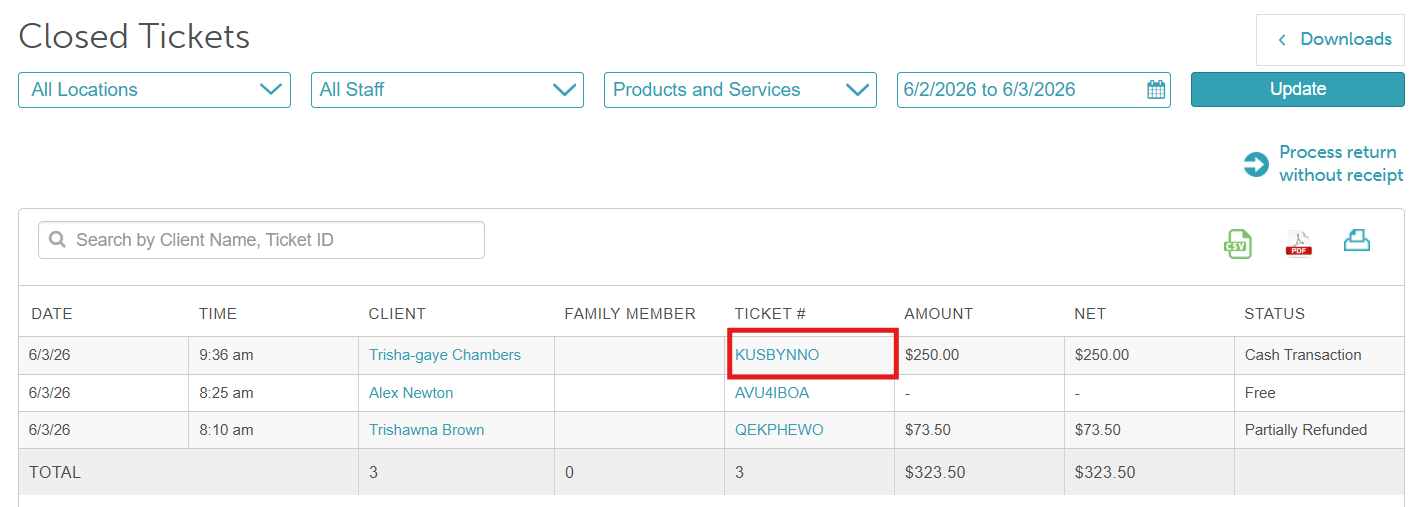
- Select the ticket number to open the ticket
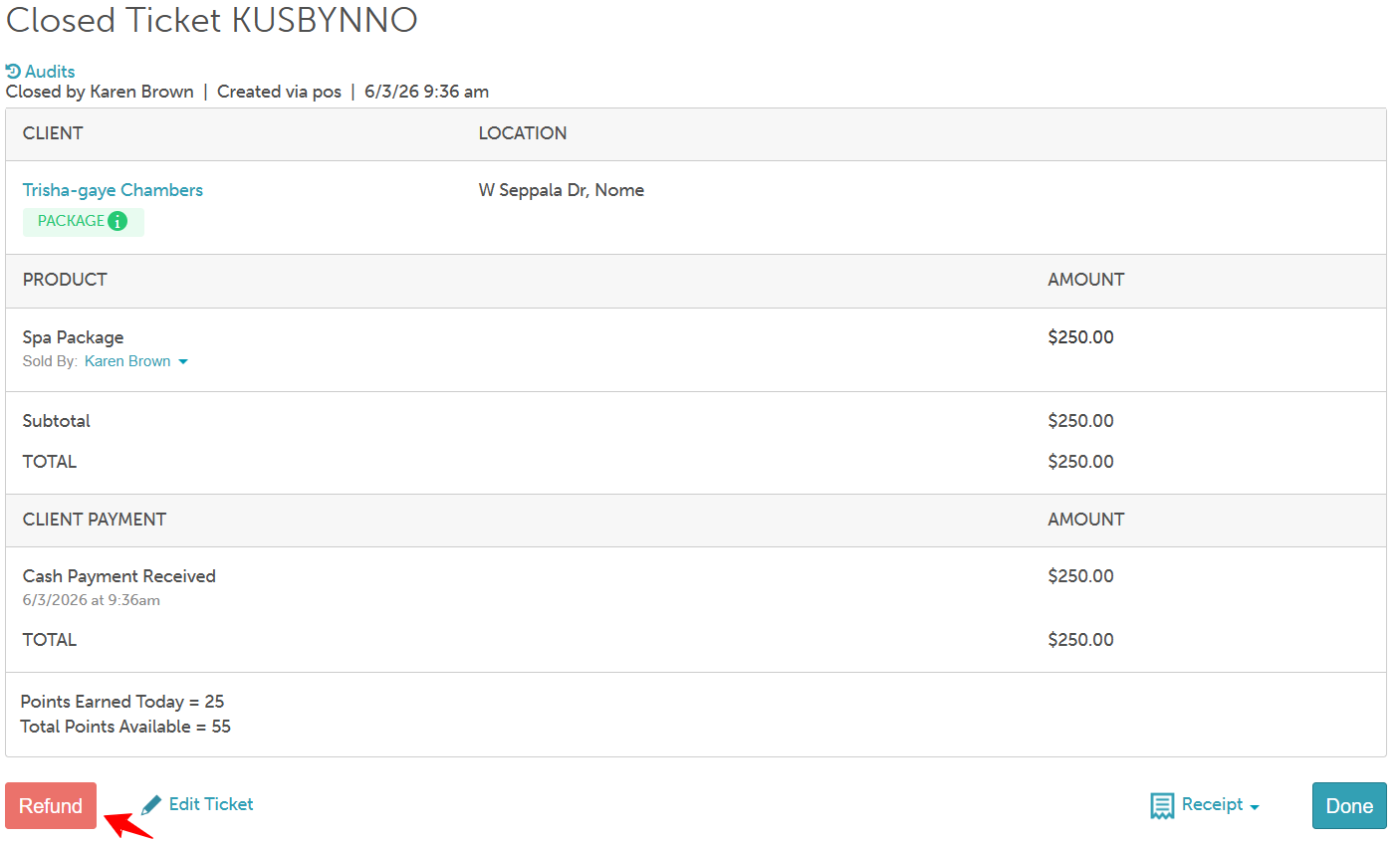
- Once the ticket opens, navigate to the bottom of the screen and click the "Refund" button
- On the refund page, you can decide to refund the entire amount or do a partial refund
- Check the box next to the refund amount to enter the amount you want to refund
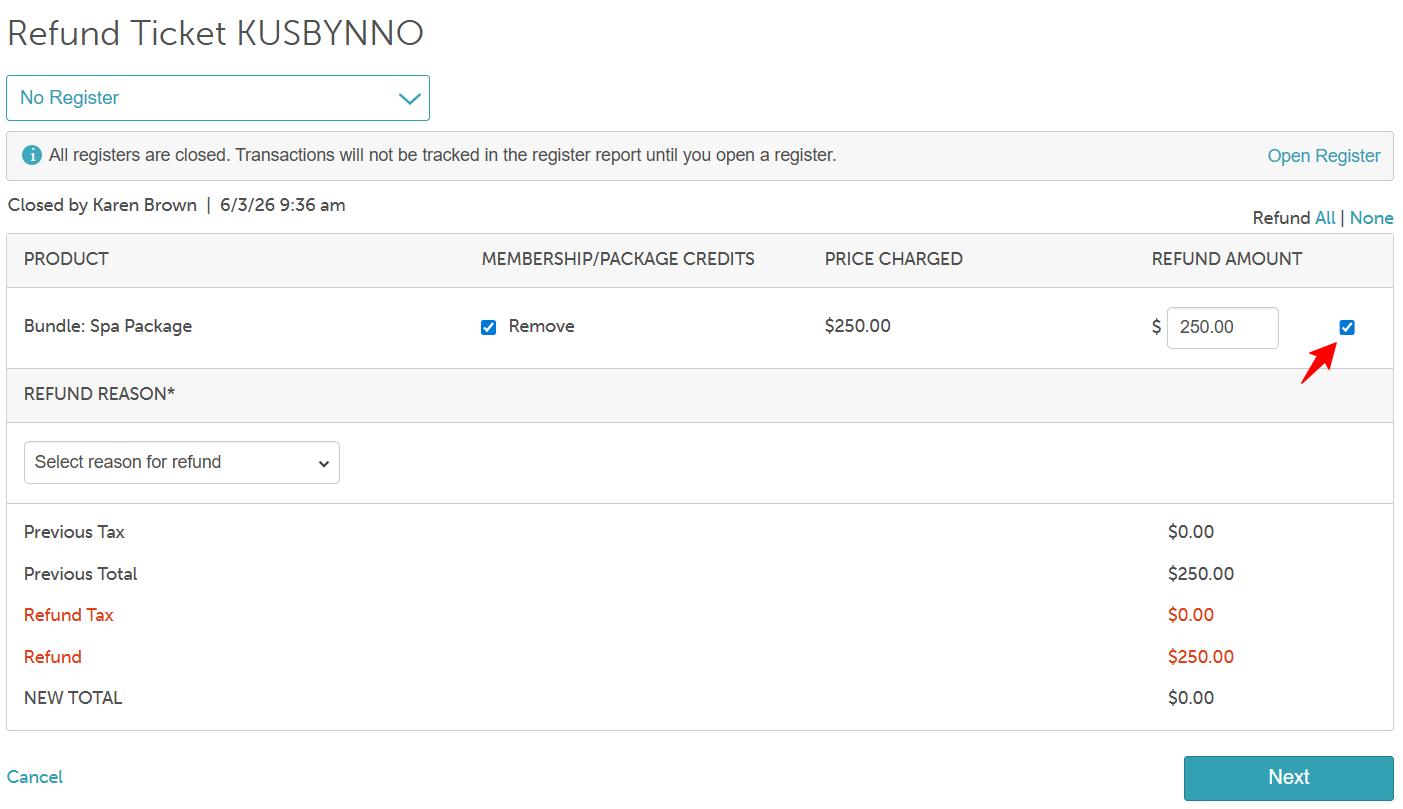
- The 'Membership/Package Credits' checkbox will appear checked by default, meaning the associated credits will be removed once the refund is processed. This adjustment will be recorded in the package's audit trail on the client’s profile. If you want the client to keep their package credits after the refund, simply uncheck the box before completing the refund.
- Select the "Next" button at the bottom right of the screen
- Confirm by clicking the refund amount button
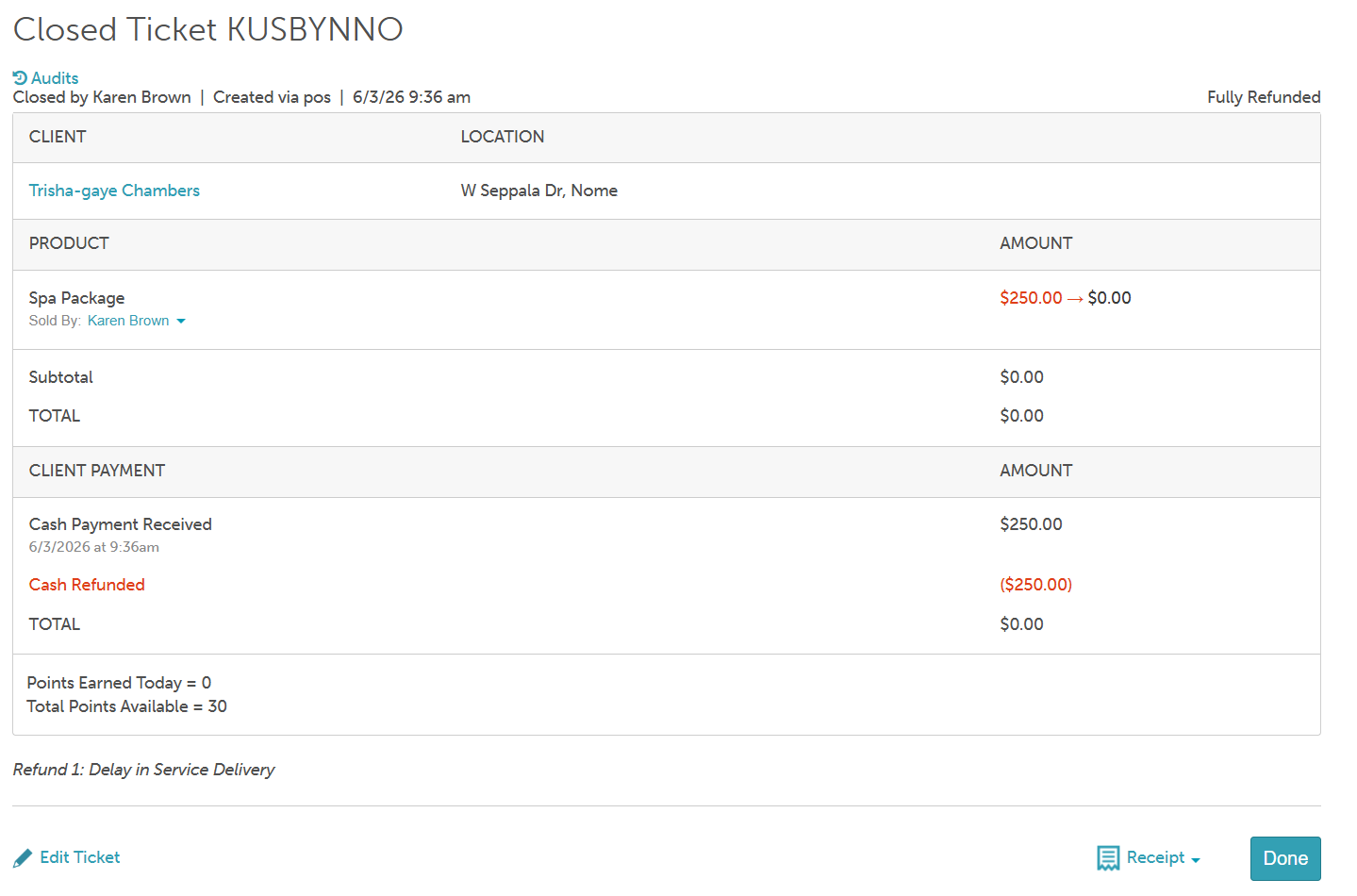
- A confirmation message will be display; click Done
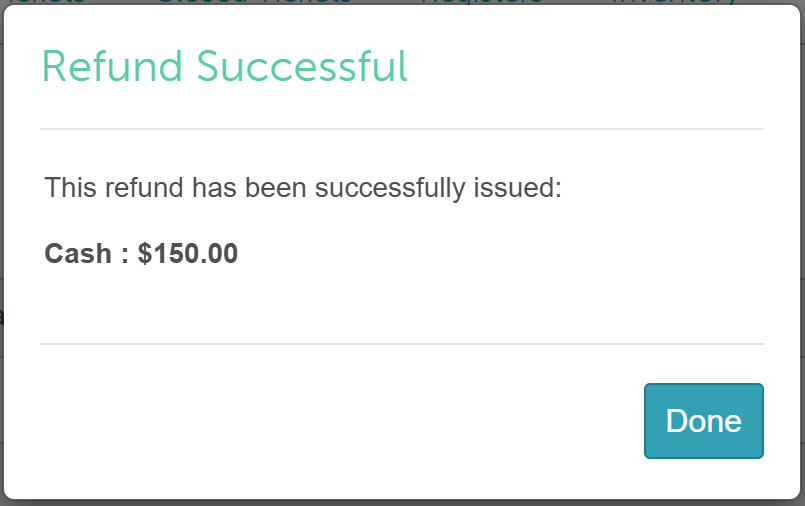
- From the closed ticket screen, select 'Done' at the bottom right of the screen
The package audit trail on the client’s profile will record the refund and show any package credits that were removed.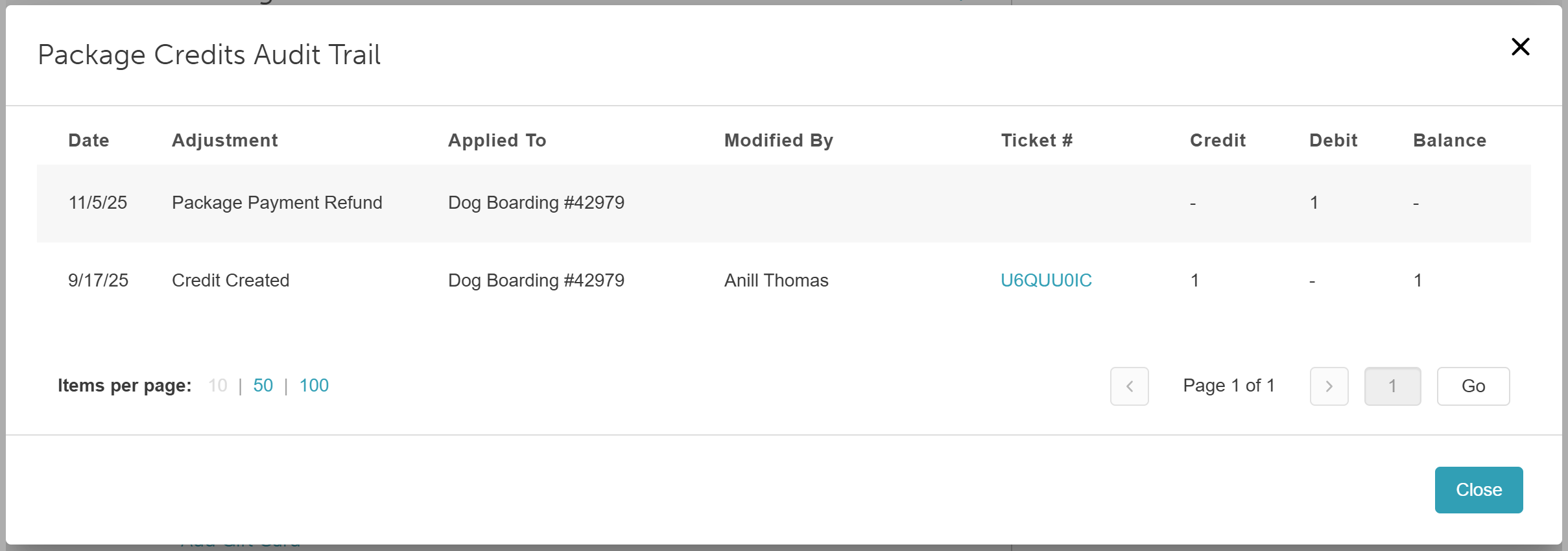
For more information, contact us at support@mytime.com.
Related Articles:
Was this article helpful?
That’s Great!
Thank you for your feedback
Sorry! We couldn't be helpful
Thank you for your feedback
Feedback sent
We appreciate your effort and will try to fix the article