You can sell gift cards with an unlimited validity period or with an expiry period online or in-store. In this article, we will discuss gift cards with an expiry period.
Things to know:
- Gift card expiration is controlled by the "Enable Gift Card Expiration" setting on the Business Setup > Settings page. Once enabled, this setting cannot be disabled.
- The ability to edit a gift card's expiration date is controlled by the "Accessing Gift Cards" access control setting
- For franchise businesses using global gift cards, expiration periods can only be configured and edited at the parent level since global gift cards can be redeemed at all franchise locations.
- Gift card expiration dates apply only to gift cards purchased after the setting is enabled.
- Once enabled, you can define how long gift cards remain valid. If no value is entered in the "Gift cards are valid for" field, gift cards will default to a 365-day expiration period.
- Gift card expiration dates can be edited from the client profile or within the gift card modal when selling a gift card through POS, subject to user permissions.
- Clients cannot redeem expired gift cards. An error message will be displayed both online and in POS when an expired gift card is used.
- The setup option displayed in the top-right user menu depends on how you access the account and your assigned role:
- When navigating from the Parent Account (Location Management tab):
- Admin: Displays Business Setup when viewing the location account.
- Login As: Displays Location Setup when viewing the location account.
- When logged in directly at the Location Level:
- Location Owners & Location Managers: Display Location Setup.
- Service Providers & All Other Roles: Display Profile Setup.
- Configuring Gift Card Expiration
- Gift Card Expiration Date in POS
- Gift Card Expiration Date on Client Profile
- Gift Card Expiration Date on Booking Widget
- Errors Received When Using Expired Gift Cards
Configuring Gift Card Expiration
To configure gift card expiration:
1. Navigate to Business Setup > Settings
2. Scroll to the POS section and locate the Enable Gift Card Purchase setting
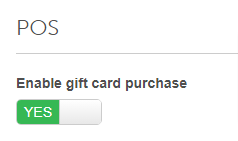
3. Toggle to "Yes"
5. Toggle to "Yes" to display the expiration field

6. Enter the default validity of the card in days
7. Save changes
Gift Card Expiration Date in POS
- Navigate to POS > New Ticket
- Select the Products tab, then Gift Card
- The gift card modal will appear. The default expiration date will be based on the expiration period specified in the settings
- You can change the expiration date by using the date picker next to it
- Enter the dollar amount and name of the recipient then save
- Take Payment
- Close the ticket


Gift Card Expiration Date on Client Profile
To edit the expiration date on a gift card on client profiles:
- Go to the Clients tab
- Locate the client's profile
- Scroll down to the Gift Cards section
- Click on the Add Gift Card link or the + icon on the right
- The gift card modal will appear. The default expiration date will be based on the expiration period specified in the settings
- You can change the expiration date by using the date picker next to it
- Enter the details, then take payment
- You will be directed to POS to complete the payment
- Navigate back to the client's profile to view the gift card


Gift Card Expiration Date on the Booking Widget
When your clients attempt to purchase a gift card online, they will see the following:
- Navigate to your booking widget
- Select the desired location (applicable for accounts with multiple locations)
- Select the Gift Cards link in the header
- Enter the purchase details, such as the amount, who the gift card is for, who it's from, etc.
- Continue Checkout
- Enter card details, then click "Complete Checkout"
- The confirmation will display the gift card expiration date based on the expiration period specified in the settings

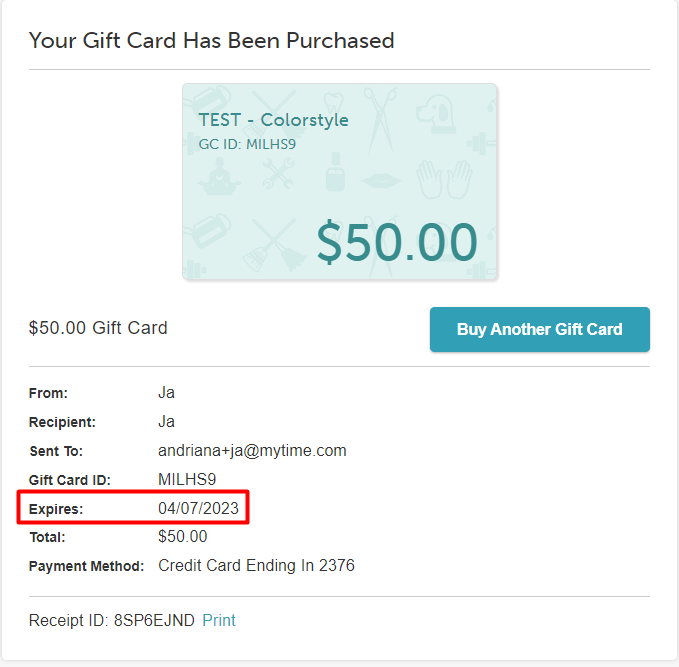
The gift card purchased automated email will also include the expiration date.

Errors Received When Using Expired Gift Cards
When using a gift card that is expired, the following error messages will be received:
Booking Widget

POS

For more information, contact us at support@mytime.com.
- Gift Card Settings
- Minimum & Maximum Gift Card Amount
- Selling Physical Gift Cards in POS
- Selling Electronic Gift Cards in POS
- Purchasing Gift Cards Online
- Redeeming Gift Cards In-store in POS
- Redeeming Gift Cards Online
- Adding Gift Cards Manually on Client Profile
- Gift Card Balances Report
- Gift Card Activity Report
Was this article helpful?
That’s Great!
Thank you for your feedback
Sorry! We couldn't be helpful
Thank you for your feedback
Feedback sent
We appreciate your effort and will try to fix the article