In this article, we will guide you through the steps on how to add a bank account at the child level for royalty payments.
Things to know:
- For franchise locations, if the franchisee (child account) has multiple location, each location can have its own bank account for royalty fee collection.
- If no bank account is added, or if the bank account is invalid, closed, or otherwise encounters a banking error, no debit will be initiated from that franchise's account.
- Stripe offers two ways to register your sending account: Instant Verification and Manual Registration.
- Instant Verification: This uses Stripe Financial Connections to securely authenticate with your bank via OAuth, making the account ready to use immediately.
- Manual Registration: Requires manually entering your routing and account numbers, followed by a micro-deposit verification process. Micro-deposits typically appear within 1–2 business days.
- A 'Complete Verification' link will be available in MyTime, allowing you to enter the deposit amounts and finalize setup.
- You do not need to remain logged in while waiting—your progress is saved and will remain available for up to 10 days.
- If a bank account is deleted while verification is pending, the system will automatically cancel the verification to prevent incomplete setups.
- If verification fails, a “Bank account verification failed” message will appear. Click + Add a Bank Account to retry the process.
- Bank account details cannot be edited. To make changes, you must delete the existing account and add a new one.
Contents:
- Configuring Bank Accounts for Royalty Collection at the Child Level via Manual Registration
- Configuring Bank Accounts for Royalty Collection at the Child Level via Instant Verification Method
- Deleting Bank Account for Royalty Collection at the Child Level
Configuring Bank Accounts for Royalty Collection at the Child Level via Manual Registration
- From the child level, navigate to Business Setup > Payment and Deposits
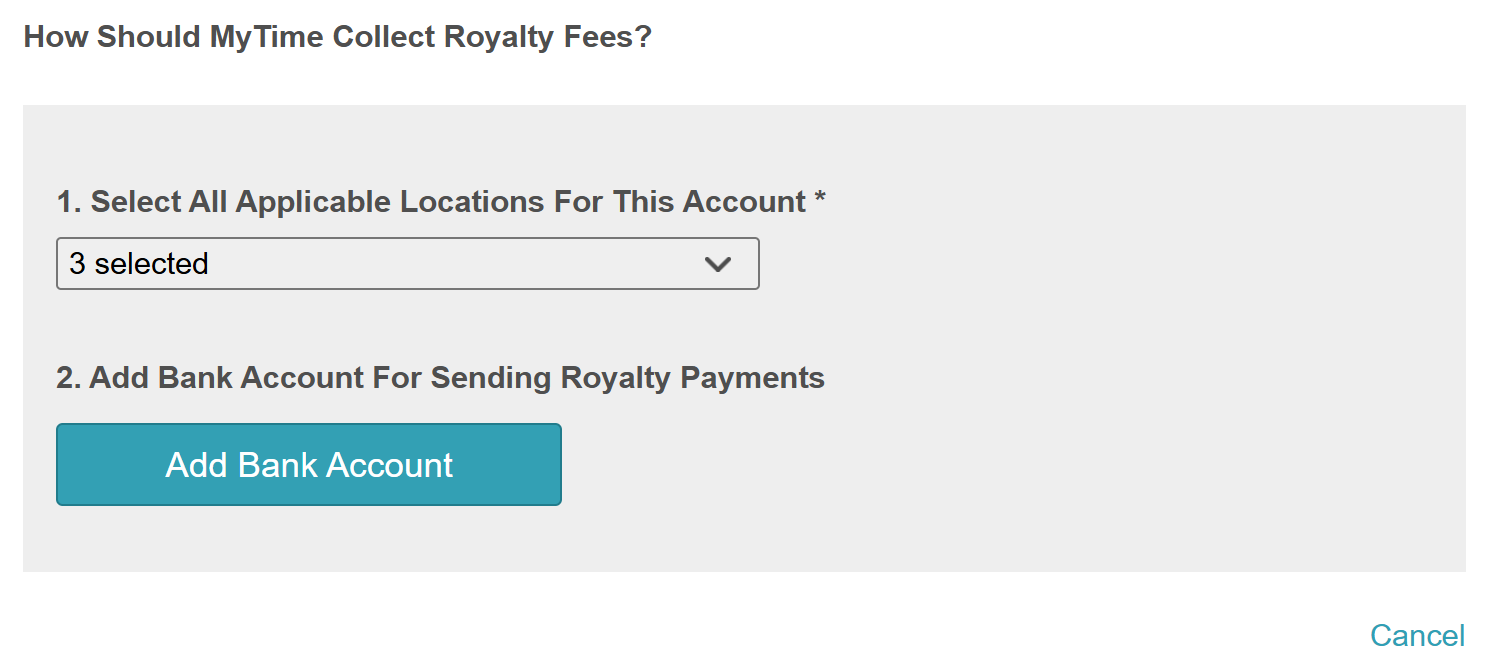
- Locate the "How should MyTime collect royalty fees?" section
- Choose "Add Bank Account" to configure the bank account for the debiting of royalty fees

- Select Locations: In the "Select All Applicable Locations For This Account" section, choose the appropriate location from the drop-down menu
- Under the "Add Bank Account For Receiving Reconciliation Payments" header, click the 'Add Bank Account' button
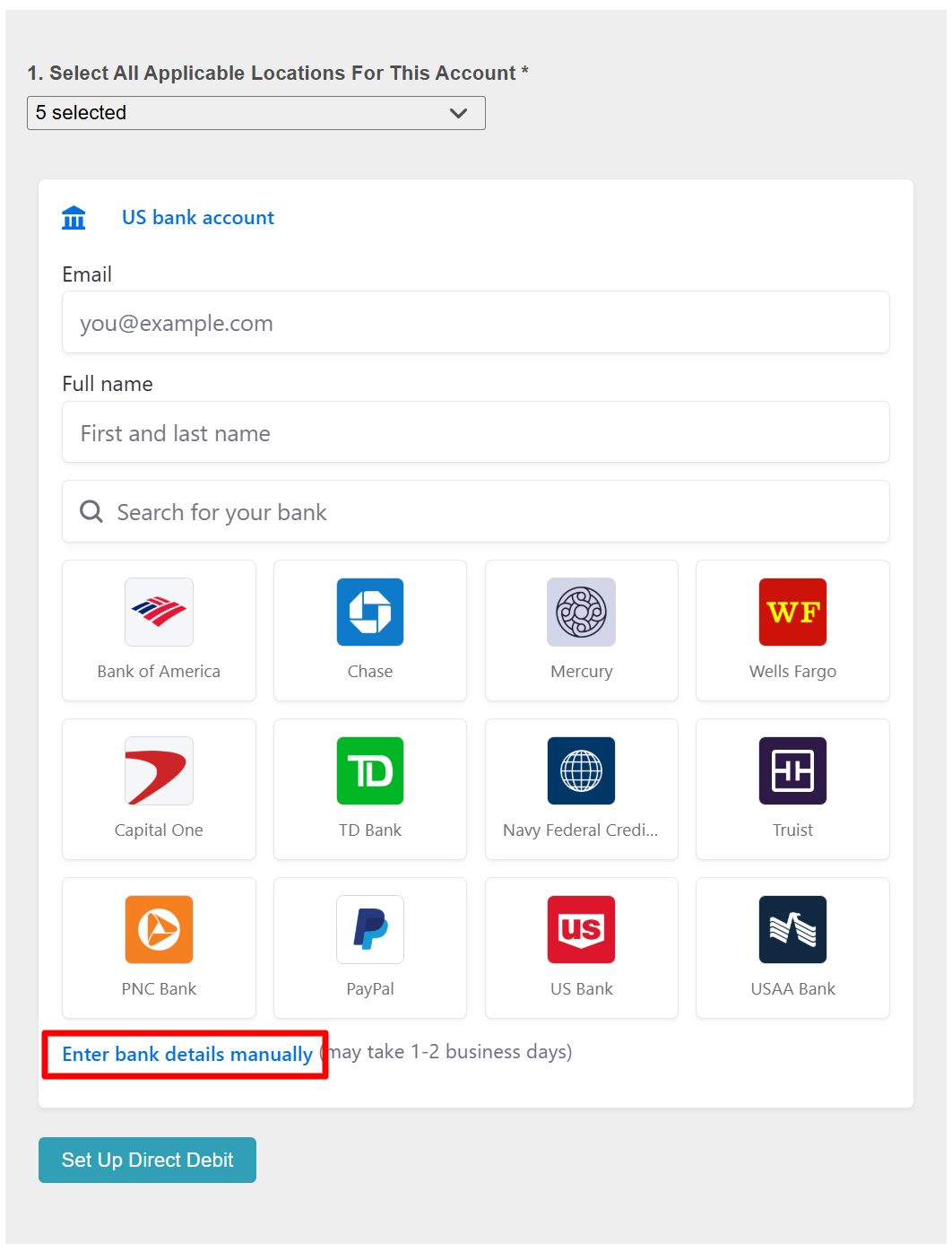
- Select the "Enter bank details manually" hyperlink
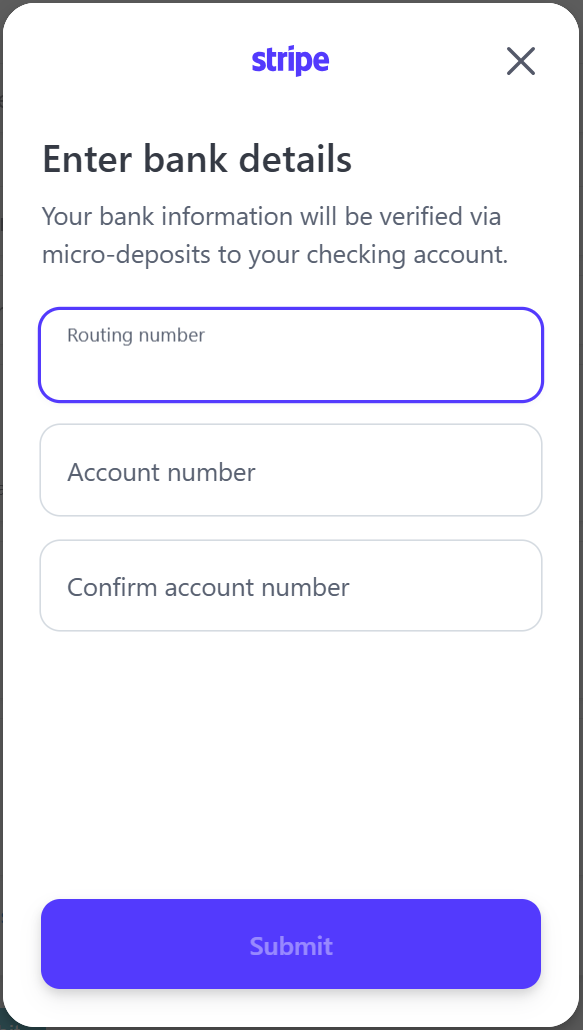
- Manually enter your routing and account numbers in the Stripe-hosted form
- After submitting, a message will appear stating: "Next, finish up on MyTime to initiate micro-deposits. You can expect an email with instructions within 1-2 business days"
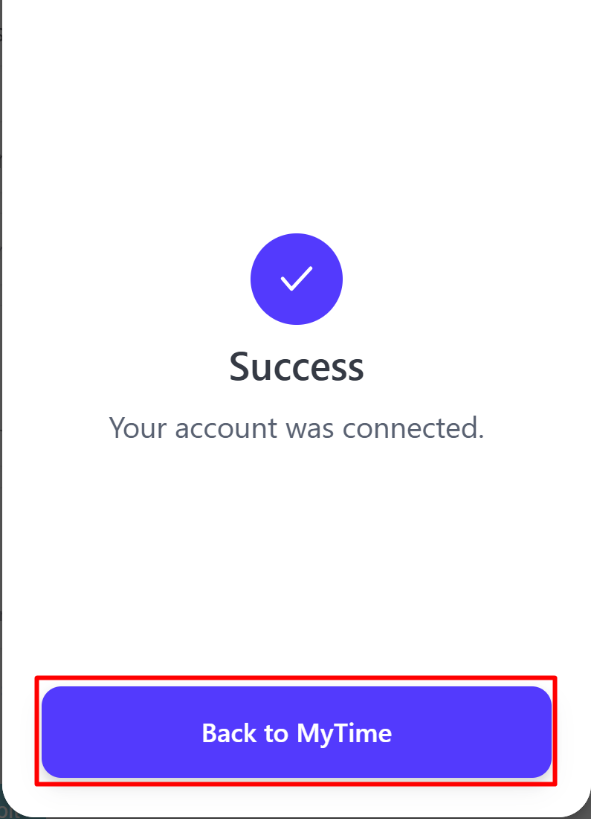
- Select "Back to MyTime" to exit the Stripe form
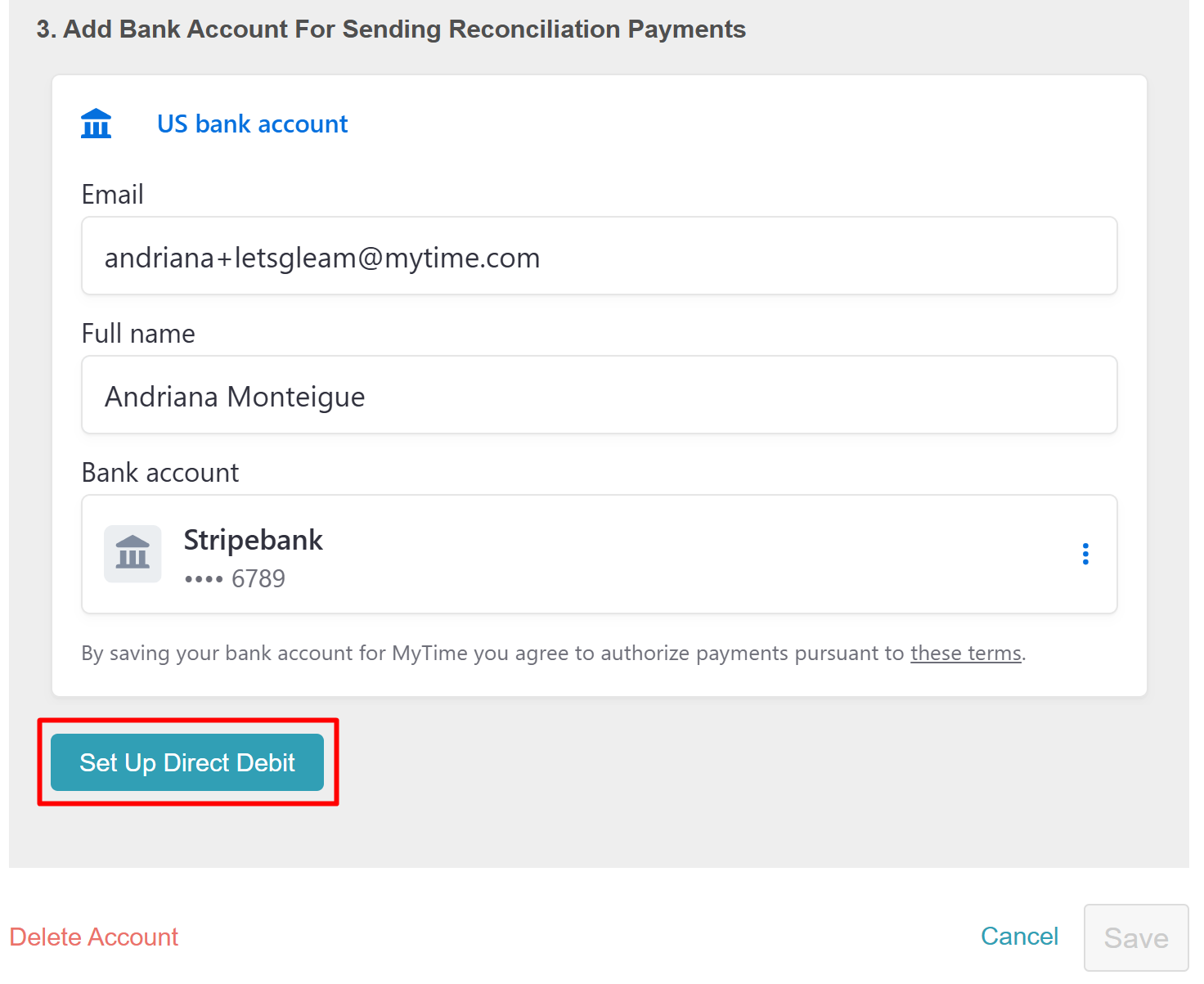
- Enter your contact information and select 'Set Up Direct Deposit'
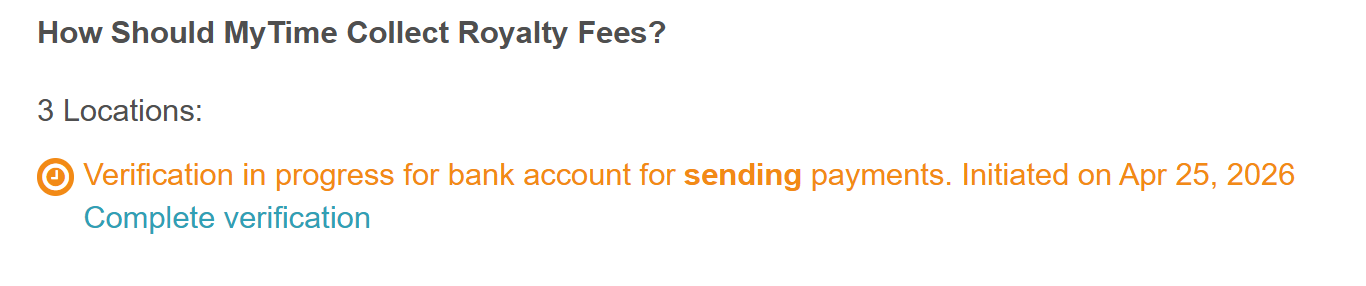
- A message will appear confirming that verification is in progress
Configuring Bank Accounts for Royalty Collection at the Child Level via Instant Verification Method
If you do not want to manually add your bank account, you can log into your bank account to connect your account:
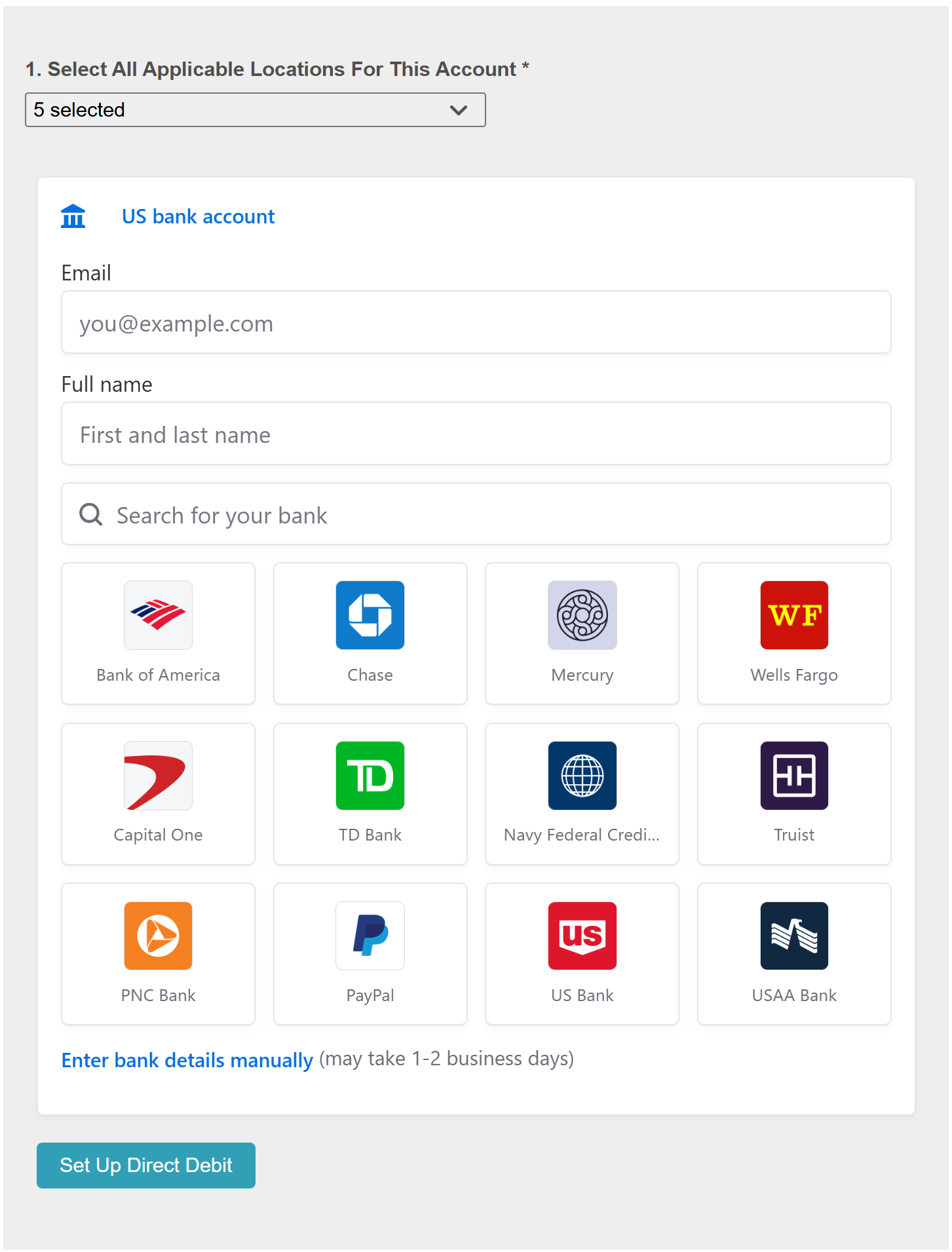
- Enter your email and name
- Select your bank frrom the list of banks provided
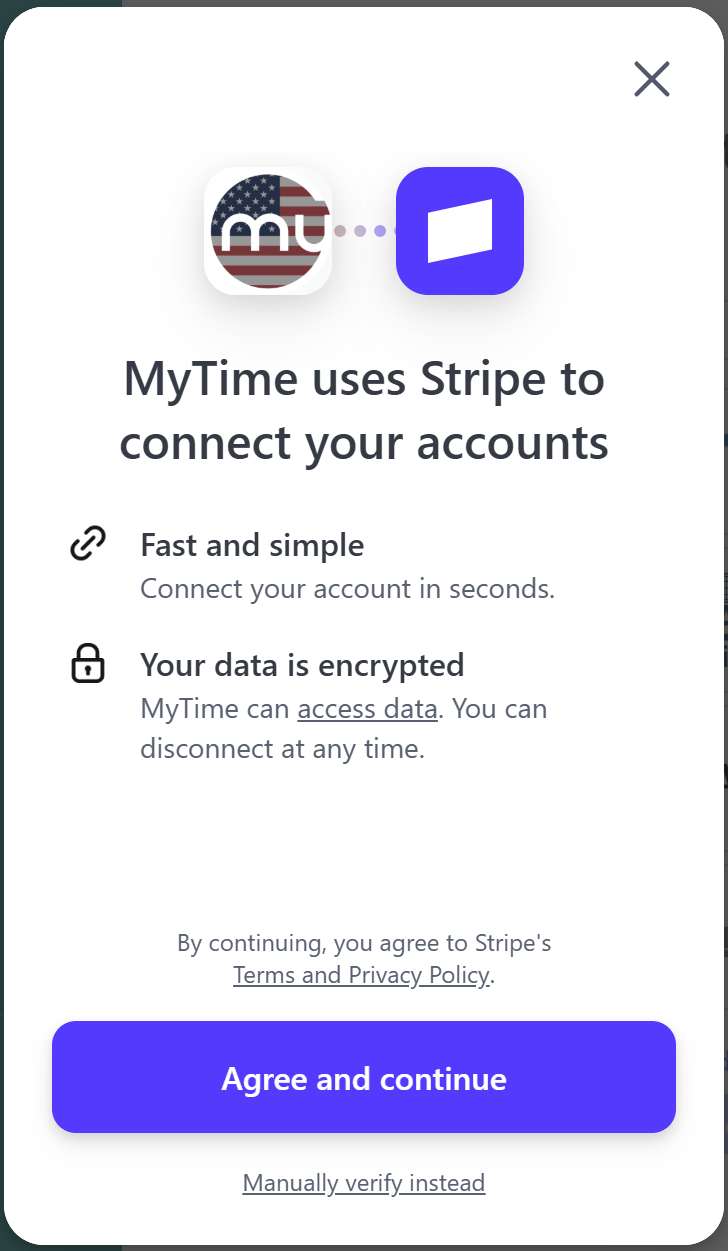
- Review terms and privacy policy, then select the 'Agree and Continue' button
- Select "Continue" to log in to your account
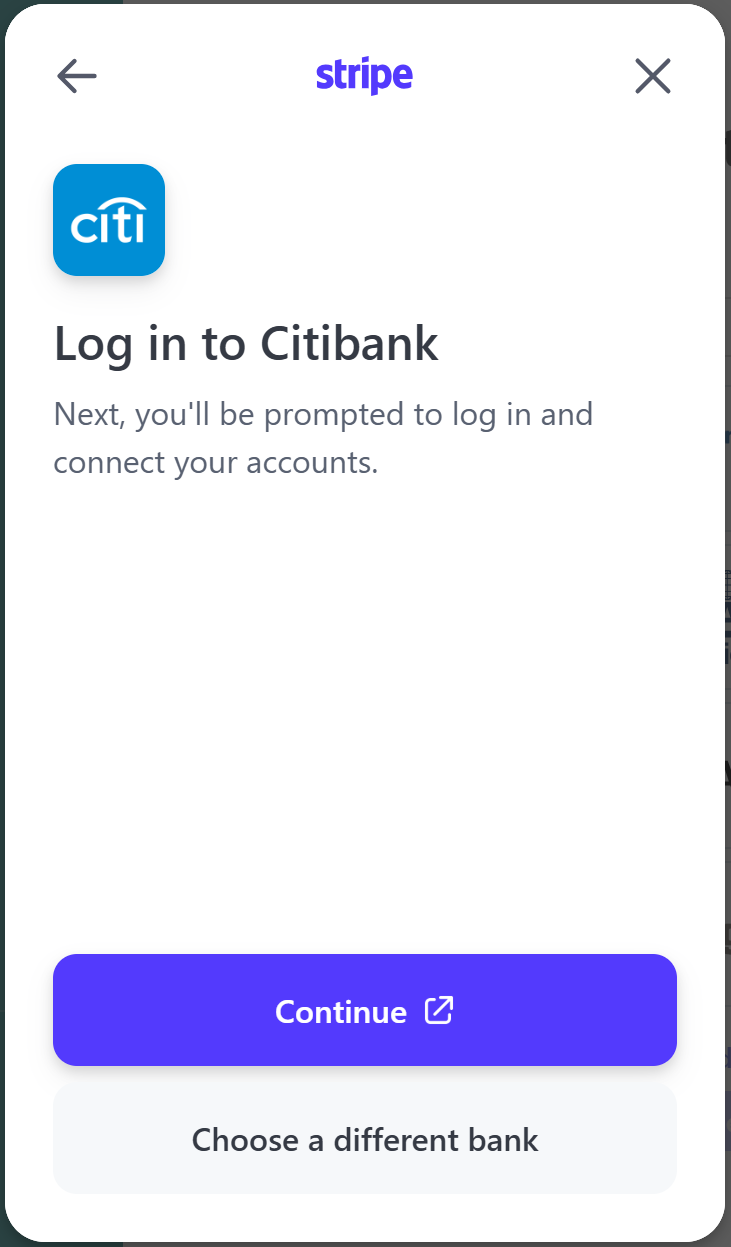
- You will be redirected to your bank's online login page to sign in
- Select 'Connect Account'
- Select 'Bank to Mytime'
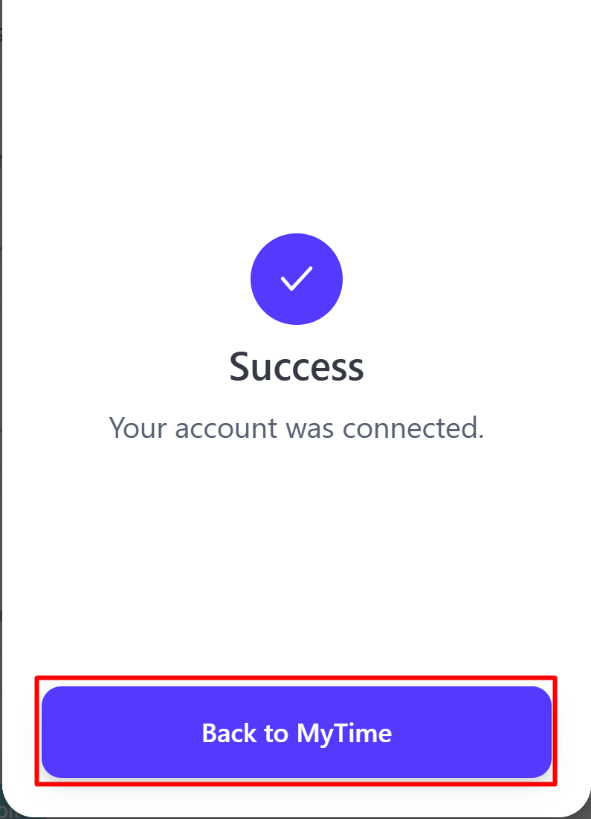
- Select 'Setup Direct deposit'
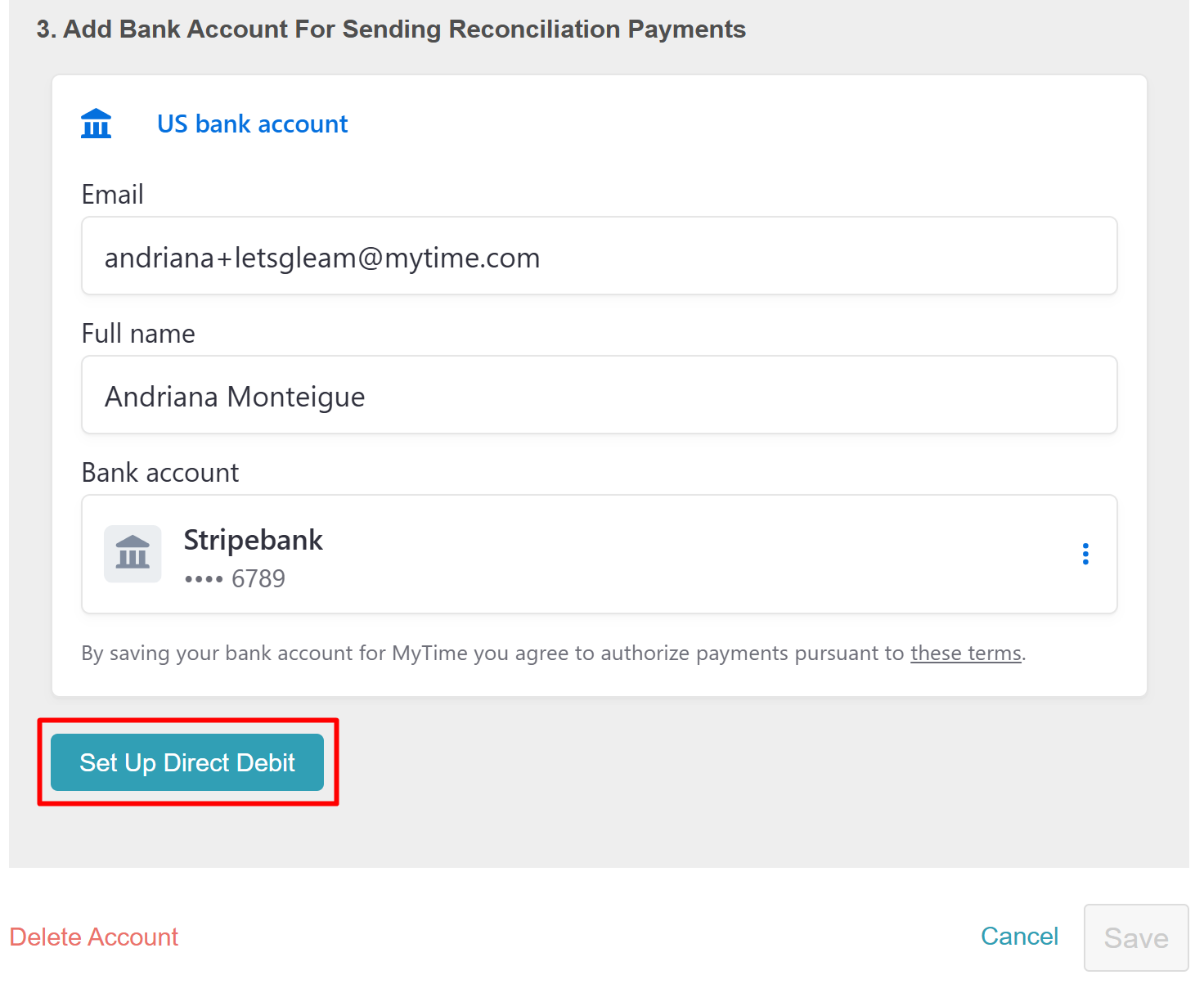
- The account's status will be changed to "Verified"

- Click Save
Deleting Bank Account for Royalty Collection at the Child Level
- From the child level, navigate to Business Setup > Payment and Deposits
- Locate "How should MyTime collect royalty fees?"
- Select the "Edit" hyperlink
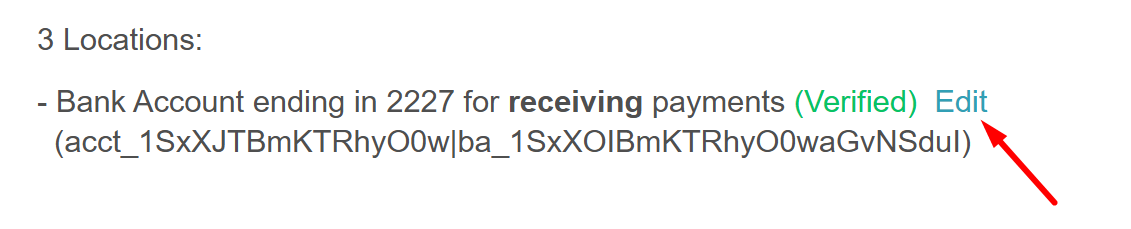
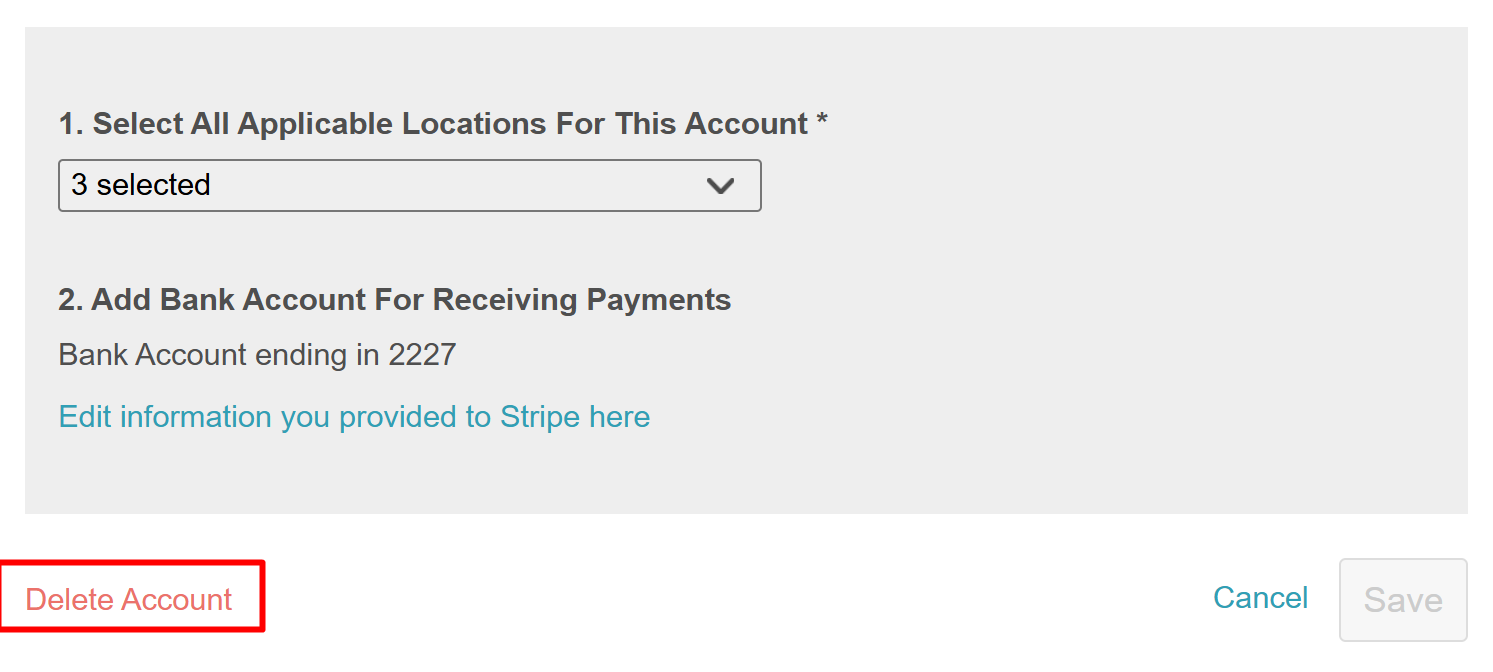
- Enter "Delete Account"
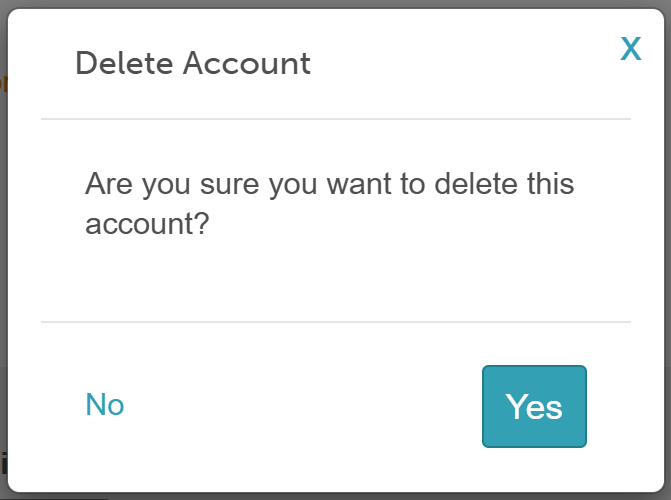
- Click 'Yes' from the confirmation modal pop-up
For more information, contact us at support@mytime.com.
Related Articles:
Was this article helpful?
That’s Great!
Thank you for your feedback
Sorry! We couldn't be helpful
Thank you for your feedback
Feedback sent
We appreciate your effort and will try to fix the article