MyTime allows you to define where each service can be performed—in-store, at the client’s location, or both. This configuration determines how services are displayed and filtered in online booking.
Things to know:
- The ability to configure service location is controlled by the "Accessing Services Menu" access control setting.
- Depending on your business setup:
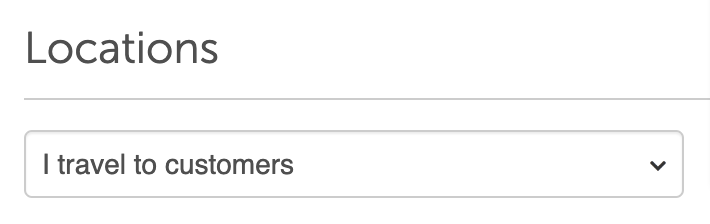
- Mobile businesses ("I travel to customers"): The Client’s Location option is selected by default.
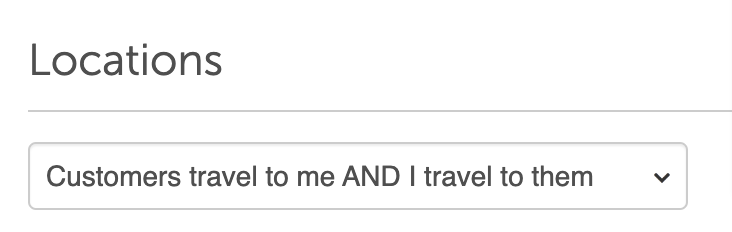
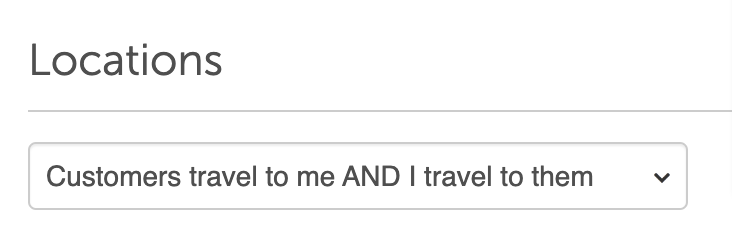
- Hybrid businesses ("Customers travel to me and I travel to them"): Both In-Store and Client’s Location options are selected by default.
- For franchise businesses:
- Global services can be updated at the parent level
- Local services can only be updated at the child level
- If your location offers both service types, the booking widget will include a service location selector.
- Services that are not available for the selected location will either be hidden or grayed out, depending on the scenario.
Contents
Configure Services for In-Store vs. Mobile
- Navigate to Business Setup > Services
- Add a new service or select an existing one
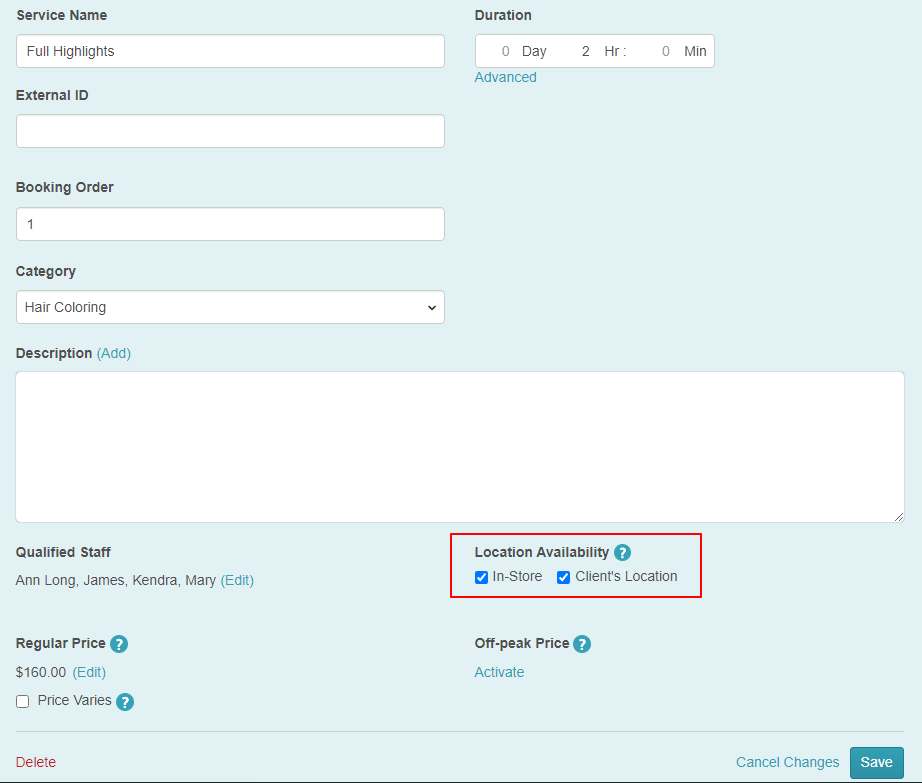
- Scroll to the Location Availability section
- Select where the service can be performed:
- In-Store
- Client’s Location
- Both
- Complete the remaining fields and click Save
How Service Filtering Works in Online Booking
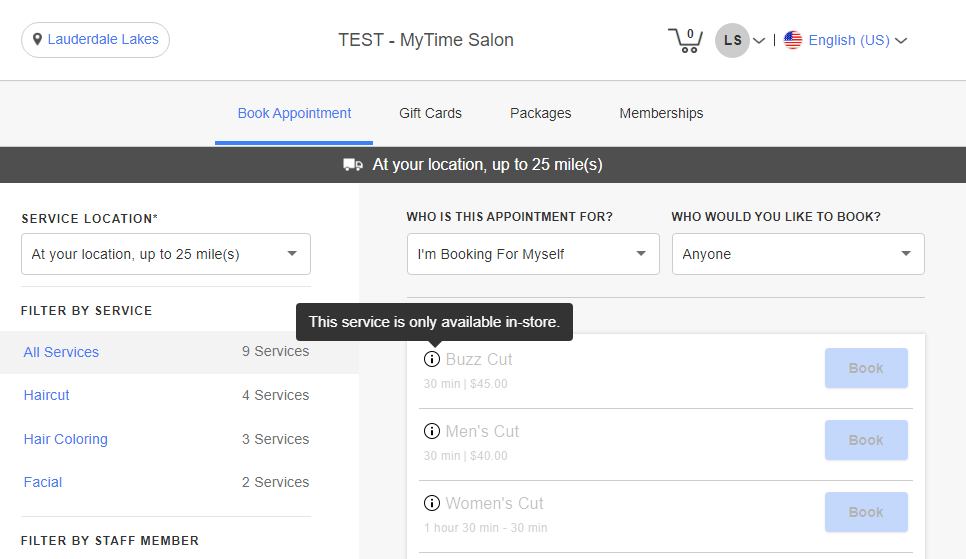
Case 1: Mobile Business (In-Store Service Only)
- Setup: Business is configured as I travel to customers
- Service: Marked as In-Store only
- Result:
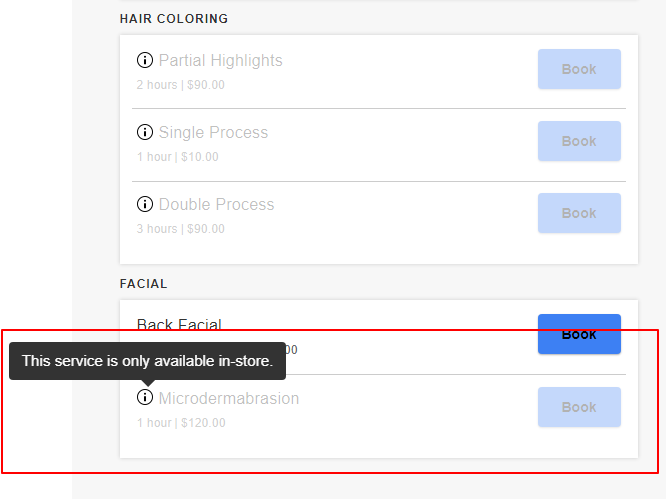
- Service appears grayed out in the booking widget.
- Tooltip displays: "This service is only available in-store."
Case 2: Hybrid Business — Client Selects “At Your Location”
- Setup: Business offers both in-store and mobile services
- Client selection: At your location
- Result:
- Services available only in-store are grayed out
- Tooltip displays: "This service is not available in-store."
Case 3: Hybrid Business — Client Selects “In-Store”
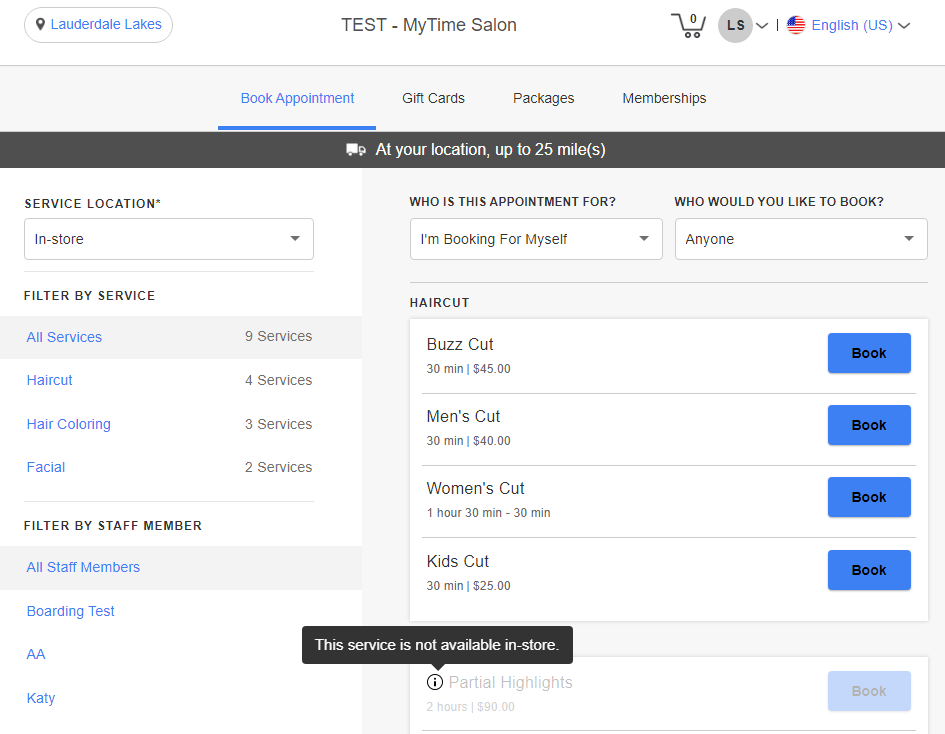
- Setup: Business offers both in-store and mobile services
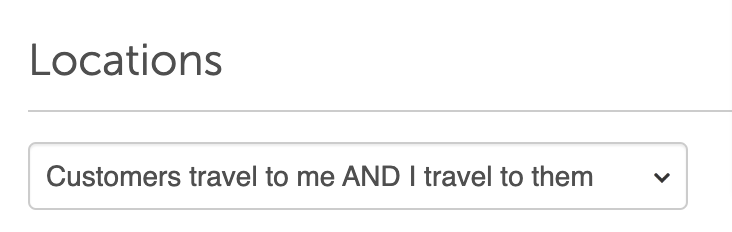
- Client selection: In-store
- Result:
- Services available only at the client’s location are grayed out
- Tooltip displays: "This service is not available in-store."
Case 4: Mixed Service Selection in Cart
- Setup: Business offers both service types
- Client adds:
- An in-store service
- Then a mobile service
- Result:
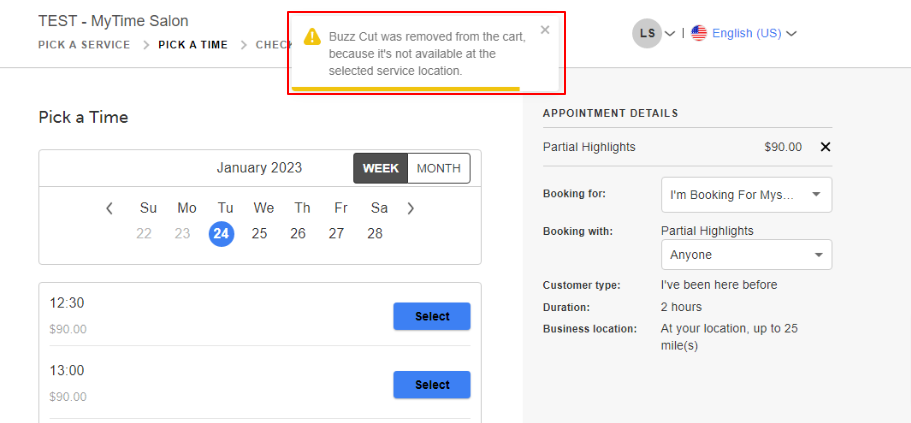
- On the Time Picker page, incompatible services are removed
- Message displayed: "X service was removed from the cart because it's not available at the selected service location."
For more information contact us at support@mytime.com.
Related Articles:
Was this article helpful?
That’s Great!
Thank you for your feedback
Sorry! We couldn't be helpful
Thank you for your feedback
Feedback sent
We appreciate your effort and will try to fix the article