Many states (such as California) enforce strict labor laws surrounding meal and rest periods—such as mandatory 30-minute uninterrupted meal breaks for shifts over 5 hours or 10-minute rest breaks for every 4 hours worked. To help you maintain full compliance, minimize manual record-keeping, and eliminate tracking errors, MyTime allows you to enforce automated meal break prompts and track paid break time accurately.
Things to know:
- The ability to configure forced break hours is controlled by the "Accessing Business Profile" & "Accessing Staff & Availability" access control settings.
- MyTime supports state requirements for paid breaks by allowing you to assign different hourly payment types and custom pay rates for specific activities (e.g., standard service time vs. break time). Learn more here
- Work types flagged as Productive Time apply exclusively to service providers. Support staff will not see these options on their clock-in screens.
- Rather than clocking out completely for breaks, staff can clock into a designated Break activity status and then clock back into Service Time upon their return.
- Clocked hours can be adjusted per hourly rate type. The Time Tracking Report updates automatically to reflect these payment types and allows you to filter by specific hourly rate types for better workforce management.
- System Behavior & Guardrails
- If the POS terminal is refreshed or rebooted while a break prompt is active on screen and unanswered, the employee will not be clocked out.
- Shift duration is calculated starting from the employee's initial Clock IN timestamp until their first Clock OUT trigger (activated by pressing either Clock Out or Meal Break).
- If a manager manually adjusts an active shift’s start time, the system replaces the original timestamp and recalculates the shift duration using the updated time.
- To prevent calculation errors, compliance questions will not trigger if a shift lacks a matching pair of stamps (e.g., an IN stamp with no corresponding OUT stamp, or duplicate OUT stamps).
- An employee's final clock-out time is officially saved only after they answer the required questionnaire and select OK.
- The setup option displayed in the top-right user menu depends on how you access the account and your assigned role:
- When navigating from the Parent Account (Location Management tab):
- Admin: Displays Business Setup when viewing the location account.
- Login As: Displays Location Setup when viewing the location account.
- When logged in directly at the Location Level:
- Location Owners & Location Managers: Display Location Setup.
- Service Providers & All Other Roles: Display Profile Setup.
Contents:
Configuring Forced Breaks
Forced meal breaks are configured individually at the location level:
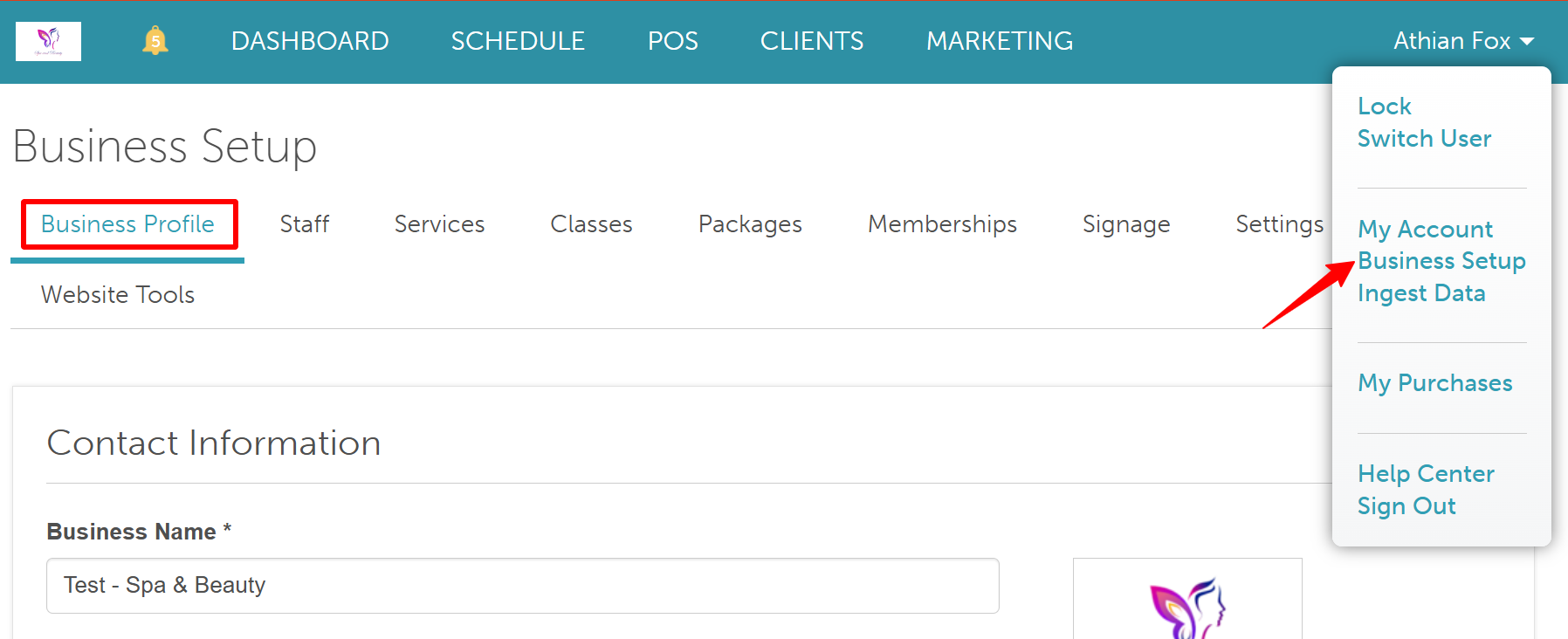
- Navigate to Business Setup / Location Setup > Business Profile
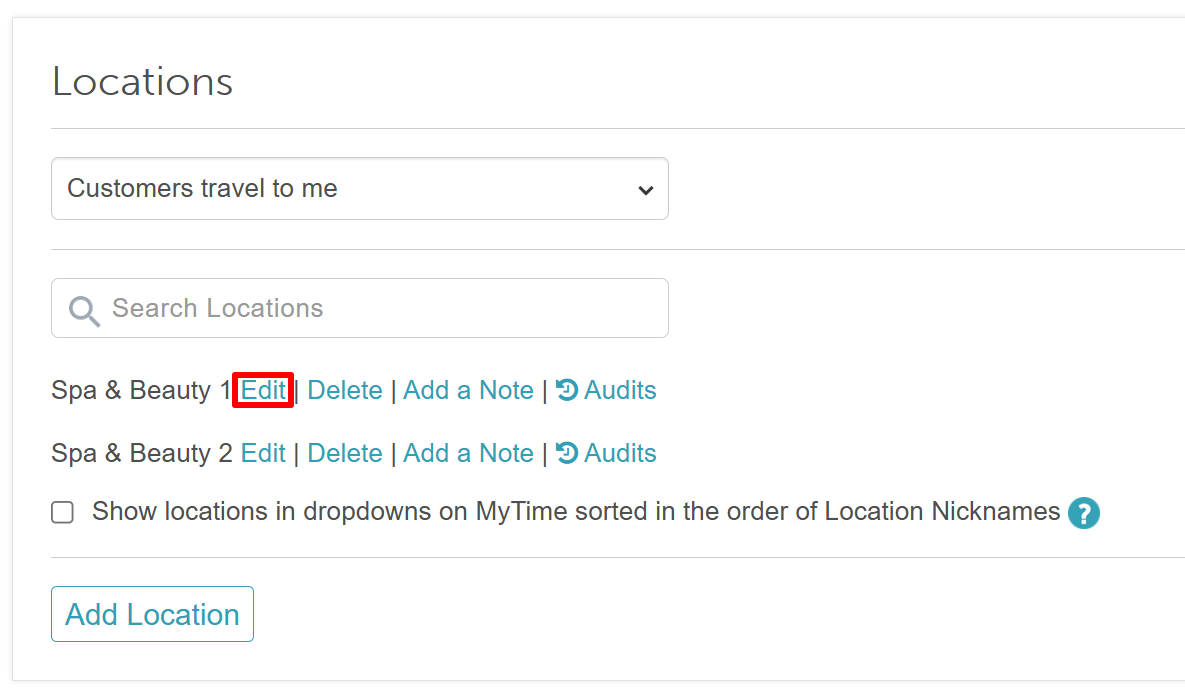
- Scroll to the Locations section and select 'Edit' next to the specific location you want to configure
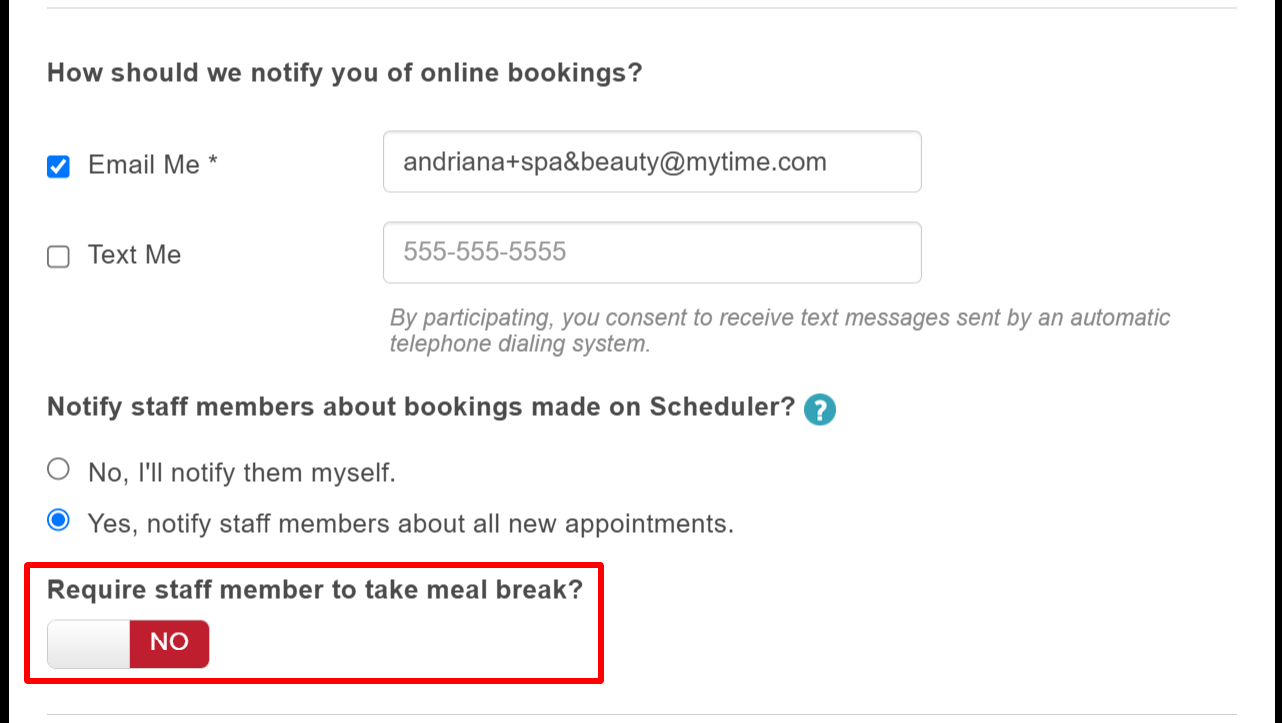
- In the 'Edit Location' modal, scroll down to locate 'Require staff member to take meal break?' and toggle the setting to 'Yes'
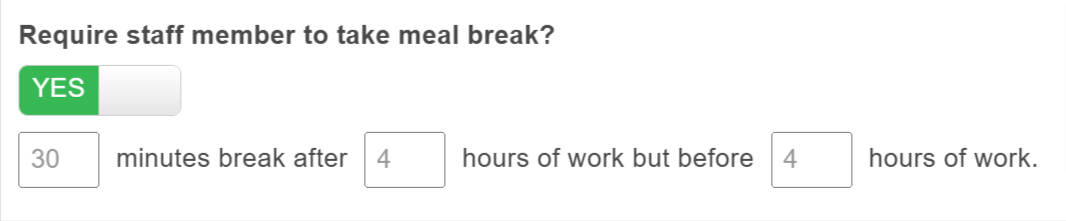
- Define your break parameters using the displayed fields (e.g., require an X-minute break after working X hours, but before reaching X hours of work)
- Click 'Save Location Info' at the bottom of the modal to apply your changes
Required Questionnaire & Penalty Pay Logic
If an employee works a shift that triggers a compliance review, and the system detects they did not log a continuous meal break of at least 30 minutes, they will be presented with legal validation prompts upon clocking out.
Scenario A: Clocking Out During Required Break Window
If an employee selects Clock Out before the end of their shift but after reaching the threshold defined in Business Profile > Edit Location, the system displays a binary verification prompt:
"I voluntarily waived my right to be provided a 30-Minute meal break today"
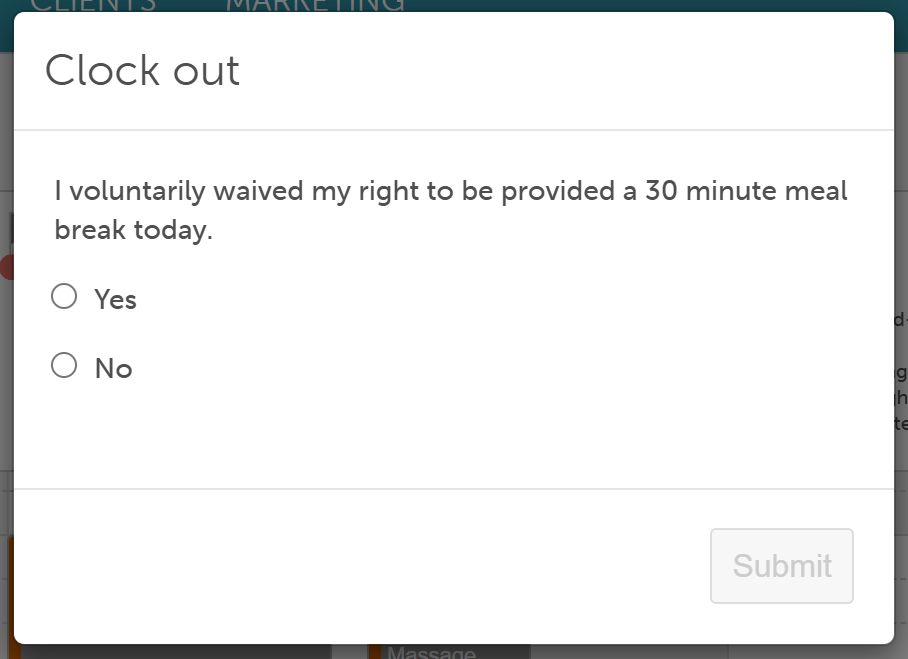
- Selecting YES: Confirms a voluntary waiver. No penalty pay calculation occurs.
- Selecting NO: Confirms a compliance variance. The system flags the shift and automatically applies penalty pay to the employee's payroll period.
Scenario B: End-of-Shift Clock Out (No Break Logged / After 6 Hours)
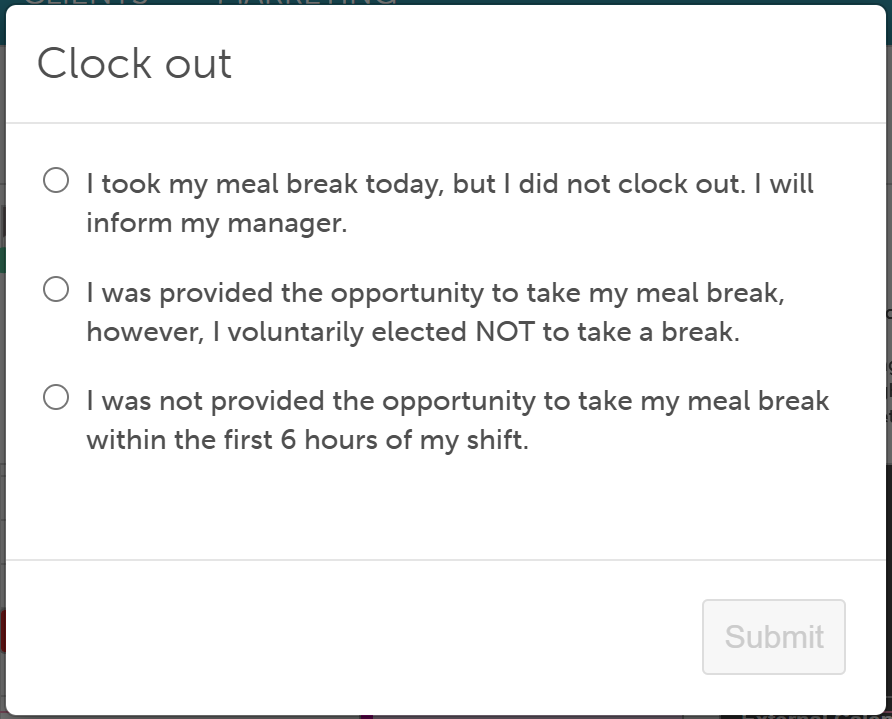
If an employee selects Clock Out at the end of their shift after working more than 6 hours without logging a break, they are required to select exactly one of the following legal declarations:
- Option 1: "I took my meal break today, but I did not clock out. I will inform my manager." (No immediate penalty; requires manual manager reconciliation).
- Option 2: "I was provided the opportunity to take my meal break, however, I voluntarily elected NOT to take a break." (Voluntary waiver; no penalty pay issued).
- Option 3: "I was not provided the opportunity to take my meal break within the first six hours of my shift." (Confirms a structural labor compliance breach. The system flags the account and automatically applies penalty pay to the payroll period)
For more information, contact us at support@mytime.com or (385) 233-6964.
- Staff Settings
- Add/Invite Staff Members
- Staff Profile Overview
- Global Access Controls
- Managing Access Controls
- Global Employee Titles
- Managing Staff Titles
- Creating Staff Roles
- Assigning Staff Roles
- Setting and Resetting Passwords on Staff Profiles
- Sign into MyTime as a Staff Member
- Add Bio to Staff Profile
- Managing Hourly Work Types
- Clocking In and Out on Web
- Clock In and Clock Out on Scheduler App
- Deleting Staff Members
Was this article helpful?
That’s Great!
Thank you for your feedback
Sorry! We couldn't be helpful
Thank you for your feedback
Feedback sent
We appreciate your effort and will try to fix the article