Managing staff access across multiple locations requires tools that are both secure and simple to use. In addition to a standard email and password, staff and owners can use their existing Google or Apple accounts to sign in to MyTime on the web and through the MyTime Scheduler mobile app. This article provides a comprehensive walkthrough of the sign-in process, covering various login methods and essential security requirements to get you started.
Things to know:
- A staff member cannot sign in until a staff profile has been created. A profile must be established using either standard credentials (unique username/email and password) or social accounts (Google or Apple integration). Learn more about signing up here.
- When signing in with a social account, the system automatically identifies the correct staff profile by matching the email address of the Google or Apple account with the one on file in your MyTime staff profile.
- For a successful staff login, these email addresses must be identical.
- If the email on your social account does not match the email on your staff profile, the system will not grant staff access. Instead, it will automatically create a client account instead.
- If your business uses a dedicated server, sign in via your computer using the following format: https://dedicatedservername.mytime.com.
- To protect your account, MyTime enforces a strong password policy. Your password should be unique and never shared with other staff members.
- If you forget your password, you can reset it by clicking "Forgot Password" on the sign-in page.
- If 2FA is enabled for your business, you will be prompted to enter a secondary code sent to your mobile device or email after entering your password. Learn more here.
- Signing in with Existing Accounts via Google or Apple:
- If you select Continue with Google or Continue with Apple and MyTime detects an existing account under that same email address, you will see the following prompt: "You already have an account with [XEmail.com]. Enter your password and we’ll connect your [Google/Apple] account automatically."
- Your email address will be pre-filled on the login screen. Simply enter your existing password to sign in, and MyTime will automatically link your Google or Apple account. For all future logins, clicking Continue with Google or Continue with Apple will sign you in instantly.
- Managing Linked Google Accounts
- For security and synchronization integrity, a single Google account can only be linked to one MyTime user at a time. If a Google account is already connected to a user, it cannot be associated with a different account.
- Attempting to link a Google account that is already in use will trigger the following error message: “This Google account is already connected to another user. It must be disconnected from that user first by logging into that account, navigating to Account Settings → Connected Accounts, and disconnecting Google.”
CONTENTS
- Signing In With Email and Password
- Signing In with Google
- Signing In with Apple
- Frequently Asked Questions
Signing In With Email and Password
- Navigate to www.mytime.com and click 'Log In' at the top-right corner of the page or navigate to https://www.mytime.com/users/sign_in

- On the sign-in screen, enter your username or email and password.
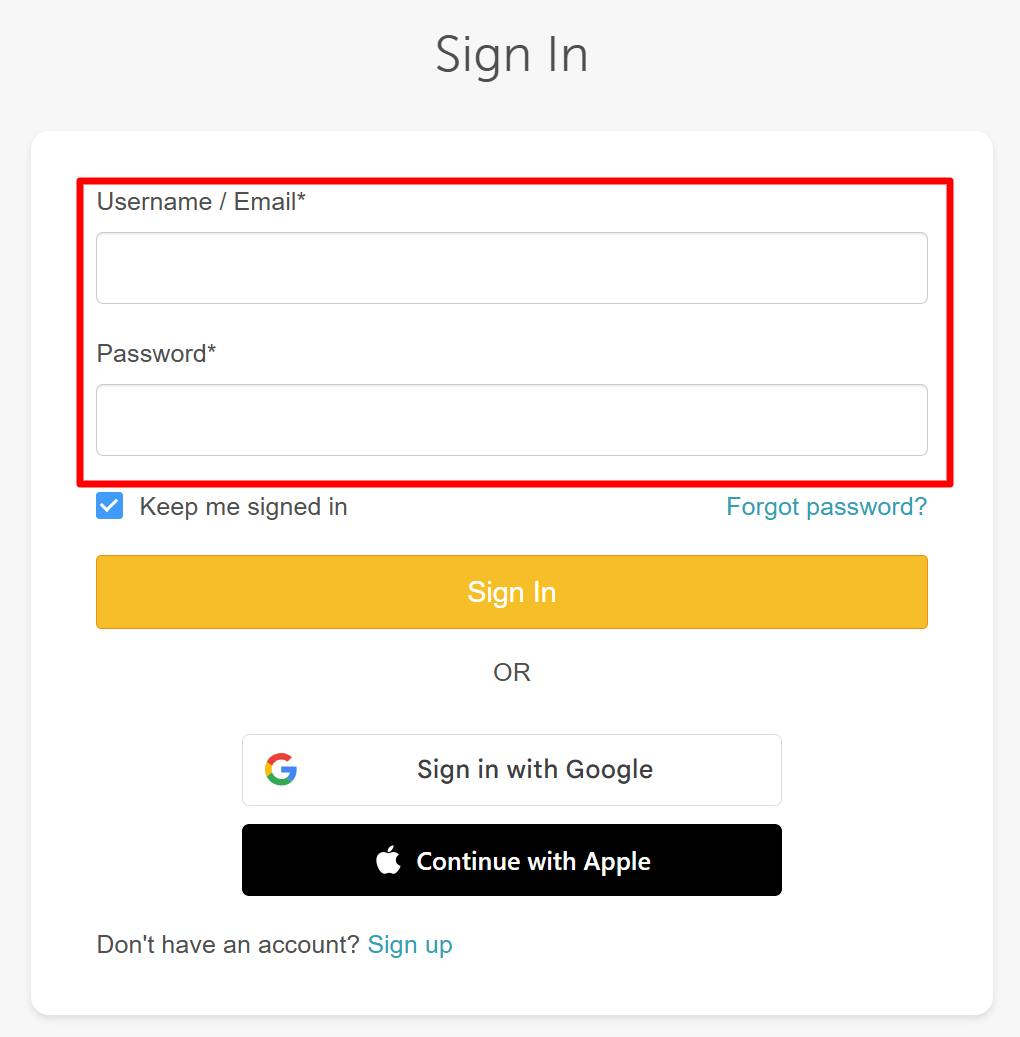
- Click "Sign In."
- Once authenticated, you will be directed to the Schedule page by default.
Signing In with Google
- Navigate to www.mytime.com and click 'Log In' at the top-right corner of the page or navigate to https://www.mytime.com/users/sign_in
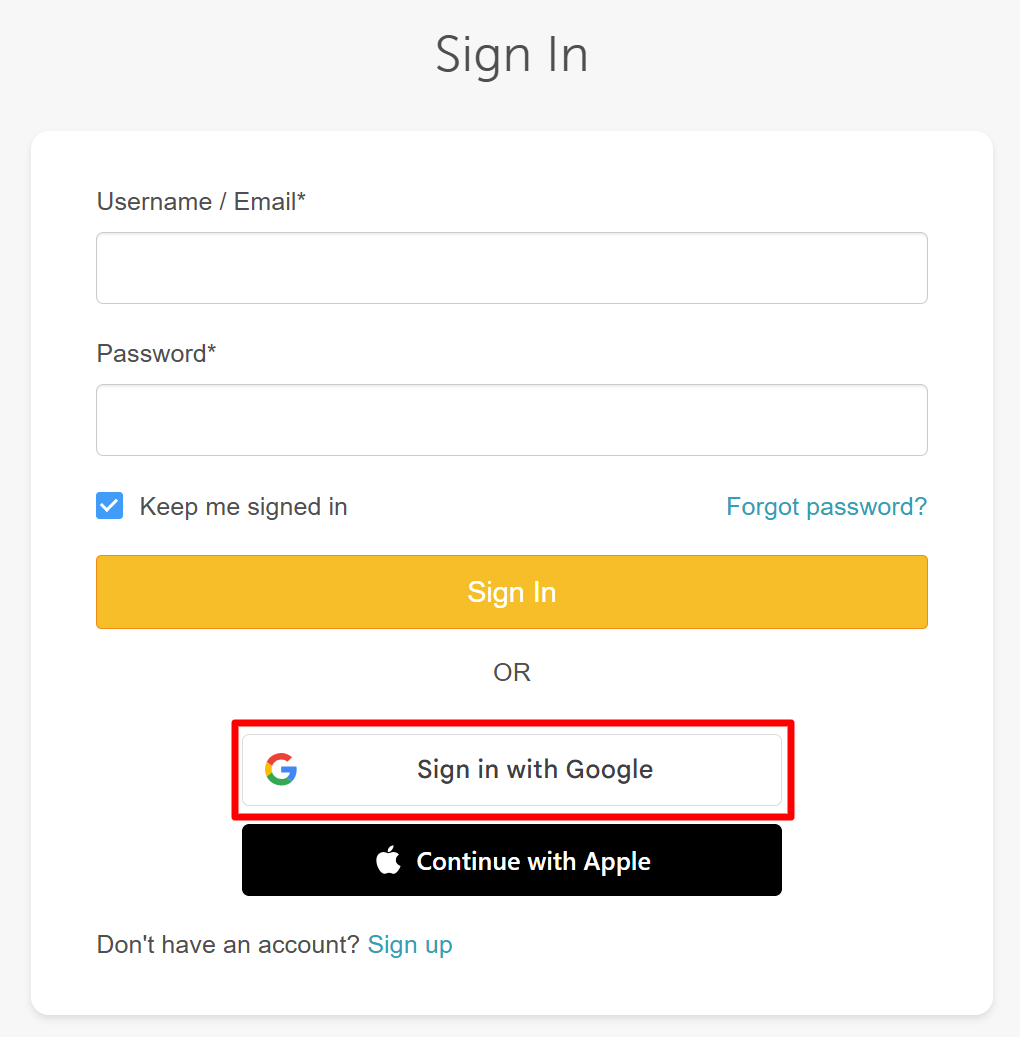
- On the sign-in screen, click "Sign in with Google"
- Multiple Google Accounts: If the staff is already signed into multiple Google accounts on their browser, they will be prompted to select the specific account they wish to use for MyTime.
- Not Signed In: If the staff is not currently signed into Google, they will be prompted to enter their Google credentials (email and password) to authenticate.
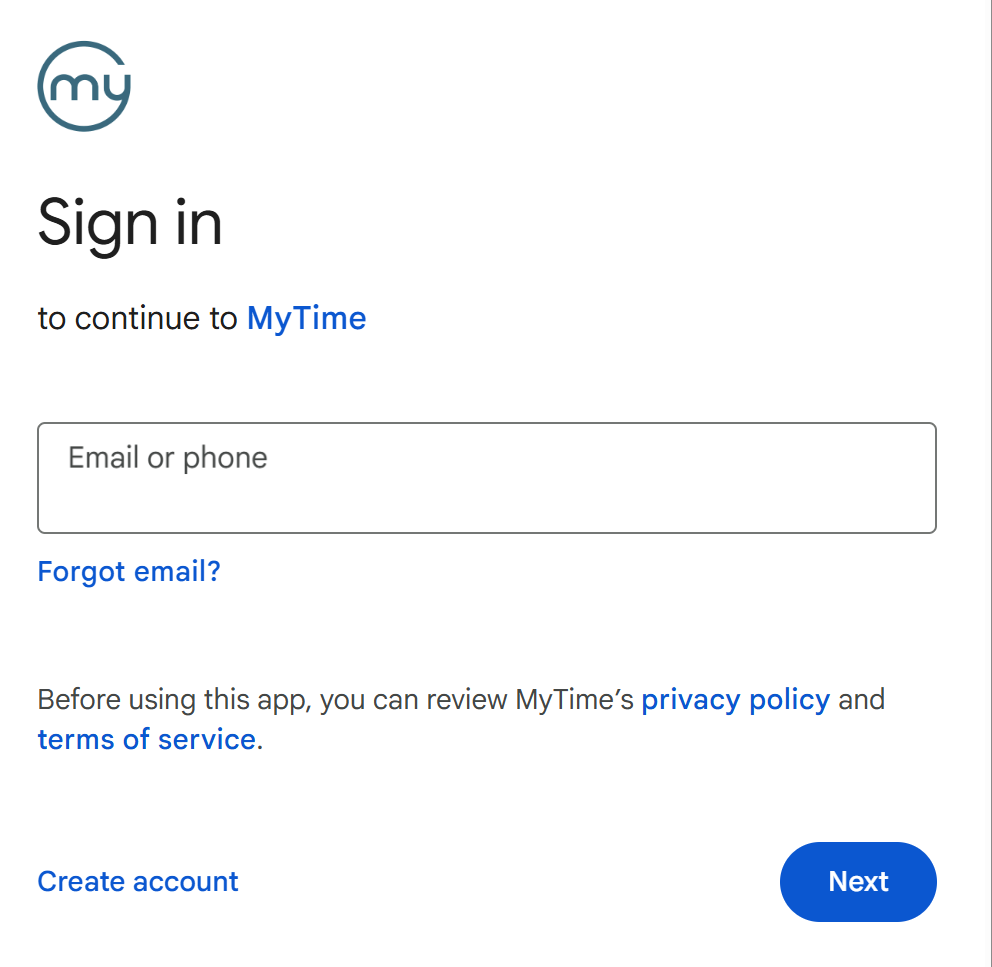
- Enter your Google email address and click 'Next'
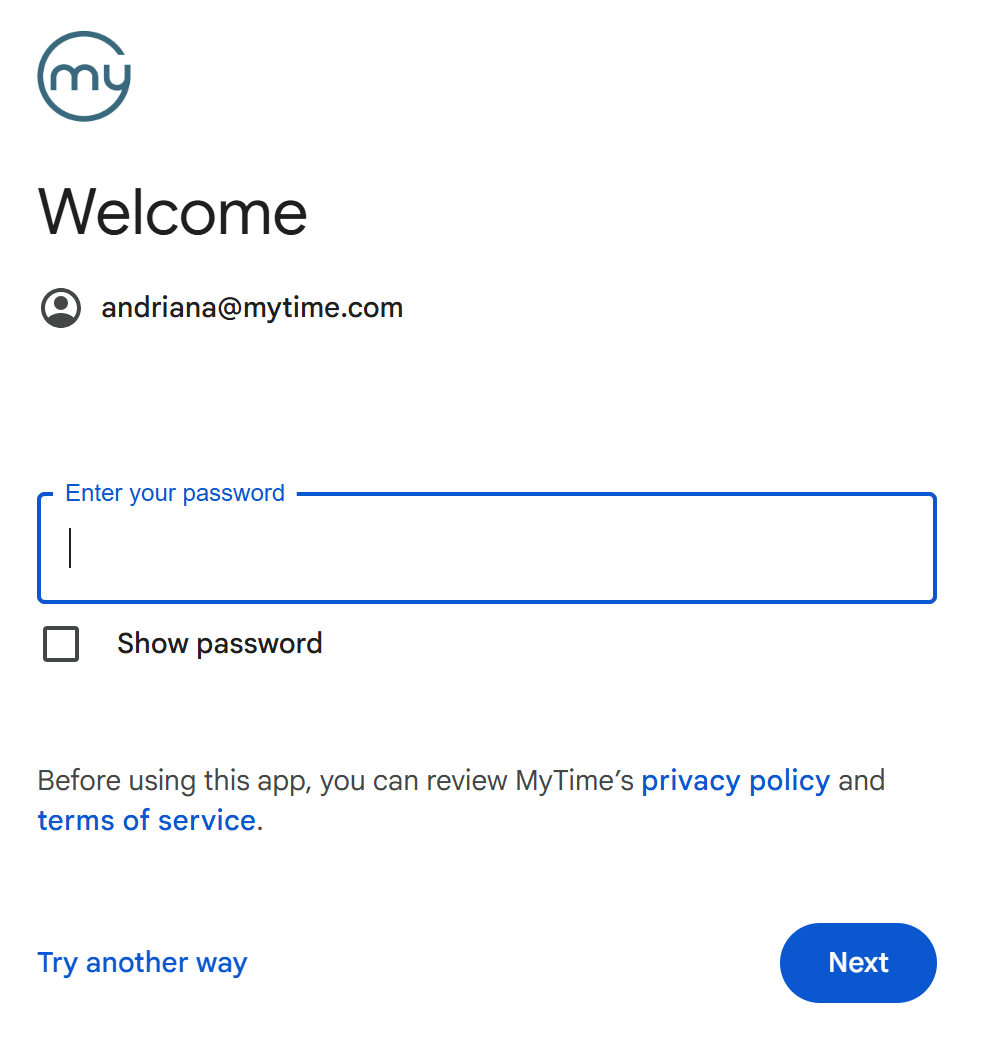
- Enter your Google password and click 'Next'
- Once the account is selected or the credentials are entered, the staff member will be instantly logged in and directed to the Dashboard
Signing In with Apple
- Navigate to www.mytime.com and click 'Sign In' at the top-right corner of the page or navigate to https://www.mytime.com/users/sign_in
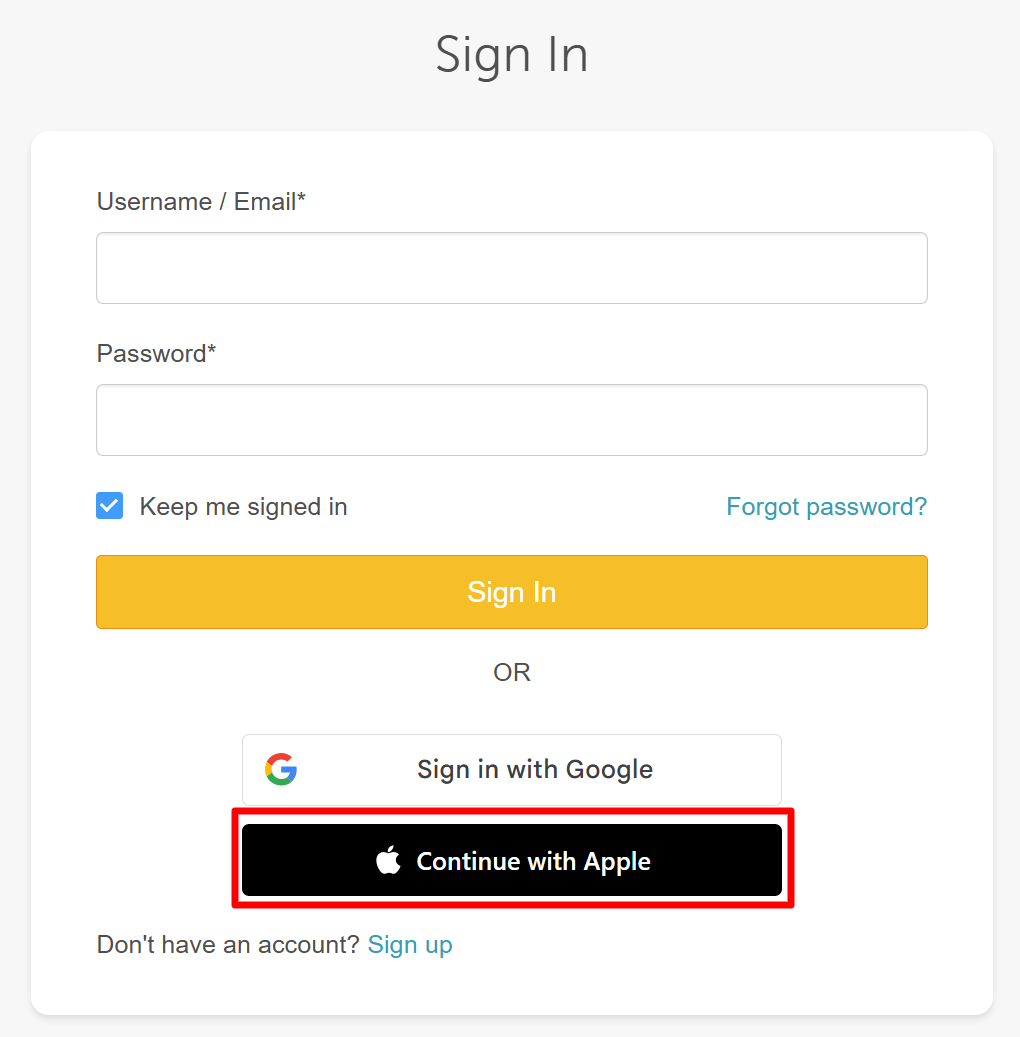
- On the sign-in screen, click "Sign in with Apple"
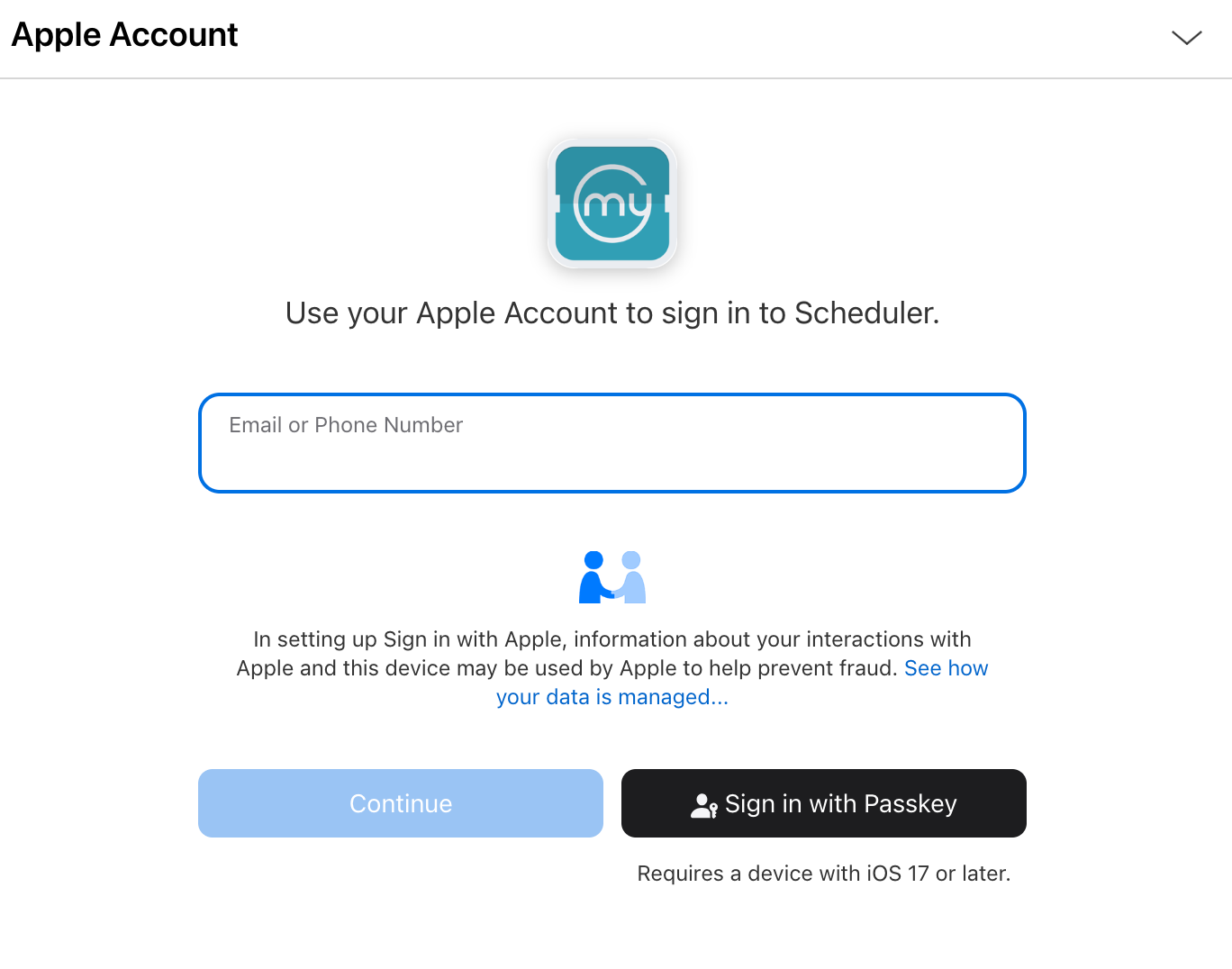
- Enter your Apple ID email address and click "Continue"
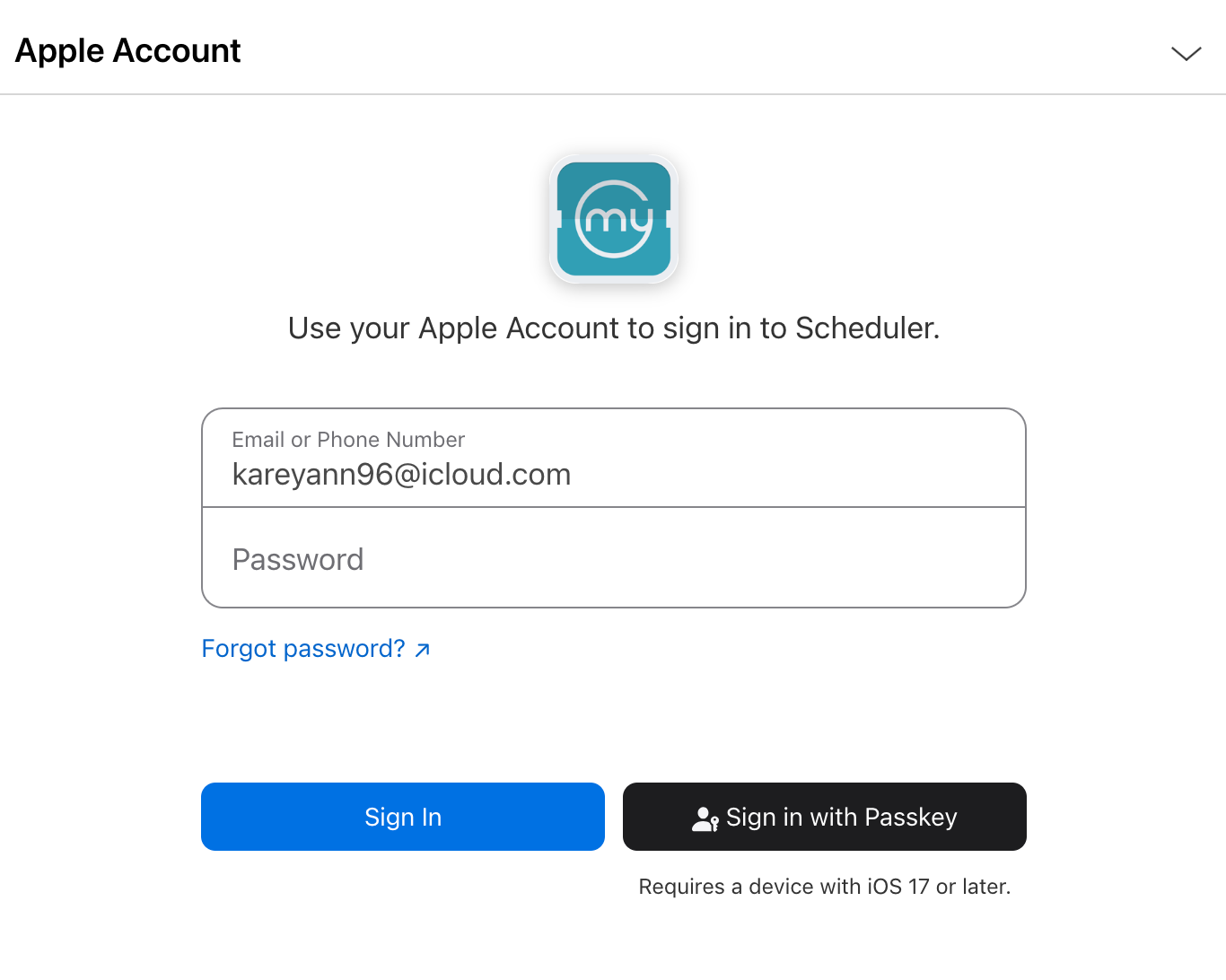
- Enter your password and click "Sign In"
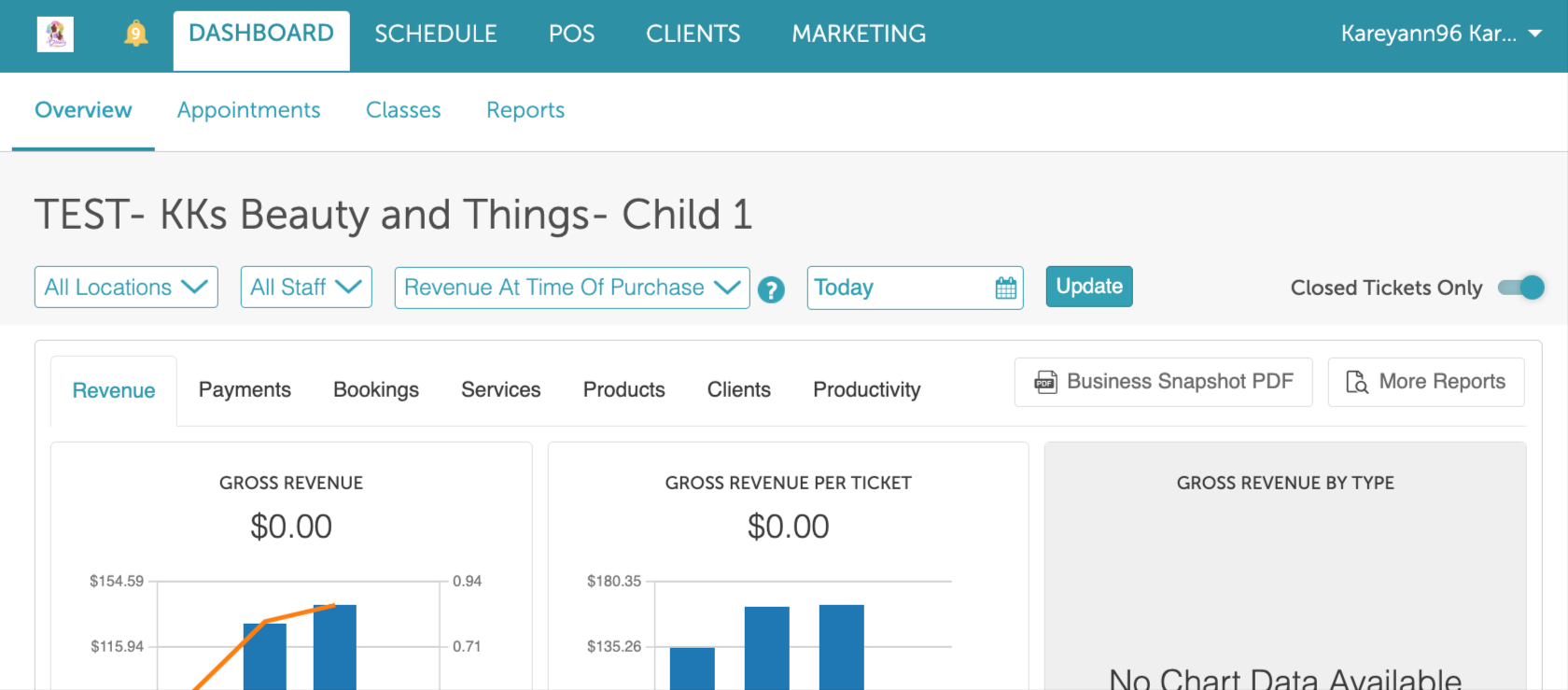
- Once authenticated, you will be directed to the dashboard by default
Frequently Asked Questions
1. Does MyTime support Google, Apple, and Facebook sign-in for staff?
Yes, staff and owners can sign in to the MyTime (web or mobile app) using their existing Google or Apple accounts. Facebook sign-in is not supported for staff or owners at this time.
2. How does social sign-in connect to an existing MyTime staff profile?
The system automatically links to the right staff profile by matching the email address on their Google or Apple account with the one on file in MyTime. If no match is found, a client account will be created instead.
3. Where do social sign-in options appear for staff using MyTime?
On the booking widget, express checkout, and the Branded Guest App. The options appear automatically with no configuration needed.
4. Do clients and staff need to use the same sign-in method every time?
No. Once a social account is connected, any sign-in method will work — they can use whichever they prefer at any given time.
5. Do franchise or multi-location businesses need to configure anything to enable MyTime social sign-in?
No setup is required at the location or corporate level; the options appear automatically.
6. Is MyTime social sign-in available for all businesses on the platform?
These options are broadly available. If you have any questions about how this applies to your business specifically, reach out to your account manager.
Related Articles:
Was this article helpful?
That’s Great!
Thank you for your feedback
Sorry! We couldn't be helpful
Thank you for your feedback
Feedback sent
We appreciate your effort and will try to fix the article