This article explains how to process payments using a bank account in POS.
Things to know:
- The ability to create tickets is controlled by the “Creating Tickets” access control setting
- This feature is available for accounts using Stripe or Global Payments as their payment gateway in the US and Australia
- Bank accounts cannot be added directly from the Take Payment page in POS; they must first be saved to the client’s profile (see related article for steps).
- Once added to the client profile, the bank account will appear in the Bank Account section of the Take Payment page and can be used as a payment method for all transactions within the MyTime POS
On the Take Payment page, a "Max" button is available next to the Other Payment field. Clicking this button automatically fills the field with the remaining balance due. Example: If a client’s total is $100 and $60 has already been paid by credit card, clicking the "Max" button will automatically enter the remaining $40 in the Other Payment field.
- Automated Membership Payment Configuration:
- When a client adds a bank account through a membership purchase flow (via POS request link or online booking widget checkout), the "Enable Membership Payments Using ACH" option on their profile is automatically enabled.
- Adding a bank account outside a membership workflow will not auto-check this box.
- If a staff member or client manually unchecks this setting, the system respects the override and will not automatically re-enable it during future updates.
- Booking Widget Defaults: For clients paying for memberships via Direct Debit, their saved bank account is automatically pre-selected during widget checkout instead of a payment card.
- Membership-Only Restrictions: When the "Enable Direct Debit Payments for Memberships Only" setting is enabled, bank payments are restricted exclusively to membership transactions:
- The bank account payment option will only appear on POS tickets that contain a membership item.
- If a single checkout ticket contains a mix of membership and non-membership items, Direct Debit remains available for the entire ticket balance.
Contents:
- Processing Payment via Bank Account in POS
- Processing Payment via Bank Account in POS for Clients Without a Saved Bank Account
- Handling Failed Bank Transfers
Processing Payment via Bank Account in POS
Once your account is configured to accept bank accounts and the client has a saved bank account on file, follow these steps:
- Navigate to POS
- On the new ticket page, add an item to the ticket or open an existing ticket
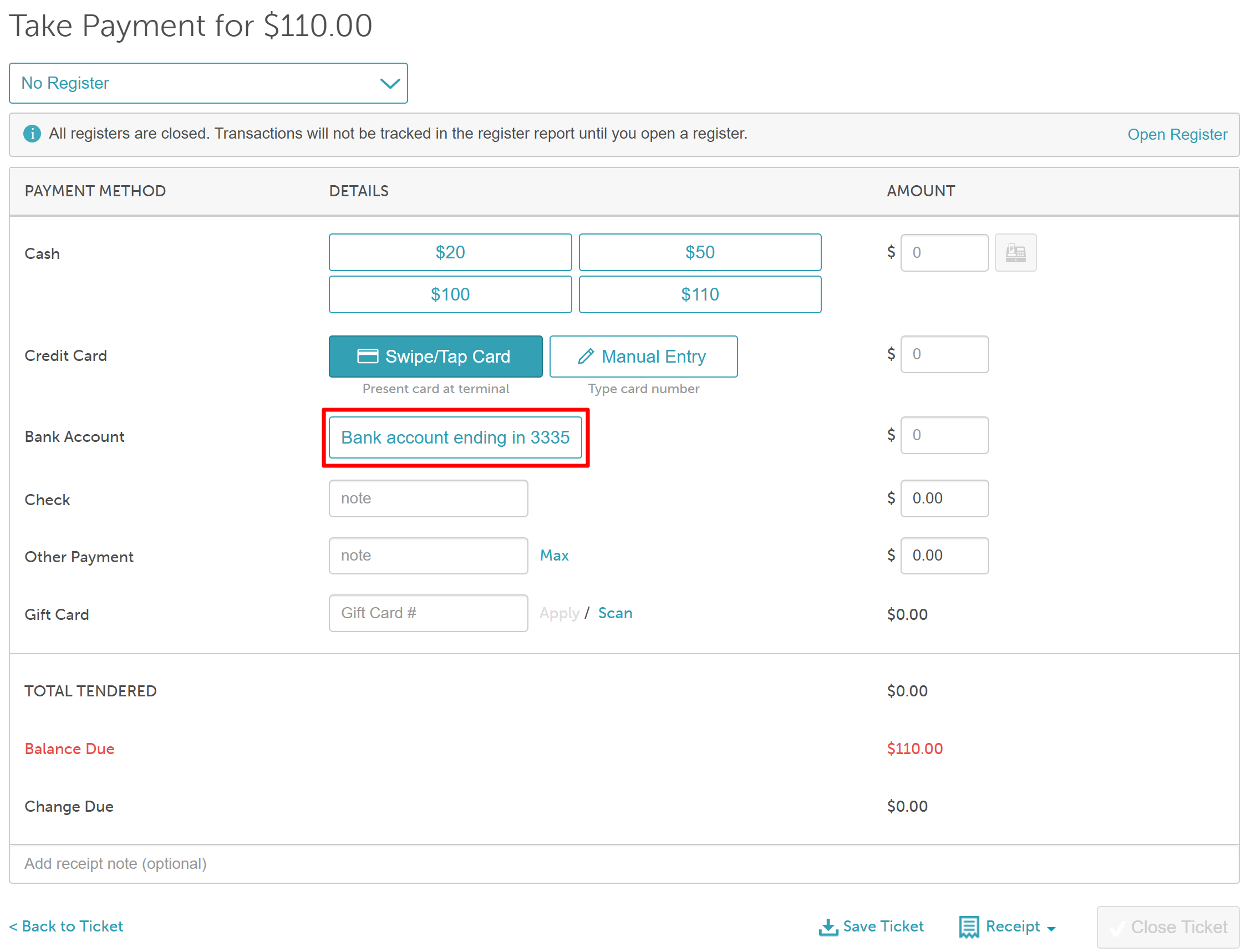
- Click 'Take Payment'
- Click the saved bank account
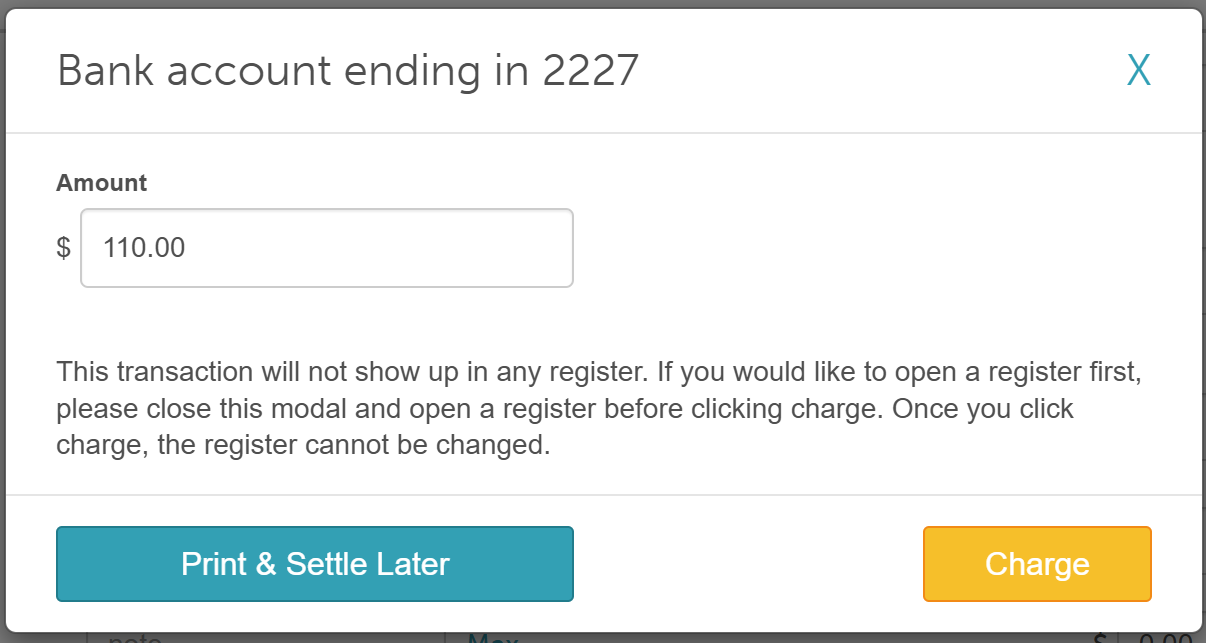
- Click 'Charge'
- The transaction will be listed at the top of the page with the 'Bank transfer initiated...' notice.
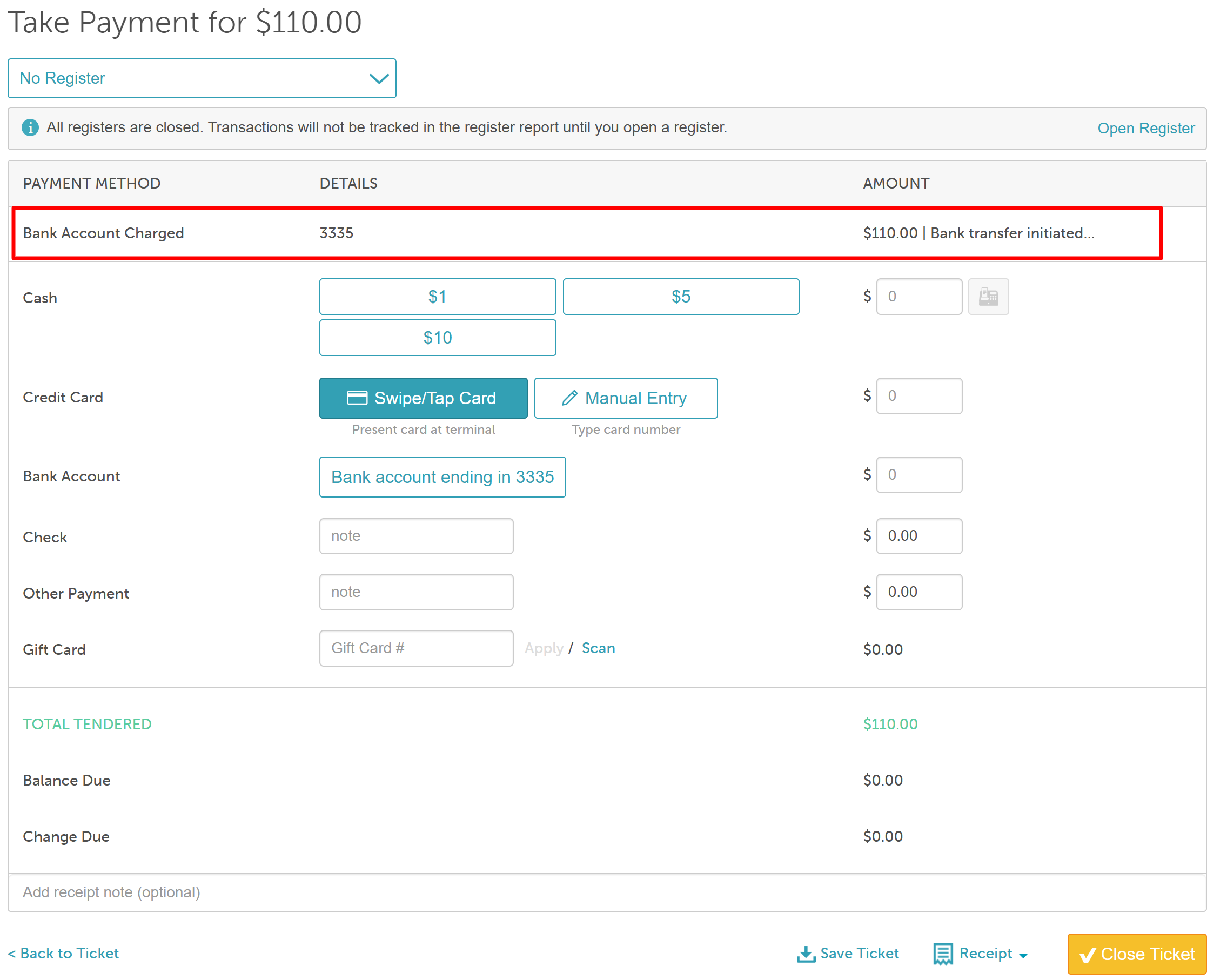
- Close the ticket
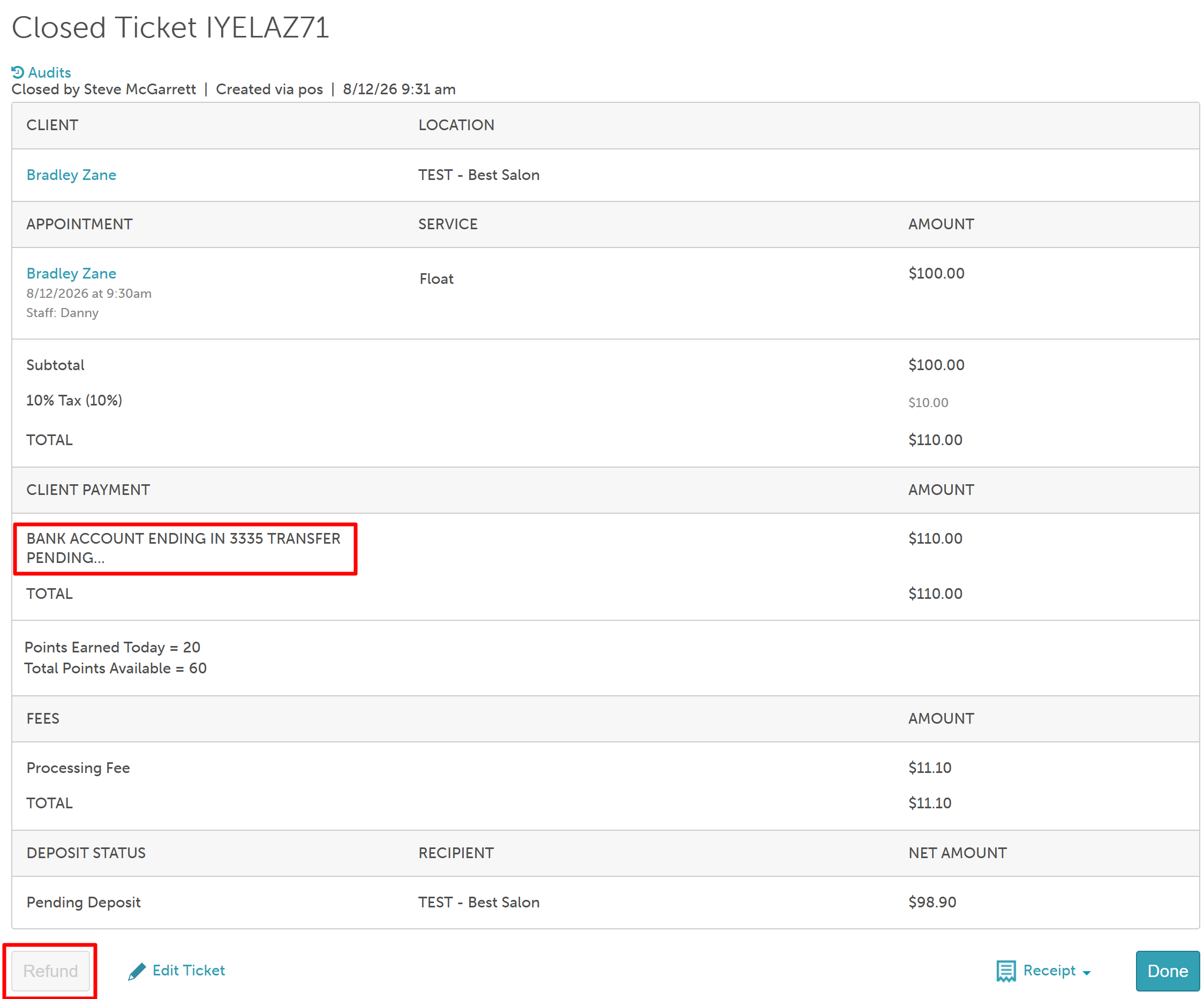
Once closed, the closed ticket will display "Bank account ending in XXXX Transfer Pending....." in the Client Payment section, and the refund button will be disabled; hovering over the refund button will display a tooltip with the reason. The bank transfer is not yet completed and will remain in the pending status until completed.
Processing Payment via Bank Account in POS for Clients Without a Saved Bank Account
- Navigate to POS
- On the new ticket page, add an item to the ticket or open an existing ticket
- Click 'Take Payment'
- In the Bank Account row, the 'Request bank account details' button will be displayed
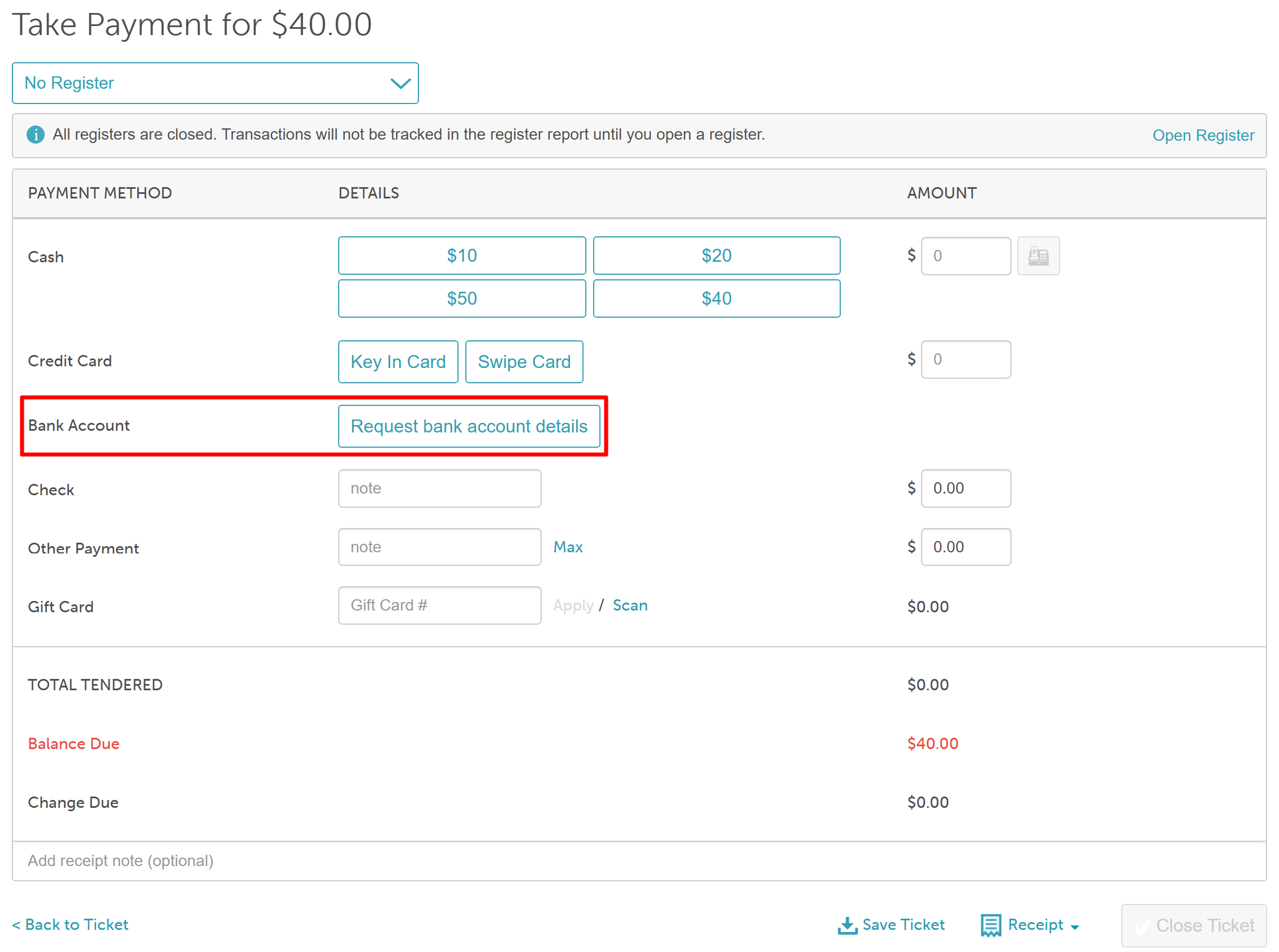
- Clicking this button will display a 'Setup Bank Account' modal that includes a dropdown to select how you would like to send the bank account request link to your client:
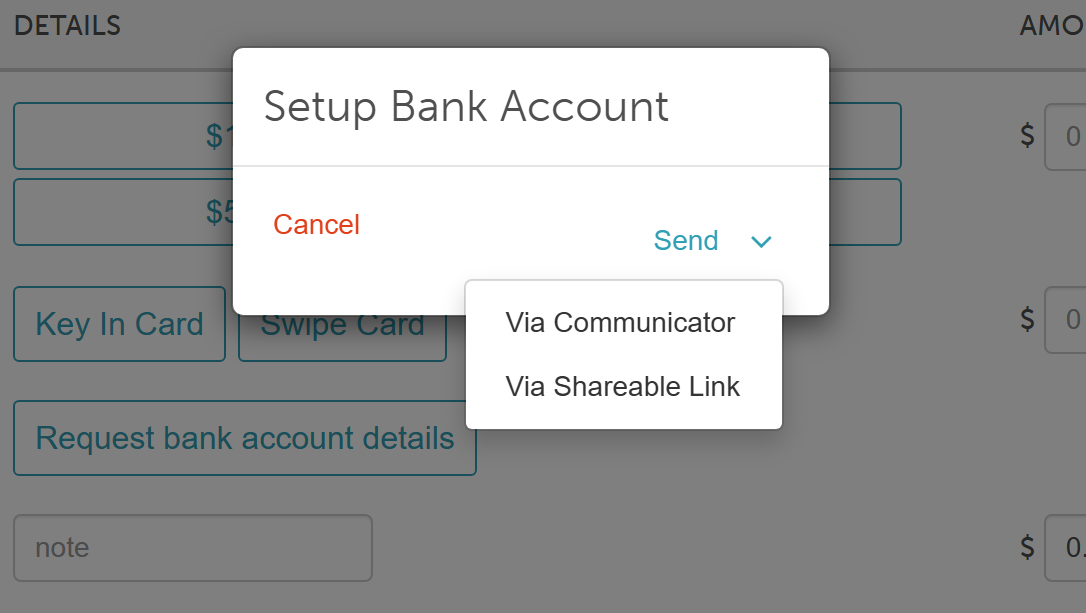
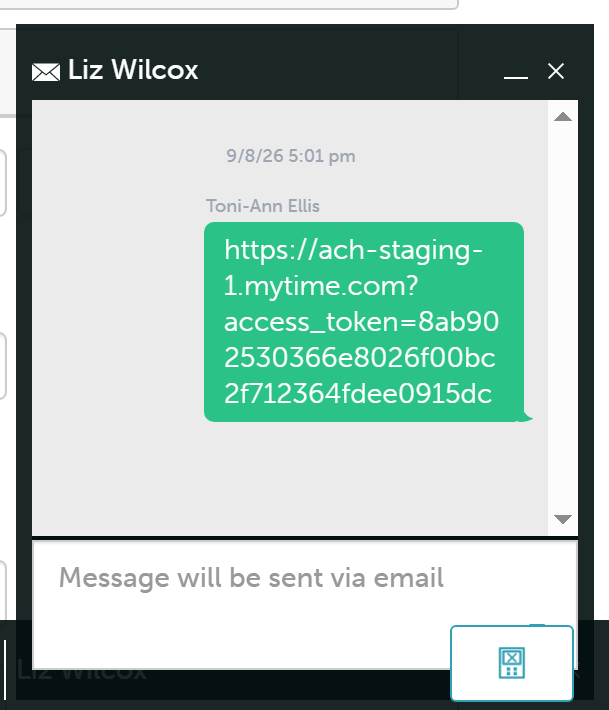
- Send via Communicator: Automatically populates the bank account payment link inside the Communicator chat window to send directly to the client.
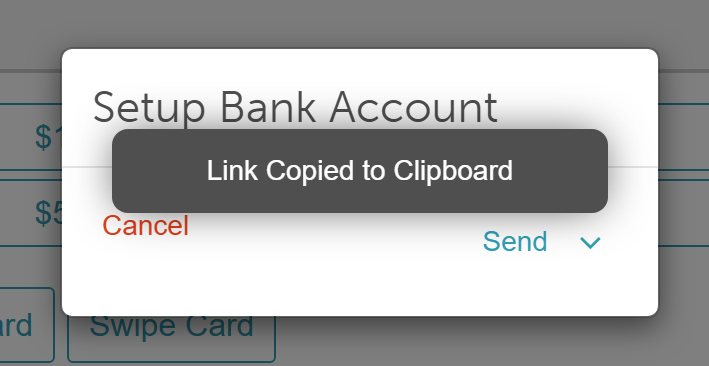
- Send via Shareable Link: Copies the payment link to your clipboard so you can manually paste and share it.
- Send via Communicator: Automatically populates the bank account payment link inside the Communicator chat window to send directly to the client.
- Once added, the bank details will appear on the take payment page
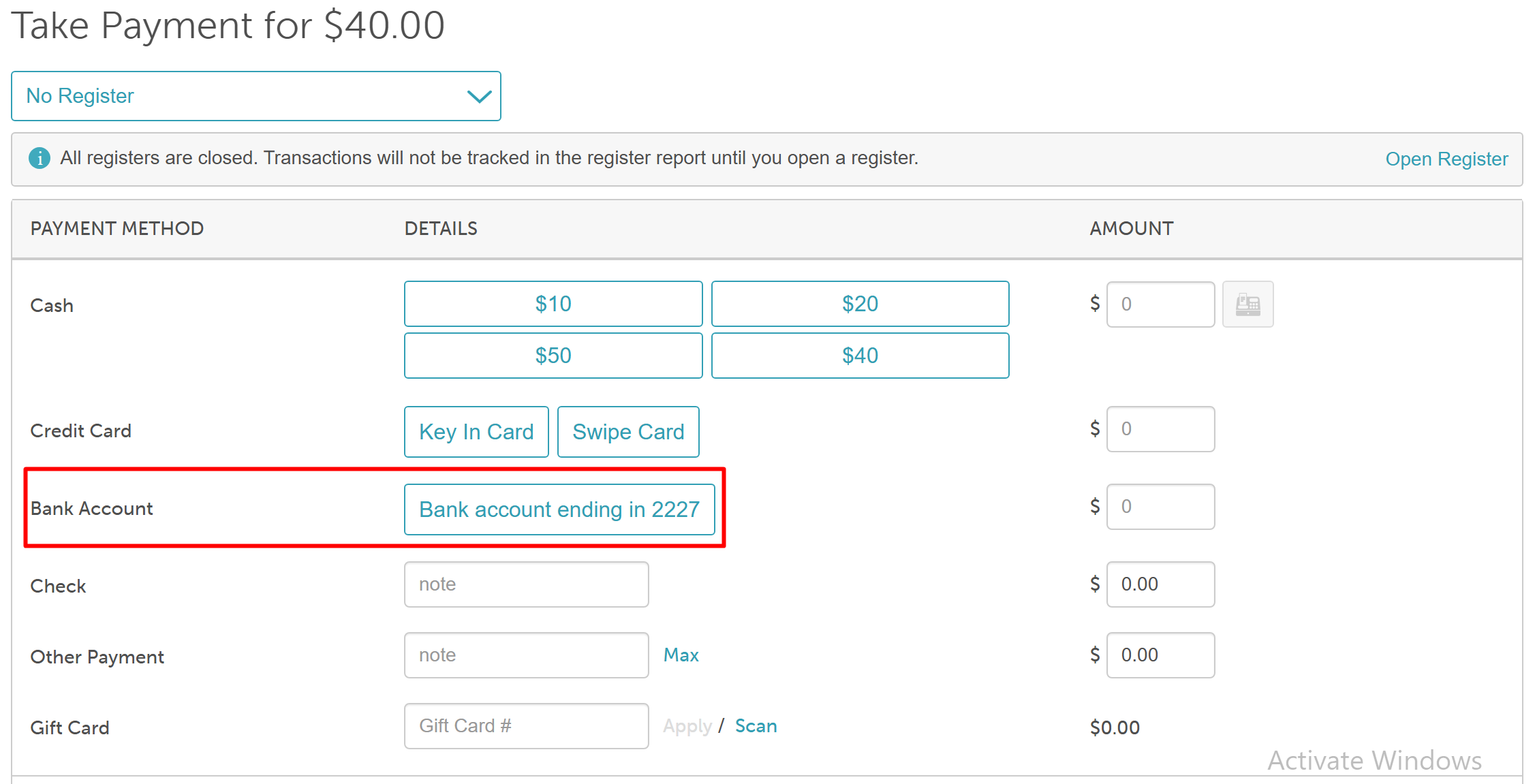
- Click the saved bank account
- Click 'Charge'
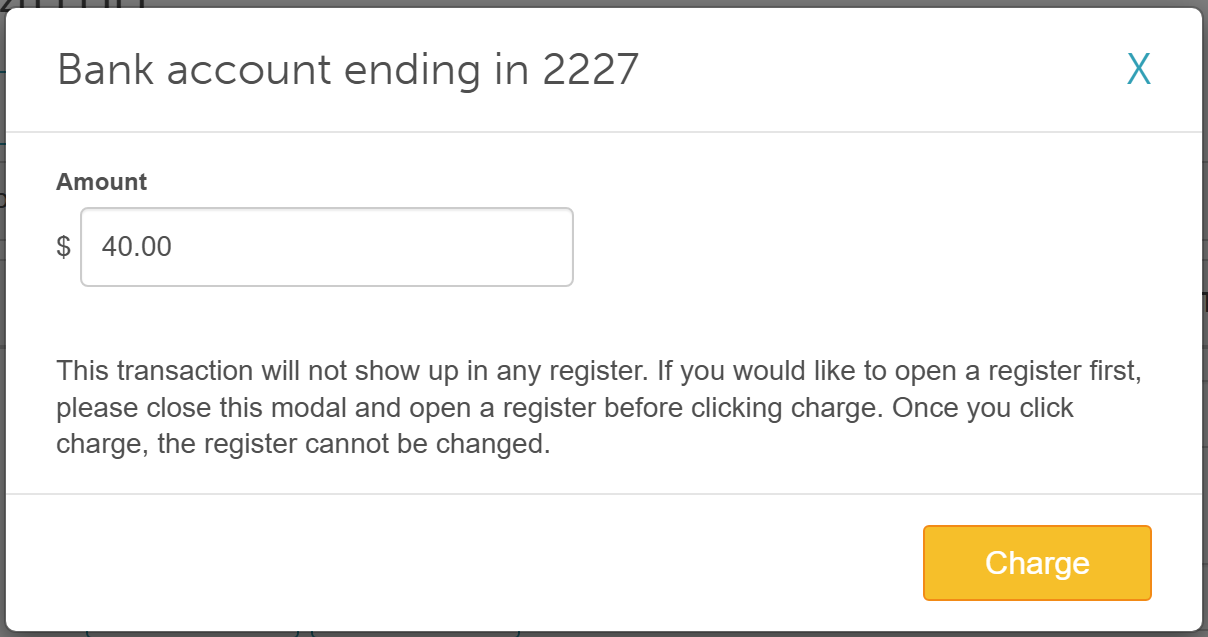
- The transaction will be listed at the top of the page with the 'Bank transfer initiated...' notice.
Handling Failed Bank Transfers
When a bank transfer fails, the system automatically takes two actions:
- Sends an email alert: An "ACH Failed Payment" notice is sent to the client and any staff members with Operational Alerts enabled.
- Reopens the POS ticket: The ticket associated with the failed payment automatically re-opens in your Point of Sale (POS) system.
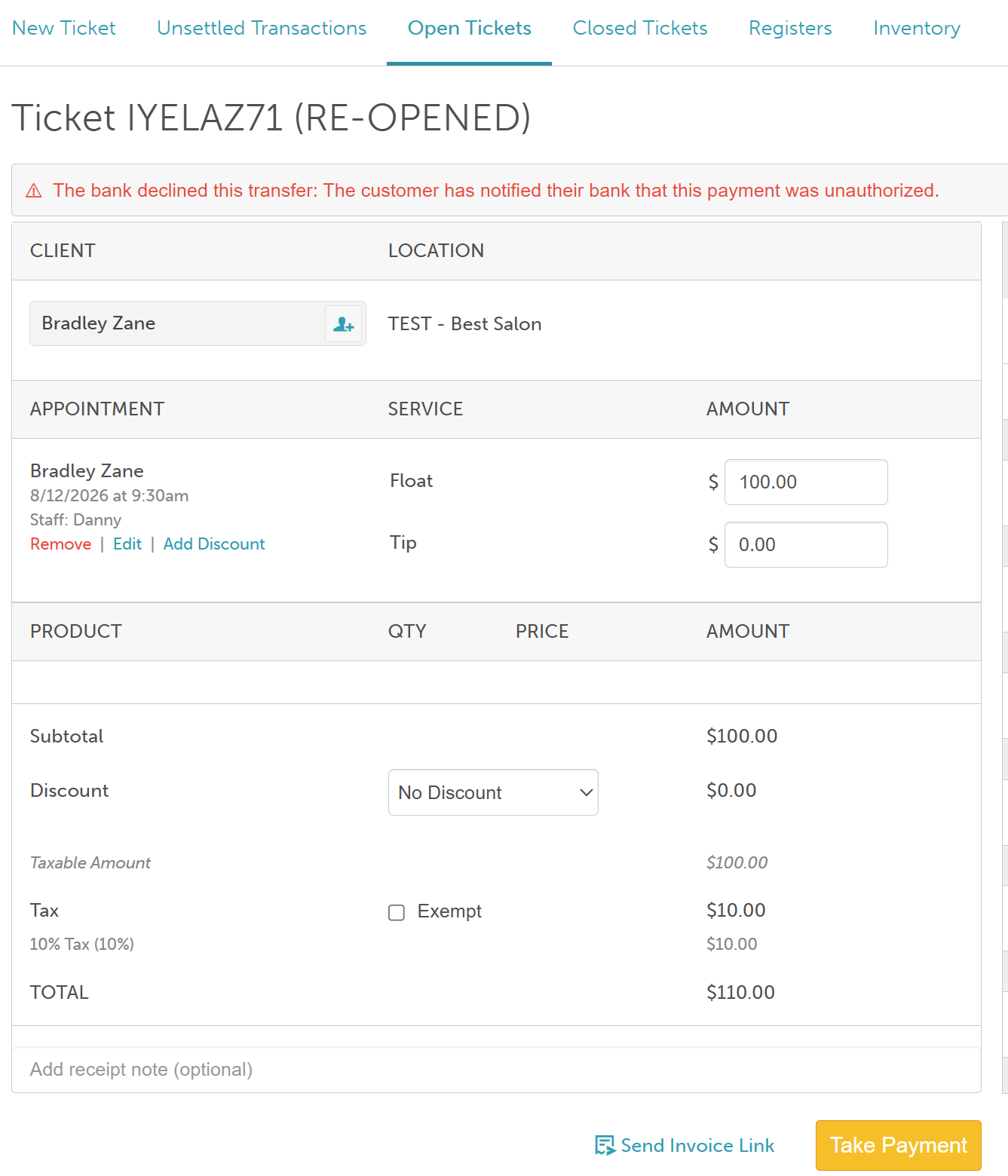
How to resolve it: Open the ticket > Click Take Payment > Process an alternative payment method (credit card, cash, or gift card).
For more information, contact us at support@mytime.com or (385) 233-6964.
Related Articles:
Was this article helpful?
That’s Great!
Thank you for your feedback
Sorry! We couldn't be helpful
Thank you for your feedback
Feedback sent
We appreciate your effort and will try to fix the article