This article provides step-by-step instructions to help you configure your account for accepting bank transfer payments for bookings and purchases, both in-store and online. These payments enable secure, electronic transfers directly between bank accounts, offering a cost-effective and efficient way to process client payments.
Things to know:
- The ability to configure your account to receive bank transfer payment is controlled by the 'Accessing Account Settings' access control permission.
- This feature is controlled by a company-level setting. When you click Request Activation, our processing team will be notified to provide your direct debit payment rates for review. Once you approve the rates, our team will officially enable the feature for your account.
- There is a fee associated with processing each bank transfer payment. These fees are generally lower than credit card processing fees. To confirm your specific rates, please email processing@mytime.com.
- This feature is available for accounts using both Stripe and Global Payments as their payment gateway in the US and Australia.
- For franchise businesses, child accounts with multiple locations can assign a separate bank account to each location for bank transfer payments.
- Bank transfers can take 3-5 business days to complete and may fail in case of insufficient funds or other reasons. MyTime will alert you and the client via email if the transfer fails and will automatically reopen the POS ticket with the failed payment.
Contents:
Enable Direct Debit Payment Setting
- Navigate to Business Setup > Settings
- Scroll to the POS section
- Locate the 'Enable Direct Debit Payments' setting and toggle it to 'Yes'
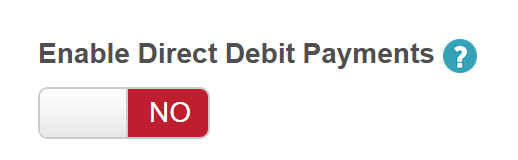
- In the Direct Debit Payment Setup modal that appears, click Request Activation.
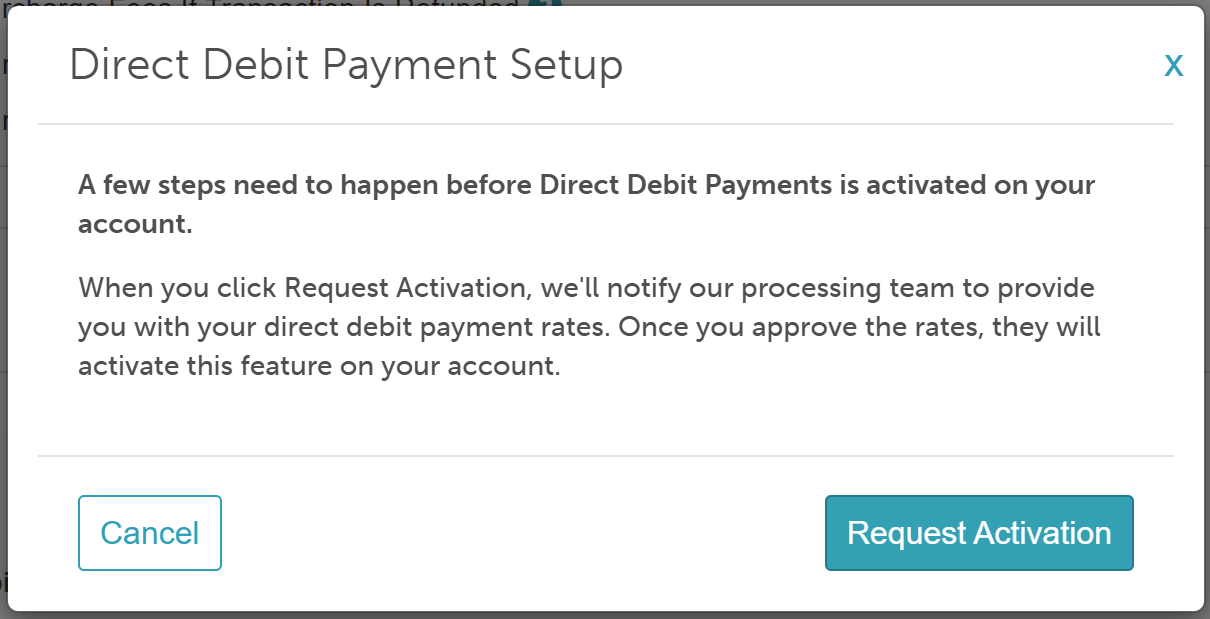
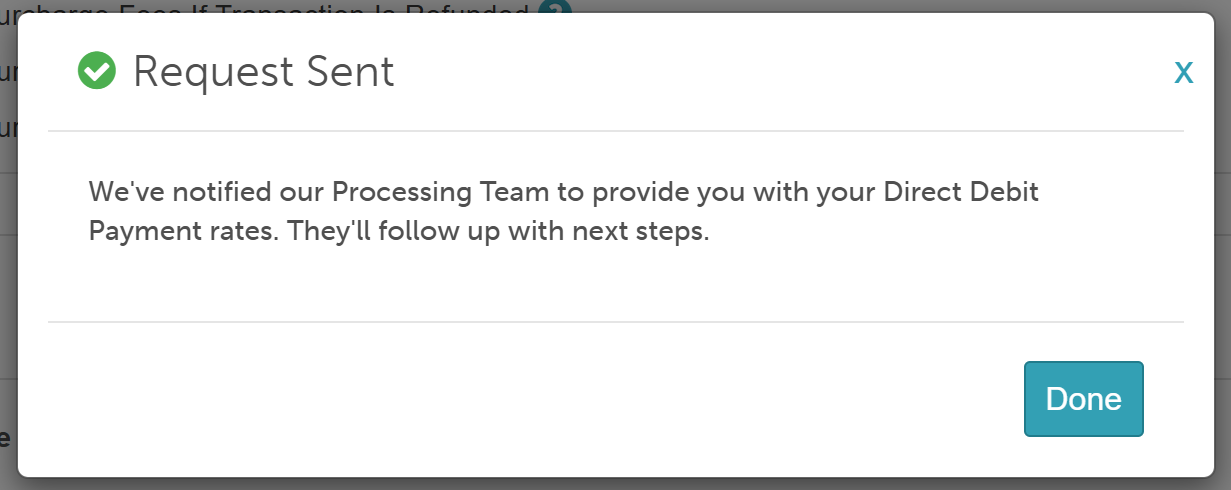
- This will notify Support and display a "Request Sent" confirmation. Click 'Done'
- The setting then displays a "Pending Approval" badge
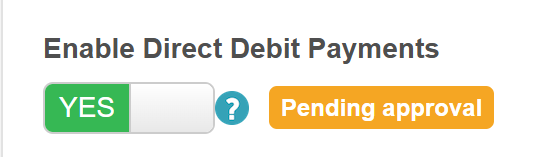
- The setting remains active in this pending stage while awaiting approval. If you need to cancel the request, toggle the setting off; a 'Disable Direct Debit Payments' modal will appear—click Disable to confirm
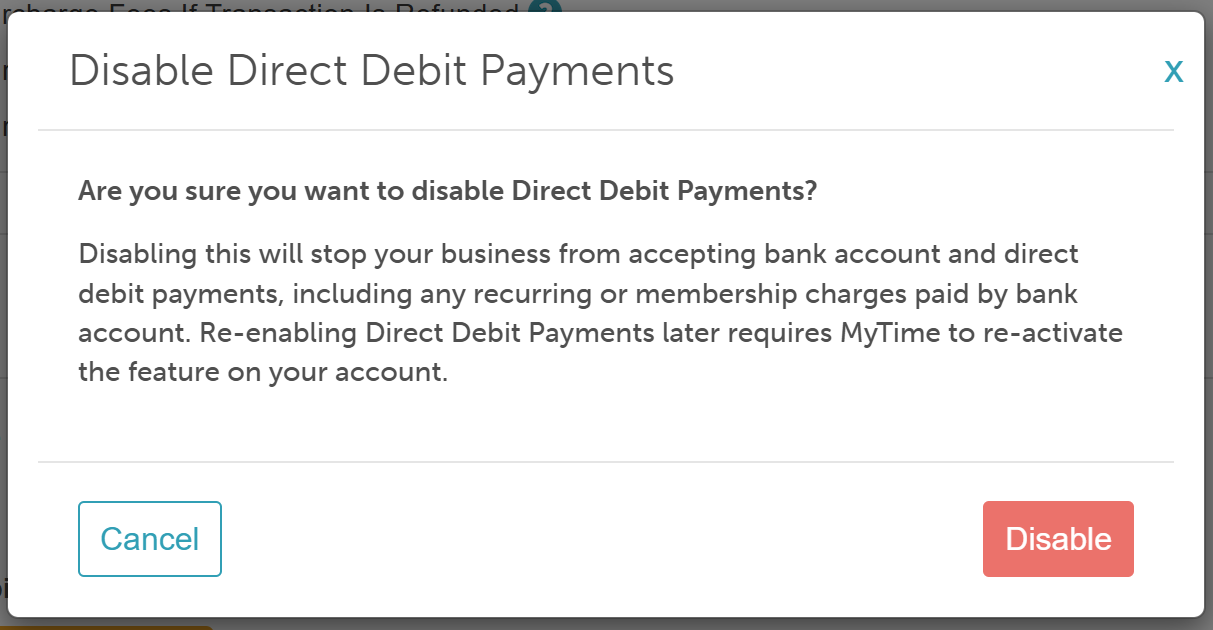
- Once your request is approved, the Pending Approval badge will be removed, enabling your account to accept payments via bank transfer
Configuring Account to Accept Payments via Bank Transfer
- Navigate to Business Setup > Payments & Deposits
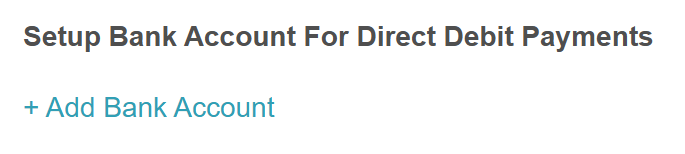
- Scroll down to the "Setup Bank Account for Direct Debit Payments" section
- Click +Add Bank Account hyperlink
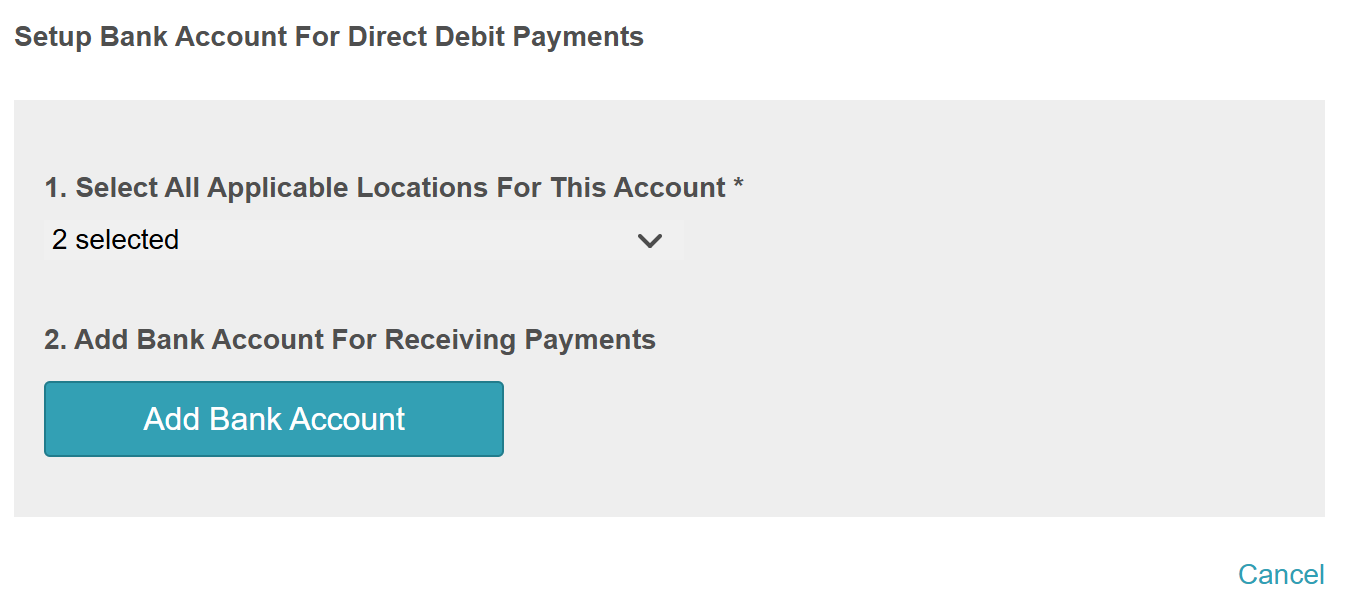
- Here, you can select the location(s) and then click 'Add Bank Account' to enter the bank account information
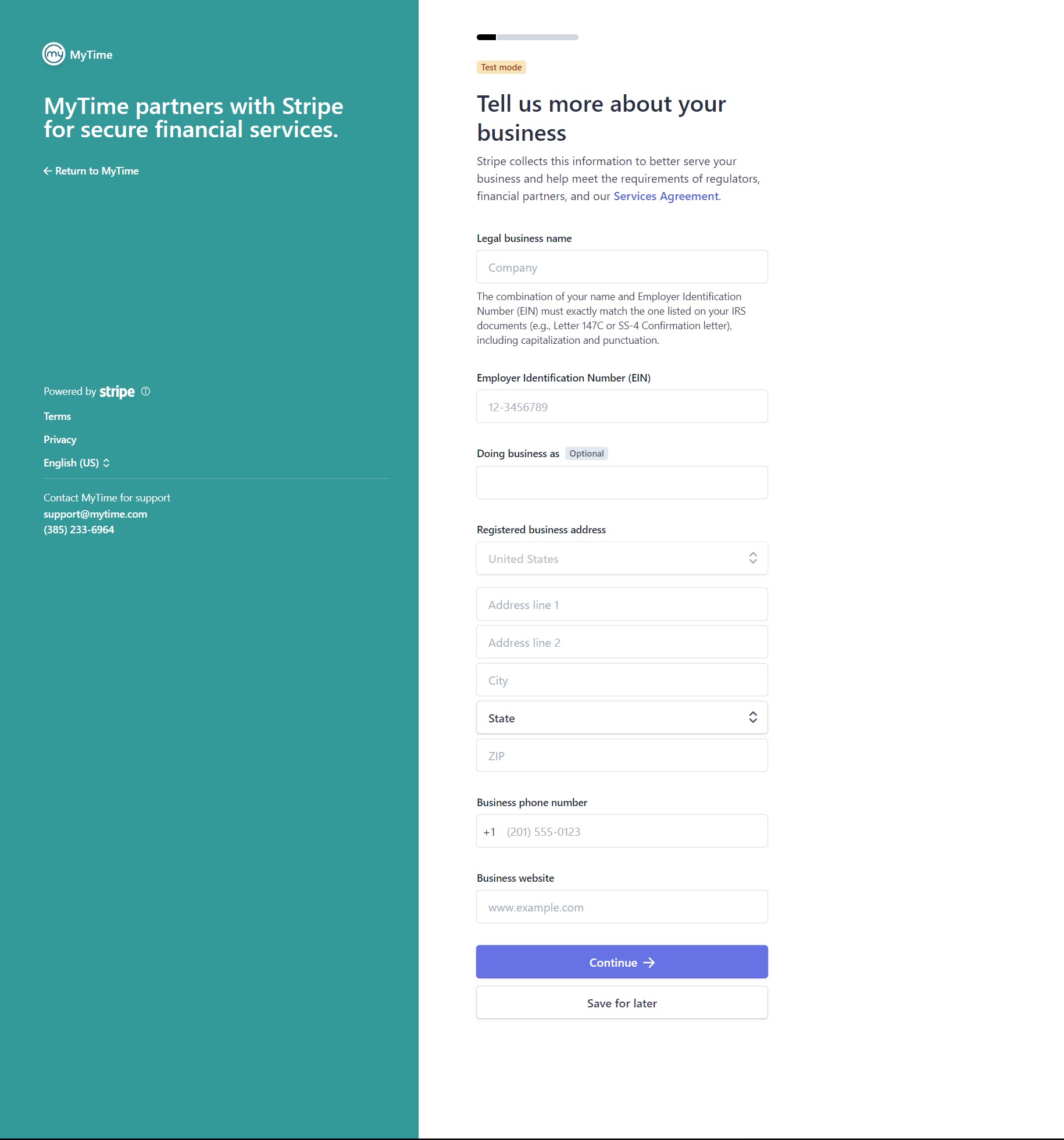
- You will then be directed to the Stripe Onboarding process
- Complete your business details
- Verify you represent your business
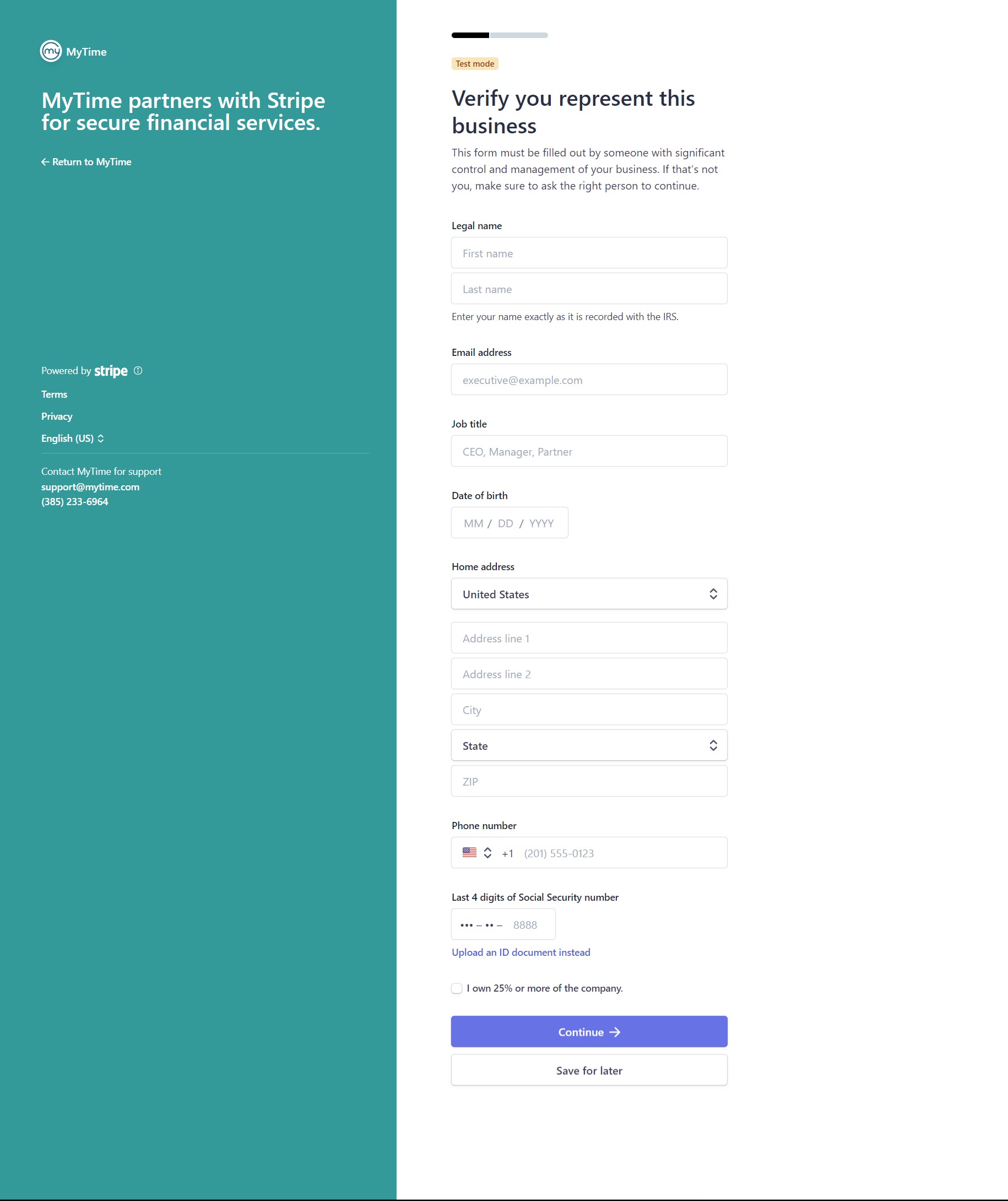
- Review the information, then click Agree and Submit
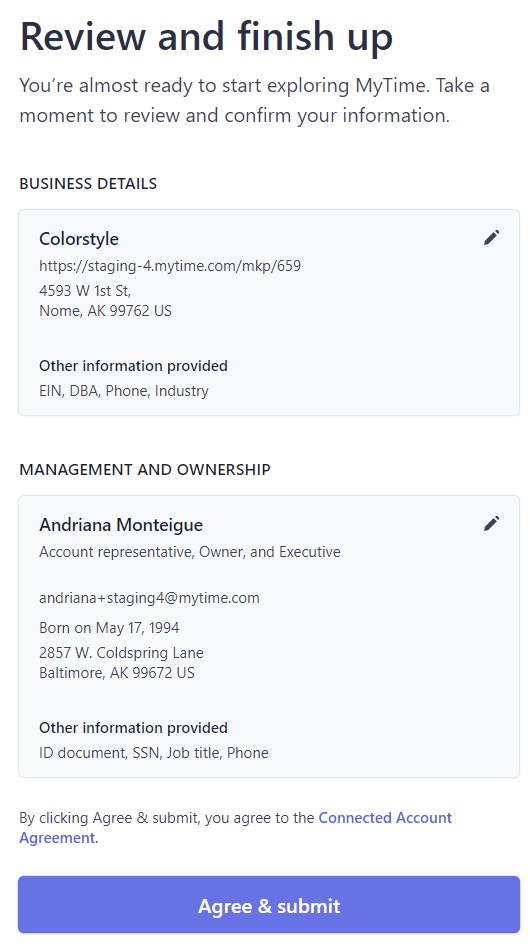
- Complete your business details
- You will be redirected back to the Payments & Deposits page in MyTime. The bank account will be displayed
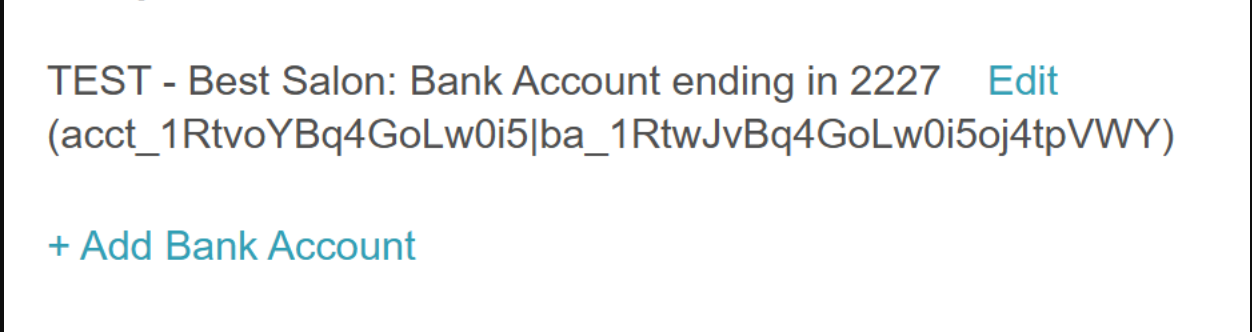
- Click Save
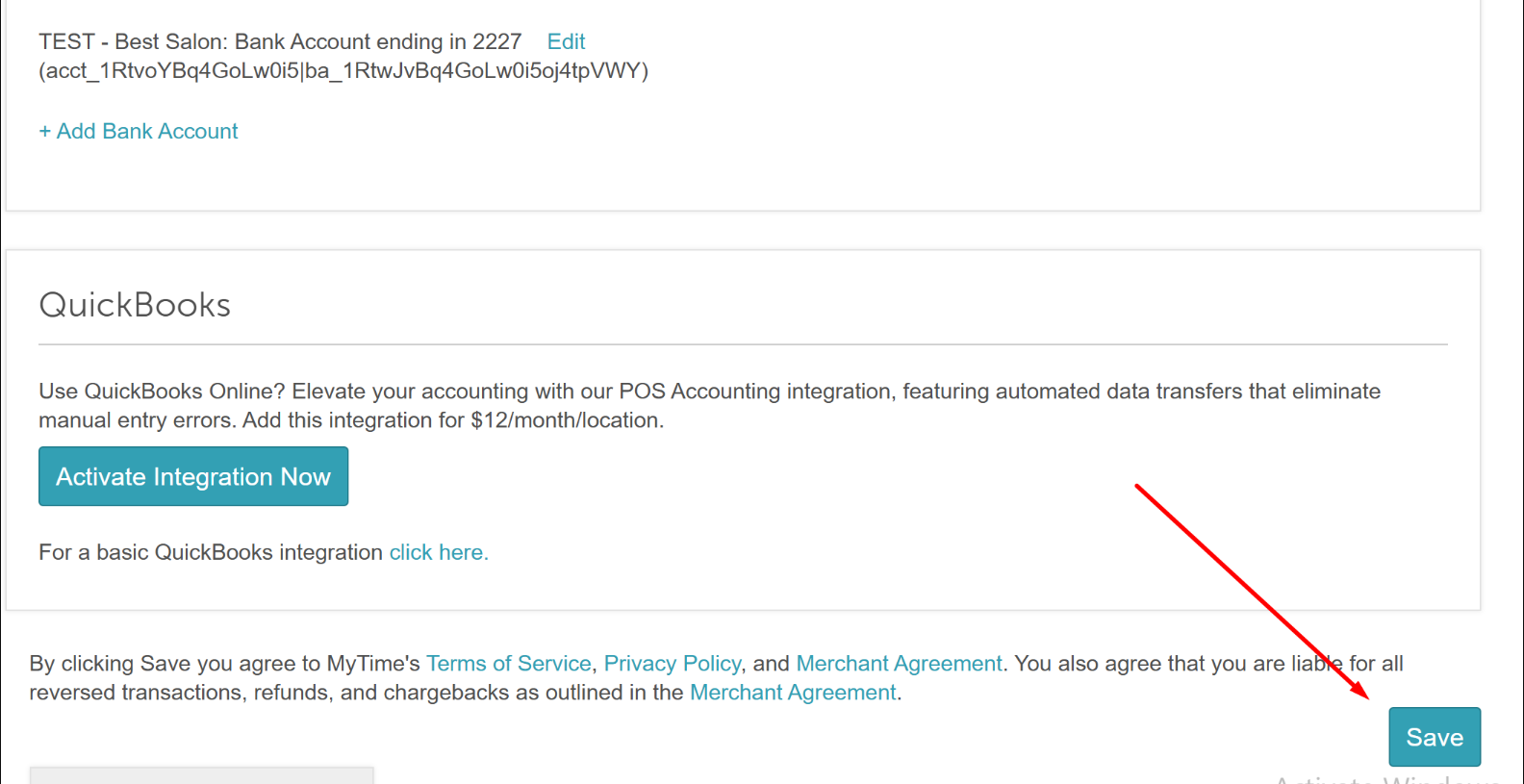
Congratulations on successfully setting up the bank account to accept payments via bank transfer. You can now accept bank account payments from your clients.
For more information, contact us at support@mytime.com or (385) 233-6964.
Related Articles:
Was this article helpful?
That’s Great!
Thank you for your feedback
Sorry! We couldn't be helpful
Thank you for your feedback
Feedback sent
We appreciate your effort and will try to fix the article