Webhooks allow your business to receive real-time updates by sending automated notifications to a specified URL whenever an event occurs in MyTime. This keeps external systems—such as CRMs, accounting tools, or custom applications—synchronized without relying on manual exports. To provide greater visibility into webhook activity and support troubleshooting, MyTime offers the Webhook Usage Dashboard. This dashboard lets you monitor webhook performance in real time, identify delivery patterns, track success and failure rates, and investigate reports of duplicate triggers
Things to know:
- Access to the Webhooks Usage Dashboard is controlled by a hidden setting that only the MyTime team can enable. To enable the hidden setting, please contact our Support Team at support@mytime.com
- Visibility can be configured at different account levels:
- Parent Level Access: Allows corporate users to monitor webhook activity for the entire organization.
- Child Level Access: If you want individual locations or franchisees to view their own webhook metrics, the setting must also be enabled specifically for each child account.
- For instructions on setting up webhooks, learn more here
- Even if the dashboard is not enabled, MyTime automatically collects these metrics and stores them for 90 days.
- The dashboard provides a visual interface for tracking the lifecycle of your webhooks.
- Usage Metrics: View high-level data on how often your webhooks are being triggered.
- Event Tracking: Monitor specific events to see exactly when and why a webhook was sent.
- Duplicate Investigation: Use the granular logs to verify if a webhook was sent multiple times or if external systems are interpreting single triggers incorrectly.
- Historical Data: Access up to three months of delivery data to identify long-term trends or recurring issues.
Contents:
Accessing the Webhook Usage Dashboard
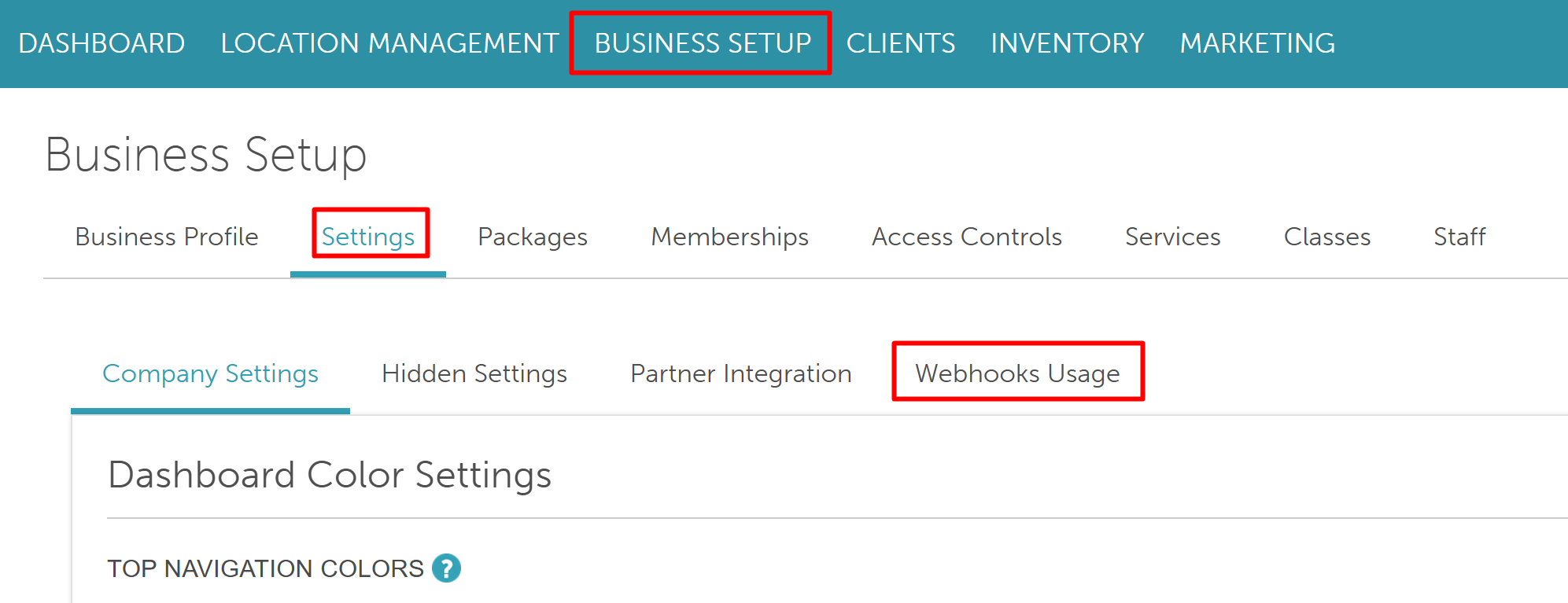
- Navigate to Business Setup > Settings
- Click the Webhook Usage tab
Dashboard Overview
Summary Metrics
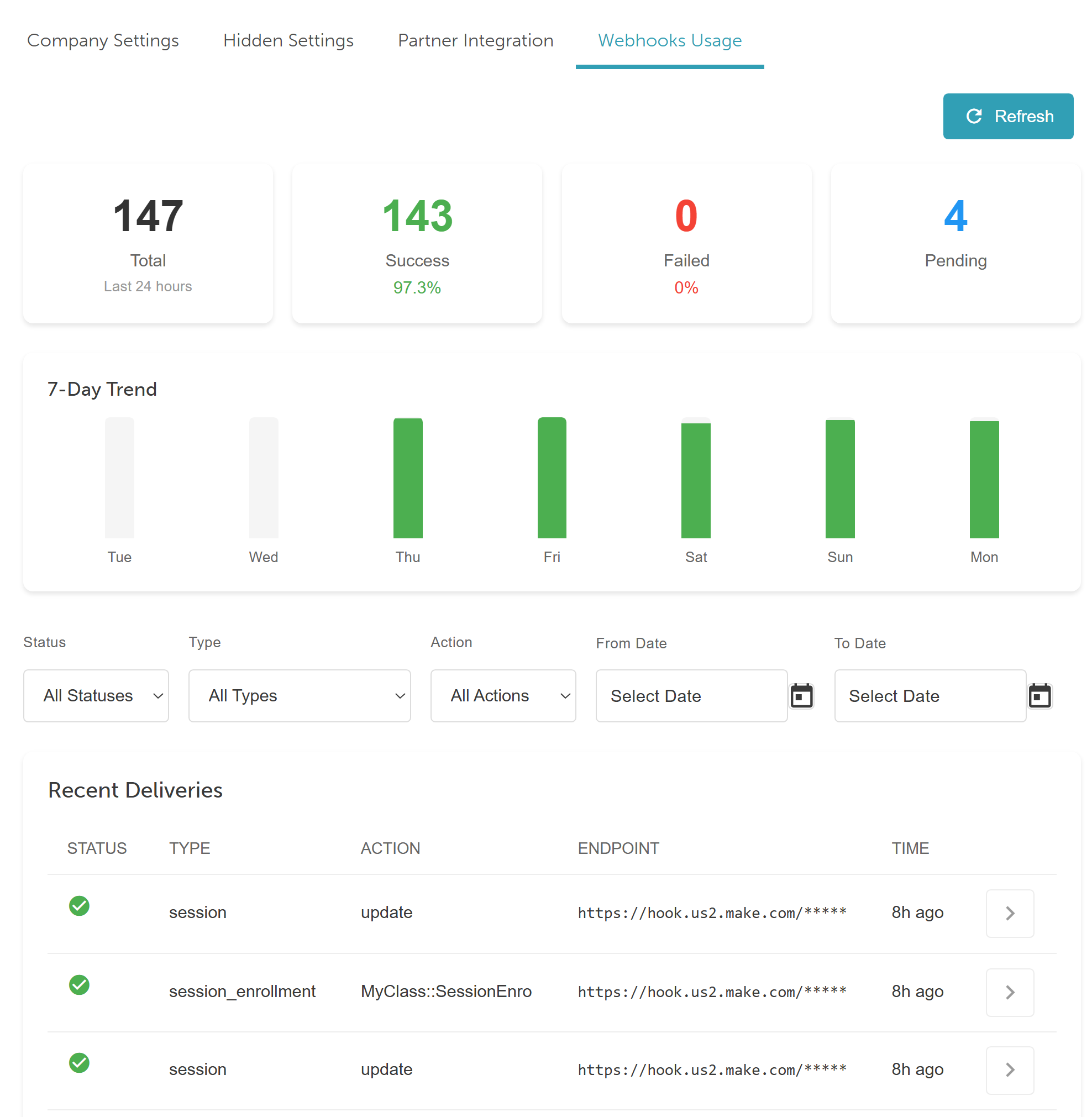
At the top of the dashboard, you’ll see:
- Total webhooks sent in the last 24 hours
- Successful webhooks, including the success rate (successful webhooks ÷ total sent × 100)
- Failed webhooks, including the failure rate (failed webhooks ÷ total sent × 100)
- Pending webhooks awaiting delivery
- A 7-day trend chart showing webhook success and failure rates over time
Recent Deliveries
The Recent Deliveries section provides detailed, event-level webhook data.
Filters
You can filter webhook results using the following options:
| Filters | Description |
| Status | The status of the webhook: Pending Success Failed Exhausted |
| Type | The type of webhook: Appointment Client Ticket Employee Location External Location Child Class Class Session Session Enrollment Client Membership Membership Template Product Category Adjustment Event |
| Action | Create Update Destroy Booked Canceled Completed Rescheduled Open Closed Reopened Reassigned Refunded Voided |
| From Date | The start date for the selected action |
| To Date | The end date for the selected action |
Results Table
Each webhook entry includes the following details:
| Column | Description | ||||||||||||||||||||
| Status |
| ||||||||||||||||||||
| Type | The webhook's event type | ||||||||||||||||||||
| Action | The action that triggered the webhook | ||||||||||||||||||||
| Endpoint | The destination URL | ||||||||||||||||||||
| Time | The timestamp at which the webhook was sent | ||||||||||||||||||||
| Expandable Arrow | Expands the row to show additional delivery details 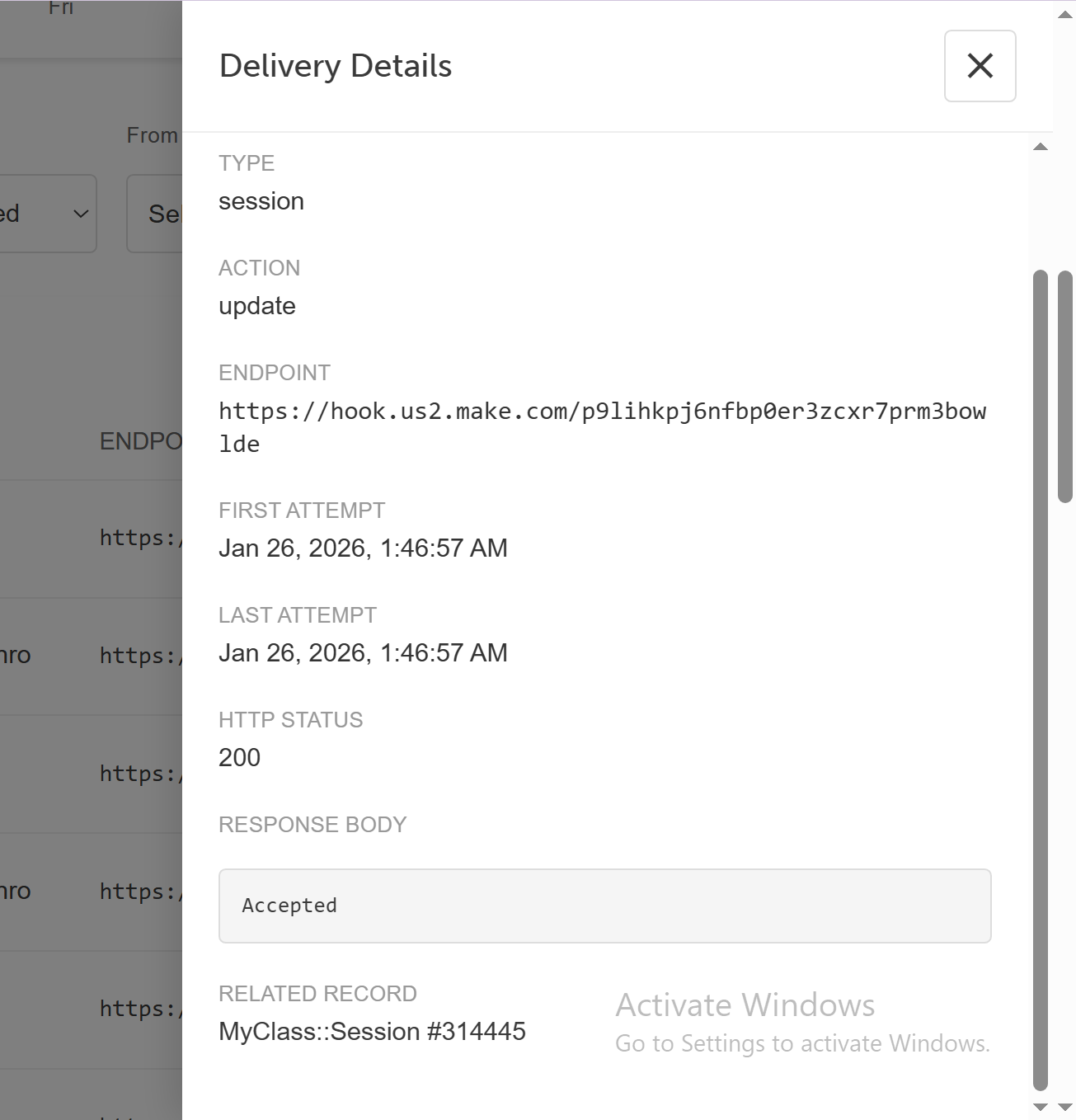 |
Related Articles:
Was this article helpful?
That’s Great!
Thank you for your feedback
Sorry! We couldn't be helpful
Thank you for your feedback
Feedback sent
We appreciate your effort and will try to fix the article