You can view a client’s loyalty points directly from their profile, making it easy to check their current balance and determine eligibility for rewards during booking or checkout. This ensures staff always have quick access to up-to-date loyalty information when assisting clients.
Things to know:
- To add the loyalty program to your MyTime plan, contact your account manager or support@mytime.com.
- Access to the loyalty activity data is governed by the "Accessing Loyalty Points" access control
- Points are accumulated based on the combined activity of all members or pets linked to the primary account.
- If the "Point Expiration" setting is enabled, you can see the exact date and time points expired. Note that this only applies to points earned after the setting was turned on. Learn more here.
To view loyalty point activity on a client profile:
- Navigate to the Clients tab and search for the desired client
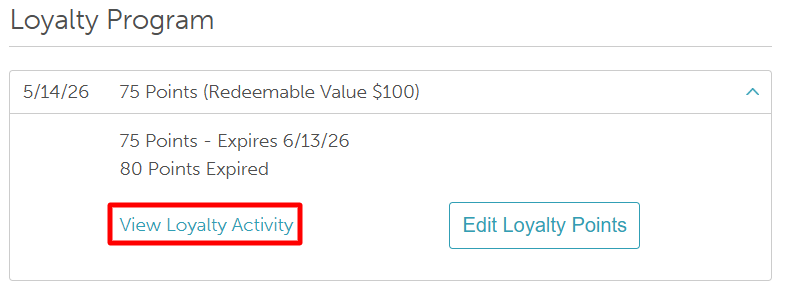
- Scroll to the Loyalty Program section and click the arrow to expand it

- Click "View Loyalty Activity" hyperlink
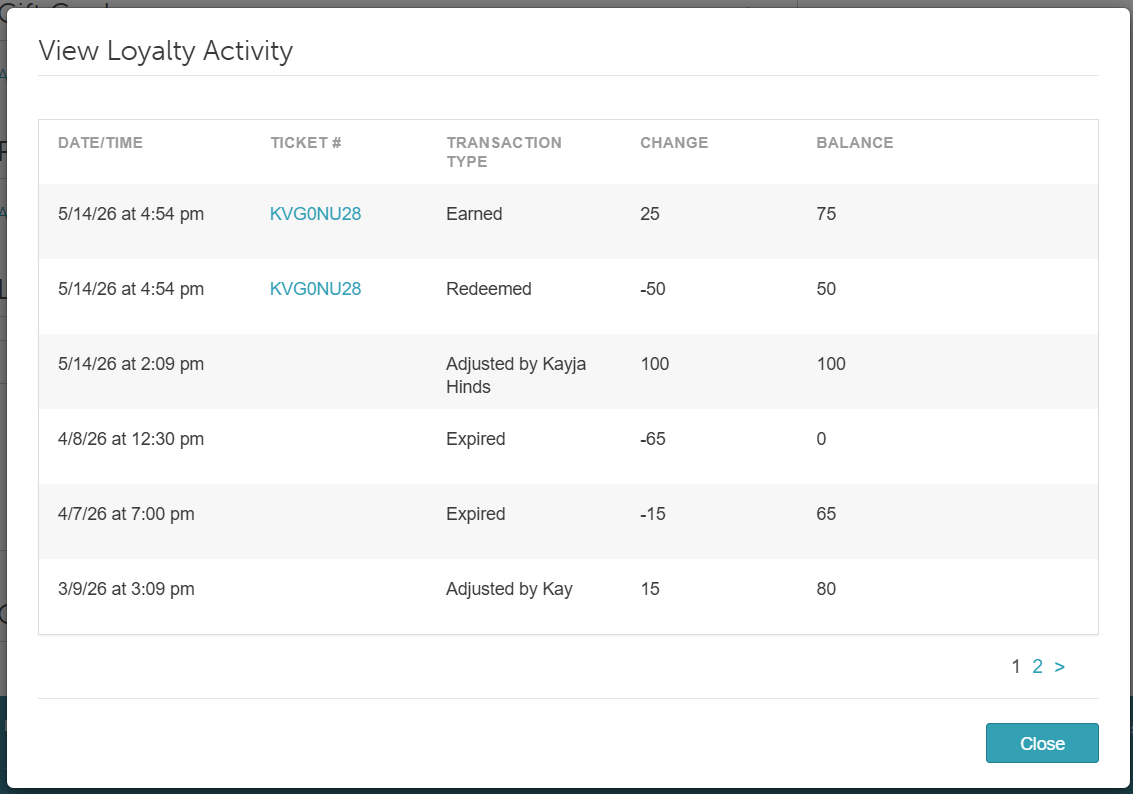
- The modal displays the following information:
- Date/Time: When the points were earned, redeemed, adjusted, or expired
- Ticket #: The POS ticket associated with the transaction (click to view the ticket)
- Transaction Type: The type of activity (e.g., earned, redeemed, expired, adjusted)
- Change: The client’s point balance before the transaction
- Balance: The updated point balance after the transaction
For more information, please contact us at support@mytime.com.
Related Articles:
- Loyalty Program Configuration
- Redeeming Loyalty Points in POS
- Viewing Loyalty Points Earned
- Editing Loyalty Points on Client Profiles
- Viewing Loyalty Points Audit Trail
- Loyalty Program on My Account
- Redeeming Loyalty Points Online
- Loyalty Activity Report
Was this article helpful?
That’s Great!
Thank you for your feedback
Sorry! We couldn't be helpful
Thank you for your feedback
Feedback sent
We appreciate your effort and will try to fix the article