Once your widget is configured to include gift cards, your clients will be able to go to your booking page using the booking URL or book button on your website to purchase a gift card. Depending on how you configured the widget, your gift cards can be a stand-alone item.
Things to know:
- To enable online purchases for gift cards, the following steps must be completed:
- A payment account must be set up to process card payments. If you do not have a payment account, please email processing@mytime.com for help.
- Your account must be live.
- Online booking must be enabled. Learn more here
- The "Enable Gift Card Purchase" company setting must be enabled
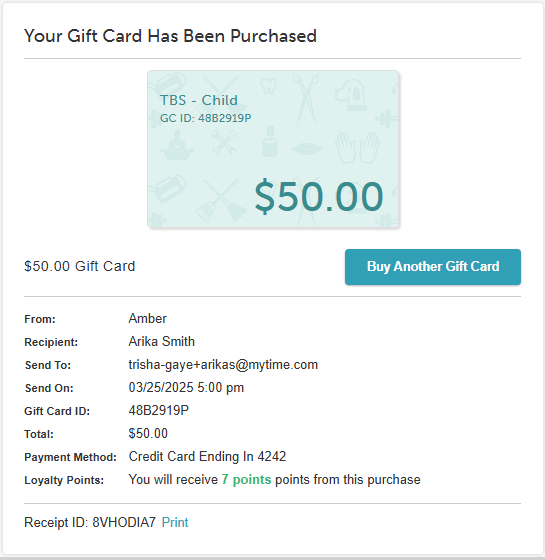
- When a gift card is bought online, an email is sent to the recipient, the purchaser, and the email address associated with the location where the purchase was made.
- If no email address is provided in Business Setup > Business Profile, the email is sent to the location owner’s email address instead.
- Clients can schedule the delivery for a future date or choose to buy a gift card for themselves.
- For scheduled deliveries, the purchaser and the business receive a notification at the time of purchase, while the recipient is notified only on the scheduled delivery date.
- If the recipient does not already have a client profile with the business, the system automatically creates one and assigns the gift card to it, while also displaying it on the purchaser’s account through the widget.
- When matching to an existing profile, the system checks in the following order:
- First Name + Last Name + Email
- First Name + Email
- Email only
- During checkout, clients can choose whether to save their credit card with the business by checking or unchecking the authorization box below the credit card form.
- If a client is not signed in when completing the purchase, they will be prompted to log in or click 'Sign Up' to create an account.
- If the “Default Commissionable Employee for Product and Prepaid Sales” company setting is configured as either “Logged in user” or “In-House Sale,” any gift card purchased online will display “In-House Sale” in the “Sold By” field on the ticket.
- How Privacy Protection Works
- Automatic Opt-Out (GPC): If a client uses a privacy-focused browser (such as Brave or DuckDuckGo) or has Global Privacy Control (GPC) turned on (e.g., in Firefox), MyTime automatically detects the signal and opts them out immediately upon page load.
- One-Click Manual Opt-Out: Visitors can opt out at any time by selecting "Do Not Sell or Share My Personal Information" in the footer of any booking step or express checkout. Once clicked, the text immediately updates to confirm: "Opt-Out Request Honored."
- Remembered Across Browsers & Devices:
- Browser Storage: The opt-out choice is saved locally on the visitor's device/browser for one year across all booking widgets.
- Cross-Device Syncing: When a client signs into their consumer account, their opt-out status syncs and applies across any device where they log in. (Note: This applies to consumer accounts only; it does not sync for staff or business logins).
- Marketing Trackers Blocked vs. Analytics Retained:
- Blocked: Third-party advertising and marketing trackers—including the Meta/Facebook Pixel (fbevents.js), Google Tag Manager (gtm.js), and Google ad conversion tracking—are completely blocked from loading.
- Retained: Essential performance reporting through standard Google Analytics continues to operate normally, and required functional scripts (such as Facebook Social Login) remain available so clients can still sign in.
- Full Operational Continuity: Appointments, express checkouts, purchases, payment processing, and transactional notifications function seamlessly without disruption.
- Global Privacy Control: MyTime automatically honors consumer privacy preferences across booking widgets, express checkouts, and client-facing pages to comply with privacy regulations without interrupting your operations. Learn more here.
- Clients can browse and buy gift cards online using assistive technology, including screen readers (such as VoiceOver and NVDA) and keyboard-only navigation:
- Browse Items: Navigate by headings to explore available packages and memberships. Focus on any Buy button to hear the item's full name, cost, and payment frequency.
- Configure Your Order: Adjust quantities, select recipients, or choose scheduled delivery dates using standard keyboard controls.
- Apply Promotions: Enter a promo code or gift card number in the discount field and select Apply to receive instant confirmation of your updated balance.
- Complete Checkout: Review your payment information and submit your order. If any required information is missing, focus automatically lands on the first field requiring correction.
- Mobile Purchase Summary: On mobile screens, expand the Purchase Summary toggle at any time to review your order details before paying.
To purchase a gift card online, your clients will have to:
- Navigate to your booking widget
- Select the desired location (applicable for accounts with multiple locations)
- Select the Gift Cards link in the header
- Enter the details of the purchase:
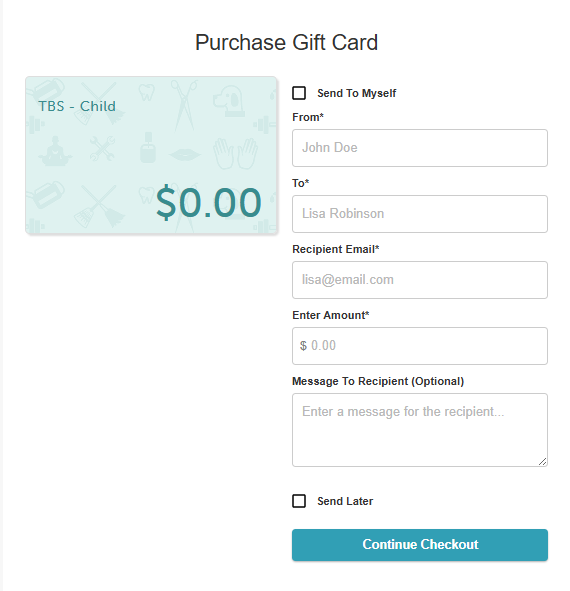
- Send to Myself: This option is only displayed when once the client is logged in. Checking this checkbox auto-fills the clients' details in the from, to, and recipient's email fields
- From: The name of the client who is sending the gift card
- To: The name of the client who is receiving the gift card
- Recipient Email: The email address for the client receiving the gift card
- Enter Amount: The value of the gift card
- Message to recipient (Optional): Any note to be included with the gift card
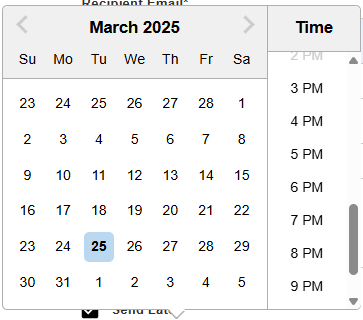
- Send Later: Checking this checkbox will reveal a calendar and time picker to choose the date and time when the gift card should be sent
- Select the “Continue Checkout” button
- On the checkout page, complete payment details via card, Google Pay/Apple Pay (if applicable), and if there is a promotion for gift cards, the promo code can be added in the "Apply Gift Card / Promo Code" field. The promotion will discount the purchase based on the promotion benefits.
- If they would rather not save their card information, just uncheck the "I authorize company x to save my card on file" option
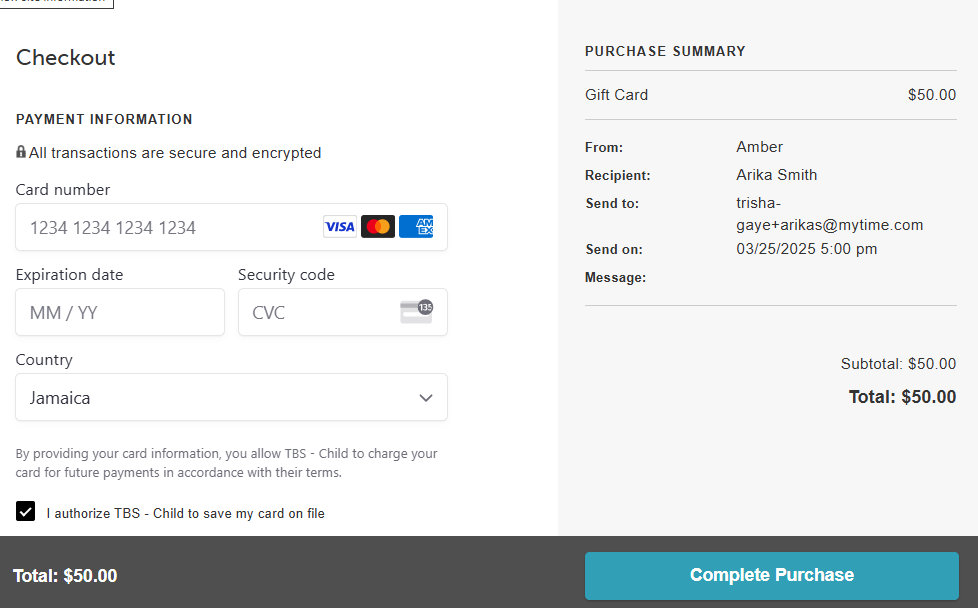
- Complete Purchase
Related Article
- Gift Card Settings
- Gift Card Expiration
- Customizing Electronic Gift Cards
- Minimum & Maximum Gift Card Amount
- Selling Physical Gift Cards in POS
- Selling Electronic Gift Cards in POS
- Importing Gift Cards
- Purchasing Gift Cards on the Consumer App
- Redeeming Gift Cards Online
Was this article helpful?
That’s Great!
Thank you for your feedback
Sorry! We couldn't be helpful
Thank you for your feedback
Feedback sent
We appreciate your effort and will try to fix the article